#1 AI Photographer



Photo AI is the first AI Photographer in the world.
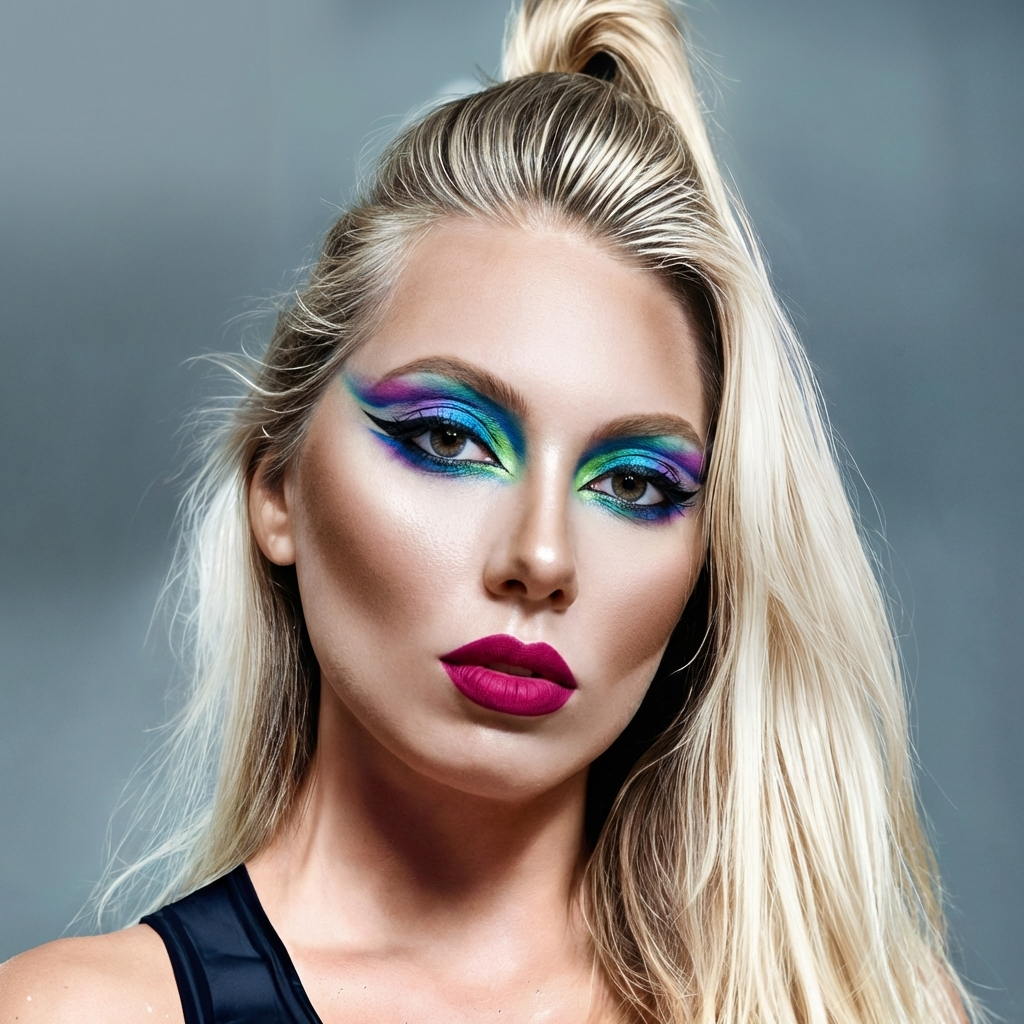
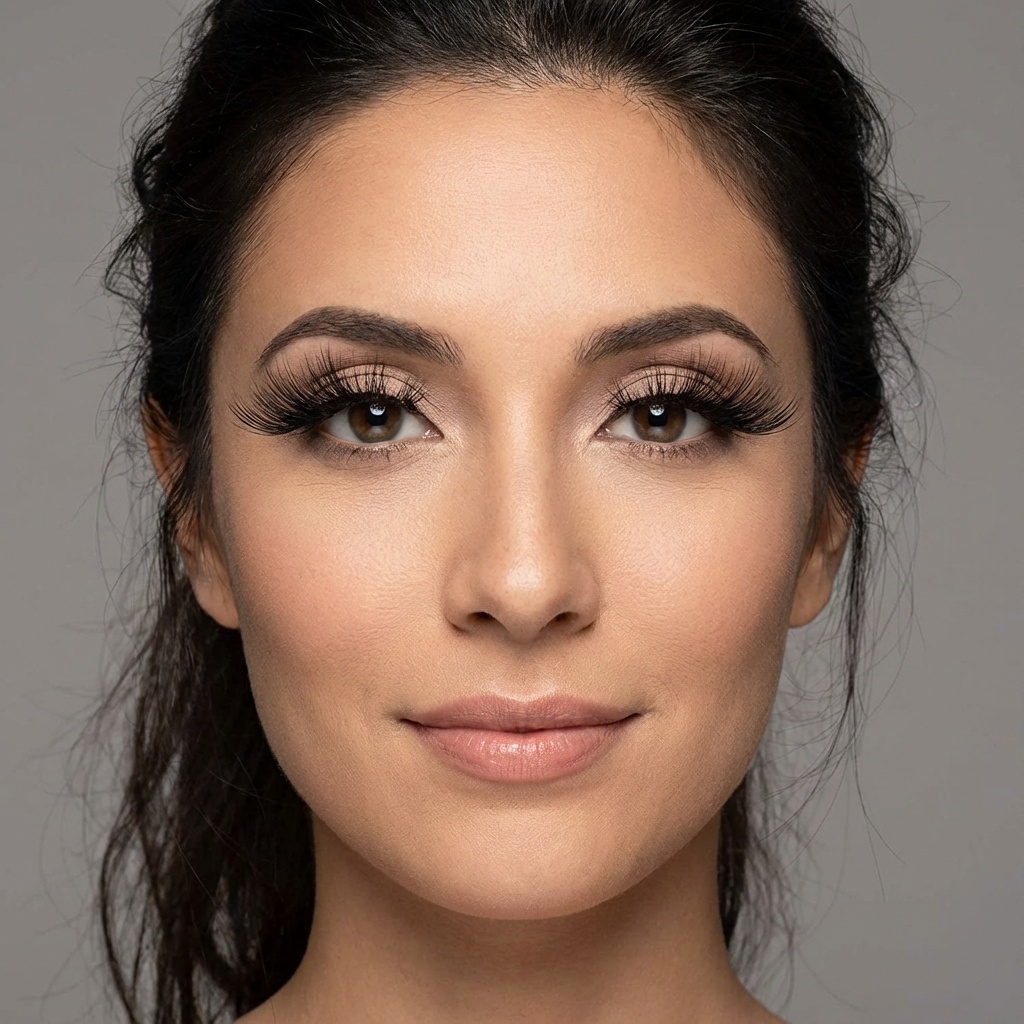
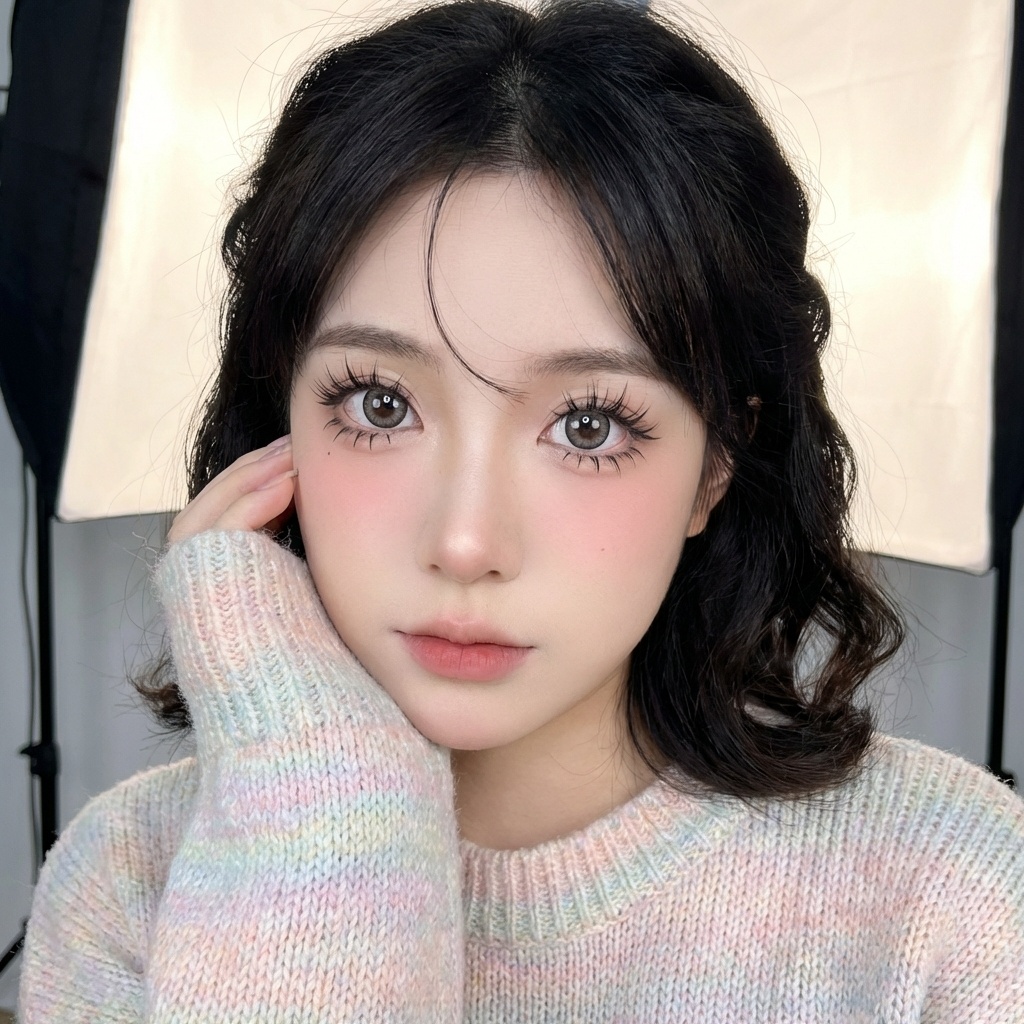
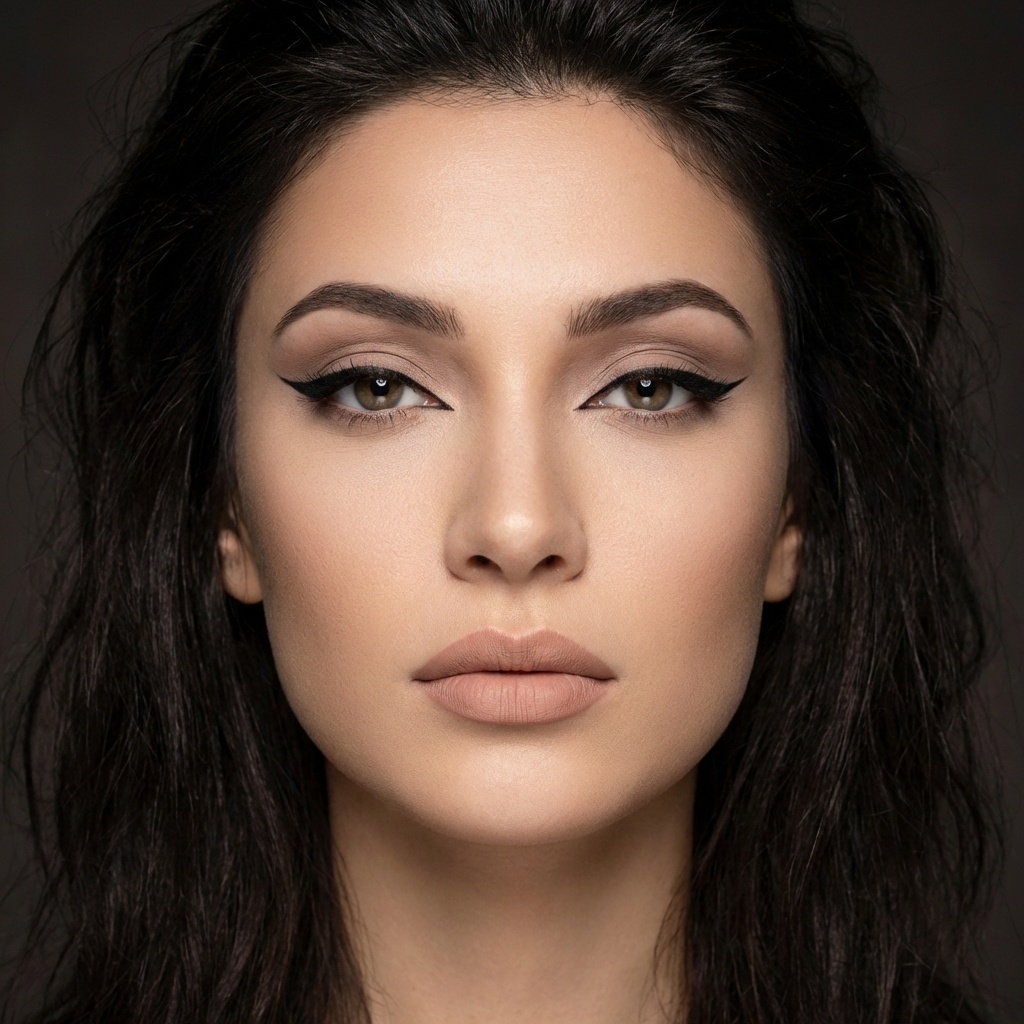
Train photo models with AI, and then use the AI Photographer to take photos with them. Photos you see below are taken with Photo AI and look real, but are 100% AI.
If you already have an account, we'll log you in
as seen on






and used by




 Best AI Image Generators
 Best AI Image Gen Alternatives
 vs Midjourneyvs ChatGPTvs Geminivs Headshot Provs Runwayvs Kling AIvs Lumavs Pikavs Higgsfieldvs Freepikvs Kreavs Leonardo AIvs Ideogramvs Stable Diffusionvs Fluxvs Magnificvs Adobe Fireflyvs Claudevs FALvs Replicatevs getimg.aivs Canvavs Bing Image Creatorvs OpenArtvs Meta AIvs Aragonvs Reminivs Lensavs CivitAIvs Tensor.art
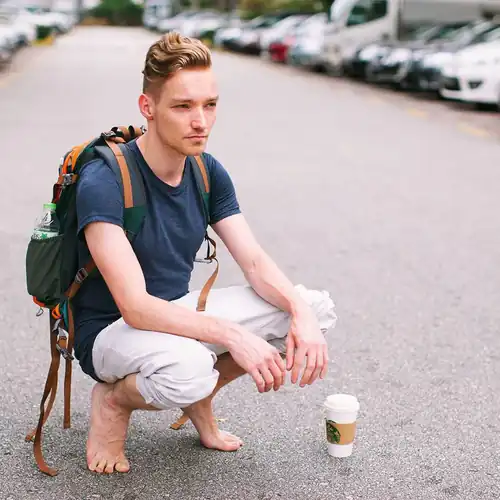
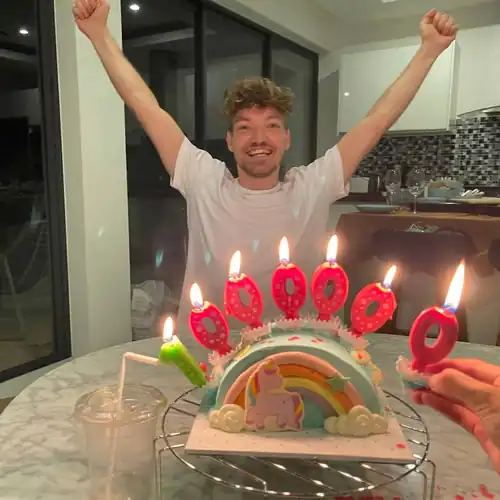

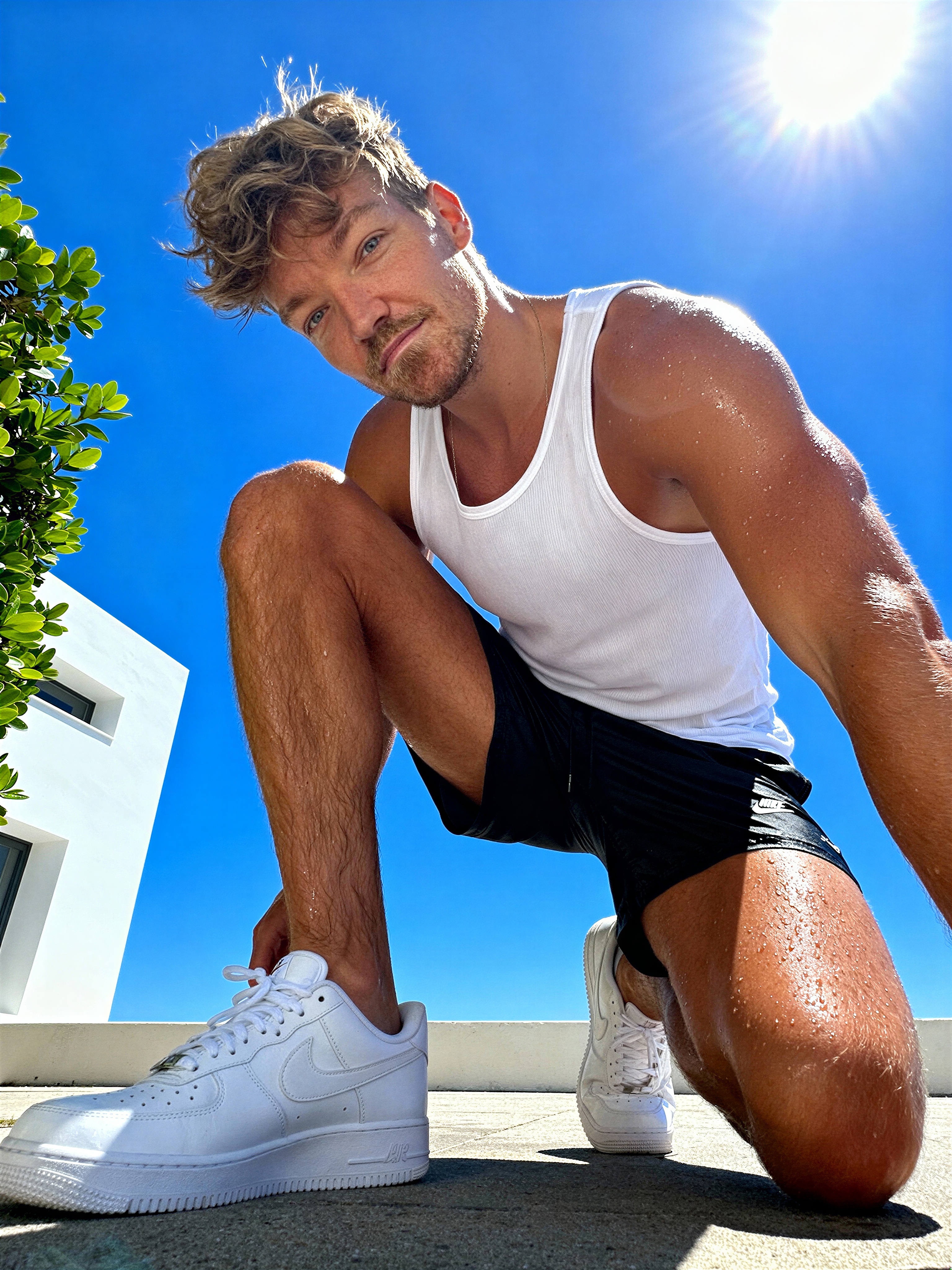


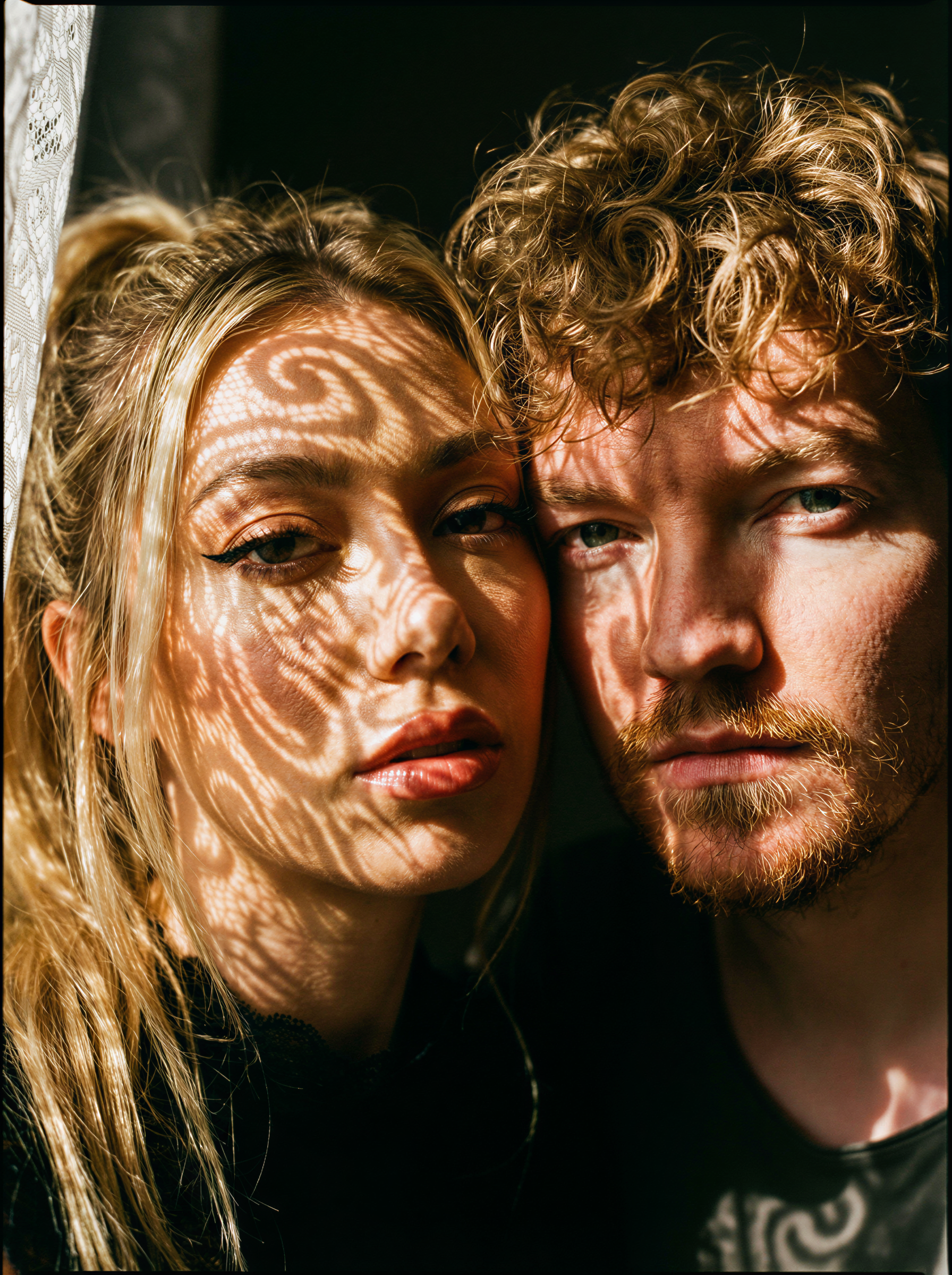
"Photo AI is just fantastic! I take amazing photos of my wife, family and friends. As a photographer I use it to test ideas before creating a real photoshoot. I strongly recommend!"
Everaldo ✅ Verified purchase
"Cool AI tool for image generation! I could create a lot of truly amazing pictures in different locations with different outfits! All my friends were surprised and loved my pictures!"
Iryna ✅ Verified purchase
"Good input = good output. Very fun! Took me some effort to get the models to feel accurate but once I got the right input it was amazing. Photo AI was very responsive to my questions."
Jordan ✅ Verified purchase
Generate and regenerate videos right in the editor, with one or more of your models as actors. Then cut, trim, and arrange them on a real multi-track timeline, right in your browser. Drag clips around, stack multiple video and audio tracks, mute, disable, or speed up clips, and export a finished video. Make entire short films.
No need for Final Cut Pro, Adobe Premiere or Capcut anymore.
Create lifelike and realistic photos of yourself (or an influencer you work for) by creating your own AI model. Upload a set of just 5 to 15 photos in a diverse range of places, settings, and times. Press and it starts training your model. By inputting these images into your model, you're teaching it to recognize and replicate it.
You only need to create your AI model once which takes about 5 minutes. Photo AI use the highest quality training with the highest possible steps which takes more GPU cycles (and thus time and cost).
After your AI model is done, you can take infinite photos with it fast!
With Photo AI, you can either turn yourself into an AI model (like above) or design and create your own synthetic AI influencer from scratch! Creating an AI influencer means building a completely synthetic persona that doesn't exist in real life.
You design them from scratch: select where they're from, their body type, hair style, eye color, and other attributes. Once created, you can take photos, generate videos, and even make them talk.
AI influencers are a new development but they already make money and it doesn’t look like they'll stop to grow as a new industry soon: Lil Miquela makes $10 million per year, Noonoouri makes $500,000 per year, Aitana Lopez makes $10,000 per month, and Shudu makes $2,000 per sponsored post.
Design any scene you wish, from commonplace to rare, stunning instances. Imagine the ability to create a photograph of a sunlit Parisian cafe in the 1920s, or a moonlit beach in Bali with just the right clothes, all from the comfort of your living room.
Simply write your desired scene, press and watch as the model generates a highly realistic photo that aligns with your vision in just ~20 seconds.
Take any AI photo you generated, and turn it into a video by tapping A few minutes later you have a short video clip of the photo giving you an immersive virtual reality like experience.
You can even add a talking script to make your AI model talk! The video on the side here is 100% AI and created with Photo AI.
Next features we'll add is boomerang videos, background audio and music and longer 10-30 second clips.
With Mocap, you can create dynamic videos by combining any motion video with your AI-generated photos. Upload a video with movement (like dancing, walking, gesturing, or talking), then add a photo of your AI model or influencer.
The AI will transfer the motion from the video onto your photo, creating a realistic video of your AI character performing those exact movements. Perfect for AI influencers, virtual avatars, or bringing your AI photos to life with real human motion.
Take any outfit you like (like from Shein or Zara), save it or take a screenshot and paste it into Photo AI, press and it will dress your model with it. The new version of our try on model is better than ever and now even works with patterns and prints.
Do entire photo shoots from your computer without having to fly around models and entire crews of photographers, light people, directors and producers half way around the world for a shoot. Just prompt the shoot design yourself, select your model and upload a piece of clothing!
Perfect for Shopify store owners who want unique photos of models trying out their products.

You can cancel your subscription at any time. Go to the top of Photo AI when you are logged in, tap the logo in the top left, and in the dropdown tap “Billing”, then tap “Cancel subscription”.
If you are not logged in, first login: go to the top of Photo AI's frontpage, then login by Google, or enter your email in the email box, click the button to continue. Follow the link in the email you got, tap the logo in the top left, and in the dropdown tap “Billing”, then tap “Cancel subscription”.
If you can not login, no worry: click “Billing” on the top of Photo AI's frontpage and enter the email you signed up with on Stripe's billing portal. Stripe will send you an email to login and then you can download invoices, switch plans and cancel your subscription there.
If you signed up on the Photo AI iOS app, you can manage your subscriptions with Apple.
You can actually create pretty good AI photos of you and your gf/bf together now with Photo AI.

Make sure you follow these steps to get the best results:
In Photo AI, go to [ Create new AI model ], then under [ Type ] select Couple, so you create a model of both of you.
⚠️ Then when uploading photos, make sure EVERY PHOTO has both of you in it, so the AI learns both of you!
Just uploading separate photos of both you and the other person will NOT work because it'll think you're training a MIX of both of you. You’ll get a person that looks like both of you instead of couple photos.
You want it to understand you're training BOTH of you in ONE photo as a couple photo! So only include those photos where both of you are in it. Even better if you’re both in same position (left or right) but I’ve tried without and it worked too.
When it's done training, under Packs -> you can try running the Valentine's Day pack and you get something like the photo above. Be sure to upscale your favorite photos for crispier pics after by hovering over and clicking [ Upscale ].
You can also create REGULAR non-Valentine couple photos with each other, if you find V-Day to cheesy 😀
This service was built by me, Pieter Levels (@levelsio), a Dutch indie entrepreneur known for other projects like Nomads.com, Remote OK, and Interior AI.
It is a 100%-owned independent business without investors.
I run it all by myself, with the help of thousands of AI robots ☺️
Want to merge two photos into a single AI-generated image? Photo AI makes it effortless — no editing or Photoshop skills needed:
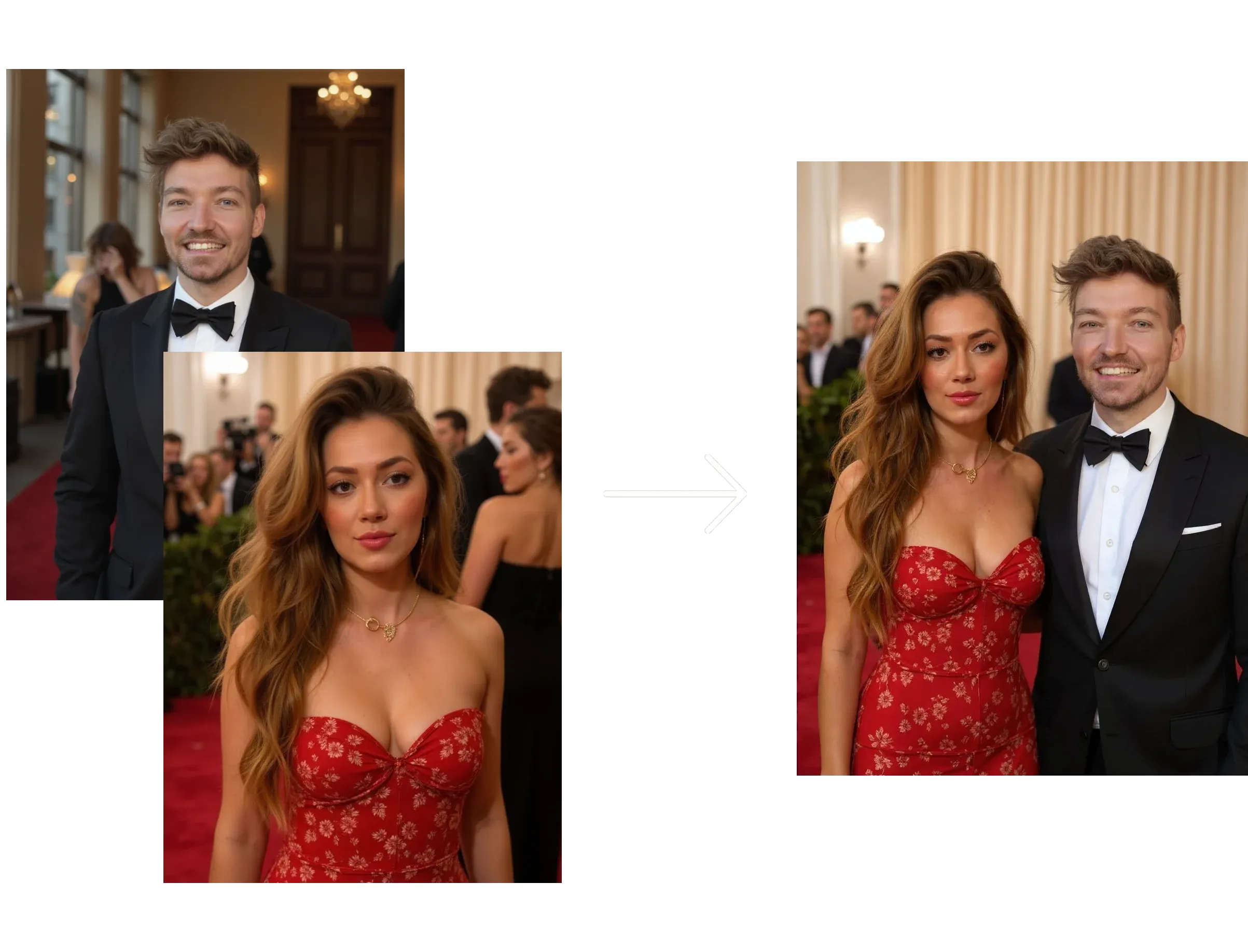
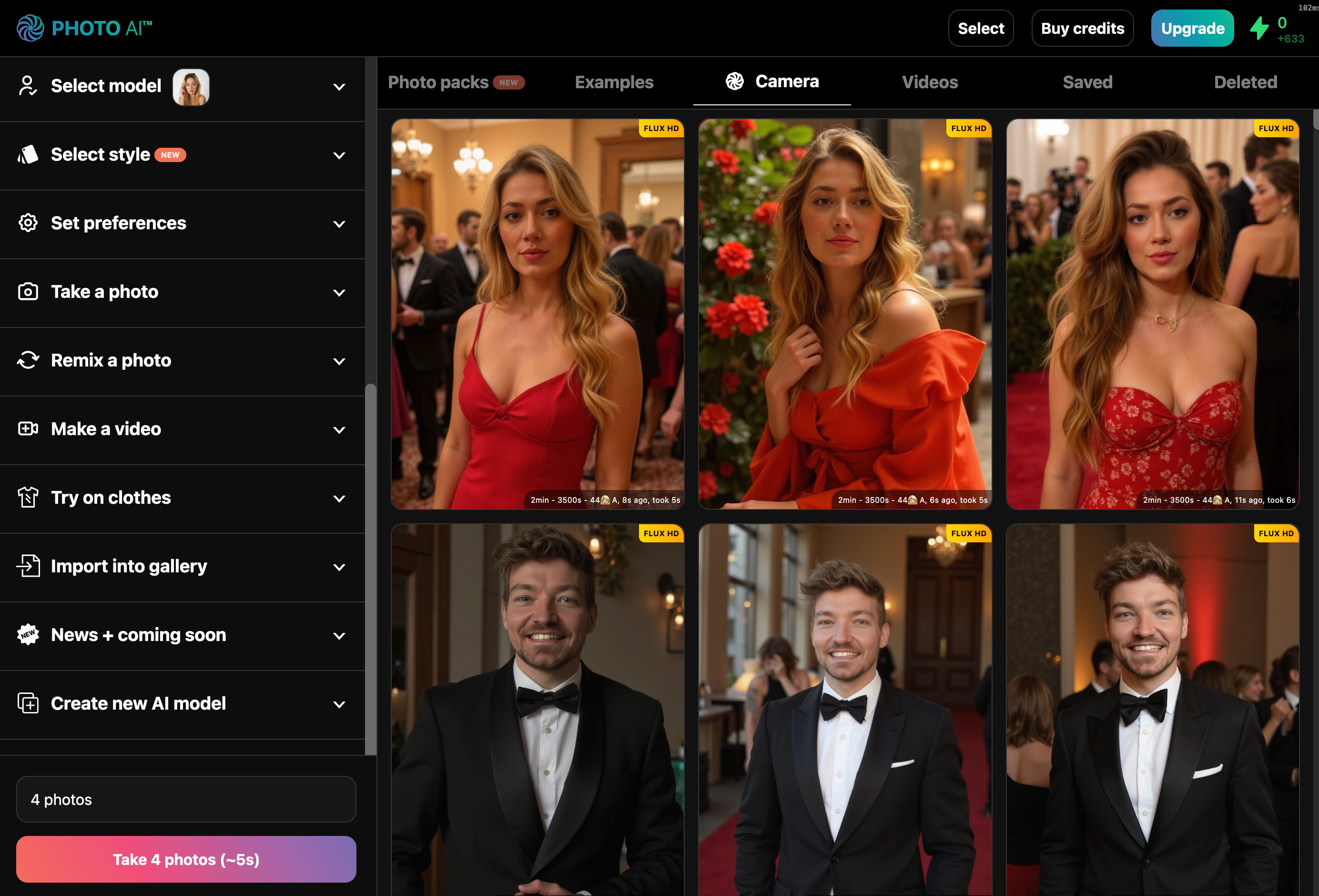
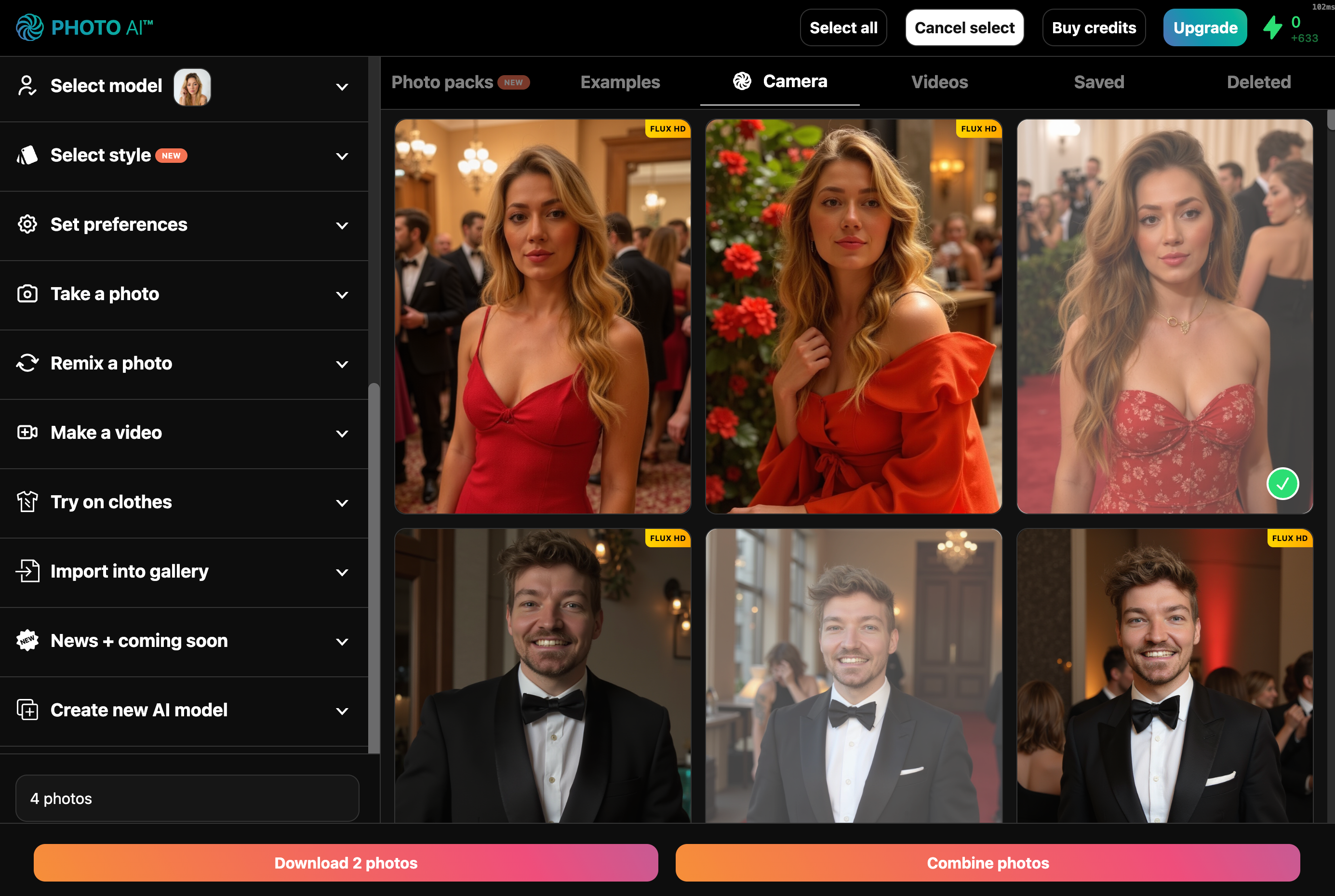
That’s it! In about 10–20 seconds, your photos will be fused into a single AI-generated image that blends elements of both — keeping the identity of the people and style intact. And there it is:
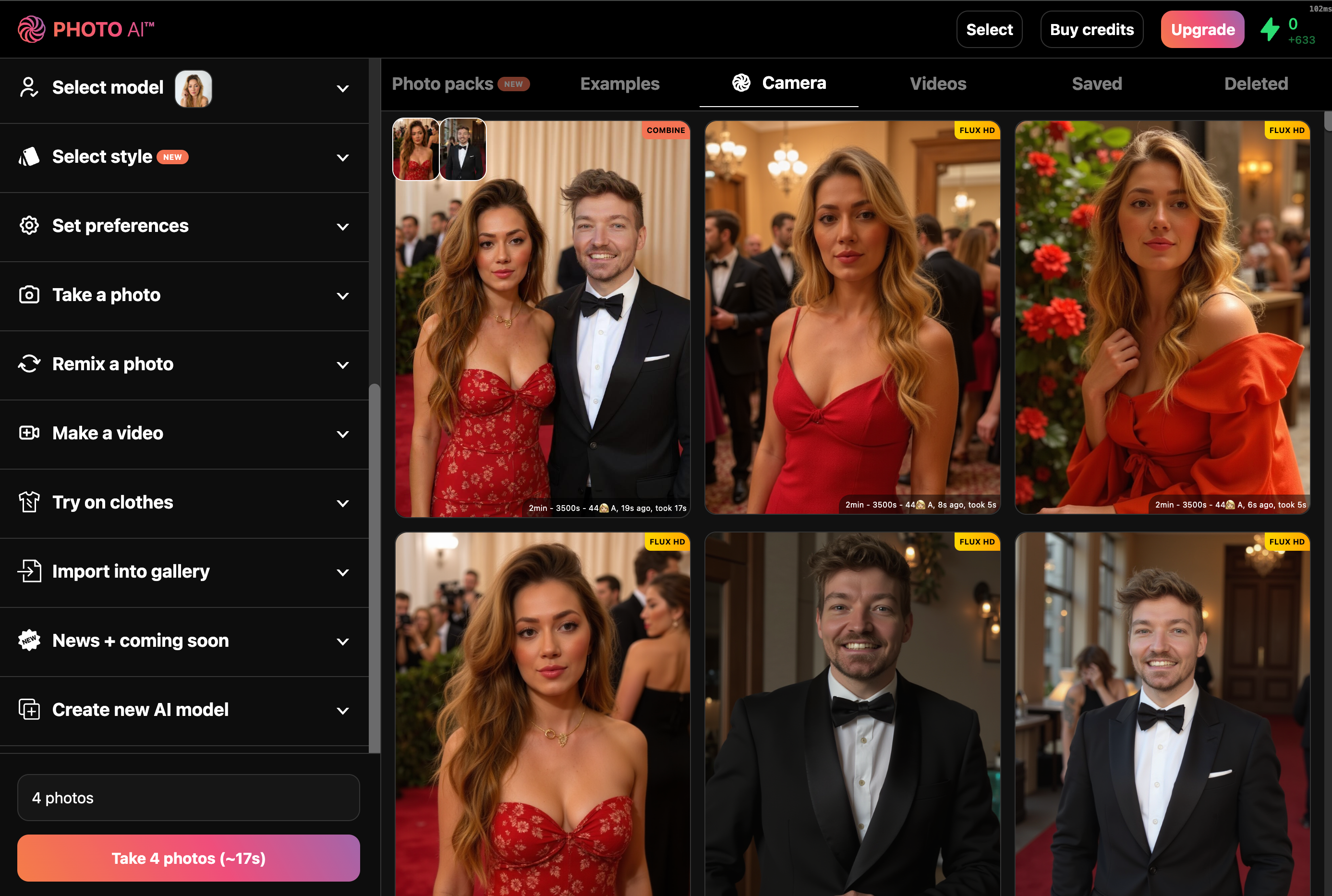
If you press [ Make video ] after you can even turn your combined photo into a real-life video:
This feature is perfect for:
• Creating group shots from separate images
• Generating “what if” scenes
• Merging styles or outfits
Give it a try on Photo AI and create something new from what you already have!
These 31 available Photo AI discount codes last updated TODAY can help you save up to 50% OFF. Buy cheaper with PhotoAI coupons & promo codes NOW!

Well that’s what those spammy coupon sites want to tell you! But Photo AI does NOT have coupon codes. But we do give you a BIG discount if you sign up for our yearly plans:
The pricing is over 50% cheaper, which means 6+ months free compared to regular monthly pricing.
This is our way of thanking you for your trust in our Photo AI and lets us reinvest your money to improve the product.
Yes. Please login, then tap the top left Photo AI logo, and in the dropdown select [ Request a refund ]. If you’re eligible for a refund, you’ll be able to self-refund on that page.
You're only eligible for a refund if you've not created a model yet, have generated fewer than 20 photos over the lifetime of your account and did not sign up with someone’s referral link.
If you've already used Photo AI to create a model or take photos or videos, we cannot offer a refund as costs incurred for generative AI are extremely high.
In turn, our upstream providers do not let us ask for refunds for the GPU processing time used to create your AI models and generate your photos and videos. This would make it a loss making endeavor for us. During sign up you agree to withhold your right to refund for this reason.
If you’ve used someone’s referral link (starts with ?via=r*), you are not eligible for a refund because we credit both you and the referrer’s account with free credits. And if we allowed refunds that’d be easily abused. They’d be able to get the free referral credits, use them up and then quickly self refund and do that an infinite number of times.
You can cancel your subscription at any time though: your subscription won't renew and you will not be charged again.
The credit system on Photo AI is very simple. Every type of membership receives a certain amount of credits every month. If you have an annual subscription, your credits are also renewed every month.
Feature | Credits per generation |
Photo with Hyper Realism | 2 |
Photo with Nano Banana Pro | 5 |
Import photo into gallery | 1 |
Video (with sound) | 100 |
Talking video per character | 3 per 100 characters |
Make 3d model | 25 |
Upscale | 5 |
Mocap video | 50 |
Zoom out photo | 5 |
Relight | 15 |
Add grain | 1 |
Combine photos | 1 |
Upscale | 5 |
You can see your current credits in the top right of Photo AI:
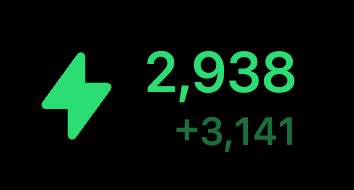
The large number shows your subscriptions credits, and the small number are your “extra credits”. Unlike regular credits that expire every month, extra credits only expire after 2 years and you can top them up at any time in case you need to generate more content. To top up your credits tap “Buy more credits”.
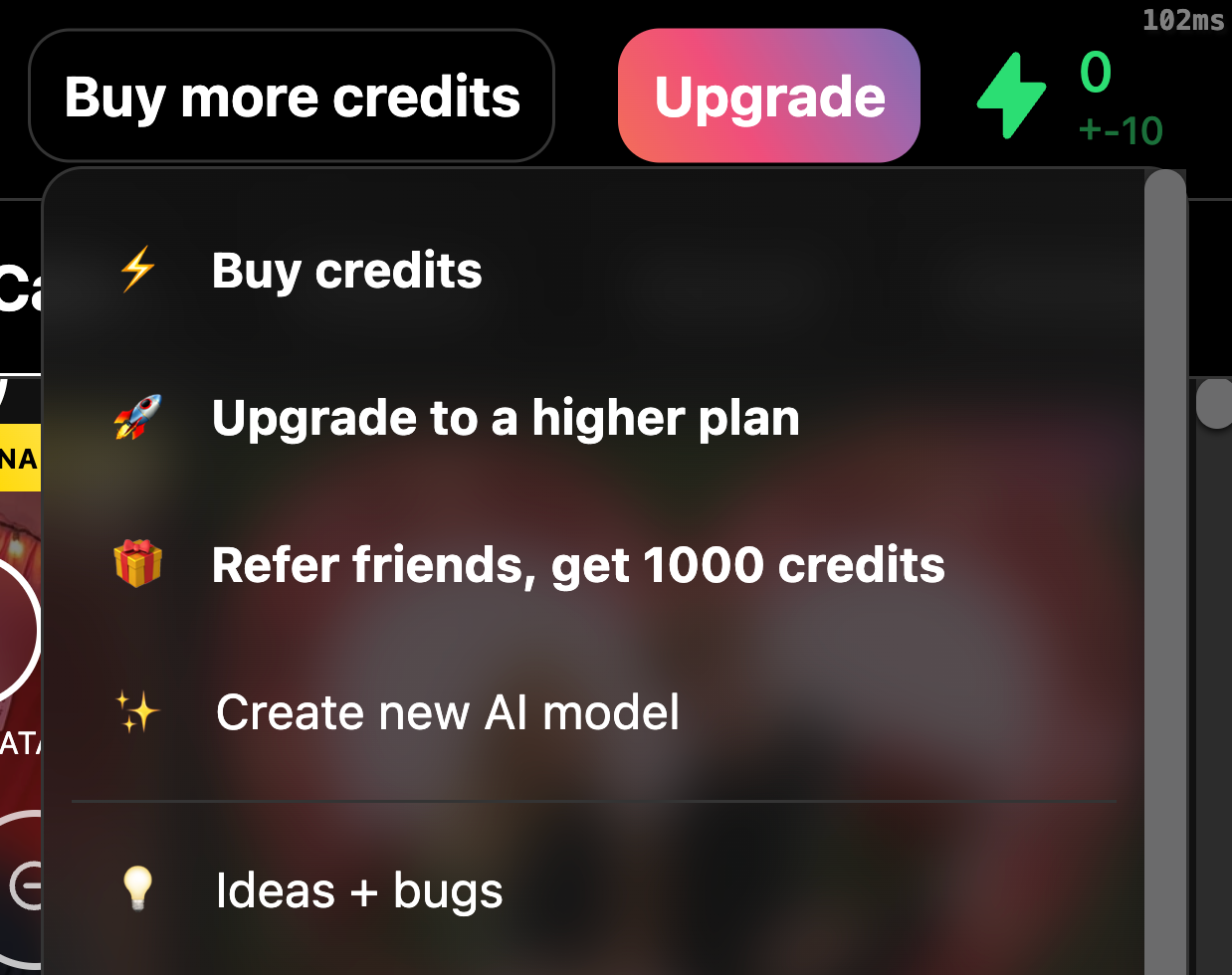
On the credits page you can choose how many credits to add, the more you buy the higher the discount you get:

Every Pro, Max and Ultra subscription to Photo AI now gives you a big set of free photos for every new model you create! That means thousands of free photos for Ultra plan subscribers.
If you become a yearly subscriber, you get 6+ months free.
For the plans itself you can check the pricing here.
Photo AI subscriptions are paid though for a reason:
Remember all those amazing free apps and services you used that eventually shut down, got acquired, or disappeared overnight? That’s because free services usually can’t sustain themselves financially. Here’s why:
Running a service like Photo AI costs money: servers, development, maintenance, and ongoing improvements. If an app is free, it either burns through the founder’s savings, relies on venture capital, or makes money by selling your data. None of these options guarantee the app’s long-term survival.
Take the typical “free app” story:
• A developer builds a cool, free product.
• It gains popularity but can’t generate revenue, so it gets sold to a bigger company.
• The new owner shuts it down or ruins it, leaving users without the service they loved.
We don’t want that to happen with Photo AI.
Instead, by charging for the service, we can stay independent, cover our costs, and continue improving the app for our users. We’re not a venture-funded startup forced to grow at all costs or sell out to the highest bidder. We’re a 100% owner independent platform focused on delivering real value to our users without compromising on quality or ethics.
If you like what we do, support Photo AI by becoming a paid user. It ensures we can keep building the features you love while staying here for the long term.
Creating AI-enhanced images just got a major upgrade.
With Photo AI’s new [ Batch remix ] and [ Batch try on ] feature, you can now upload multiple photos at once, and watch as each photo gets remixed and each garment get worn using your trained AI model. That means you (or your hired model) can appear across dozens of unique, stylized images in one go.
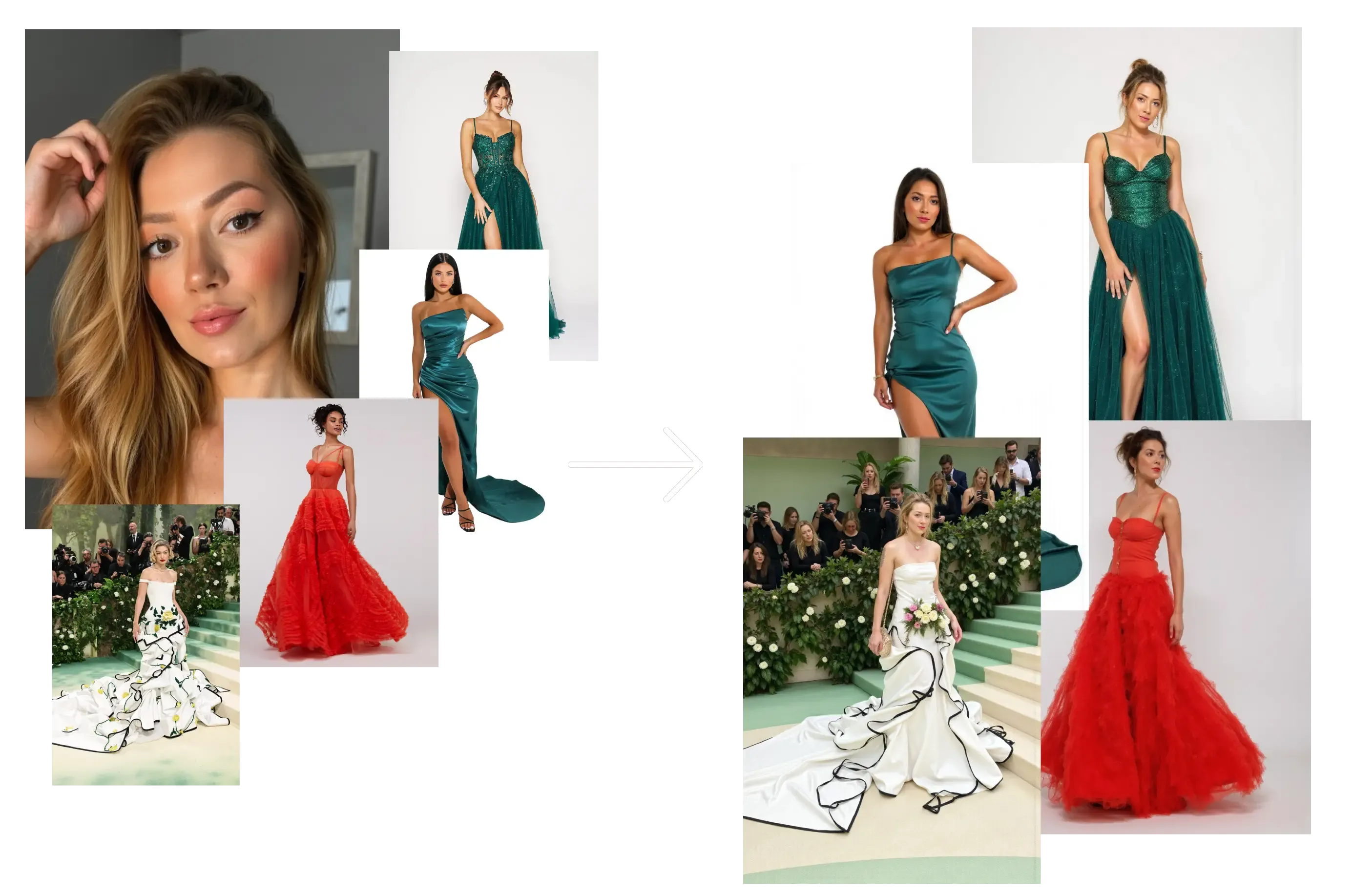
Go to [ Create new AI model ] in the sidebar. Upload around 20 photos of your model, this could be yourself or someone you’ve hired.
In about a minute, Photo AI will train a photorealistic, personalized AI model that looks just like them.
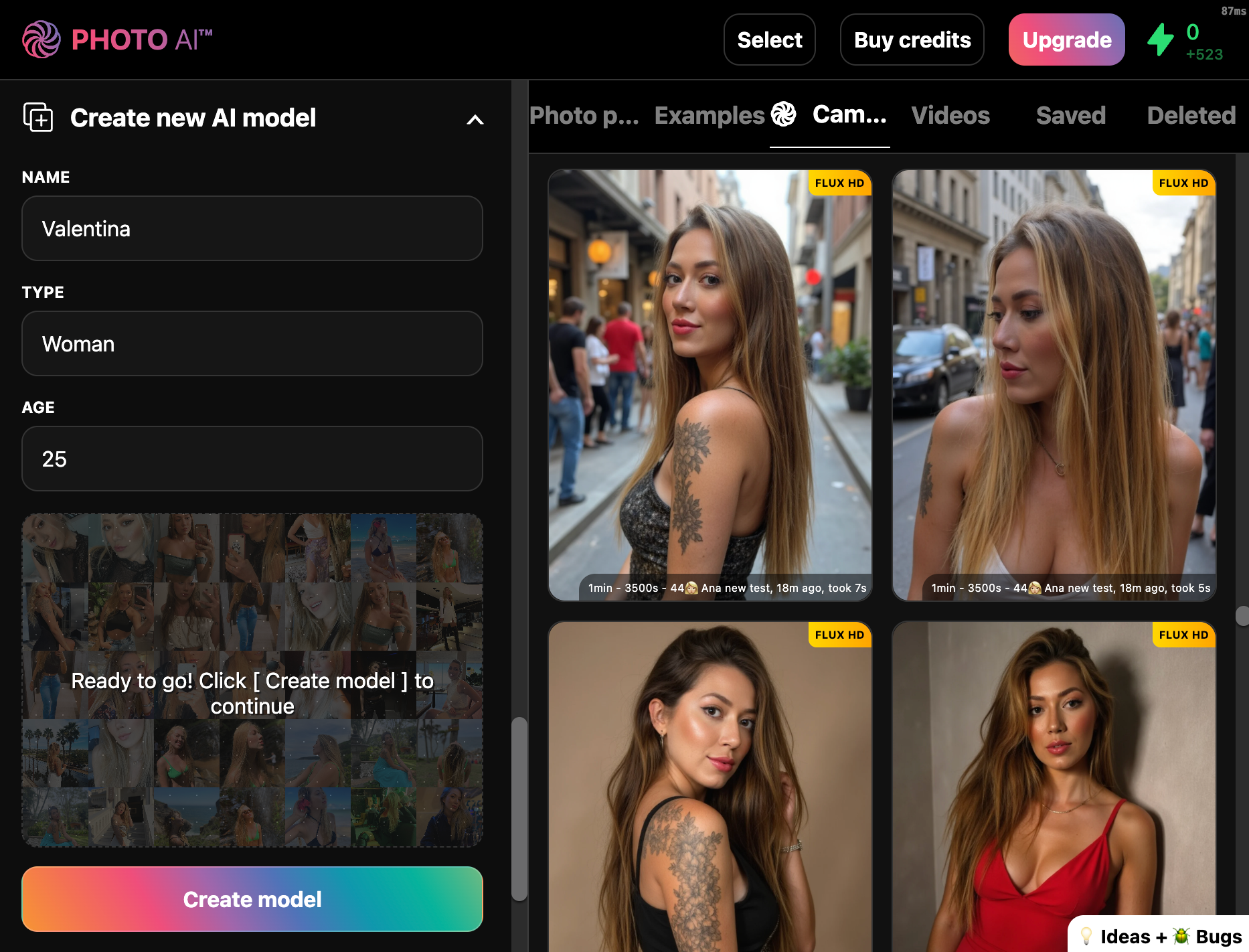
You can reuse this model to try on different outfits endlessly.
This opens the remix panel where you can upload your photos:
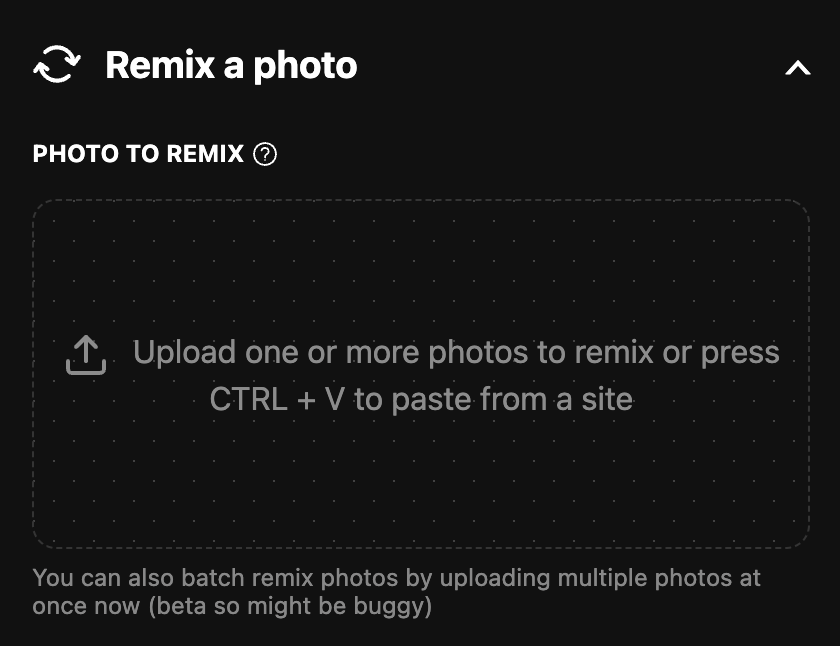
Upload multiple photos — your original photo shoots, poses, or inspiration images.
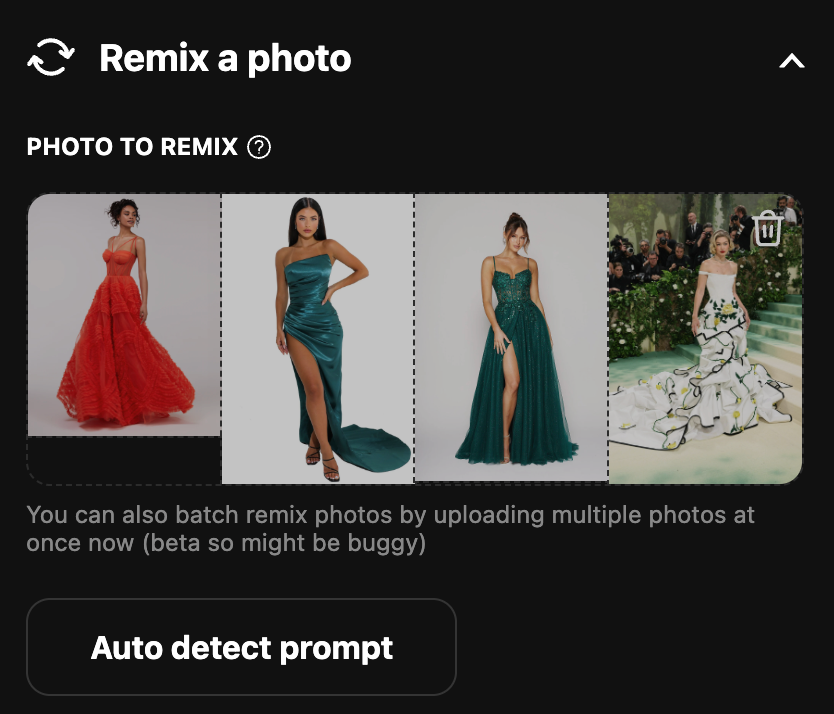
Each photo gets processed individually with the model applied, producing consistent AI portraits, fashion shots, or product previews.
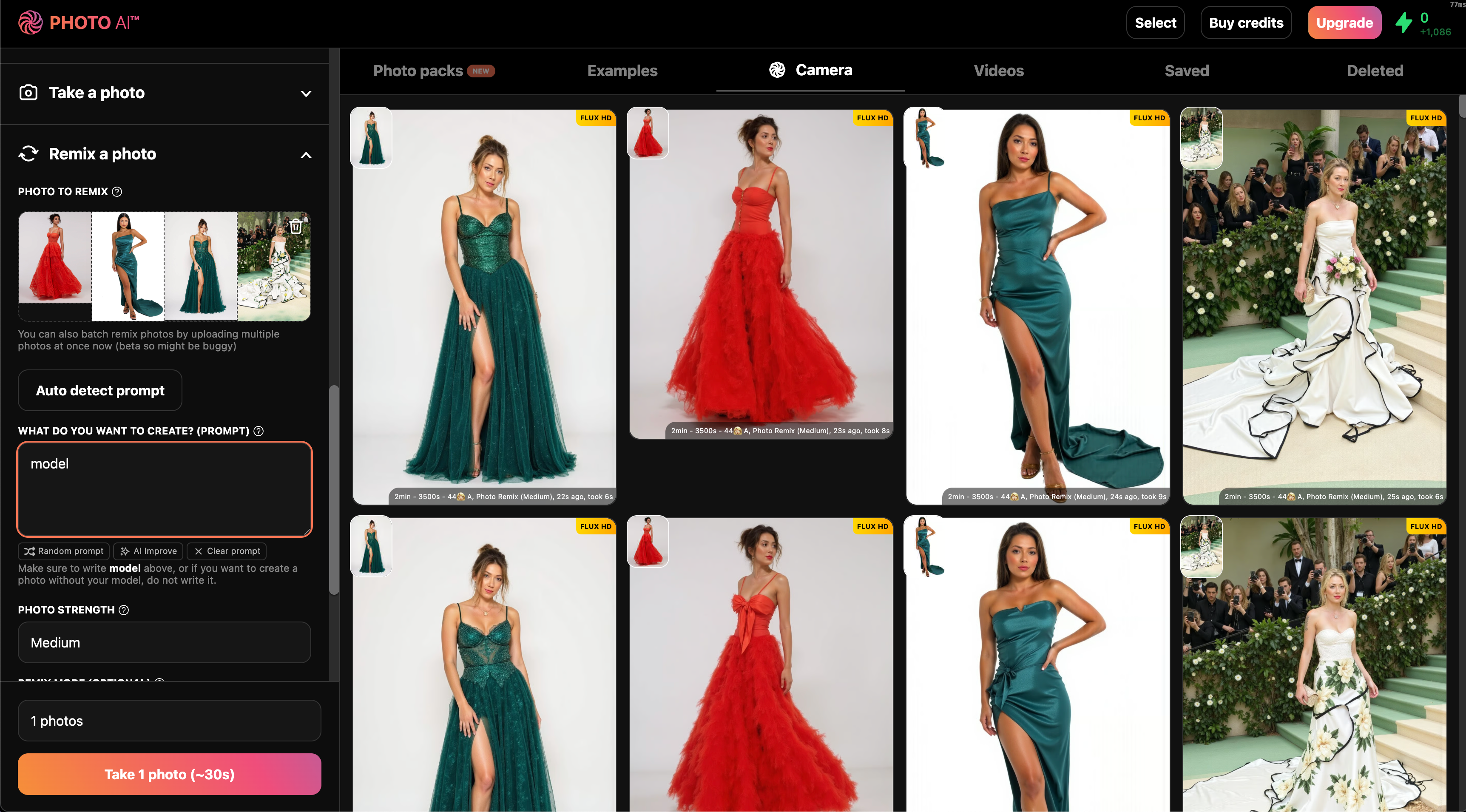
👉 Try batch img2img now with [ Remix a photo ] mode on Photo AI.
Creating realistic AI-generated photos of yourself used to require serious technical chops: GPUs, Python scripts, and days of setup. Now, thanks to platforms like Photo AI, it’s as simple as uploading some selfies and in less than a minute later you have your own highly photorealistic AI photos indistinguishable from real life.
Behind the scenes, it’s powered by advanced machine learning, specifically a technique called DreamBooth, running on an AI model called Flux. Here’s how it works and how you can do it both easily through Photo AI or manually on your own machine.
The core process is called fine-tuning. A general-purpose AI image model (originally Stable Diffusion, then improved into Flux and now our secret sauce called Hyper Realism) learns your unique identity: your face, body, expressions, angles, and overall appearance.
This is achieved using DreamBooth, a method created by Google researchers. It takes a pretrained image generation model and retrains it using 5 to 20 images of you. That re-training implants your likeness into the model’s internal structure so it can generate entirely new photos of you in different contexts, outfits, and styles.
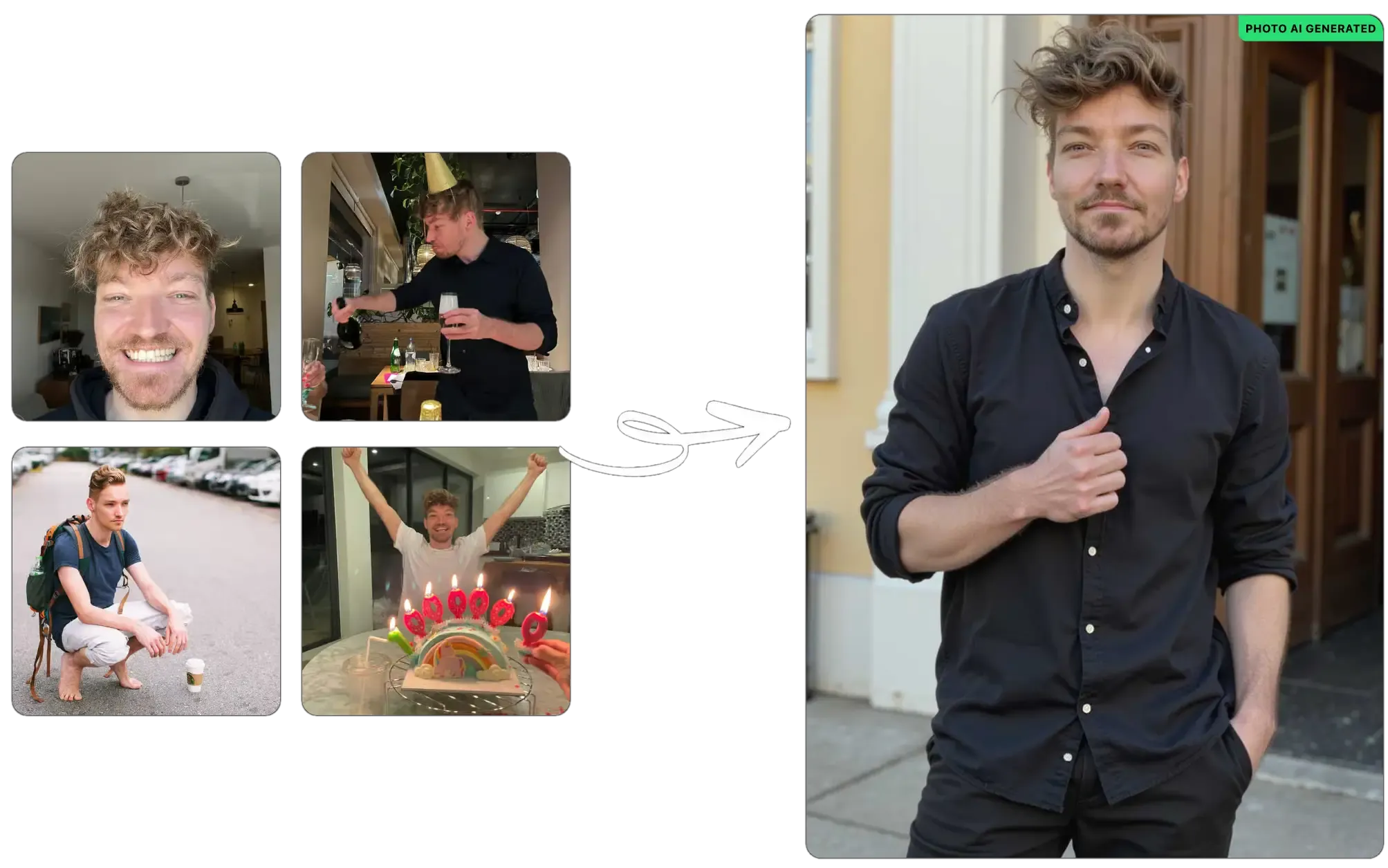
Hyper Realism, used by Photo AI, improves over regular Stable Diffusion and FLux by producing more consistent faces, better lighting, and sharper image quality. It is designed to handle real-world people more accurately than off-the-shelf models.
If you don’t want to mess with code or hardware, here’s how to do it through Photo AI in a few minutes:
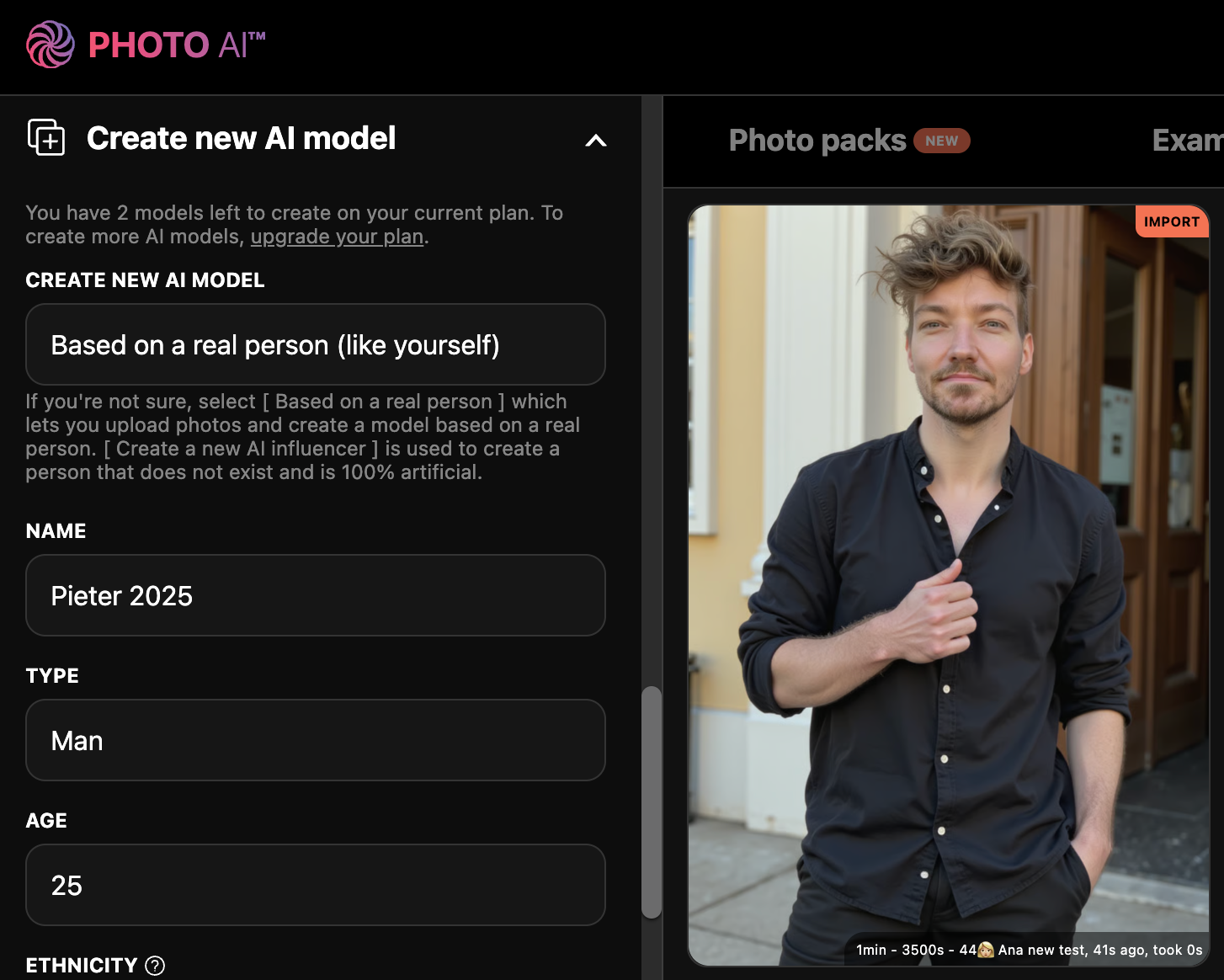
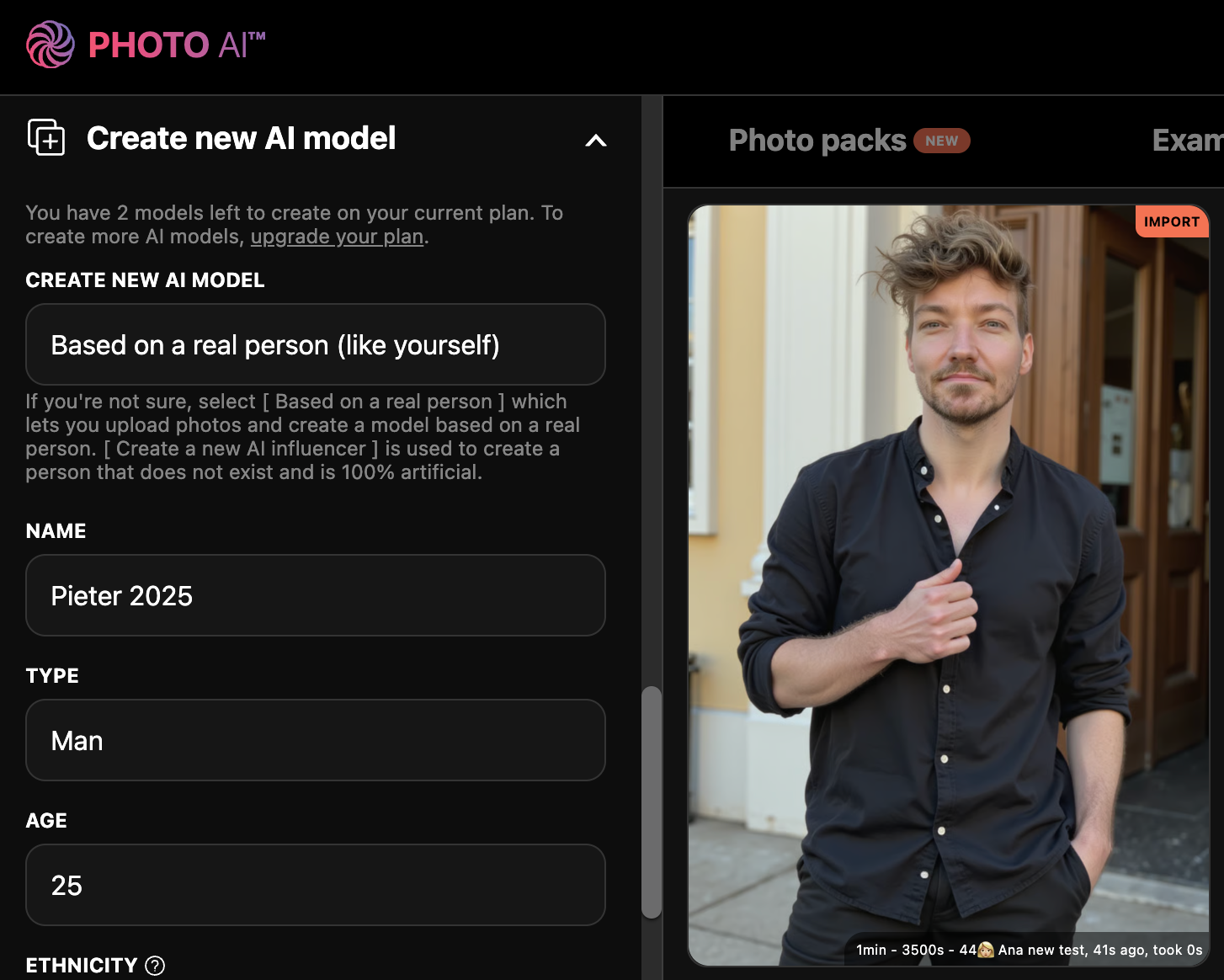
Sign up to Photo AI, login and then click [Create new AI model]
Fill in your info:
Name of your model (example: “Pieter 2025”)
Gender
Age
Ethnicity
Eye color
Then upload 20 photos of yourself:
Vary the angles, lighting, backgrounds, and expressions
Avoid filters, sunglasses, Instagram screenshots or group photos
Click [Create model]
The model will start training automatically. It will be done in about a minute. Then you’ll receive an email that it’s done.
Each model you train receives free photos automatically generated which you’ll show pop up (if not, reload the page!).
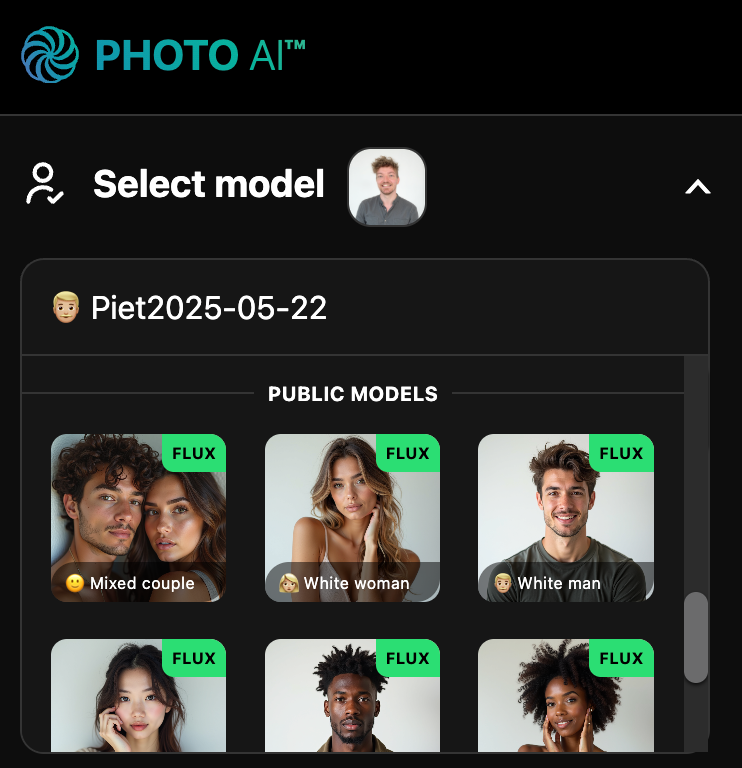
Every model on Photo AI comes with dozens of AI-generated photos automatically, including:
Professional headshots for resumes or LinkedIn
Dating profile photos for apps like Tinder and Hinge
Instagram-ready lifestyle content
You can generate more at any time by writing your own prompt or running a photo pack — pre-made styles with curated lighting, outfits, and backgrounds:
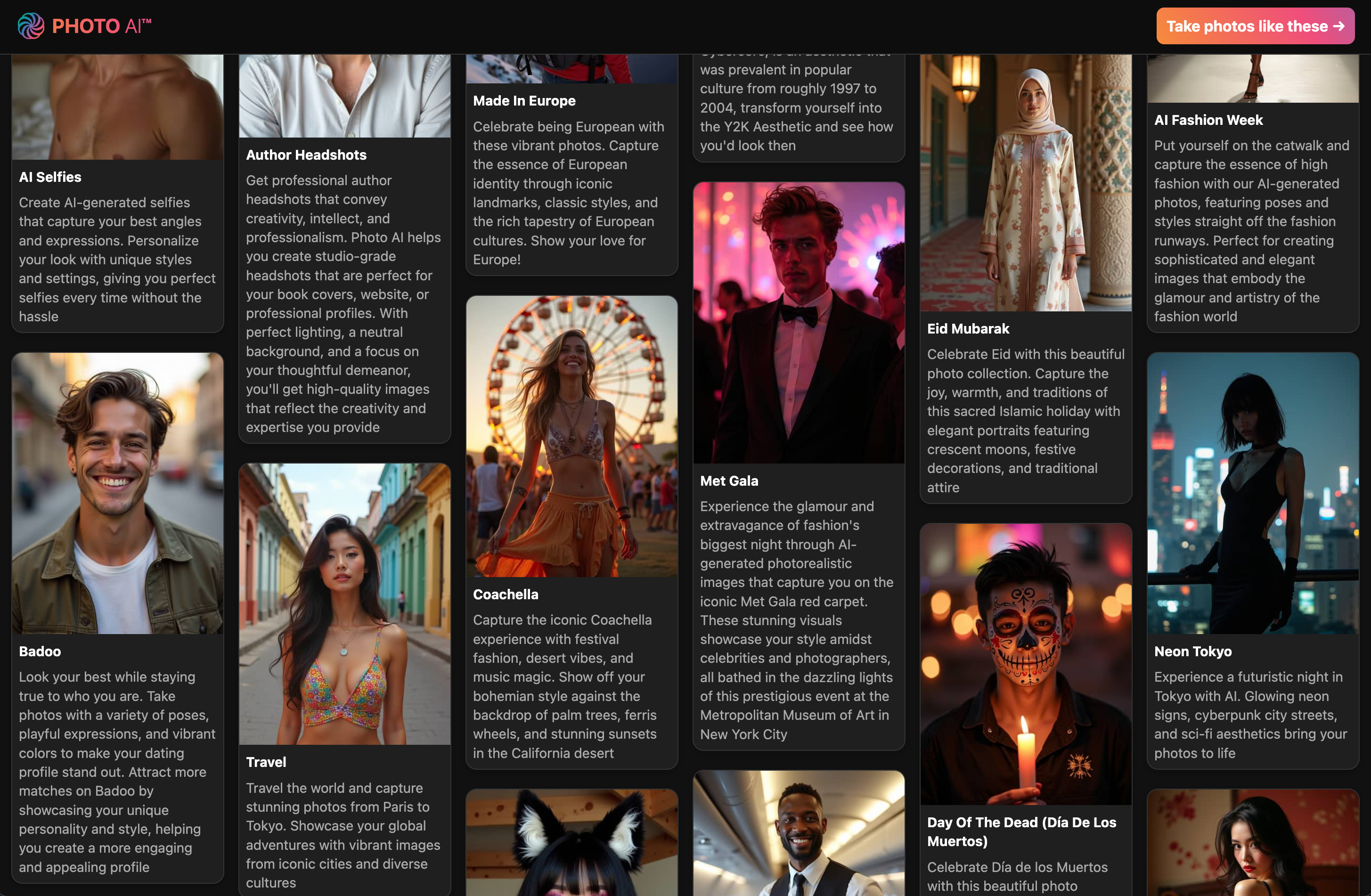
Tinder – Eye-catching dating profile pics with great poses and vibrant colors to help you get more matches
Hinge – More natural, candid moments to reflect personality and spark real conversations
Luxury Lifestyle – You in Dubai penthouses, yachts, and private jets. Opulence everywhere
Old Money – Ivy League tennis clubs, polo outfits, and timeless rich-kid energy
Instagram – Influencer-ready content with lighting and vibe tailored to maximize likes
LinkedIn Headshots – Studio-quality portraits with neutral backgrounds and sharp lighting
Startup Founder Headshots – Bold, modern photos for pitch decks, websites, or investor decks
CEO Headshots – Strong, formal looks for media, board meetings, and executive branding
1950s Film Noir – Black and white drama shots with classic Hollywood lighting
Santorini Summer – You in Mediterranean paradise, bathed in Greek island light
Cosplay – Transform into your favorite characters with cinematic flair
Bali Influencer – Pool villas, tropical vibes, and that Canggu aesthetic
You can browse and run photo packs any time after your model is ready. Each shoot takes just seconds and generates a full set of high-resolution, lifelike images that look like you hired a pro photographer.
With Photo AI, any photo you take you like, you can turn into a realistic video. Just hover over the photo you like, press [ Make video ], and wait a minute:
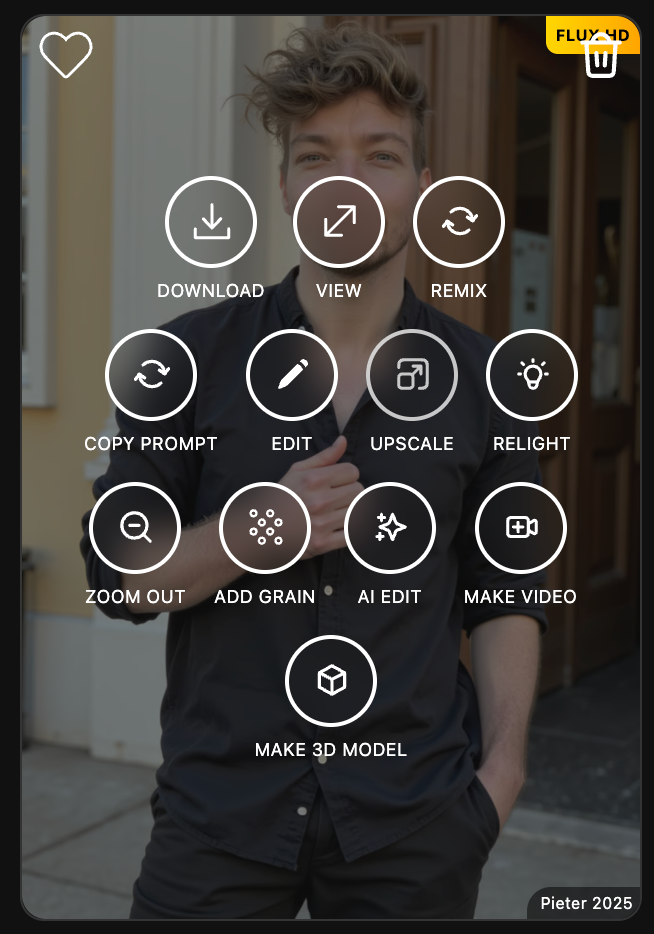
Then you’ll get a video:
If you’re highly technical and prefer to run everything offline, here’s how:
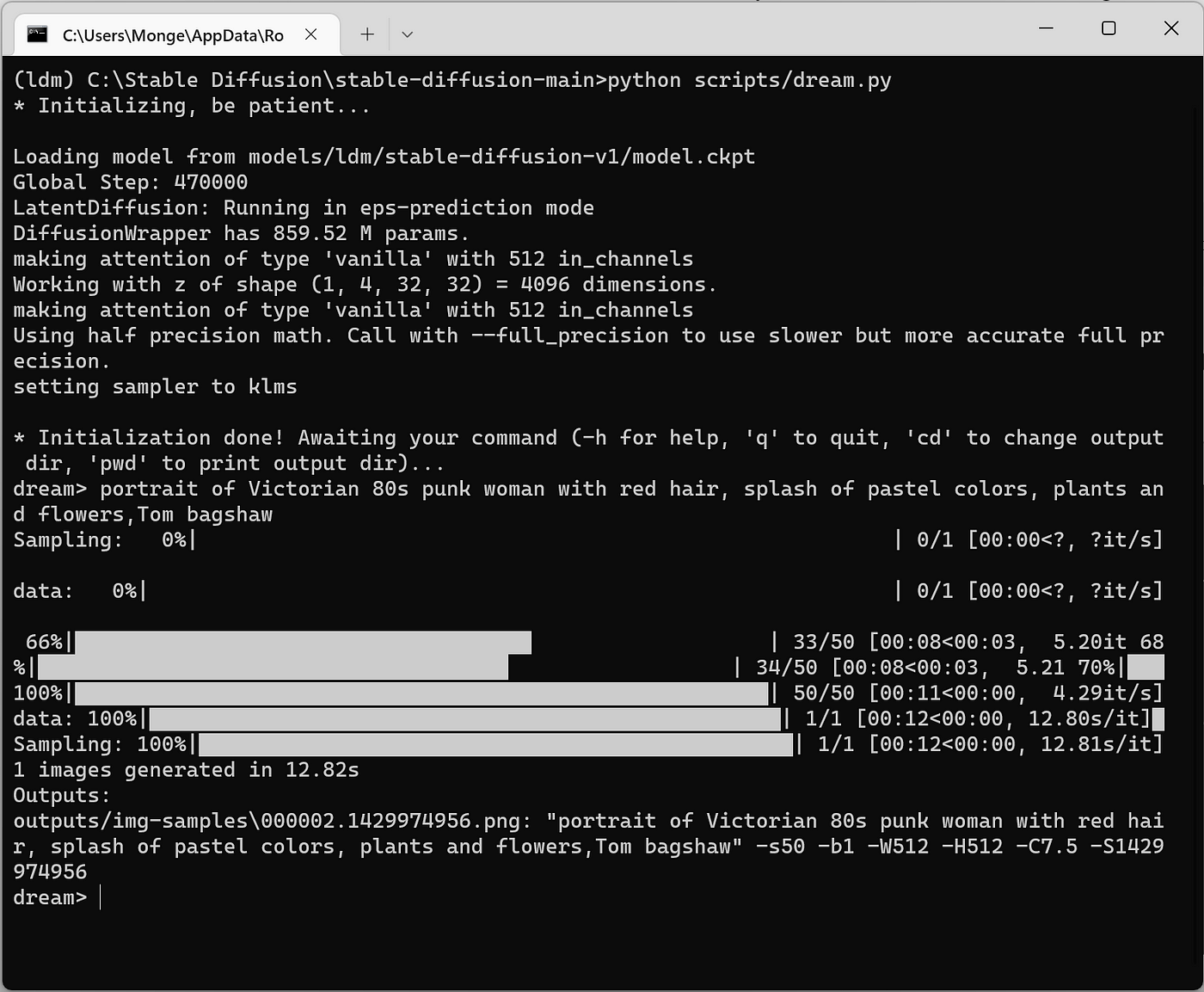
Get a high-end GPU (RTX 3090 or better recommended)
Install the following:
Python
PyTorch with CUDA
Hugging Face diffusers library
Stable Diffusion or Flux base model
Clone a DreamBooth repo (like diffusers/examples/dreambooth)
Prepare your dataset:
10 to 20 high-quality images of yourself
Use one consistent keyword (like person_pieter) to tag them
Run the training script:
accelerate launch train_dreambooth.py
--pretrained_model_name_or_path=CompVis/flux
--instance_data_dir="./my_photos"
--output_dir="./my_model"
--instance_prompt="a photo of person_pieter"
After training, load the model into a local UI like AUTOMATIC1111 WebUI to generate photos
This gives you full control over the model and data. The downside is it’s slower and far more complex.
Training a model of yourself with Photo AI takes 1-3 minutes. With an average laptop that’d take about 25-50 hours hoping it doesn’t crash.
Generating a photo with Photo AI takes 5-10 seconds depending on the complexity, and you can take up to 16 photos in parallel. With an average laptop it’d take 5-10 minutes per photo and that’s the only photo you can take in that timespan.
This used to be deep AI territory. Now, it’s creative tooling. With Photo AI, you can generate stunning photos and videos of yourself without needing technical skills. For advanced users, local DreamBooth training is still an option, but for 99 percent of people, the hosted route is easier, faster, and just works.
You upload photos. The AI learns your face. Then you get high-quality photos and videos of yourself in any style you want.
In 100% of cases when this happens, you’ve signed up with a different email addresses and you canceled your subscription on one account. But there is still an ongoing subscription on the other.
To resolve this:
First find the right account email address by searching your inbox for emails from Stripe with subject “Your receipt from Photo AI” and see what email they are sent to.
Then go to photoai.com/billing and log in with that email address. This is NOT the regular Photo AI login, this is specifically the login to the Stripe Customer Portal where you can self-manage your subscriptions.
Once inside there you’ll see your active subscriptions and can cancel them!

Seedance 2.5 is ByteDance's newest AI video model, and every video feature on Photo AI now runs on it. This guide explains what the model can do, what changed compared to Seedance 2.0, and how to get the best videos of your AI character out of it.
What is Seedance 2.5?
Seedance 2.5 turns a text prompt, an image, or a set of reference photos into a cinematic video clip with sound. Two things set it apart from most video models: it generates up to 30 seconds in ONE continuous take, so you get a coherent shot instead of stitched segments, and the audio (ambience, footsteps, dialogue, music) is generated together with the picture in the same pass, already in sync.
What's new compared to Seedance 2.0?
Clips are twice as long (up to 30 seconds in one take), prompt adherence is noticeably better for camera moves and timing, faces and lighting stay consistent through the whole clip, and it accepts far more reference images, clips and audio tracks, which it actually uses to lock identity, products, locations and style.
What runs on Seedance 2.5 in Photo AI?
Everything video: [ Make a video ] in the sidebar (a video starring your character straight from a prompt, no photo needed first), [ Make video ] on any photo in your gallery (image-to-video), [ Extend video ], video [ Magic edit ] (describe a change and the whole video re-renders with it), and the Video Editor where you can generate clips on a timeline and let the AI agent assemble your story.
How do I make a video of my character?
Select your character on photoai.com (or create one first, creating characters is free), open the [ Make a video ] tab, and write a prompt describing what happens. Write model to reference your character, for example: "model walking through Tokyo at night in the rain, neon signs reflecting in puddles, camera slowly orbiting". Pick a length (5, 10, 15 or 30 seconds) and press [ Make video ]. The video appears in your gallery a few minutes later, with sound. You can select multiple characters to star together, and batch generate by separating prompts with |||.
Can I add my own reference photo or voice?
Yes. Below the prompt box there are two optional uploads: a reference photo (any photo, your living room, a beach, an outfit, a style frame, used as the scene or style of the video) and a voice sample (mp3, mp4, aac, wav, m4a or ogg, your character will speak with that voice).
How do I write good video prompts?
Write it like a shot list: subject, action, setting, camera movement, lighting, mood. "model pouring coffee in a sunlit kitchen, slow push-in, warm morning light, relaxed" beats a pile of adjectives. Let the references define the look, your character's photos already carry the face and hair, so spend your words on action, wardrobe and camera. Direct the audio too (rain, a busy street, the character speaking). And keep one idea per clip: several focused shots cut together in the Video Editor beat one clip trying to do five things.
What does it cost?
Video pricing scales with length: a 15 second video costs 30 credits, so 5s is 10 credits, 10s is 20, and a full 30 second single-take clip is 60 credits. That makes Photo AI the cheapest way to use Seedance 2.5 right now, generating the same clip through video APIs directly costs several dollars, and most video platforms charge multiples of our credit price.
Do my videos have a watermark?
No, videos download clean.
Can I use them commercially?
Yes, videos you generate with your own characters are yours to use, including for commercial content.
How long does a video take?
Usually a few minutes. The [ Make video ] button shows the live average for your selected length.
Which aspect ratios are supported?
Your Orientation preference is used: portrait, 9:16 for TikTok, square, landscape, 16:9 for YouTube, and cinematic widescreen.
Do I need to generate a photo first?
Not anymore. [ Make a video ] goes straight from your prompt plus your character's reference photos to a finished video.
Want to get free credits on Photo AI?
Share Photo AI with friends, and you both earn credits. It’s simple and fast.

Click the Photo AI logo in the top left corner
In the dropdown, select [ Referral program ]
You’ll get your personal invite link, like:
Share it anywhere—chat, email, socials
If your friend signs up using your link:
You get 1,000 credits
They get 1,000 credits
Starter plan? You both get 100 credits instead
Invite as many people as you want
Credits stack with each signup
Add your referral link to your bio or social profiles
Post example AI edits showing what’s possible
Share in communities that love AI photos
Credits work across all AI tools on Photo AI.
Start inviting and earn free credits today:
Sign up to Photo AI → Click the logo → Referral program → Copy your link.
Happy creating!
Yes, Photo AI has a dedicated feature to create AI influencers from scratch now!

The AI influencer above was created with Photo AI in less than 30 seconds
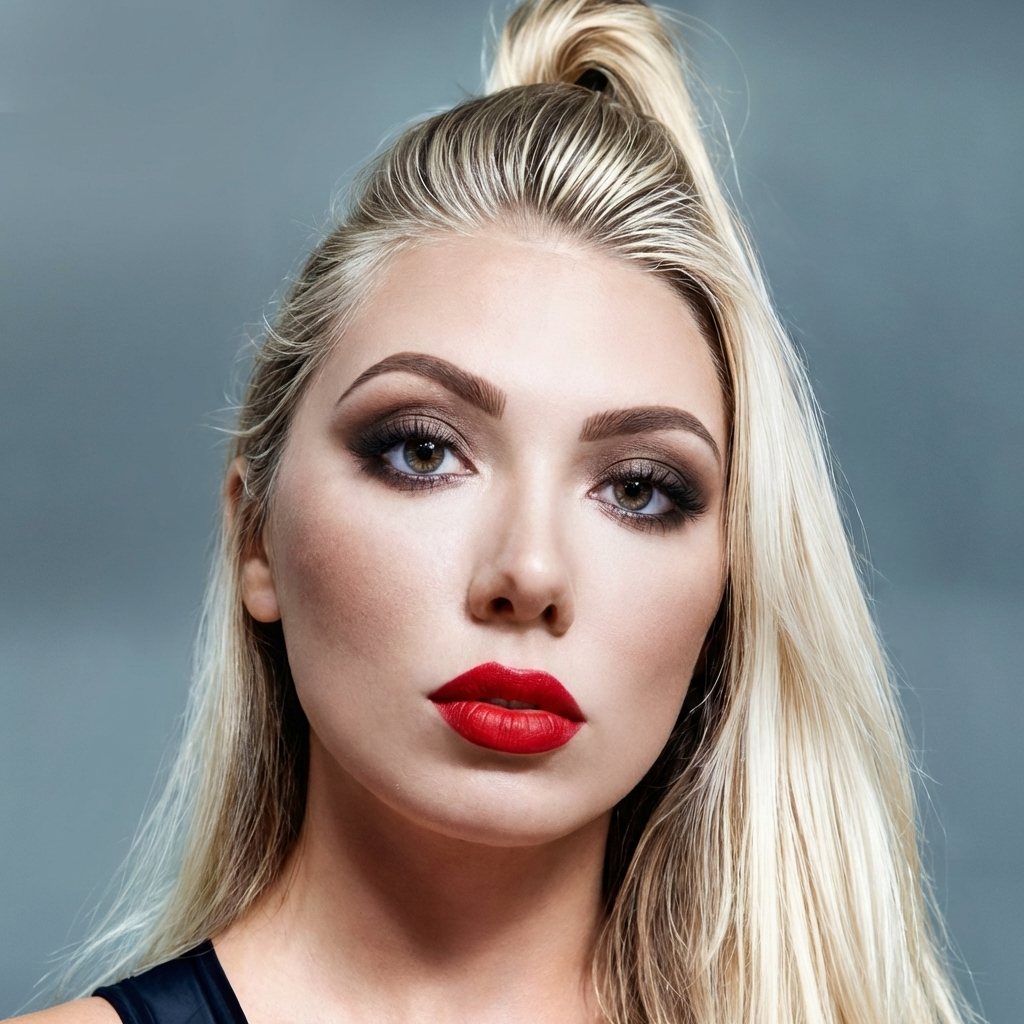
AI influencer: 25-year old Spanish model Erica with brown eyes and straightened long blonde hair
Prompt: “front view of model wearing a strapless black top and a delicate necklace. the model is smiling and positioned in front of a lush green bush adorned with red and white flowers. in the background, there is a lit-up eiffel tower and a classic lamp post against a clear evening sky.”
Simply login to Photo AI and in the sidebar scroll down to [ Create new AI model ] and select [ Create a new AI influencer ].
Instead of uploading photos like you’d normally do to create an AI model, it will now ask you to design your AI influencer from scratch.
While designing your AI influencer you will see a quick preview of how they will look so you can adjust accordingly. The preview is low quality (but quick) and your final AI influencer will look much better of course:
Creating an AI influencer is fast and within half a minute it’ll be done and Photo AI will have created some sample photos like it does for every model, like headshots and Instagram photos like.
Once created, you can take photos, generate videos, and even make your AI influencer talk, which gives you a lot of opportunities to create viral content for your AI influencer. And you might be able to monetize that too on social media platforms.
AI influencers can be monetized through product placements or selling their content directly.
AI influencers are quite a recent development but they already make money and it doesn’t look like it’ll stop to grow as a new industry soon. For example, Spanish AI influencer Lil Miquela makes $10 million per year, German AI fashion model Noonoouri makes $500,000 per year, and South African AI supermodel Shudu makes $2,000 per sponsored post.

Yes, you can delete your photos in the gallery: hover over a photo, and click the trash bin in the top right to delete it. Deleted photos are permanently deleted after 30 days.
For models it's the same, go to the top left model selector at "Select model", and hover over a model, in the top right of the model click the trash bin to delete it.
If you cancel your subscription your data is completely deleted after 90 days.
Want to see your AI model wearing different clothing? Scroll down to the Try On Clothing mode on Photo AI and there you can now upload multiple photos to try on clothes in batch.
This is particularly useful if you’re a fashion designer, label or store and have a new collection you need to have try on photos of fast.
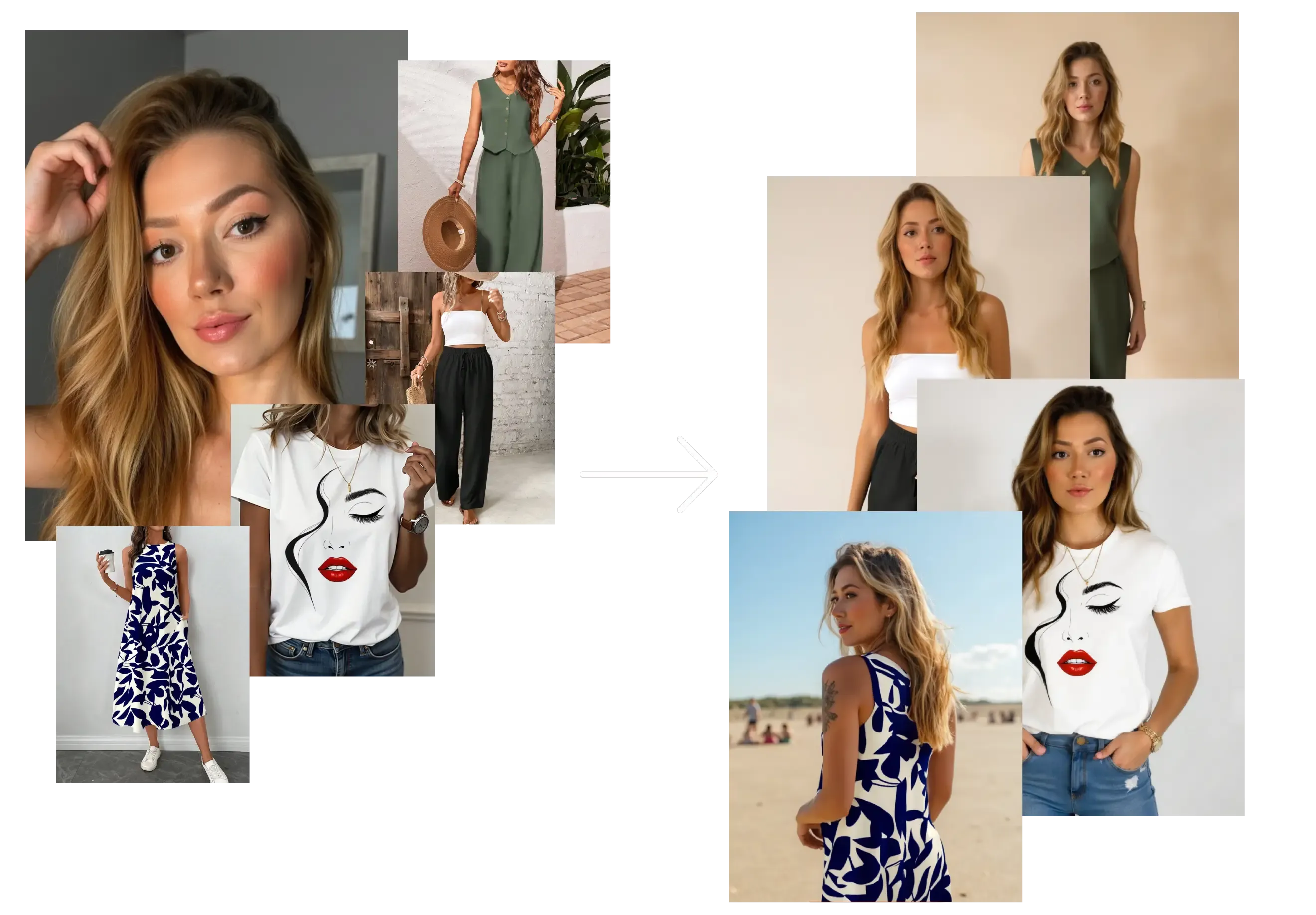
Go to [ Create new AI model ] in the sidebar. Upload around 20 photos of your model, this could be yourself or someone you’ve hired.
In about a minute, Photo AI will train a photorealistic, personalized AI model that looks just like them.
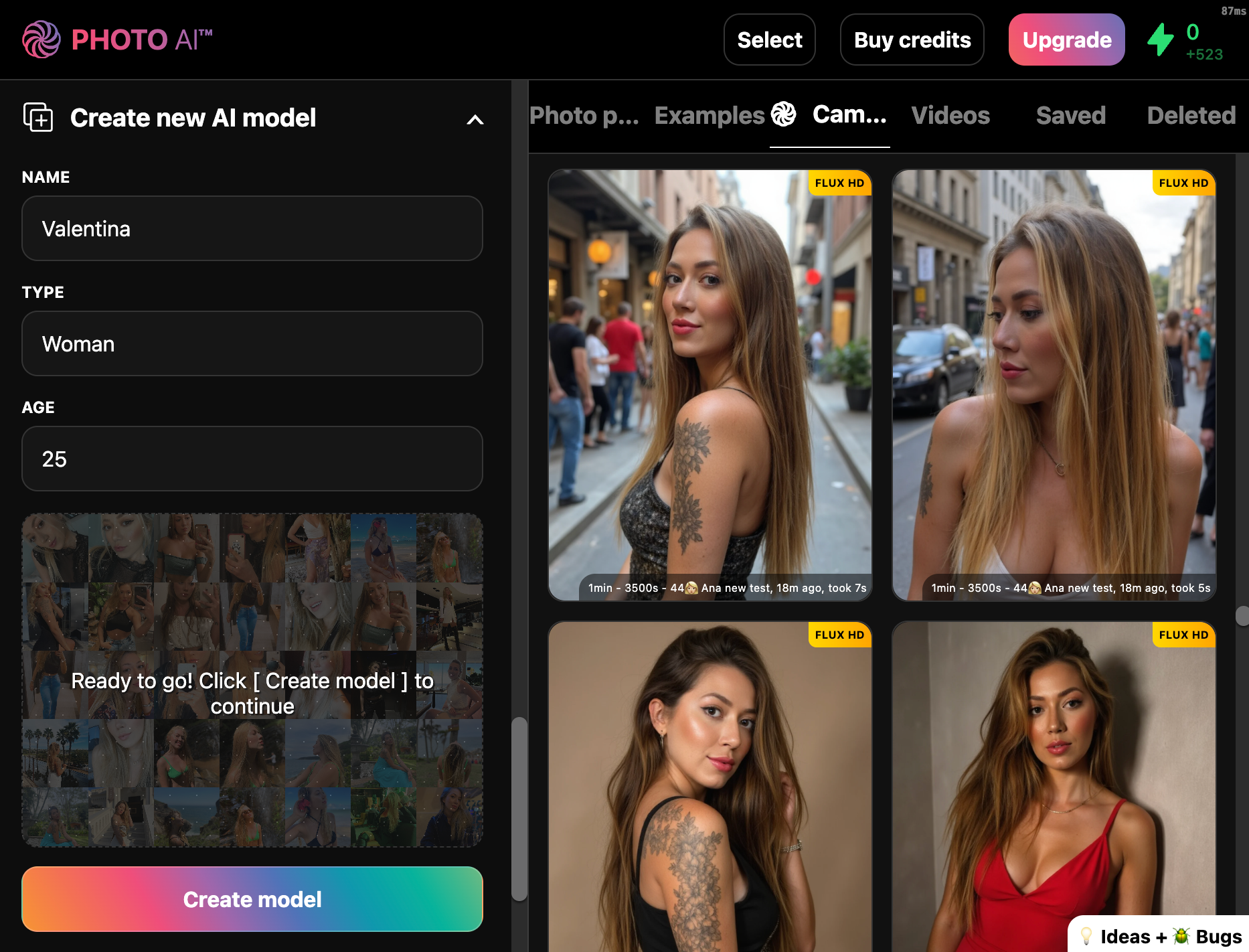
You can reuse this model to try on different outfits endlessly.
This opens the try on panel where you can upload your photos:
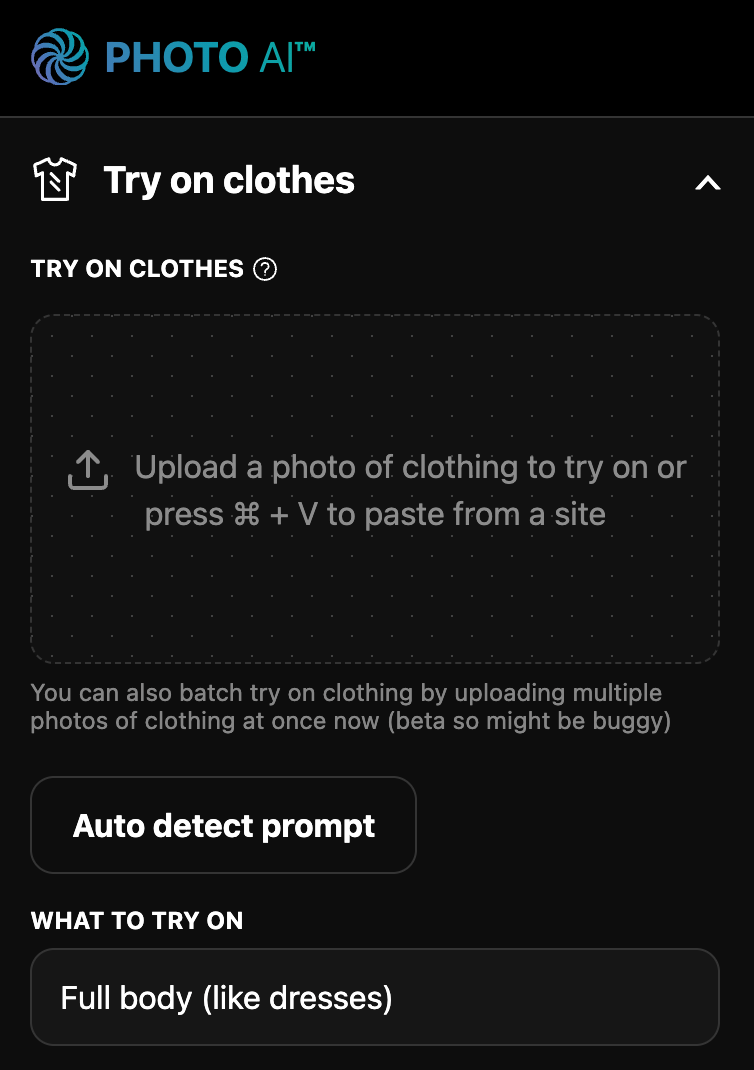
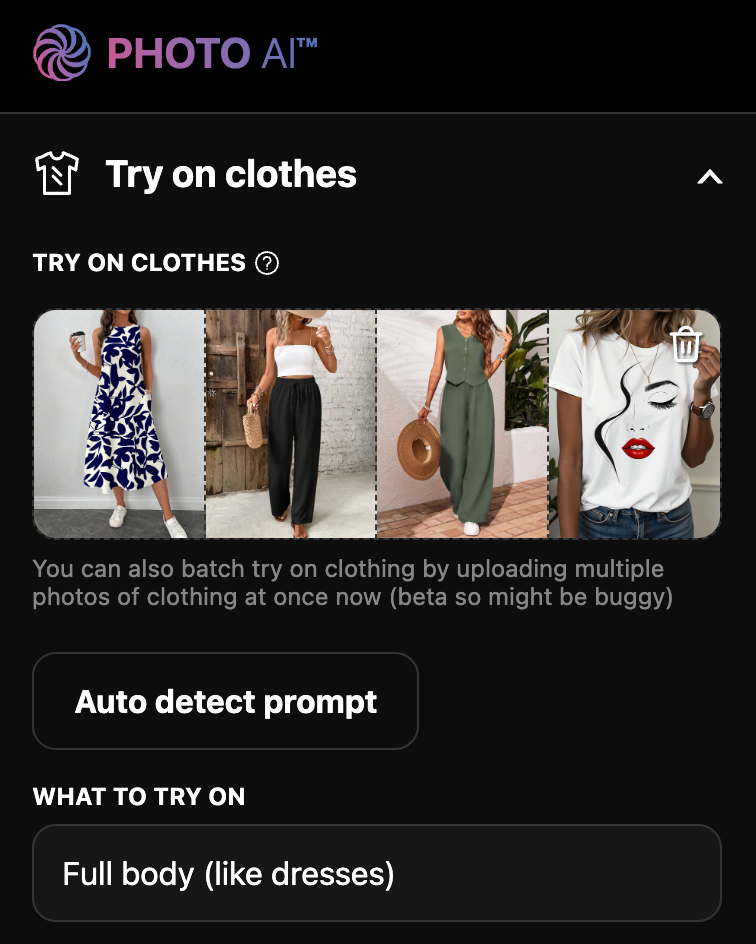
Upload multiple photos — clothing laid flat, or worn by someone else:
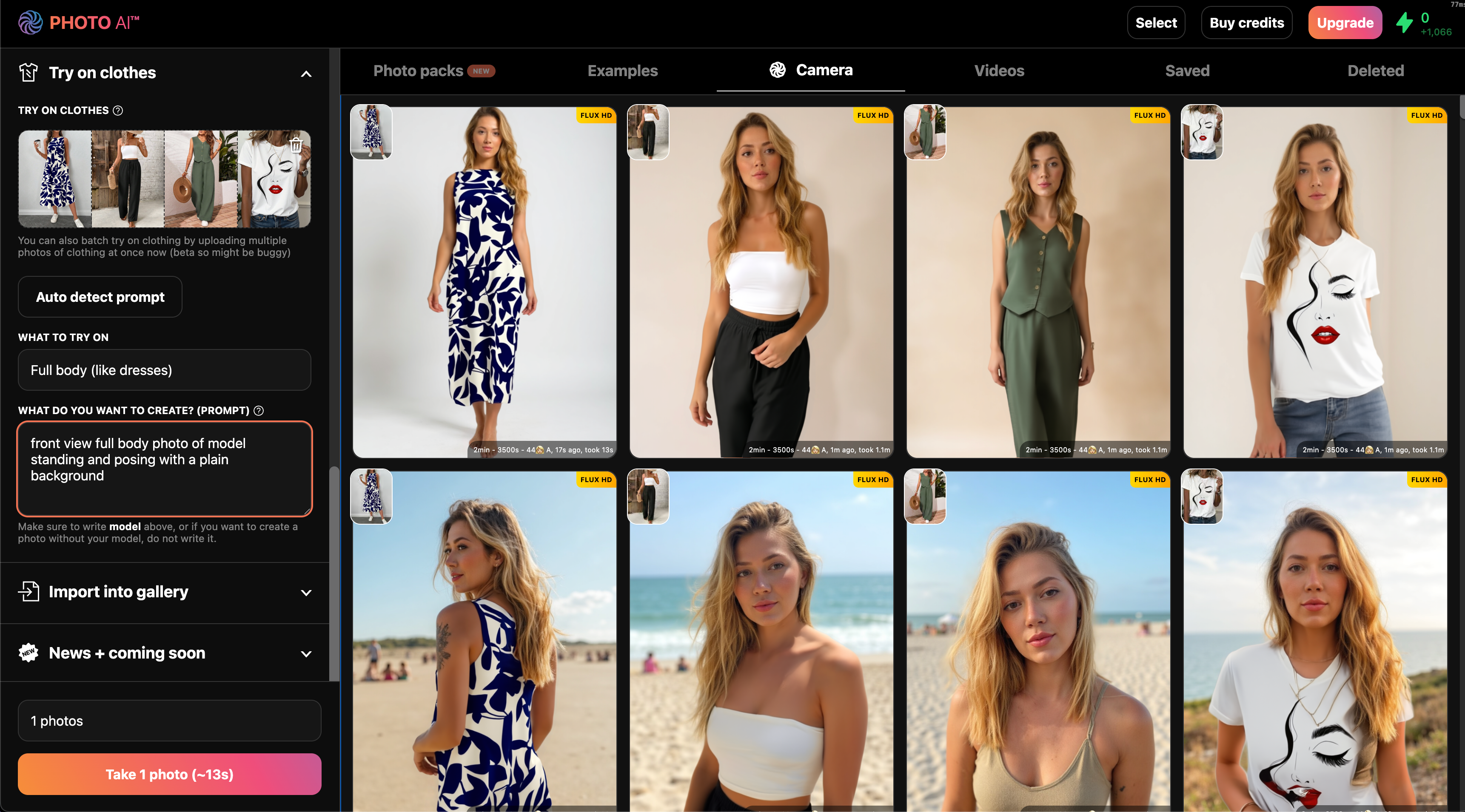
Each photo gets processed individually with your AI model wearing the clothes, producing consistent photos for your fashion label or store.
Hover over any remixed image and click [Make video] to animate the outfit in motion.
✅ Great for Shopify sellers, fashion brands, or indie designers
✅ Saves the cost of physical samples and photo shoots
✅ Lets you test outfit ideas instantly on real-looking people
✅ Run it on an entire collection of clothes without uploading individual pieces
Try batch try on clothes now in Photo AI. Only on Premium and Ultra plans.
We recommend uploading photos with high variety, a mix of close-up selfies and full body shots in a variety of places, angles, clothes and expressions. Do not upload photos with low variety, group photos, other people, sunglasses, hats, photos where your face is cut off or not visible.
If you’re creating an AI influencer from scratch, you don’t need to upload any photos though. You just design a new persona based on how you want them to look!
You can check current pricing here. You get 6+ months free if you pay yearly.
You can cancel at any time by clicking the Billing link on the frontpage or inside the app.
Photo AI now lets you take batch photos by providing a list of prompts. This lets you quickly take hundreds or thousands of photos for each of your models.
Batch photo taking will go over each prompt, make the selected amount of photos (like 1, 2, 4, 8, or 16 or 32) for each prompt, and do the next prompt.
Batch photos is only supported on the Premium and Ultra plan.
To start a batch job, select your AI model, and then paste a list of prompts separated by ||| into the prompt box. It’s important you use ||| to separate them or it will not know you want do a batch job. Make sure each prompt contains the word “model” to reference you AI model.

When you press [ Take photos ] it will show a popup and calculate the total photo count, you can still cancel here, but if you want to continue press [ OK ]:

Photo AI will then start taking photos for each prompt:

After it’s done, you’ll see your photos. Photo AI will return your batch prompt to the prompt box so you can run it again if you like:

Photo AI uses its own generation pipeline which is trained for high photorealism. The main generation pipeline we use now is our own proprietary [ ⚡️ Hyper Realism]. We use many other models to perform other functions like post-processing, upscaling, taking videos, adding audio to videos, adding voice to videos etc.
We keep working on improving our pipeline using reinforcement learning from human feedback (RLHF) by users like you which constantly improves our models.
All of this to get you better more photorealistic photos and videos!
In 100% of cases when this happens, you’ve signed up with a different email addresses than you think.
To resolve this:
First find the right account email address by searching your email inbox for emails from Stripe with subject “Your receipt from Photo AI” and see what email they are sent to.
Then go to photoai.com and log in with that email address and you can login! If you’d then like to cancel your subscription, click the logo and click Billing in the dropdown.
Or if that doesn’t work go photoai.com/billing and log in with that email address. This is NOT the regular Photo AI login, this is specifically the login to the Stripe Customer Portal where you can self-manage your subscriptions.
Once inside there you’ll see your active subscriptions and can cancel them!
Photo AI now supports Google’s new 🍌 Nano Banana Pro image model to generate photos of people with.
What’s good is it’s less restricted than using it with Gemini and it’s specialized with Photo AI’s secret sauce for creating realistic photos (and videos) of people.
To use it is very simple:
First sign up to Photo AI, you can use your email or Google account to sign up.
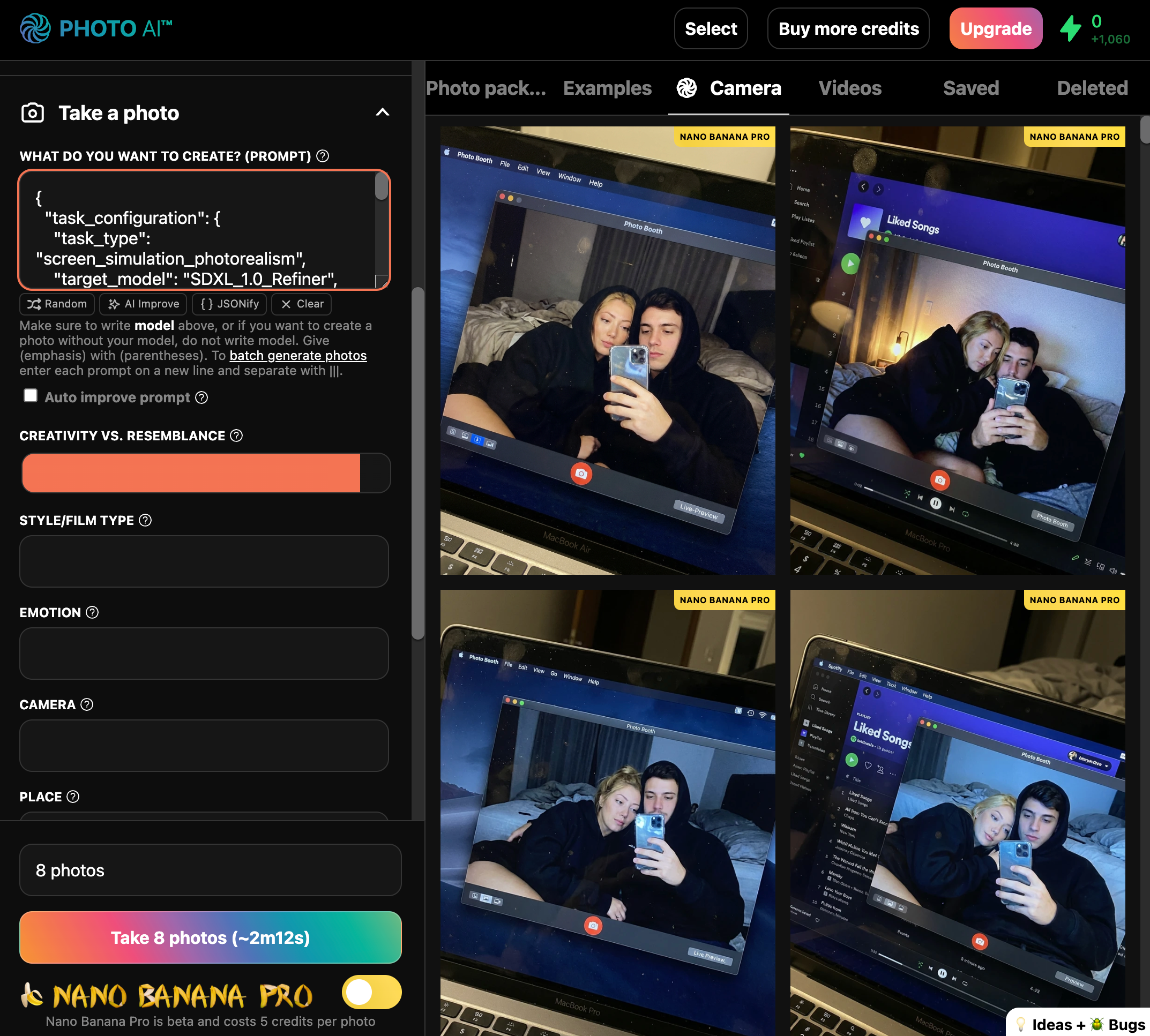
Under the [ Take photo ] button in Photo AI, press the toggle and it will switch from Hyper Realism to Nano Banana Pro as your preferred model.
And there you go! Every photo you now generate will be using Nano Banana Pro 😊
You can now also use JSON prompts with Nano Banana Pro like the one below to create a very detailed photograph like this
Ever wish you could zoom out of a photo that was shot too tight or extend the background beyond the frame? With Photo AI’s Zoom Out feature, you can do exactly that. It uses generative AI to uncrop and expand your images realistically, filling in extra space that looks like it was always there.
Perfect for fixing awkward crops, generating landscape shots, or giving more room around your subject.
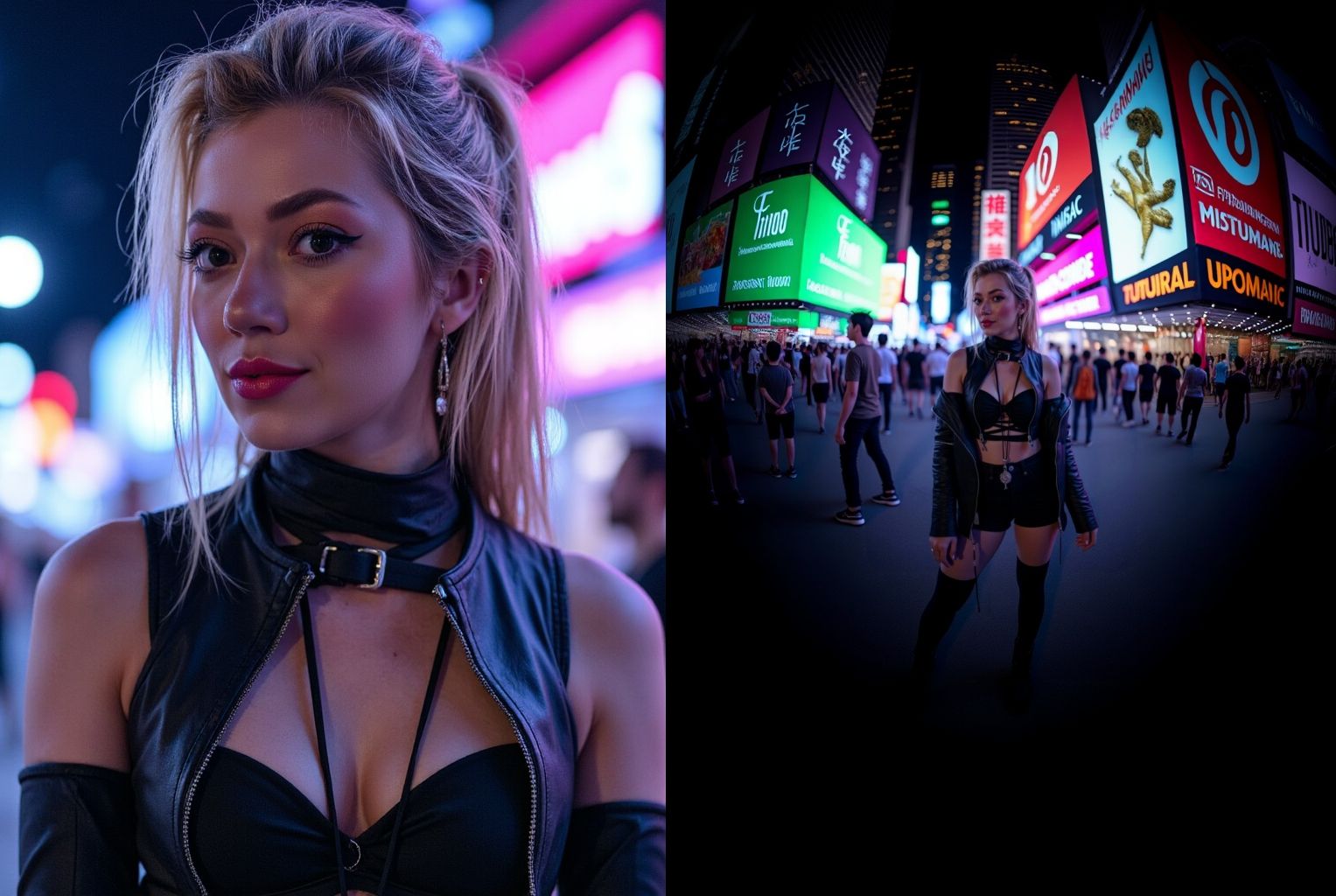
Zoom Out is Photo AI’s image uncropping tool. It uses AI to extend your original image outward, generating new background and scene content to fill the space while keeping your subject exactly the same.
It’s like reverse-cropping: instead of cutting out, you grow the image.
You want to turn a tight headshot into a portrait
You need a horizontal version of a vertical photo
A model or product is cut off in the frame
You want to create more whitespace or background for design
Choose any generated photo inside your Photo AI account that you want to expand.
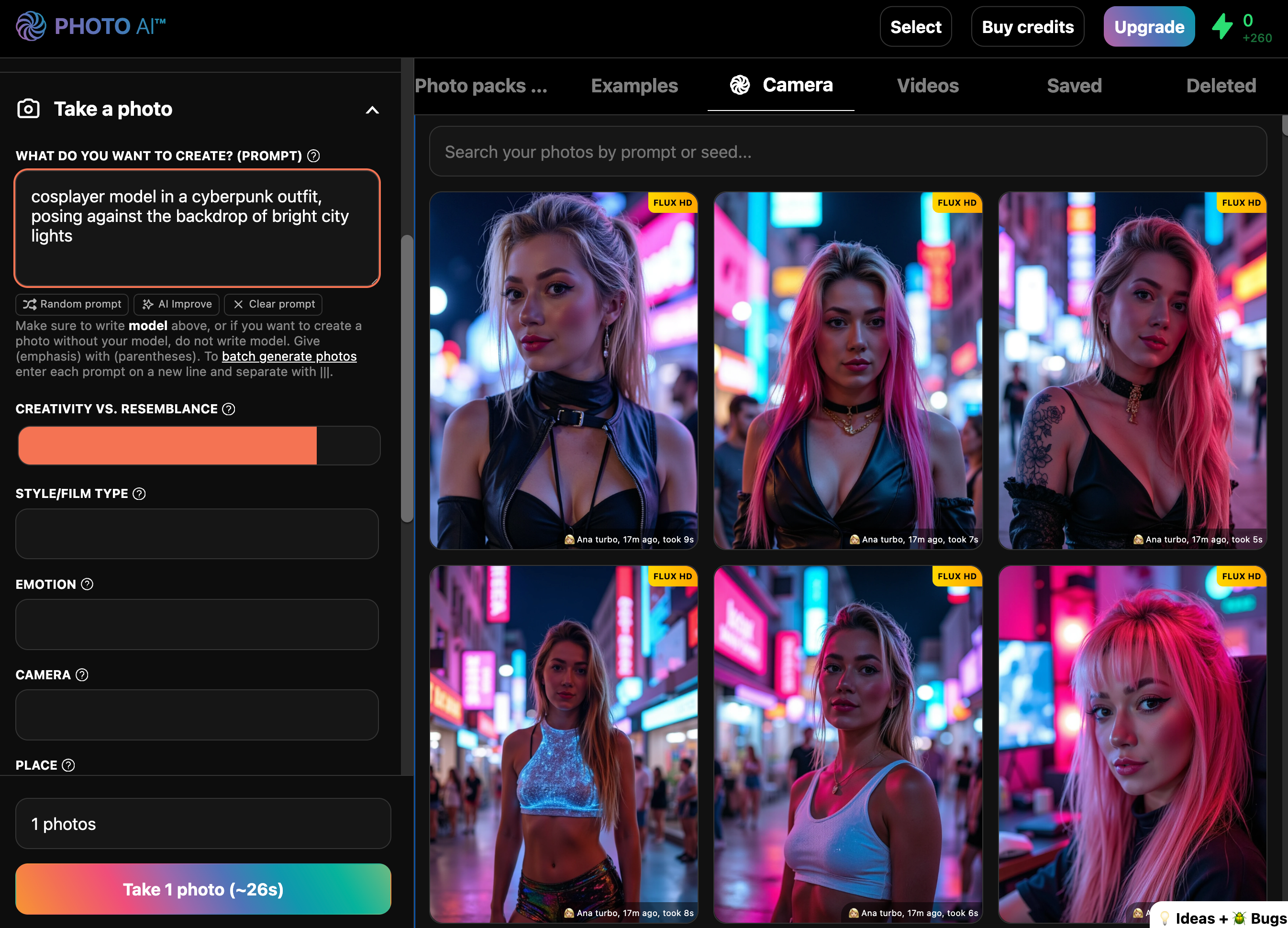
You’ll find it in the hover actions under the image, or in the image actions menu.
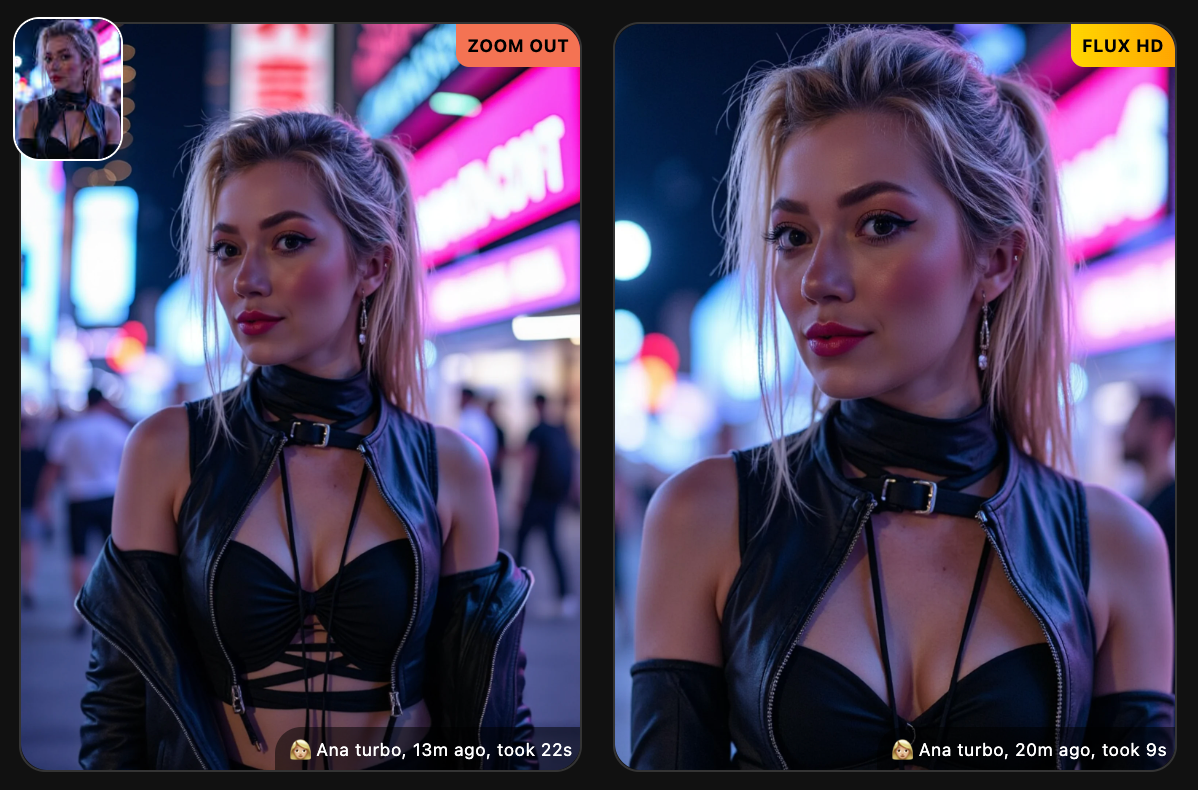
In seconds, Photo AI gives you an expanded version with new background and realistic edge content that blends seamlessly with your original photo.
You can keep zooming out essentially forever. Just keep tapping [ Zoom out ] on the new zoomed out photo every time it’s done.
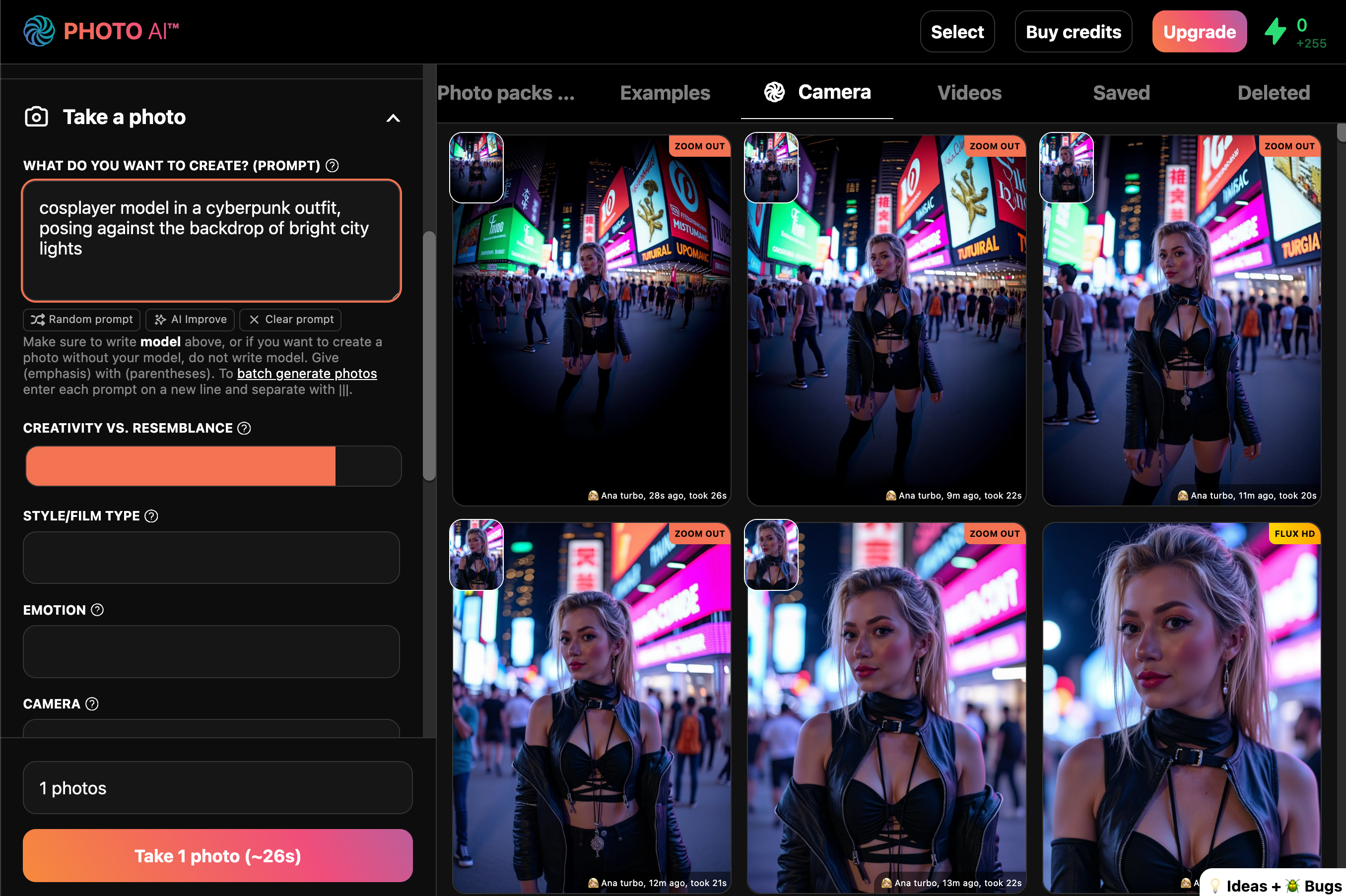
You go from this:
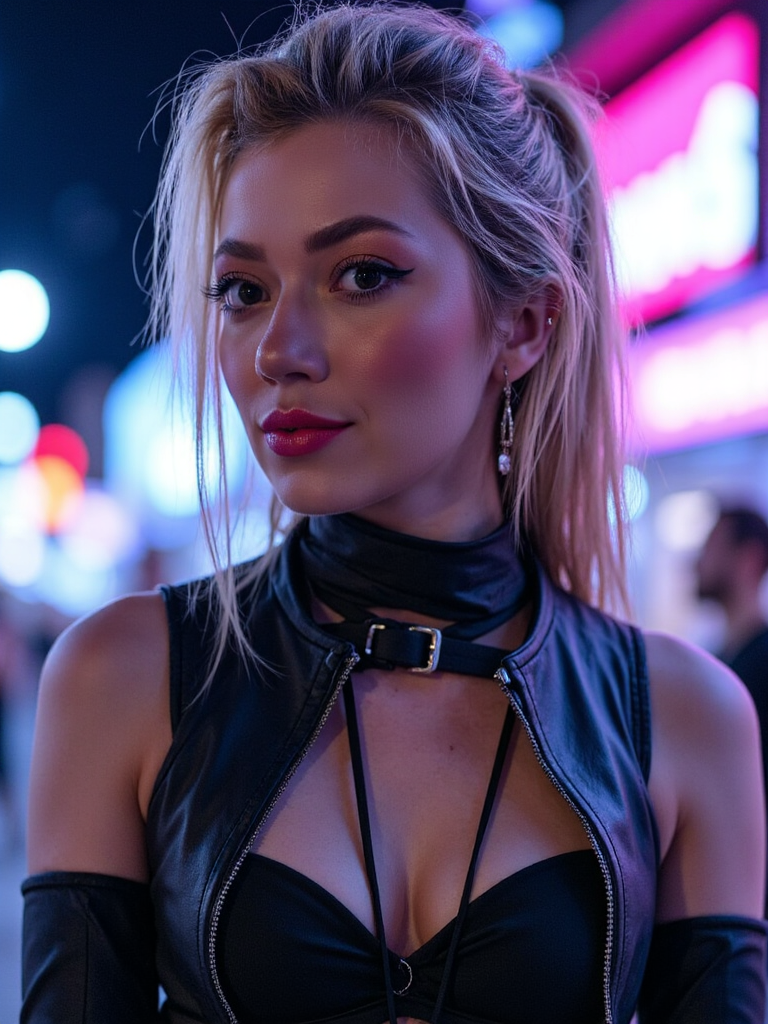
All the way to this:
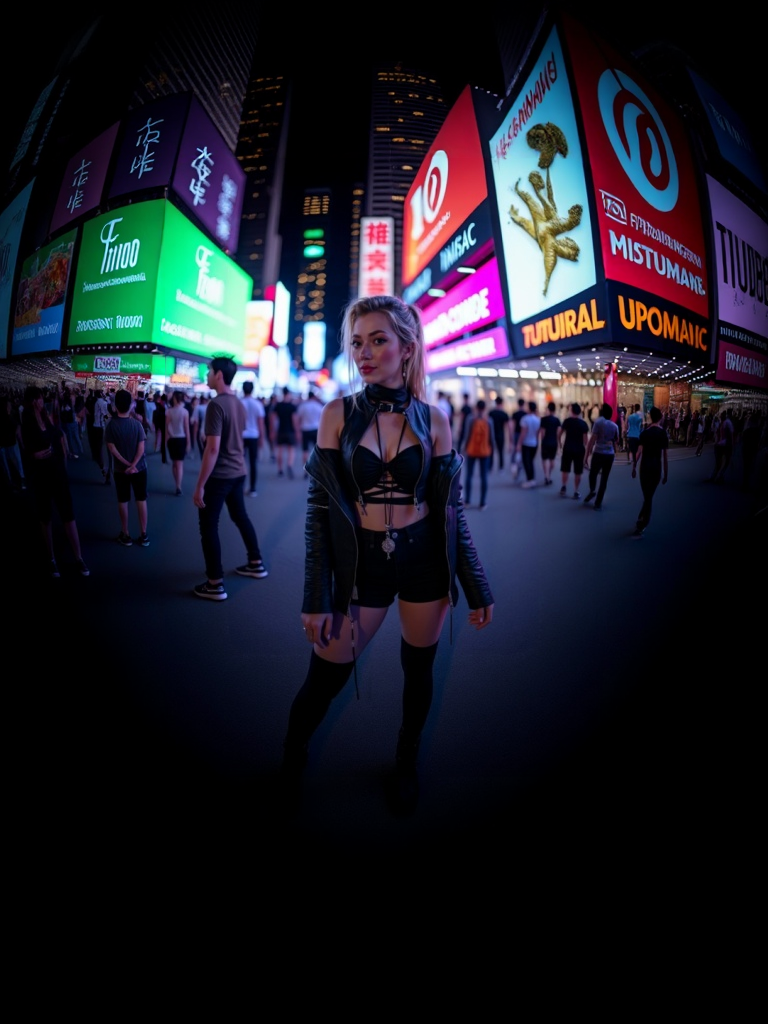
With Photo AI you can also upload your own images (like real photos you made or literally any image you can think of) and uncrop them with [ Zoom out ]
First go to [ Import into gallery ] and select your image.
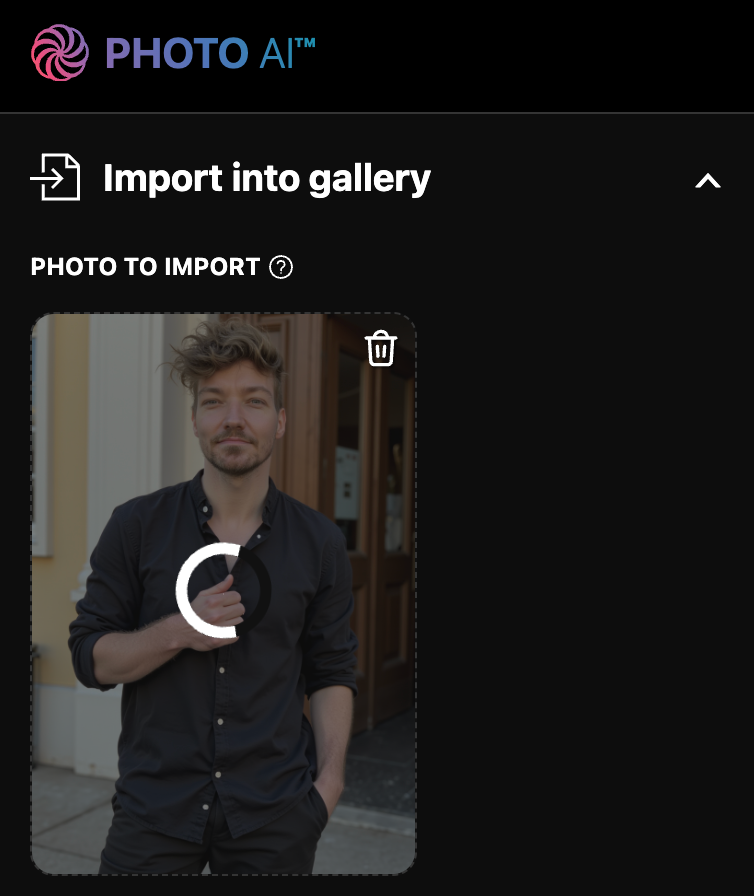
Then once it shows up in the gallery, hover over the image and tap [ Zoom out ].
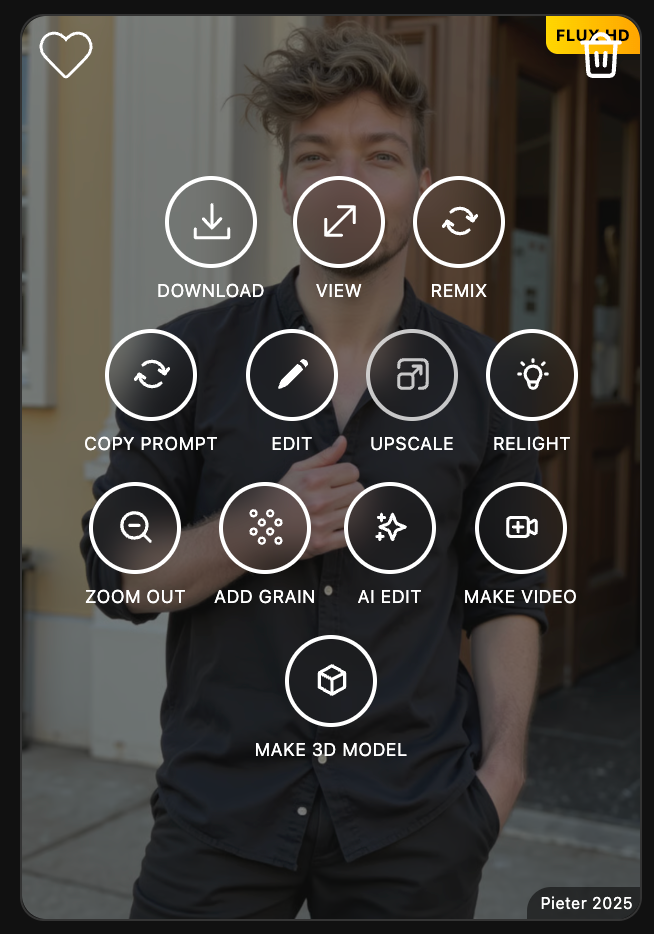
It then starts processing:
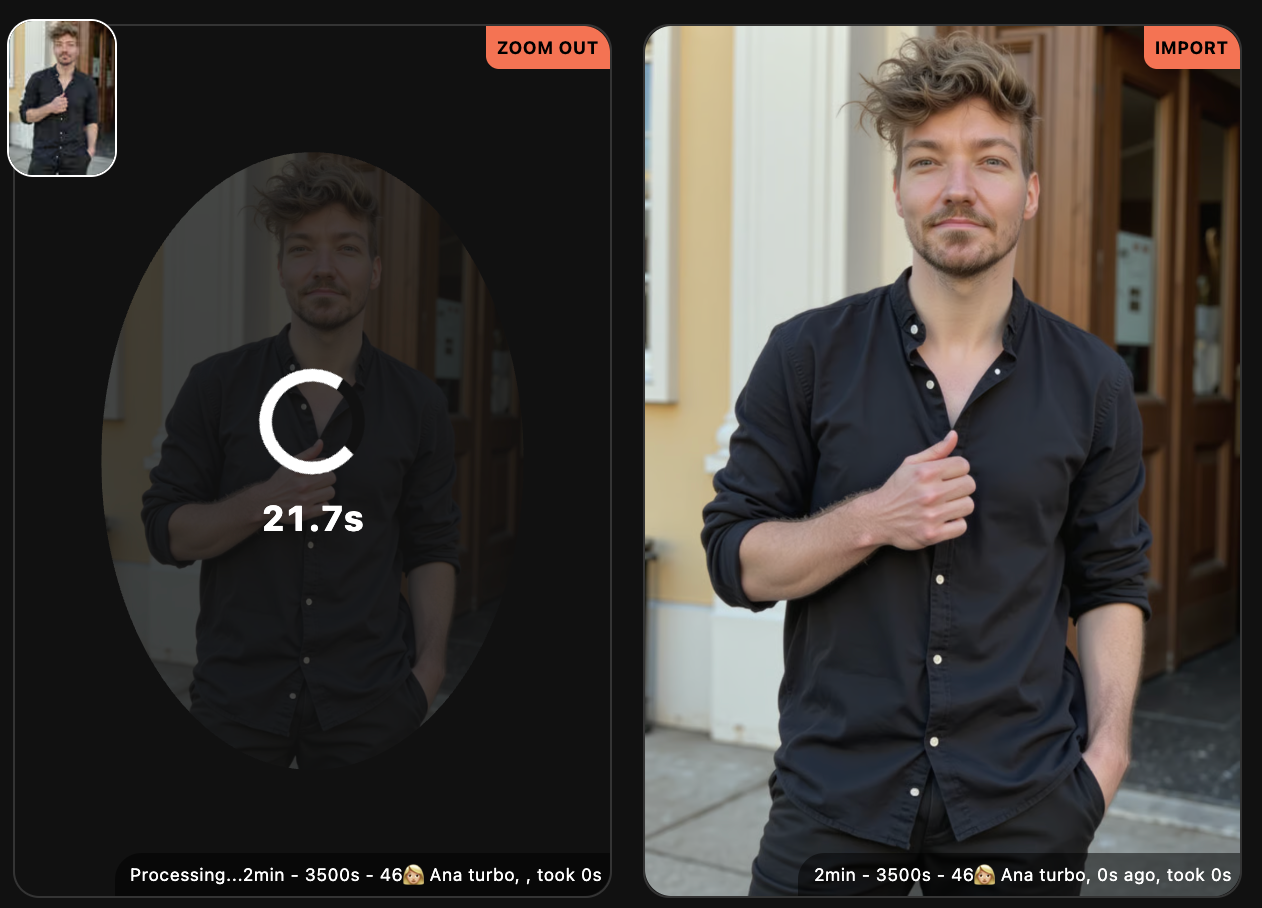
And then you have your zoomed out photo:
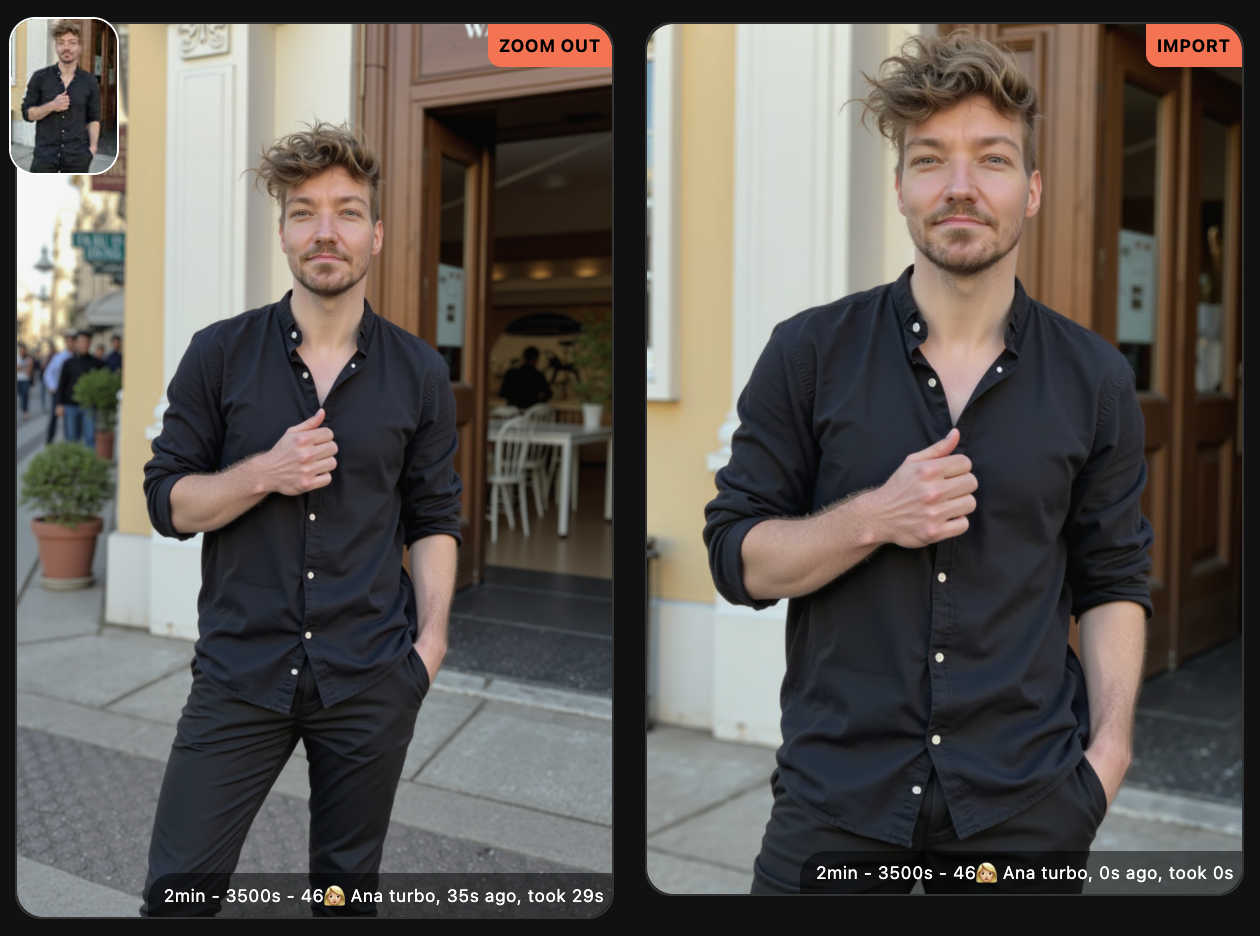
And if you keep going:
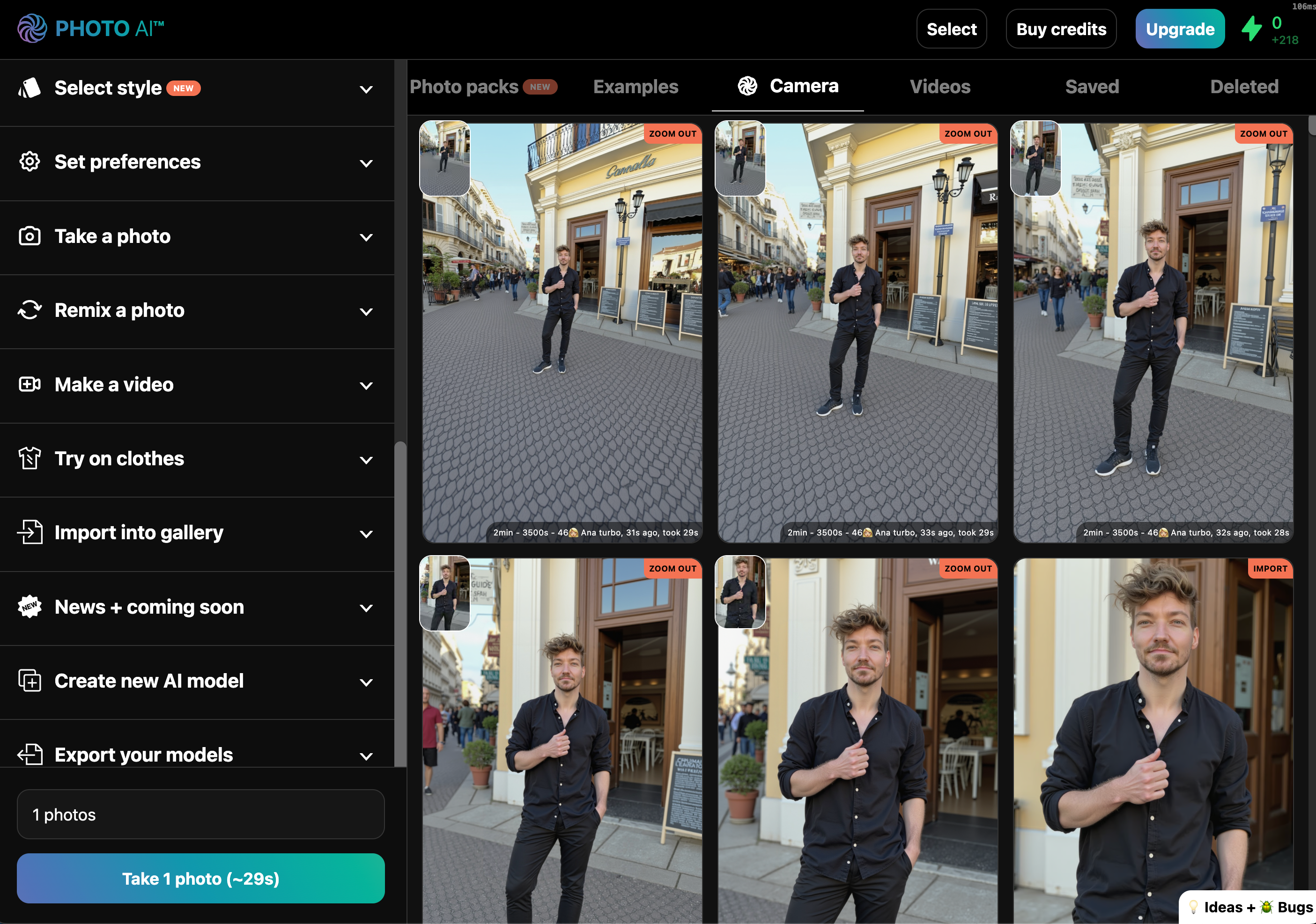
So we can go from:
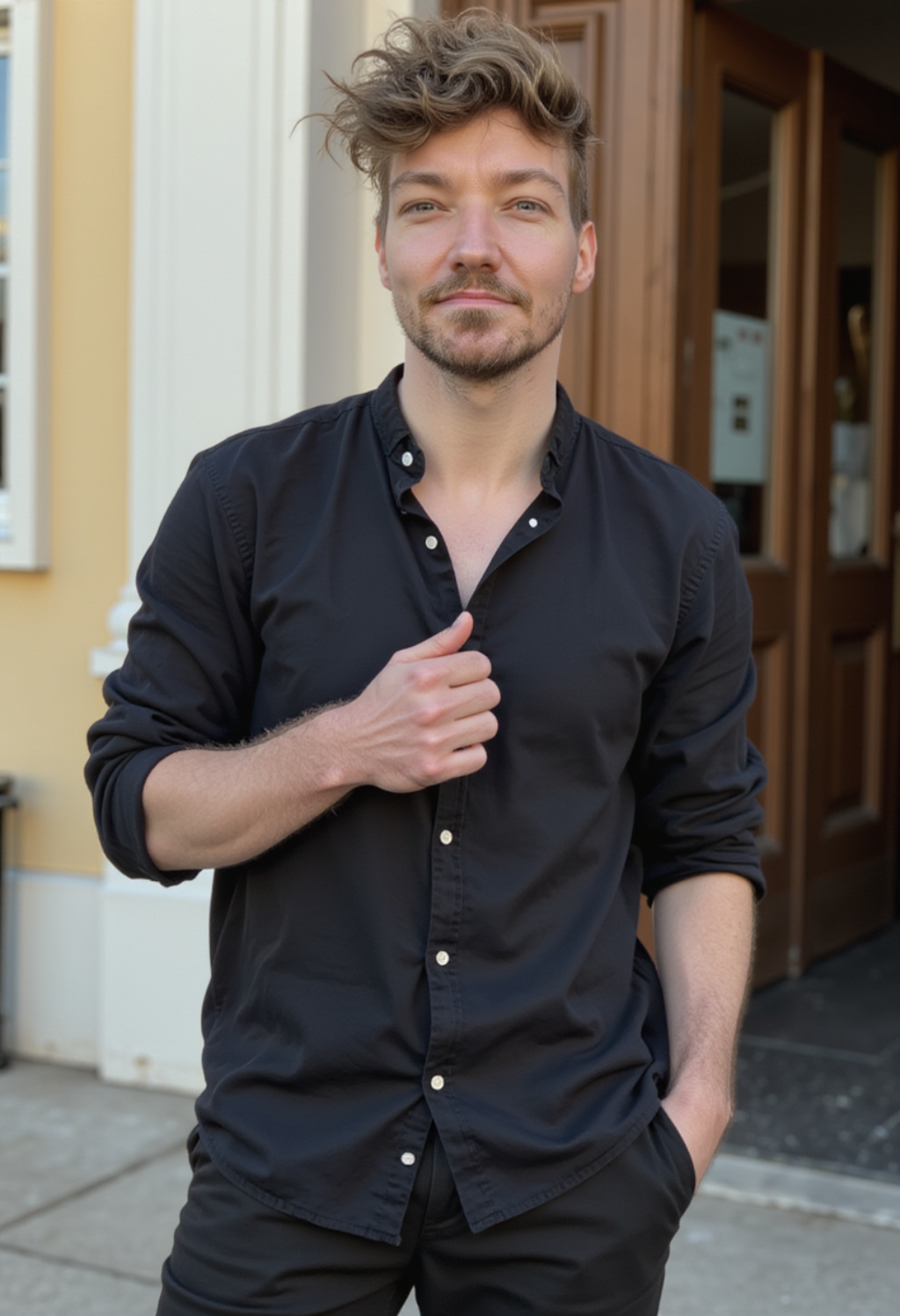
all the way to:

Photo AI lets you upload selfies, create AI models and then generate AI photos and videos with them. We teach the AI how you look and then it's able to generate photorealistic images and videos of you. You can put yourself in different settings, with different outfits, doing different actions, with different expressions, and even talking to the camera in your voice. And best of all, you can do all this from your laptop or phone without having to pay an expensive photographer $100s or $1000s.
After sign up you get access to Photo AI's studio which lets you use our photo shoot preset templates, write prompts or copycat photos of other people, to generate anything you can think of.
Yes. Photo AI has the highest resemblance/likeness of any AI apps right now. Simply because we use the highest step count and processing time to both train your AI model and generate photos with it.
Other AI apps cheapen out on processing time to save money on GPU costs and that means it looks kinda like you but not fully.
The resemblance of the photos to you does depend on the quality and variety of the photos you upload. The better and more varied your photos, the more accurately the AI can understand and represent your unique characteristics.
Premium and Ultra plans have the highest resemblance.
Want to change something in your photo? Add objects, remove them, or even change the entire scene — all with a single sentence. With Photo AI’s Magic Edit feature, it’s insanely easy.
Whether you want to swap a drink, change your background, or fix a small detail, you just describe the change and Photo AI does the rest.
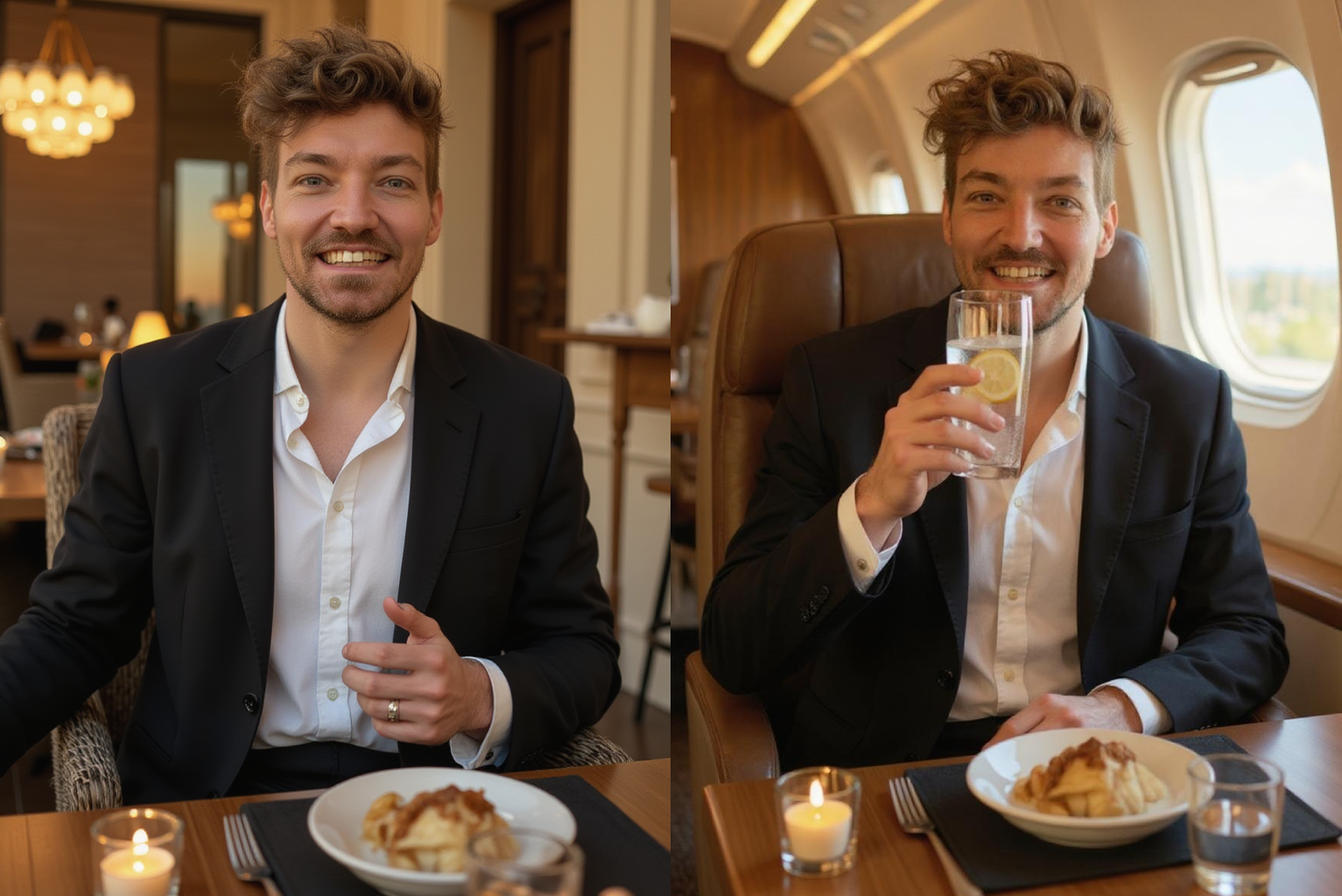
Magic Edit is a simple tool that lets you modify any photo using text. Instead of Photoshop or masking tools, you just type what you want, like:
“Change the wine to sparkling water with lemon”
“Make it sunset on the beach”
“Remove the person in the background”
Photo AI analyzes your photo and applies the changes instantly with AI-powered image editing.
Inside your Photo AI gallery, hover over the image you want to change.
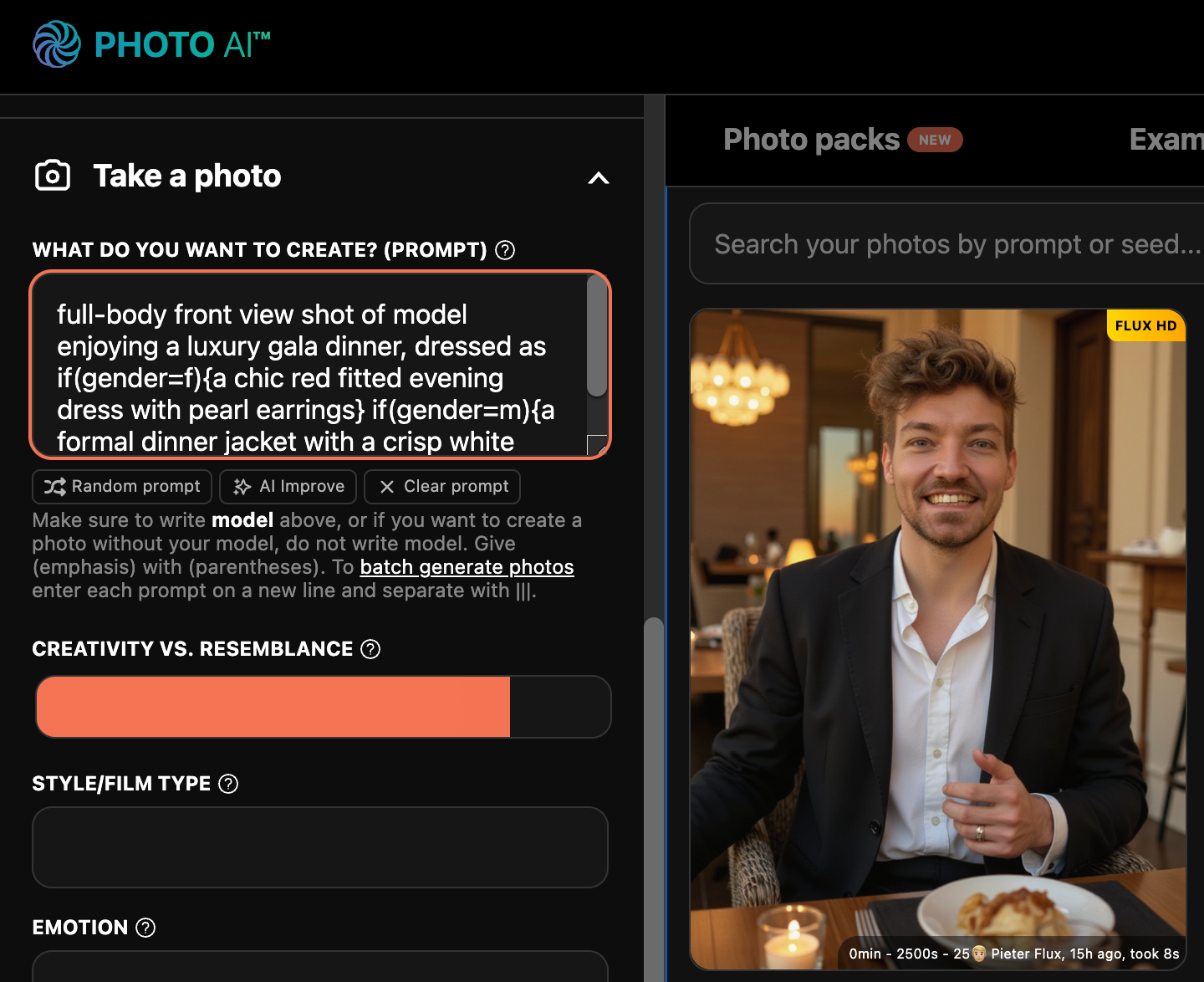
A button will appear — click it to open the edit popup.
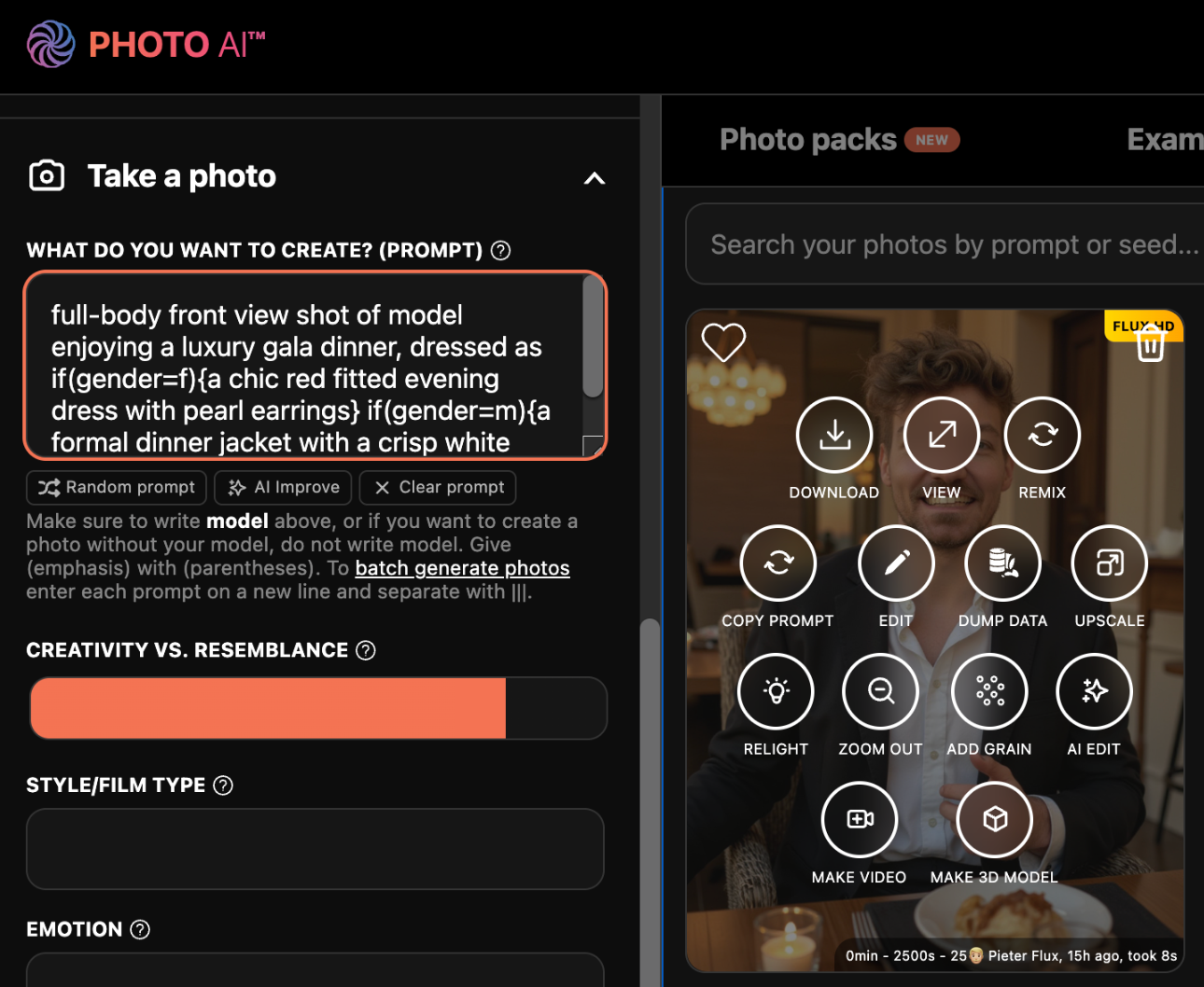
In the popup, describe what you want to change. Be clear and specific — the more detailed, the better.
Examples:
“Put me in a private jet drinking sparkling water with a half cut lemon”
“Change my outfit to a black suit”
“Make the sky cloudy with soft light”
“Change my photo to anime”
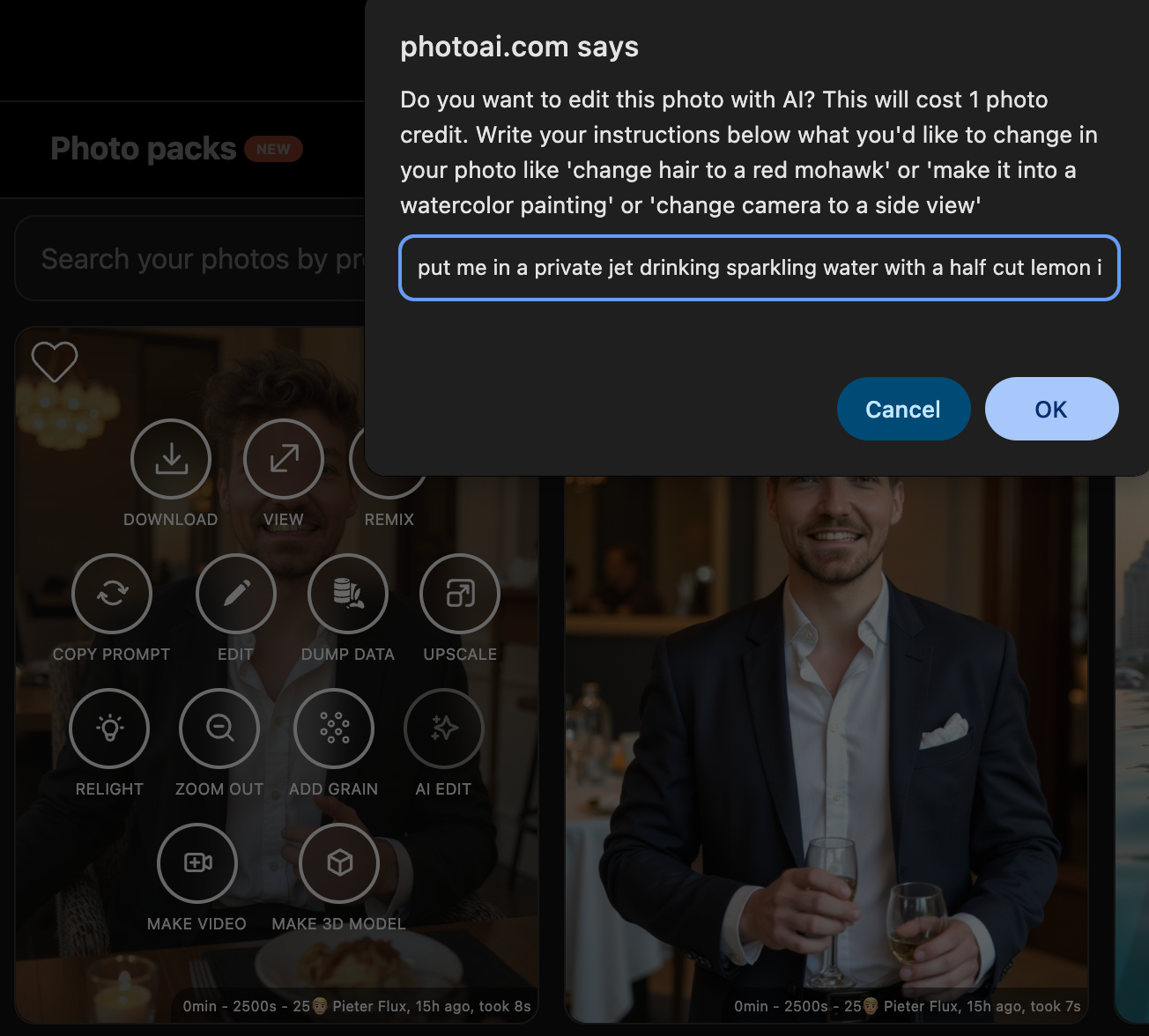
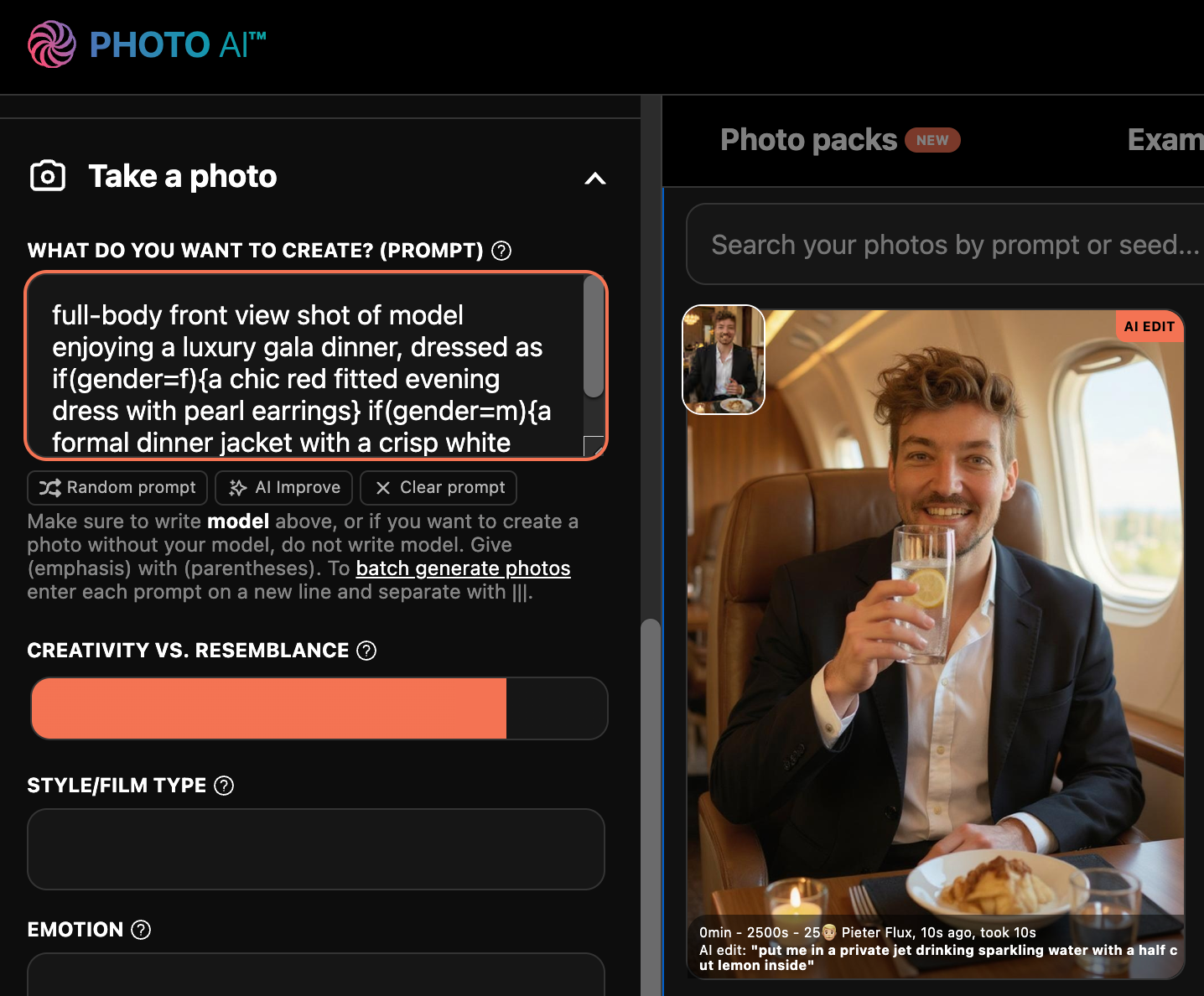
So we went from sitting in a restaurant eating:
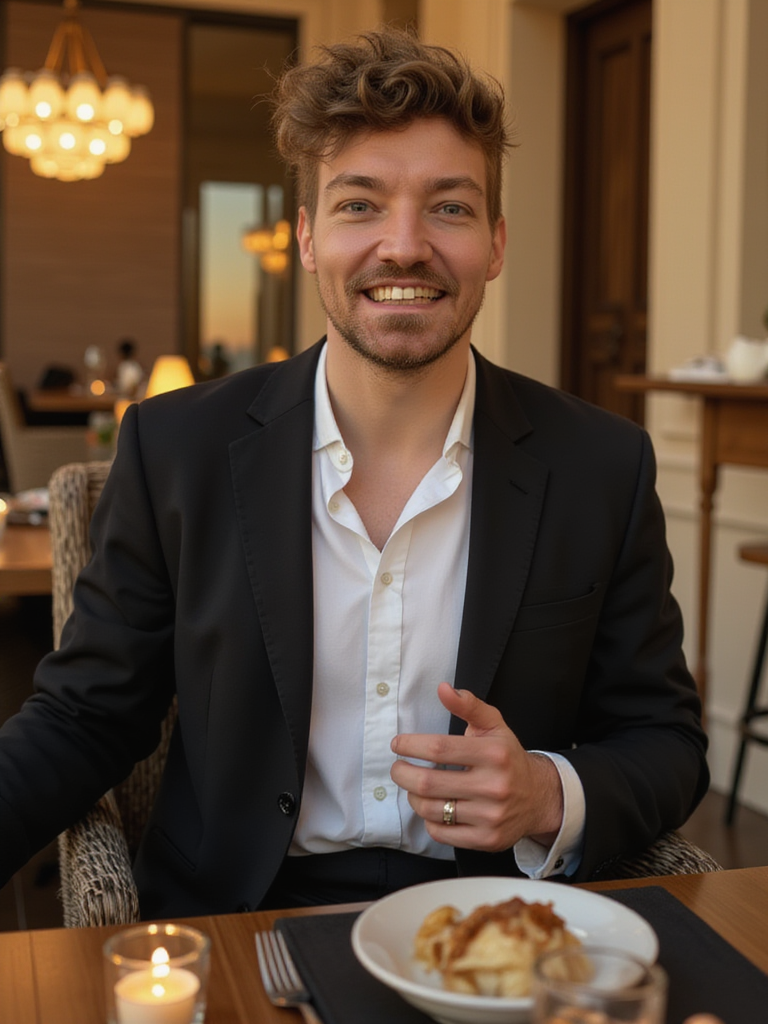
To sitting in a private jet with sparkling water and half a cut lemon:
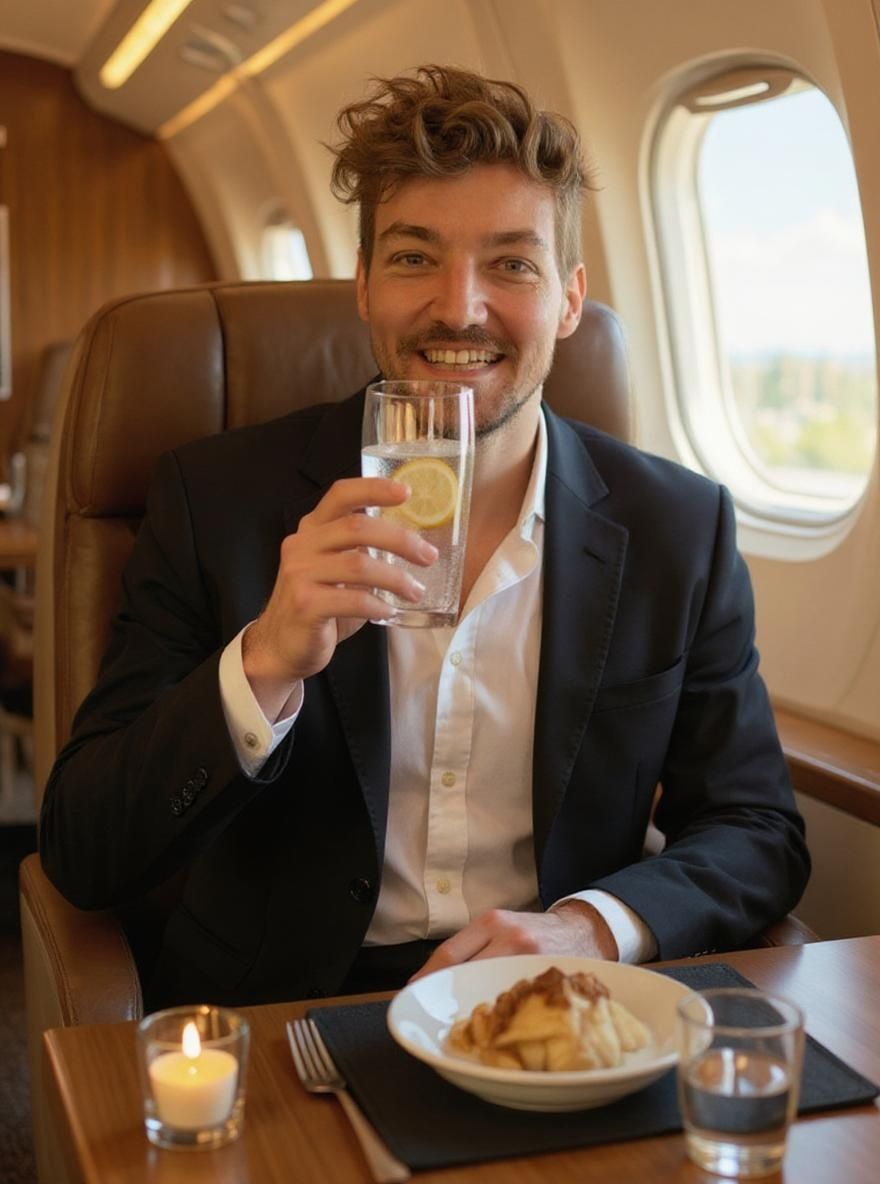
You can change anything in a photo, and even change the entire style of a photo, like here “put in anime style”:

And then you can even move the camera position (although this doesn’t always change the background perfectly but you can try), like here “side view”:

And then try change it back to a photo, “change it a photo”:
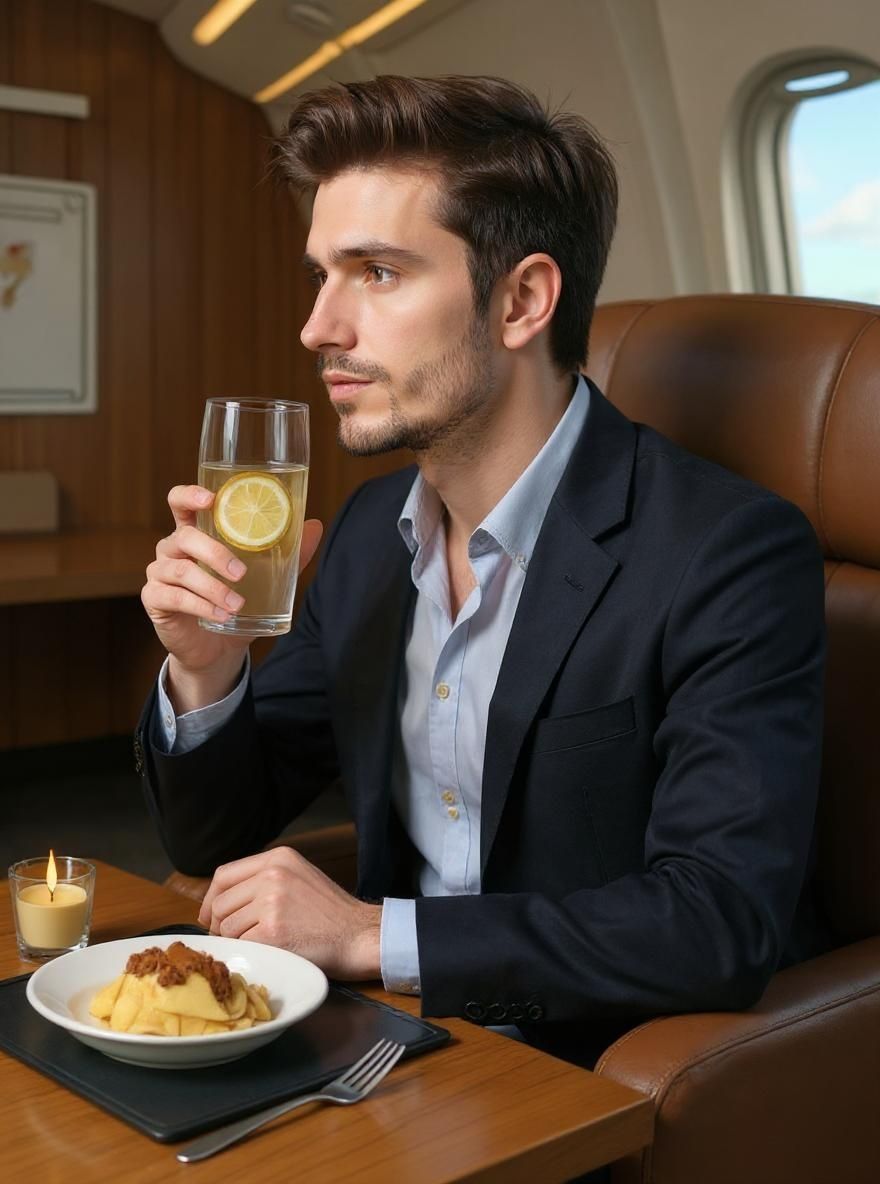
Magic Edit does NOT use your AI model so you will lose any likeness/resemblance at this point, to get that back you can remix it though (which does use your AI model), by tapping [ Remix ] on the photo and then it’ll look like you again:
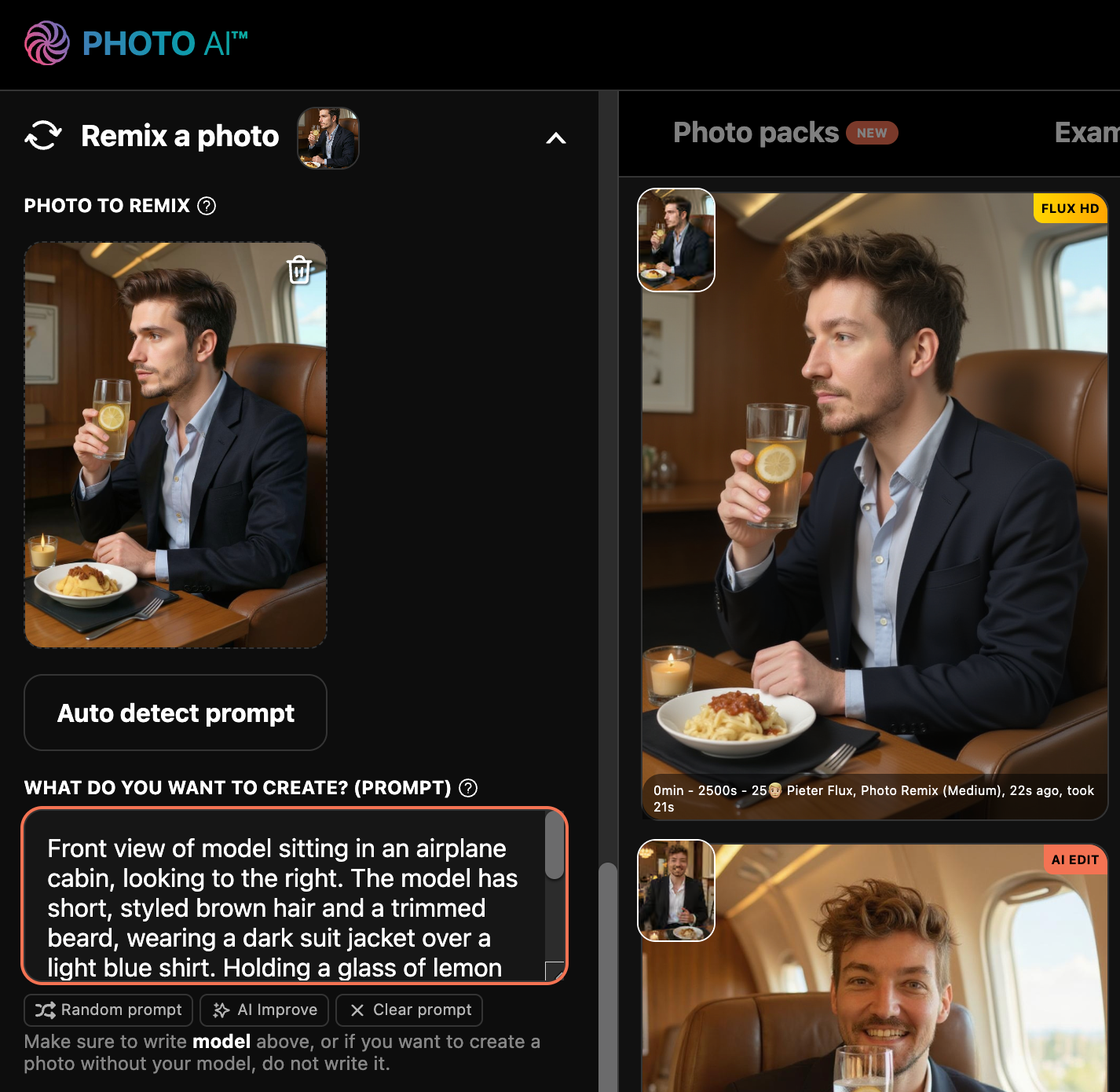
As I said the possibilities are pretty endless, try it!
No Photoshop or design tools needed
Natural language — just describe what you want
Fast, fun, and flexible for creative edits
Possible to make camera perspective changes like “change to side view”
Complete style changes like “change to anime style”
Try [ Magic Edit ] now on Photo AI
Yes, we do!
When you’re logged in, click on [ Photo AI ] in the top left or the ⚡️ lightning bolt in the top right.
In the menu click [ Get 1000 free credits ] or similar:
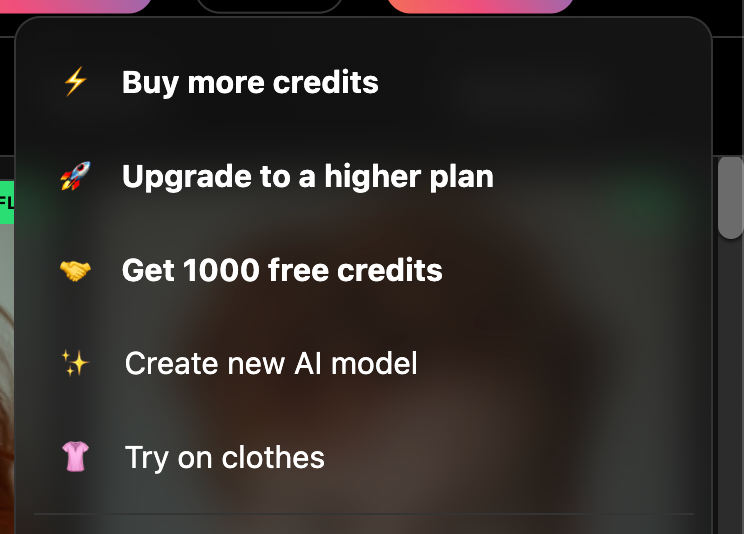
A popup will show with your unique referral link. You can share this link with your friends or share it on social media.
If someone signs up, you and them too (!) will get 1000 free credits for Pro/Premium/Ultra users. And 100 free credits for Starter users. So it’s beneficial for both you and new users as they can get double the credits they’d normally get.
Referral credits are the same as regular one-time extra credits, and do not expire!
The referral cookie once they click the link will remain for 30 days. So if they don’t sign up immediately but if they ever come back to Photo AI and sign up later, it is still counted!

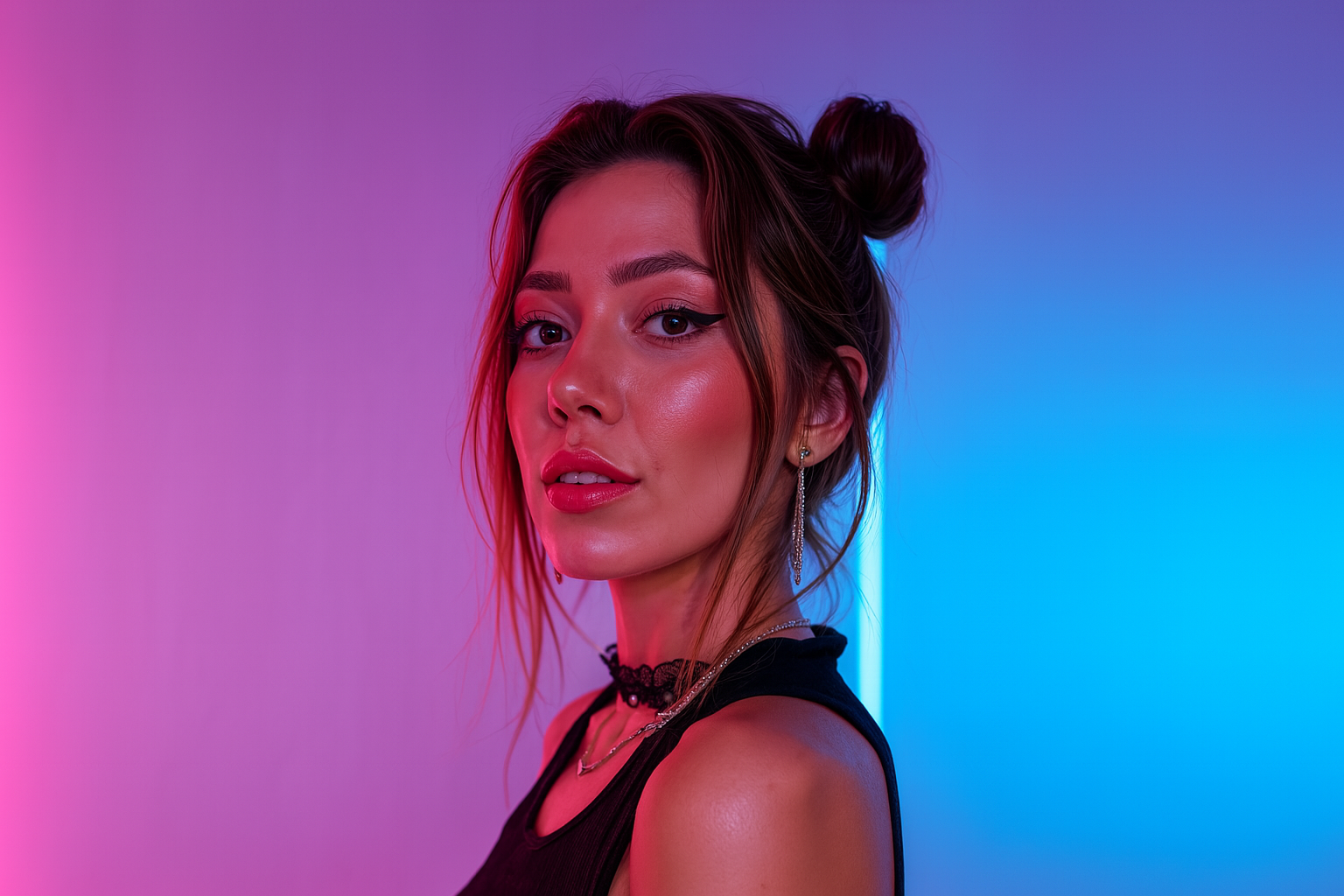
I often get asked: “Is Photo AI for sale?” The short answer? Yes, for the right price.
Photo AI is growing fast. It’s now used by thousands of paying creators, brands, and e-commerce stores to generate photo shoots, try on clothes, and edit images with AI. It’s the AI photo generator with the highest quality and resemblance in the market.
Business-wise, it’s highly profitable (75%-90% profit margins), not VC-funded, 100% automated, no employees, independent, and shipping new features every week.
The road map is to build a fully interactive virtual world live generated by AI. Photos were the start, then videos and now Photo AI can already generate entire 3d models of people. While the AI models get better, Photo AI will also get better.
That said, everything has a price. If you’re serious, feel free to reach out. But keep in mind: I’m not looking for VC funding, and I’m not in a rush to sell. I’m focused on building.
Send me public message on X at @levelsio or try find my email at pieter.com/~pieter
Let’s be real: dating apps are brutal. Especially if you’re not 6'2", white, and looking like a Calvin Klein model. That sucks. But we’re not here to complain — we’re here to win.
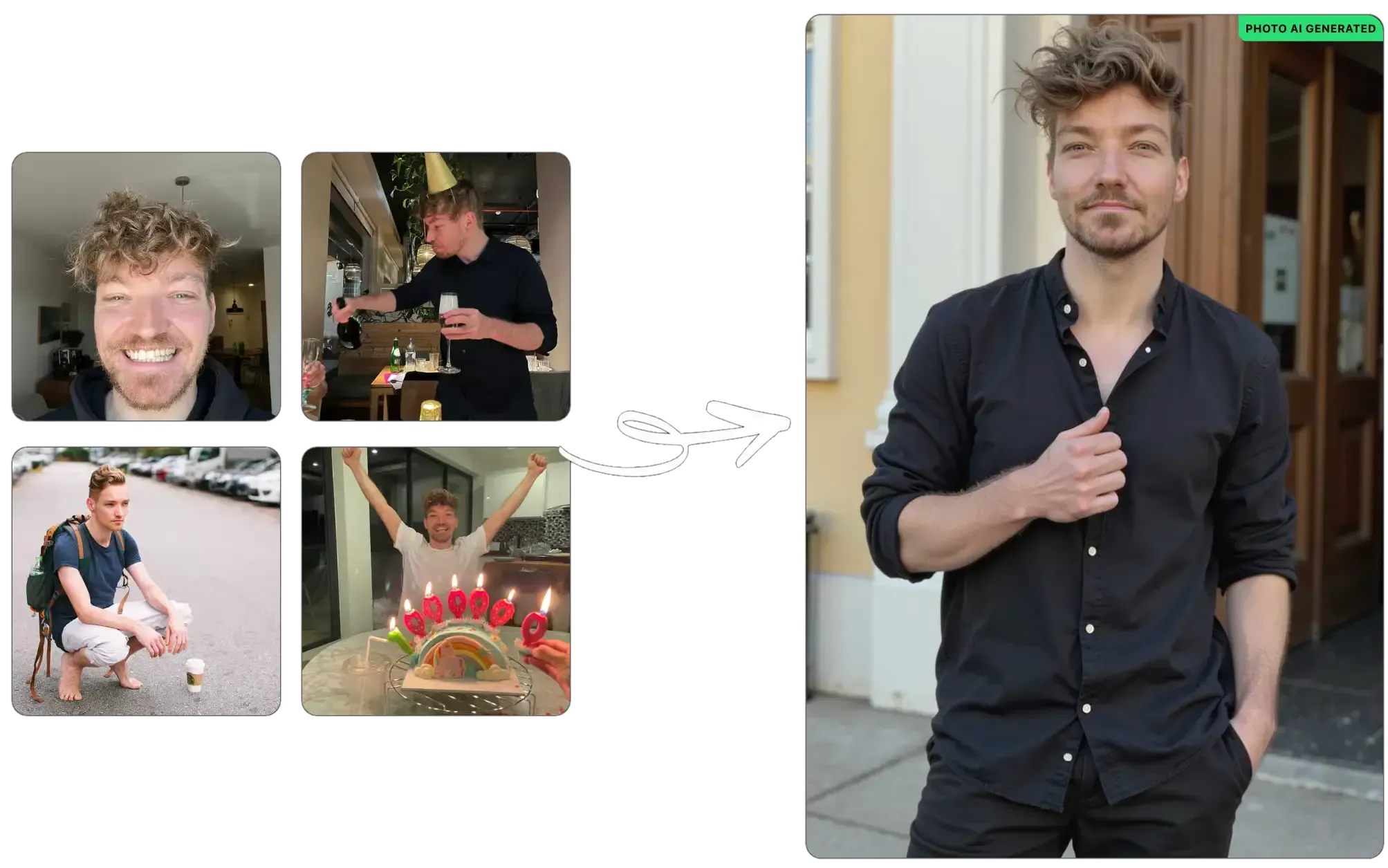
The truth is: most guys have terrible photos, and that’s the easiest thing to fix. With just a bit of effort, you can completely change how you’re perceived online — from invisible to dateable.
Use travel photos or scenic backdrops
Learn how to pose in masculine ways
Show different emotions and authenticity
Get a pro to shoot + edit for the female gaze
Boom. More matches. Easy.
Now let’s break it down.
A Hinge study showed that travel photos boost likes by 30%, but barely anyone uses them. Why? Most guys are just lazy or don't think it matters.
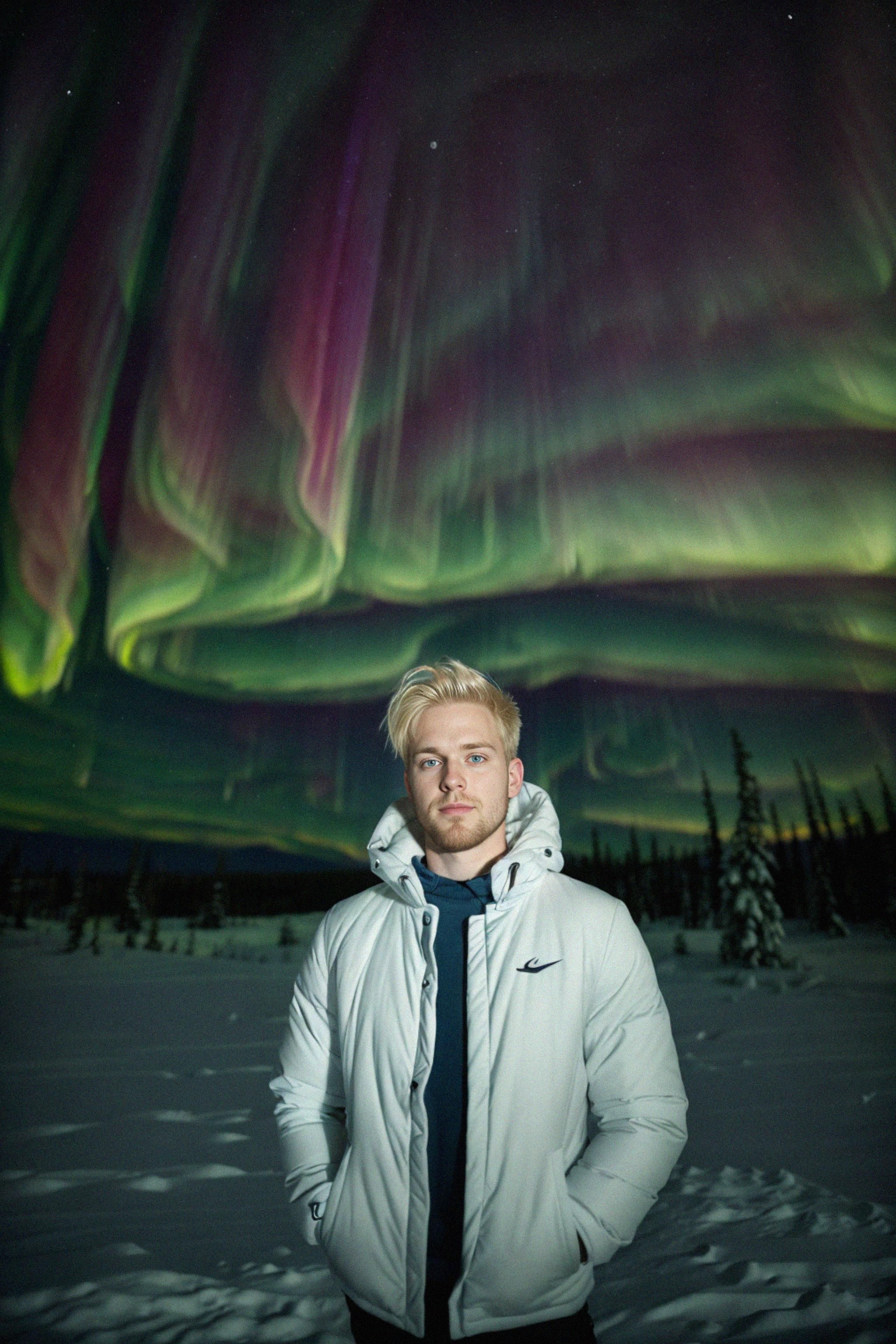
Pro Tip: Skip bathroom selfies. Find a rooftop, a park, a cool street, a café. Your background should say: “I have a life worth joining.”
Standing like a sad penguin doesn’t help your case. Good posture, sharp angles, and confident body language make a huge difference.
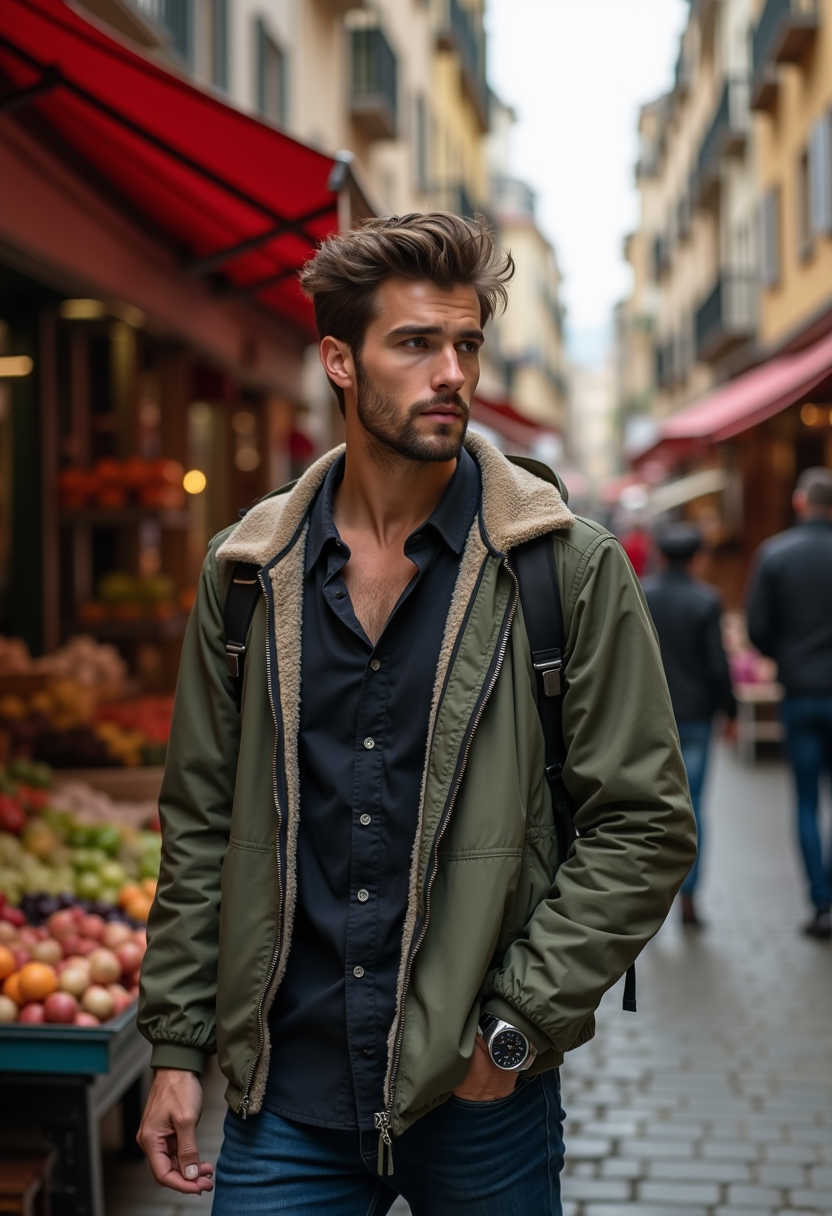
Pro Tip:
Push your chin slightly forward (jawline pop)
Angle your shoulders
Don’t face the camera straight-on like a mugshot
Try action shots — adjusting a jacket, walking, leaning on a rail
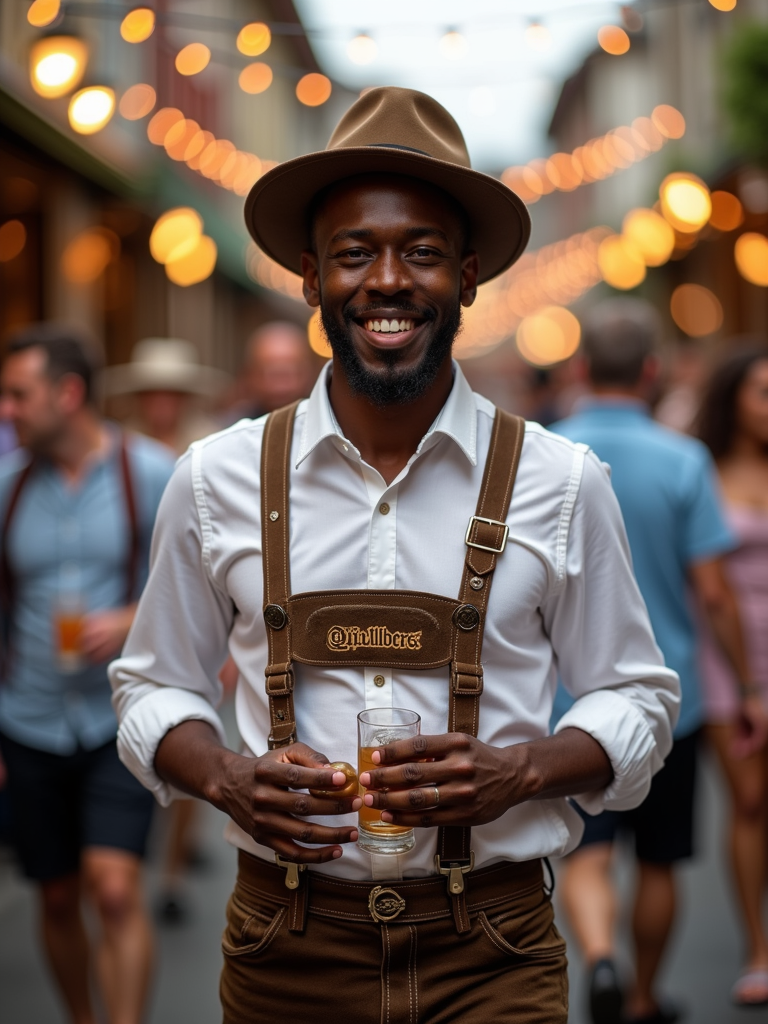
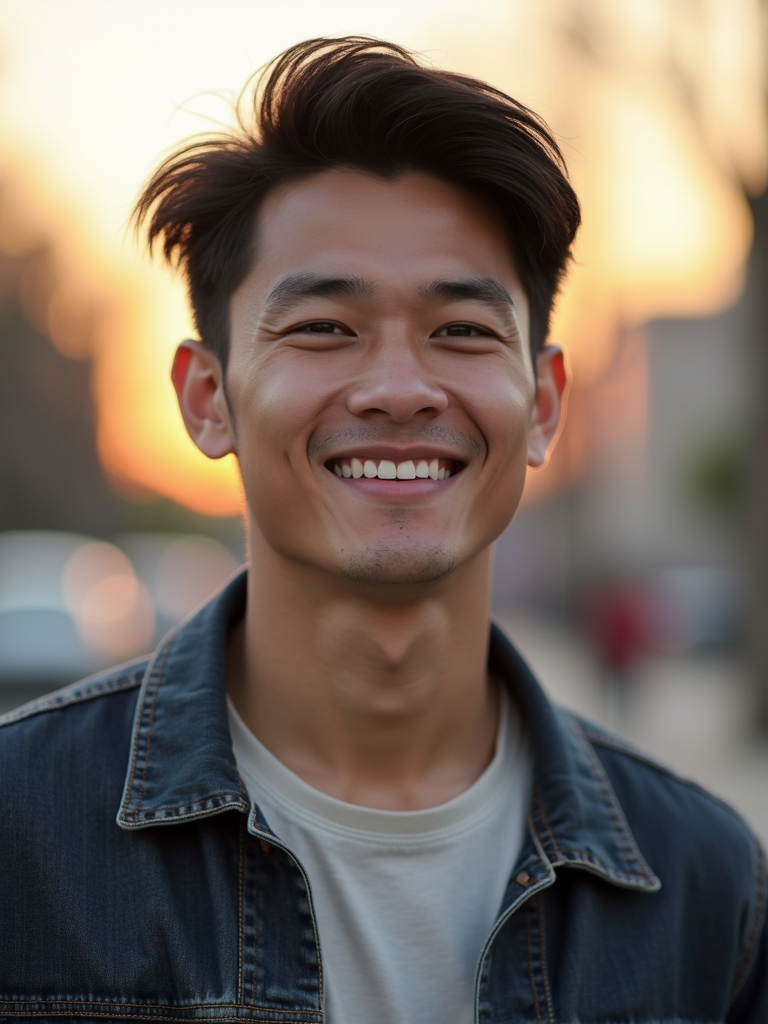
Deadpan = dead profile. Women are drawn to emotion and vibe, not just looks.
Pro Tip: Mix it up —
One smiling with teeth
One candid mid-laugh
One brooding, smirky, looking away
One warm or kind-eyed close-up
You’re not a mannequin. Show some life.
This isn’t about hiring a wedding photographer. You need someone who knows how to shoot for dating apps — ideally someone who understands male presentation for the female gaze.
Pro Tip: Pay someone who:
Shoots with intention (lighting, framing, vibe)
Knows how to edit for apps (not over-filtered, just clean + sharp)
Understands how to highlight masculinity subtly
Usually photo shoots cost $500 to $2,000 so this might not be for everyone.
No group photos — no one wants to guess who you are
No car selfies, gym mirrors, or bathroom shots
No outdated photos (yes, we can tell)
No sunglasses in every pic
No photos where you're cropped from your ex
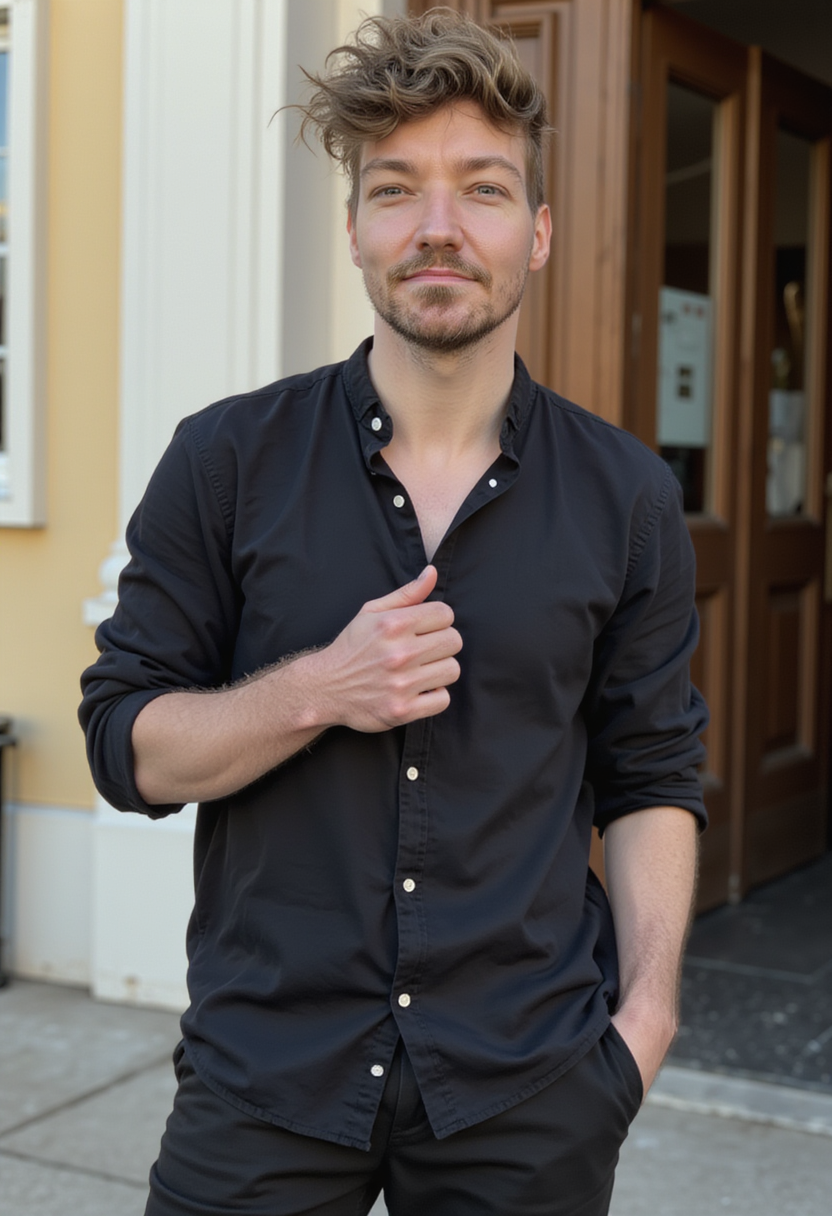
Don’t have great pics? Don’t want to pay $500 for a shoot? Use Photo AI to generate photorealistic dating photos — custom-tailored to look like you, in settings and styles that women swipe on.
How to start with Photo AI:
Sign up for an account
Upload 10-20 selfies (clear, varied expressions) to create an AI model of yourself
Run one of the dating photo packs:
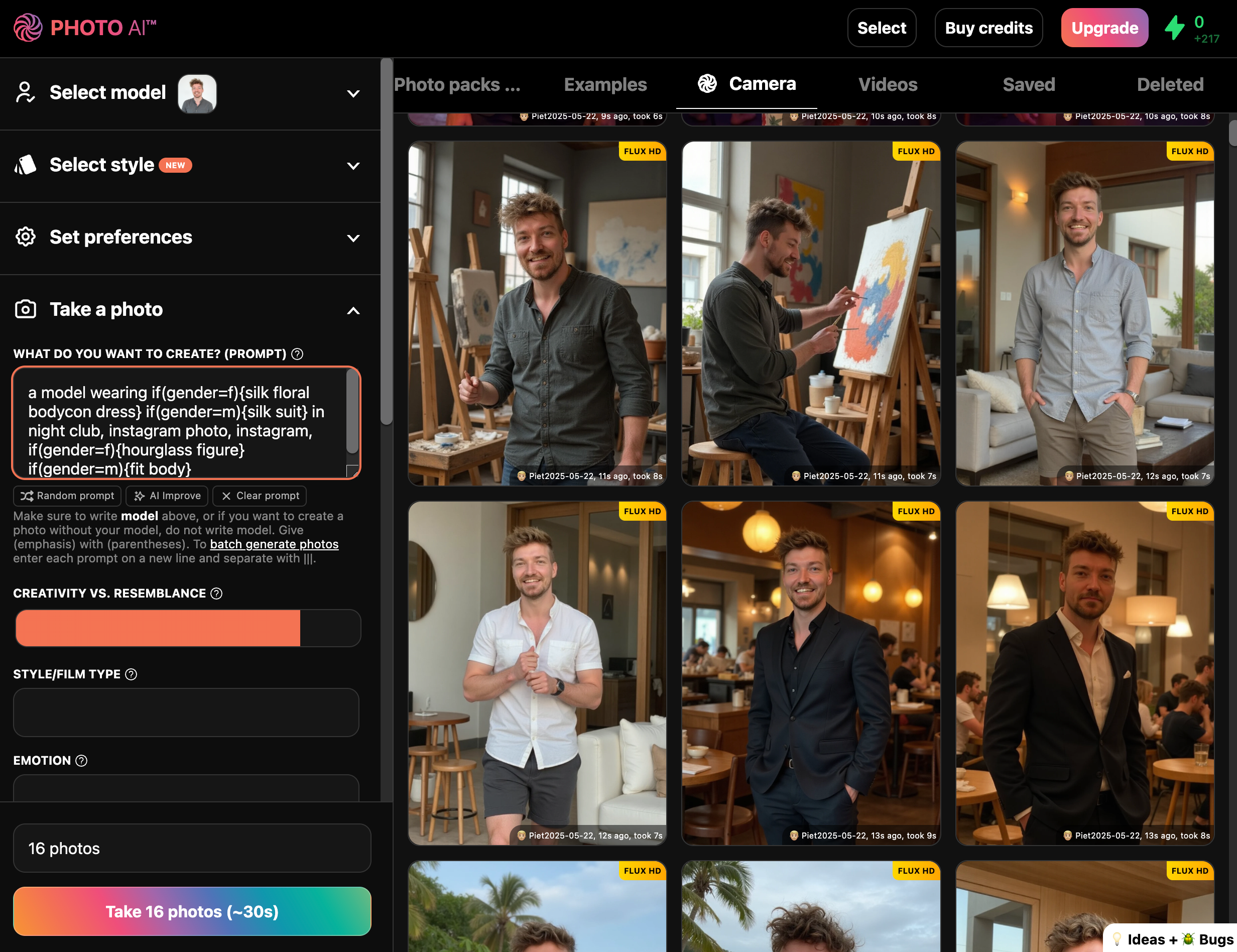
Or write your own prompts like:
“model standing on a rooftop at sunset”
“model in candid coffee shop moment with soft lighting”
“portrait of model with bokeh background in Paris”
Photo AI will generate high-res, realistic images that look like pro shoots — without the awkward posing
It’s fast, affordable, and you control the vibe at home. Tons of users have gotten better matches instantly just from our photos that reflect confidence, style, and story.
Fix your photos, and your matches go up. Period. We’ve seen guys go from zero to hundreds of matches just by upgrading their photos. One guy after upgrading his photos got 600+ matches. Real number. And now he averages 3 dates a week.
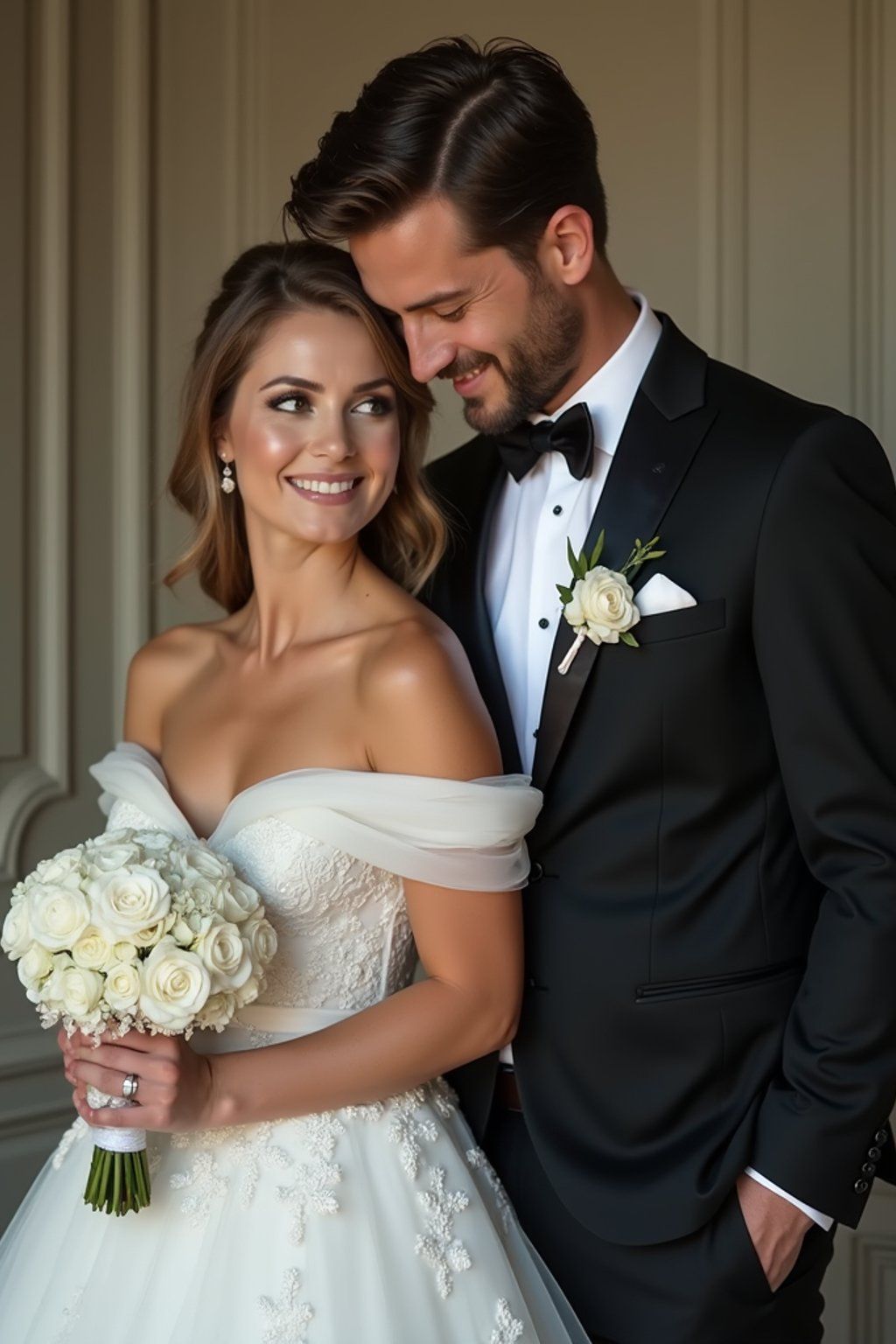
And if you’re lucky you might end up like the couple above after a few dates!
You’re not ugly. Your photos are just bad!
🔗 Try Photo AI now
Nano Banana Pro by Google has strict content moderation. If it detects your photo is too suggestive, it rejects the generation. There’s nothing we can do about that.
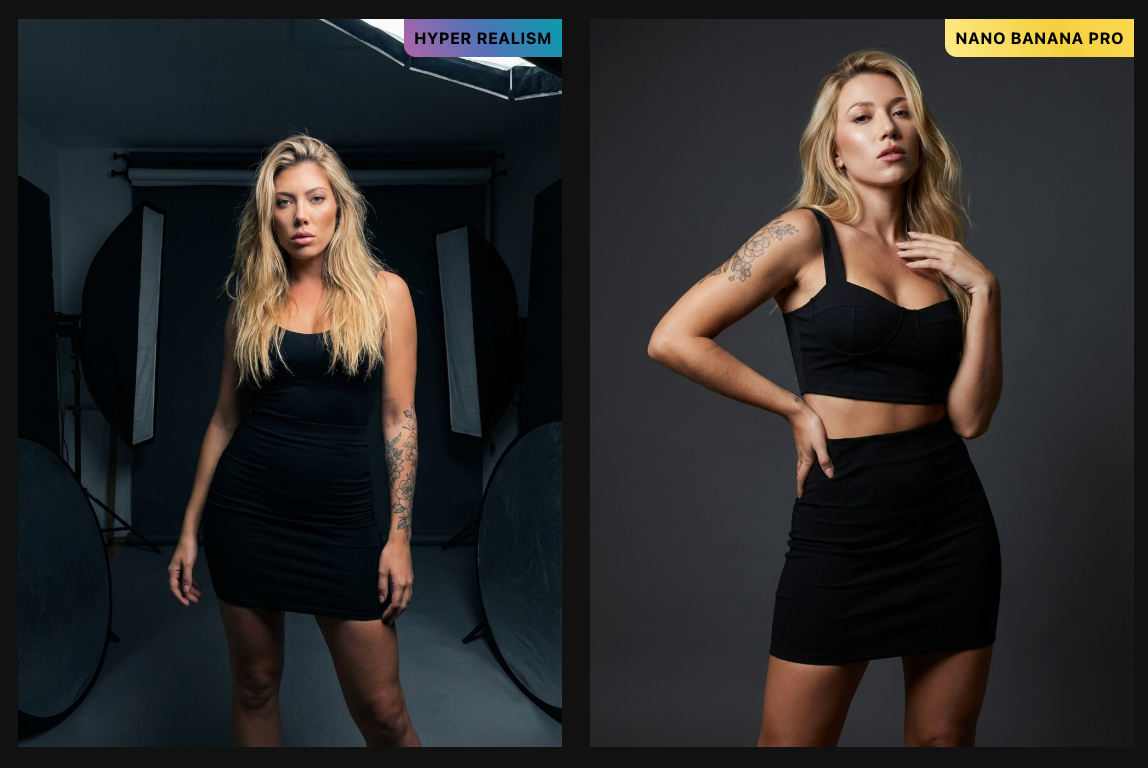
When this happens, we automatically fall back to our Hyper Realism model to complete your photo.
You're only charged the lower Hyper Realism credit rate, not the Nano Banana Pro rate.
Want to showcase clothes on real-looking models without expensive photo shoots? Photo AI makes it easy to virtually try on clothes using AI-generated photos and videos. Perfect for e-commerce stores, fashion designers, or Shopify sellers.
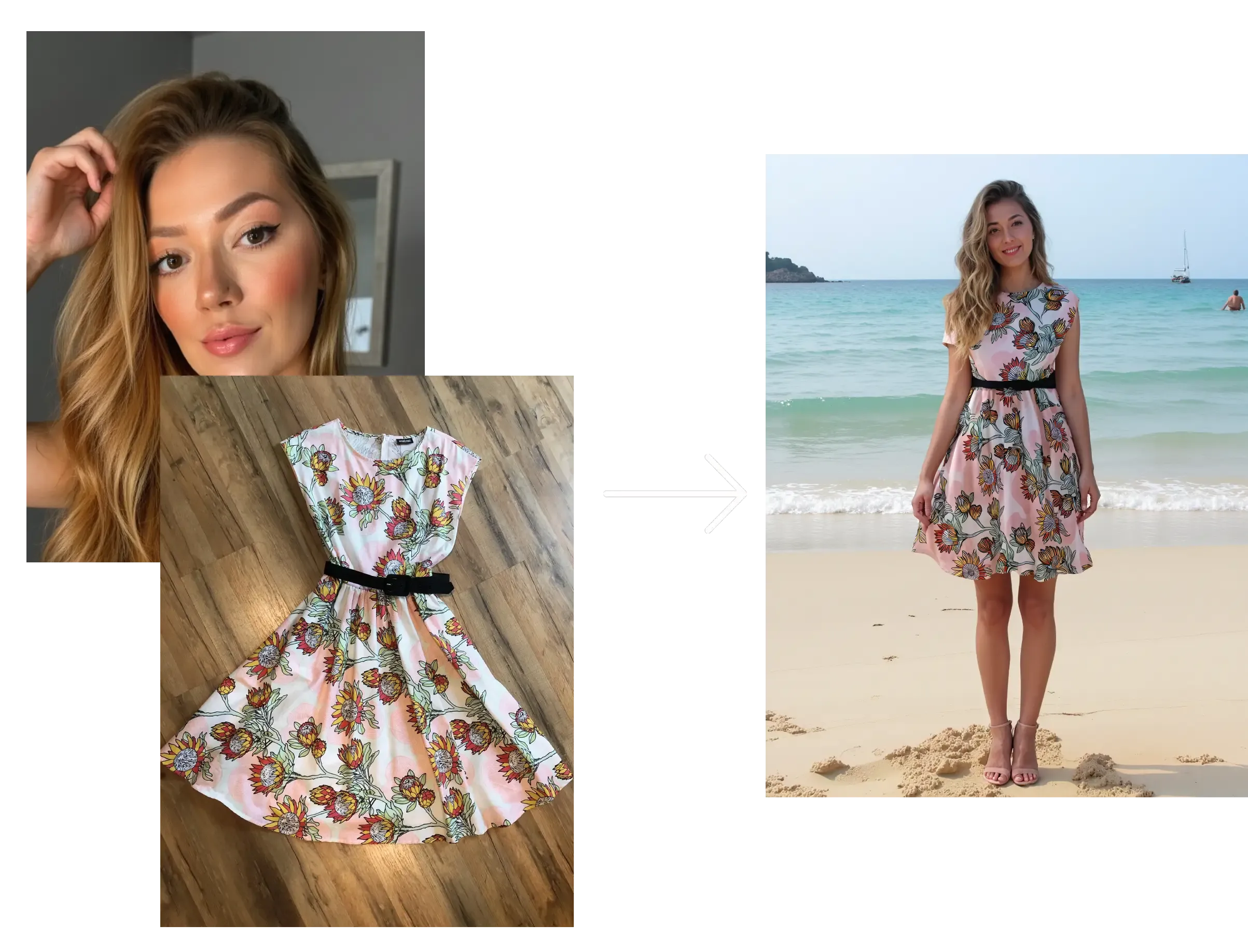
Here’s how to use the Virtual Try On Clothes feature on Photo AI:
Go to [ Create new AI model ] in the sidebar. Upload around 20 photos of your model, this could be yourself or someone you’ve hired.
In about a minute, Photo AI will train a photorealistic, personalized AI model that looks just like them.
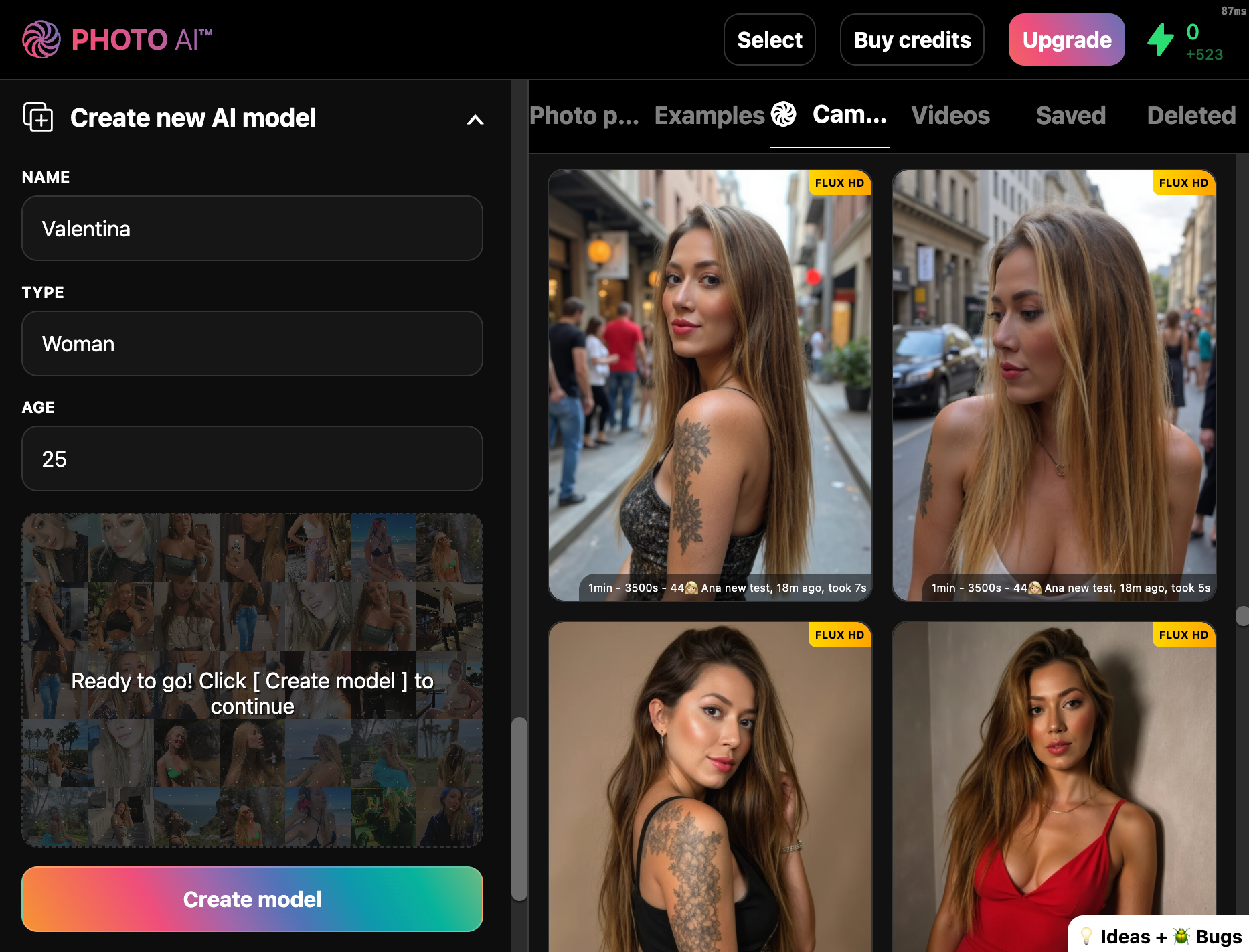
You can reuse this model to try on different outfits endlessly.
Click [ Try on clothes ] in the sidebar to launch the virtual try-on interface.
Upload a photo of the outfit you want the model to wear. It can be a real garment photo, mockup, or even a designer sketch.
Make sure to select full body, upper body or lower body depending what kind of garment it is.
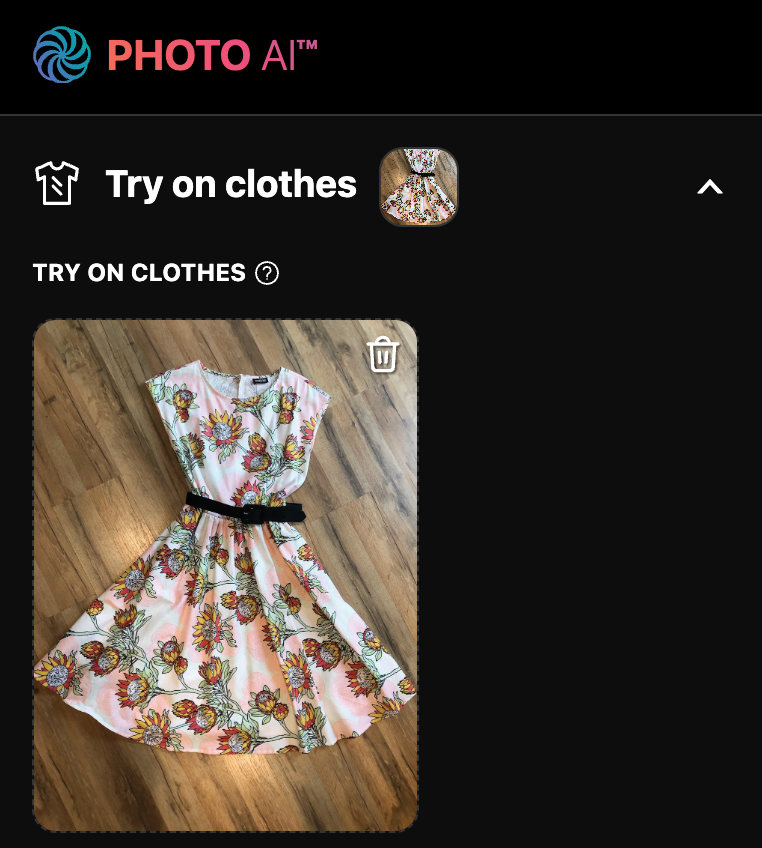
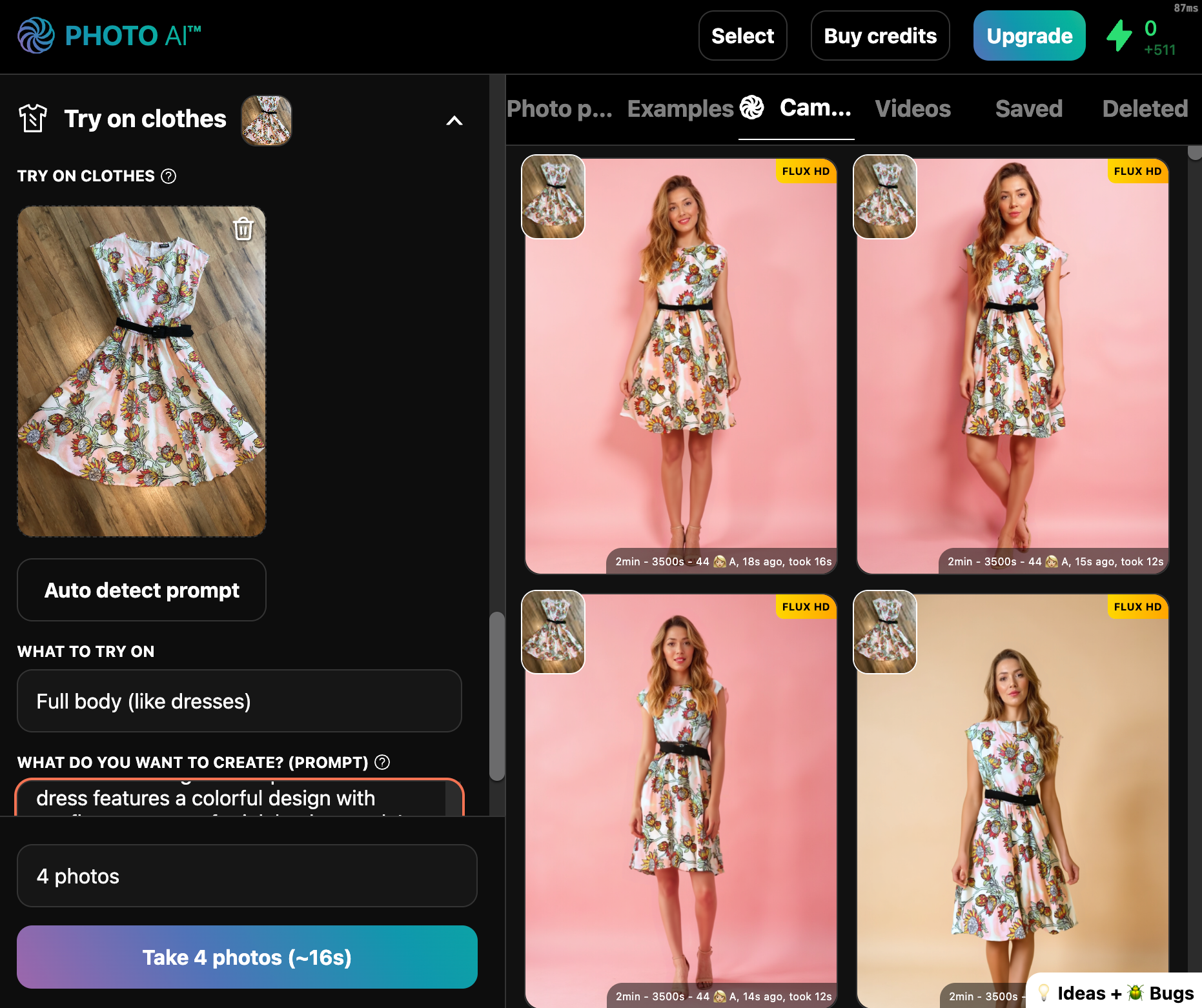
Select your trained model and click [ Take photo ]. The AI will generate a realistic image of that person wearing the outfit, perfect for product pages, lookbooks, or social posts.
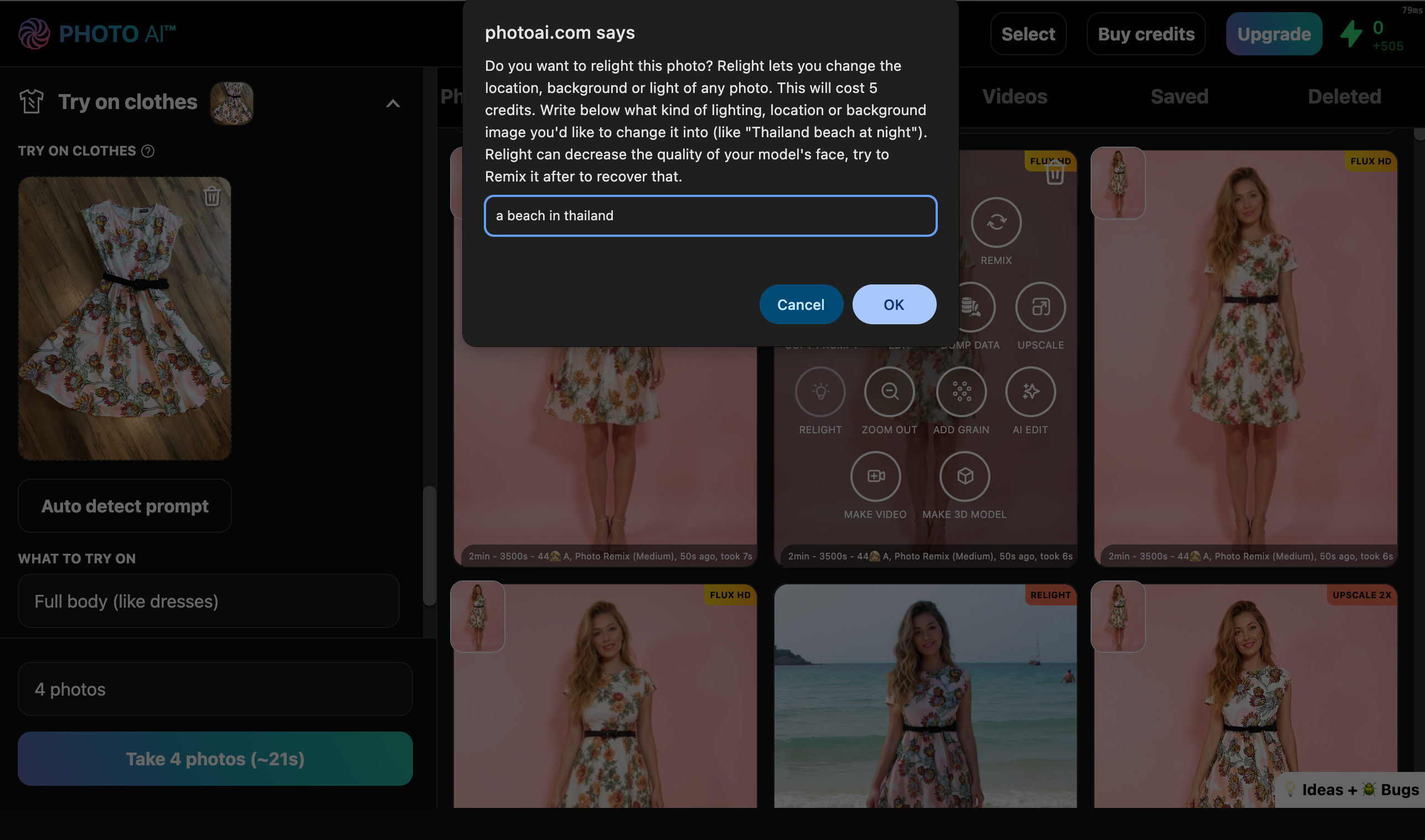
You can change the setting of your model in your prompt. But if you’ve already taken a nice photo and would like to change it then you can! Just hover over your photo and tap [ Relight ]. Then write where you want to place the model. For example “a beach in Thailand”:
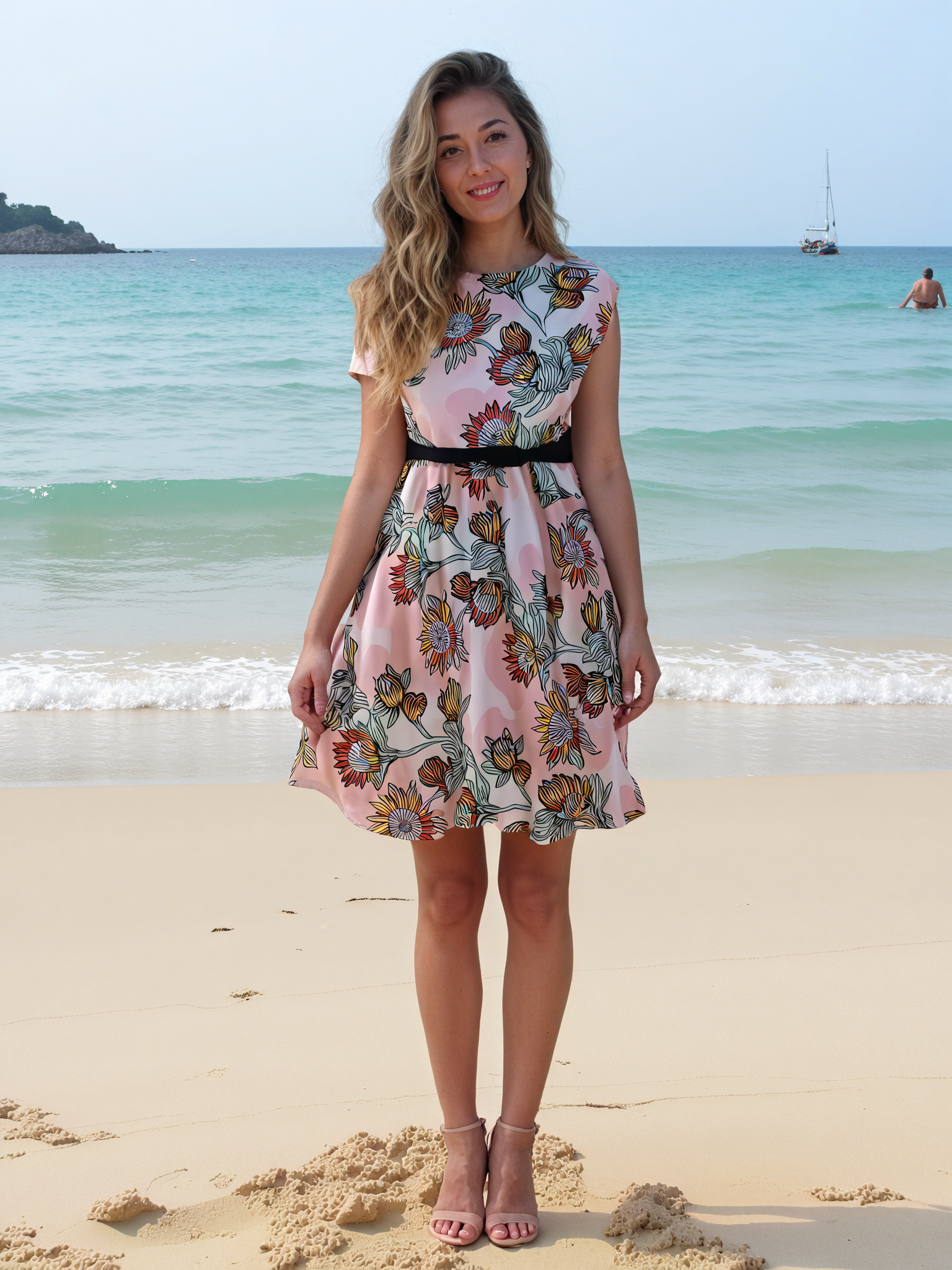
Wait a little bit and voila, she’s on a Thai beach:
Hover over the photo and click [ Make video ] to animate the outfit in motion, no camera crew or travel required anymore!
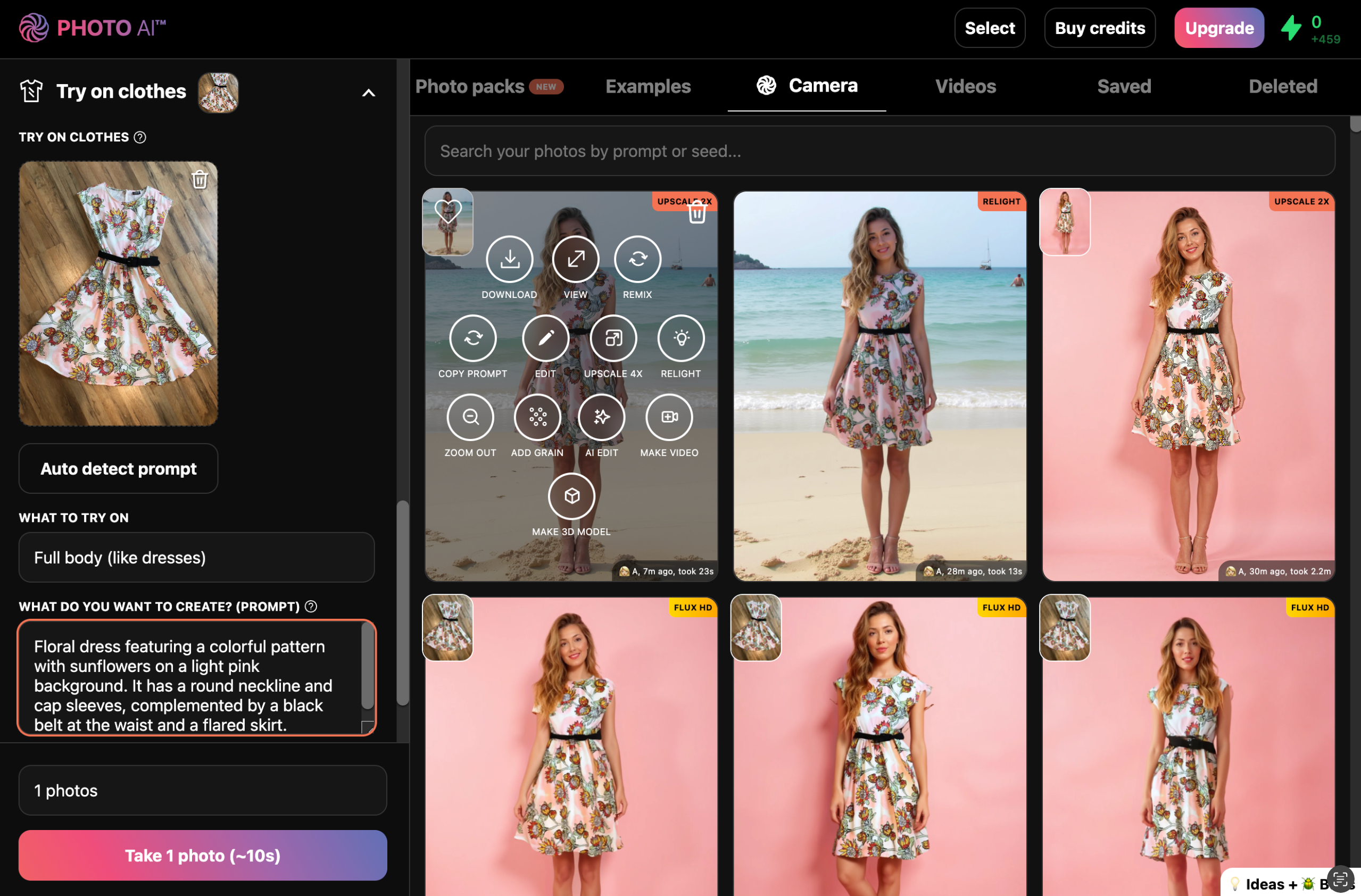
Wait a bit and then:
And inside your store:
✅ Use real models (yourself or hired), no deepfake, no stock
✅ Showcase clothes before manufacturing
✅ Great for Shopify stores, independent designers, and fashion startups
✅ Instantly generate lifestyle content, product photos, and even videos
✅ Do photo shoots anywhere in the world without a photographer
✅ Do video shoots anywhere in the world without a camera crew and traveling
Try it now on Photo AI, sign up and then go to [ Try on clothes ] and bring your fashion to life without ever picking up a camera.
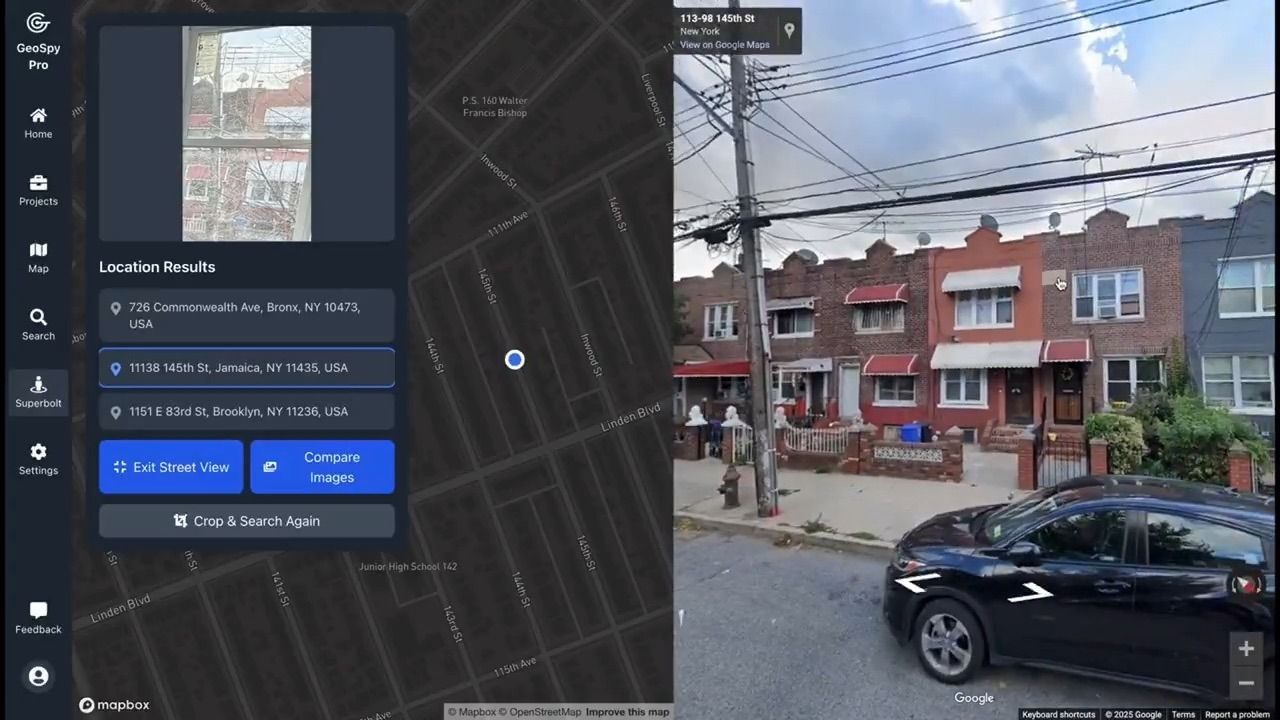
AI GeoGuessr tools are getting eerily good, they can now guess where you live just from a glimpse outside your window:
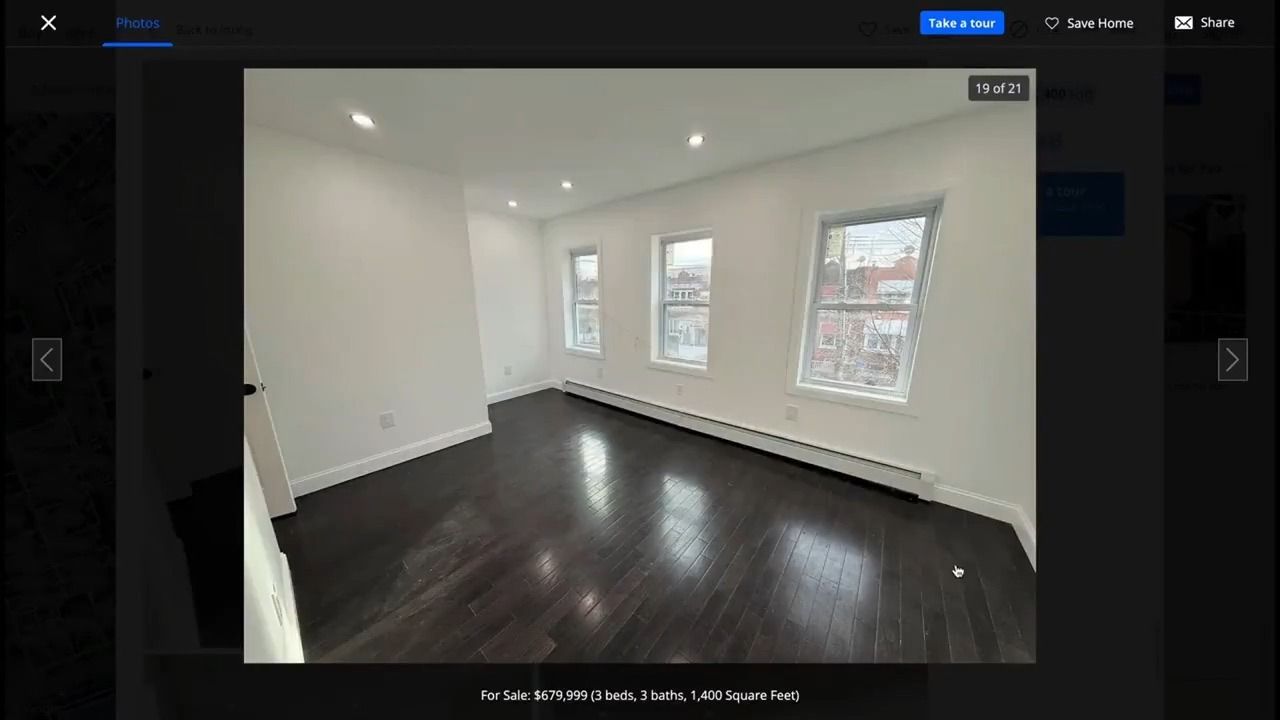
Matching that window view with Google Street View finds your exact location:
To keep you private, we built you a simple solution with Photo AI.
Pick a photo (or selfie) at home with a window in the background showing your city:
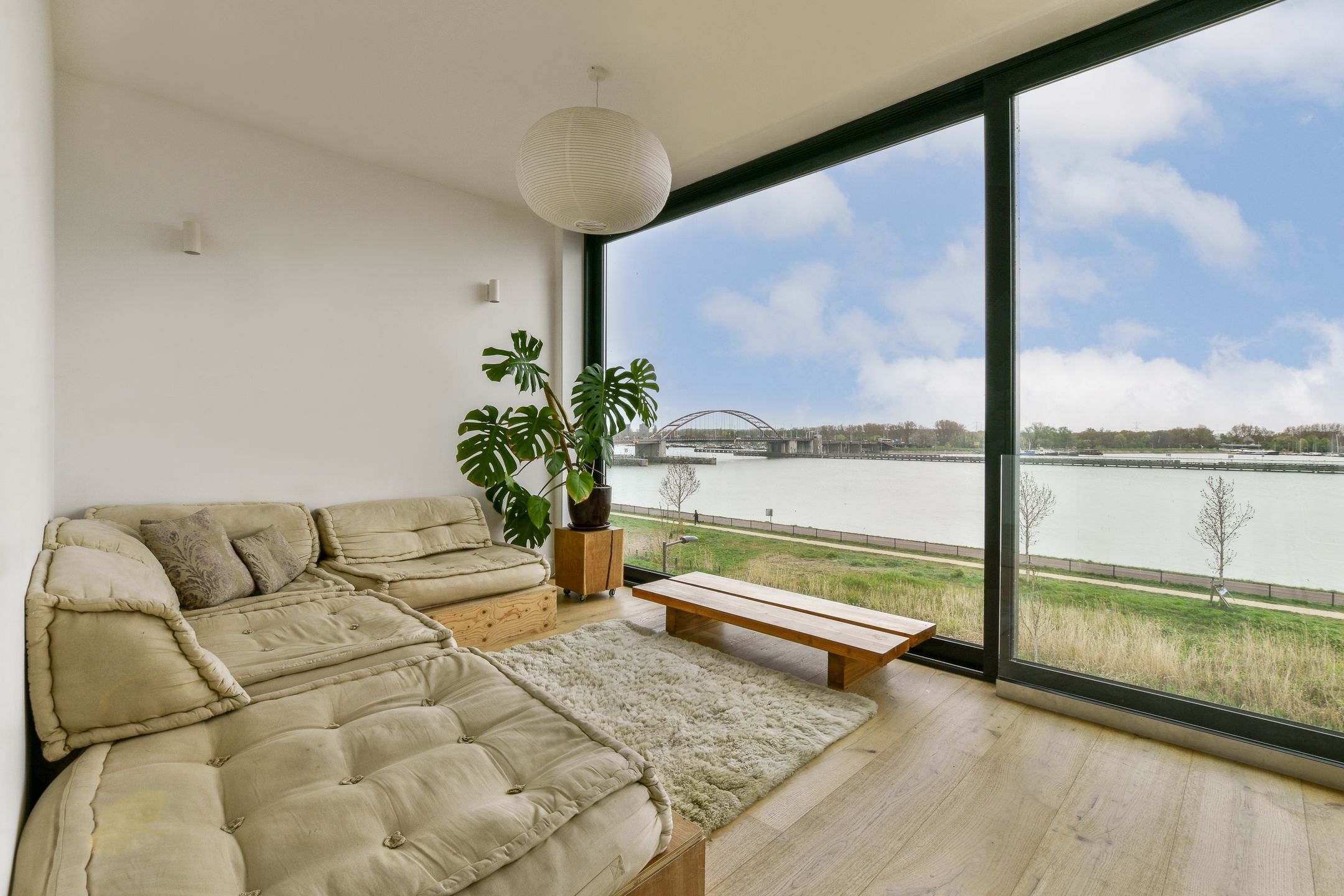
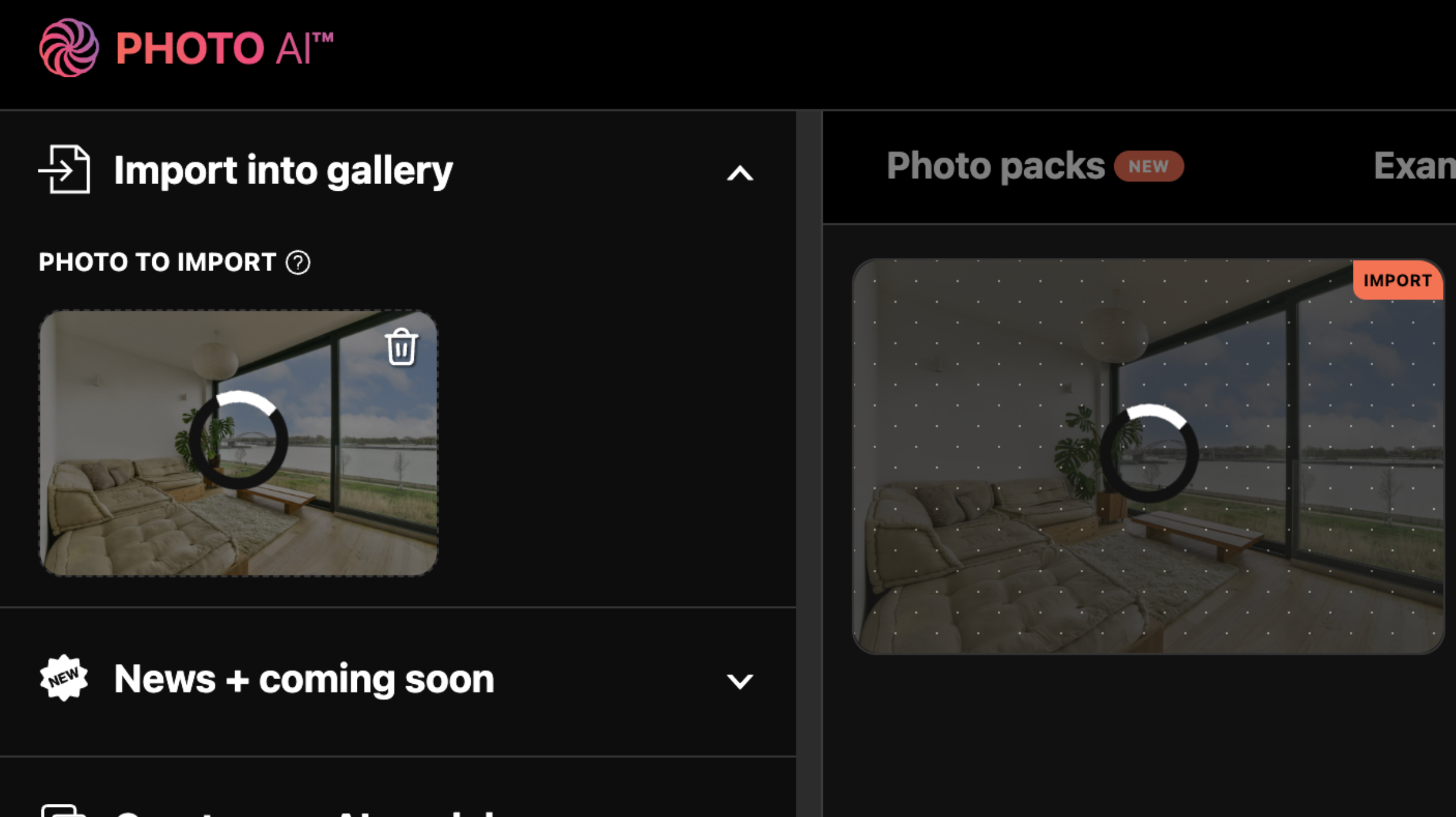
Then upload it into Photo AI using [ Import into gallery ]:
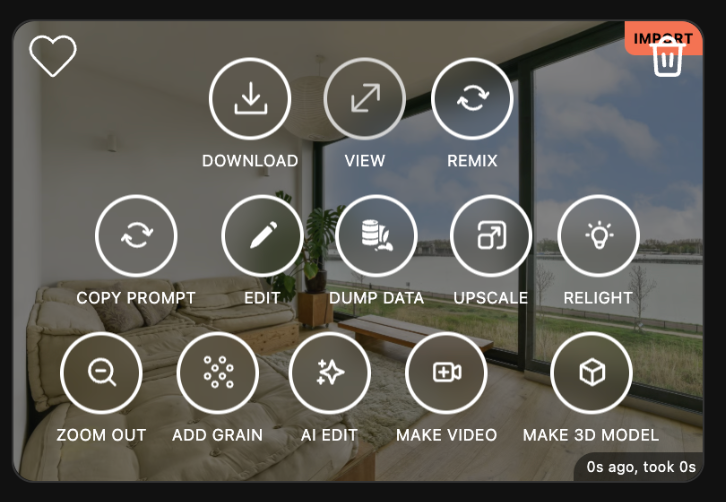
Hover over your imported photo and press [ Magic Edit ]
A prompt popup will appear.
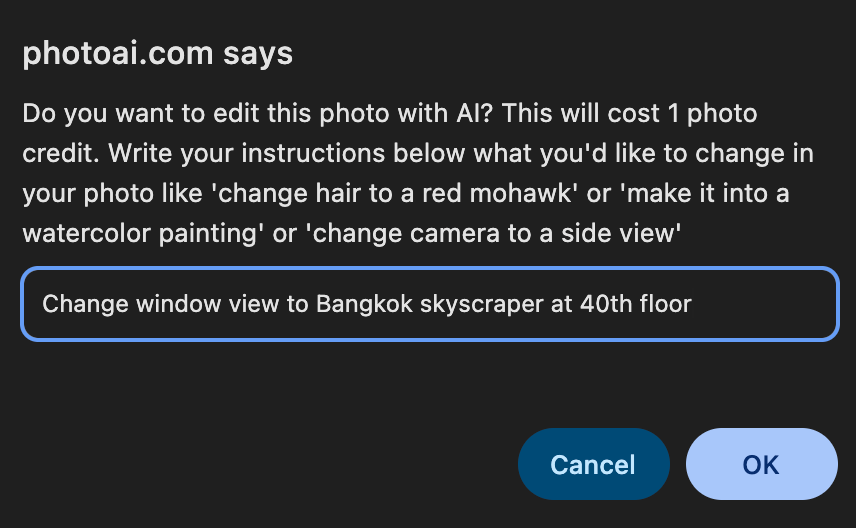
"Change window view to Bangkok skyscraper at 40th floor"
or
"Change the window view to a chalet in the Swiss alps"
Press Enter.
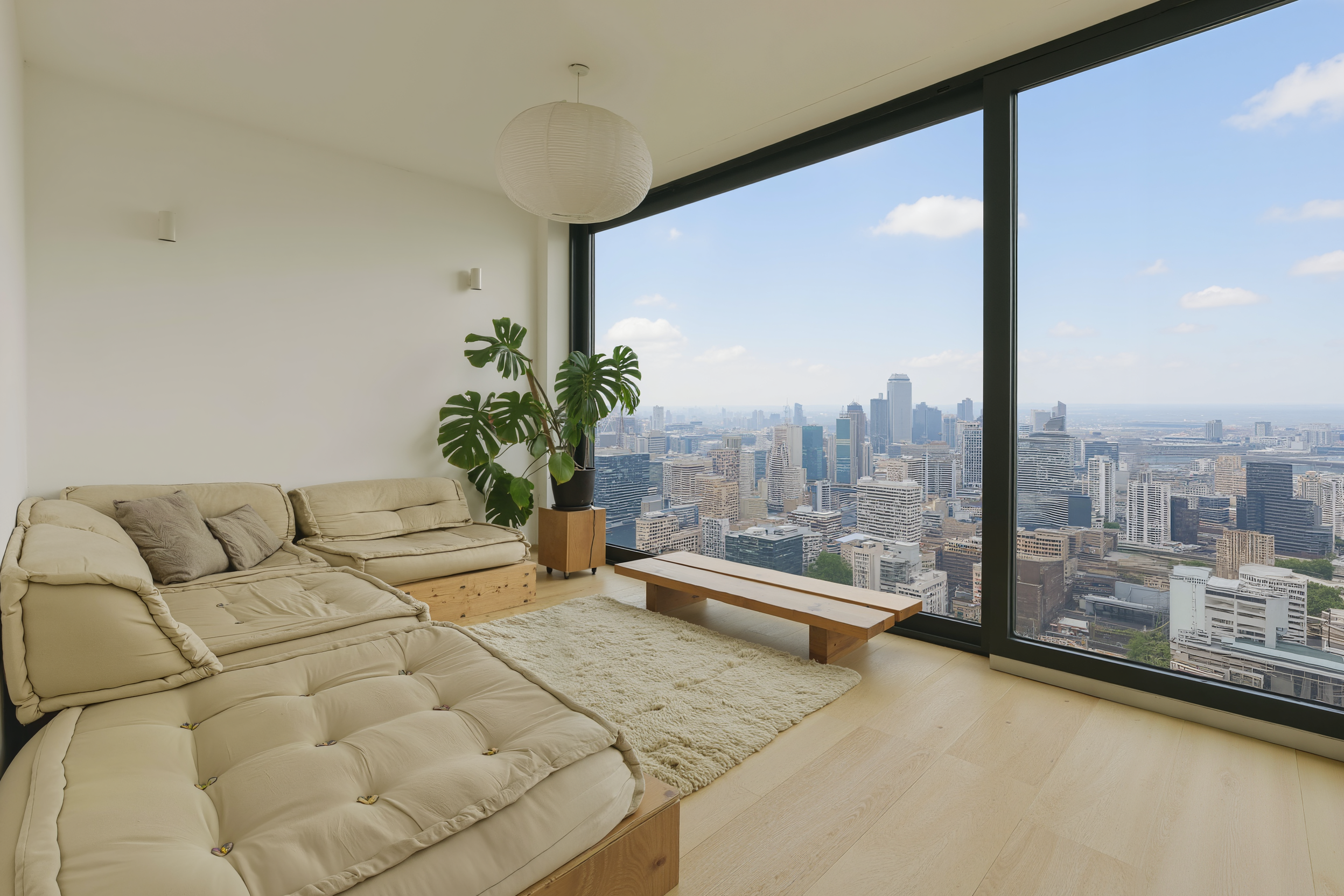
Photo AI will regenerate the photo with the new background.
Now, the view outside your window is no longer real — and no AI detective can tell where you live.
Here’s it in Bangkok on the 40th floor of a skyscraper:
And here it is in a Swiss mountain village:
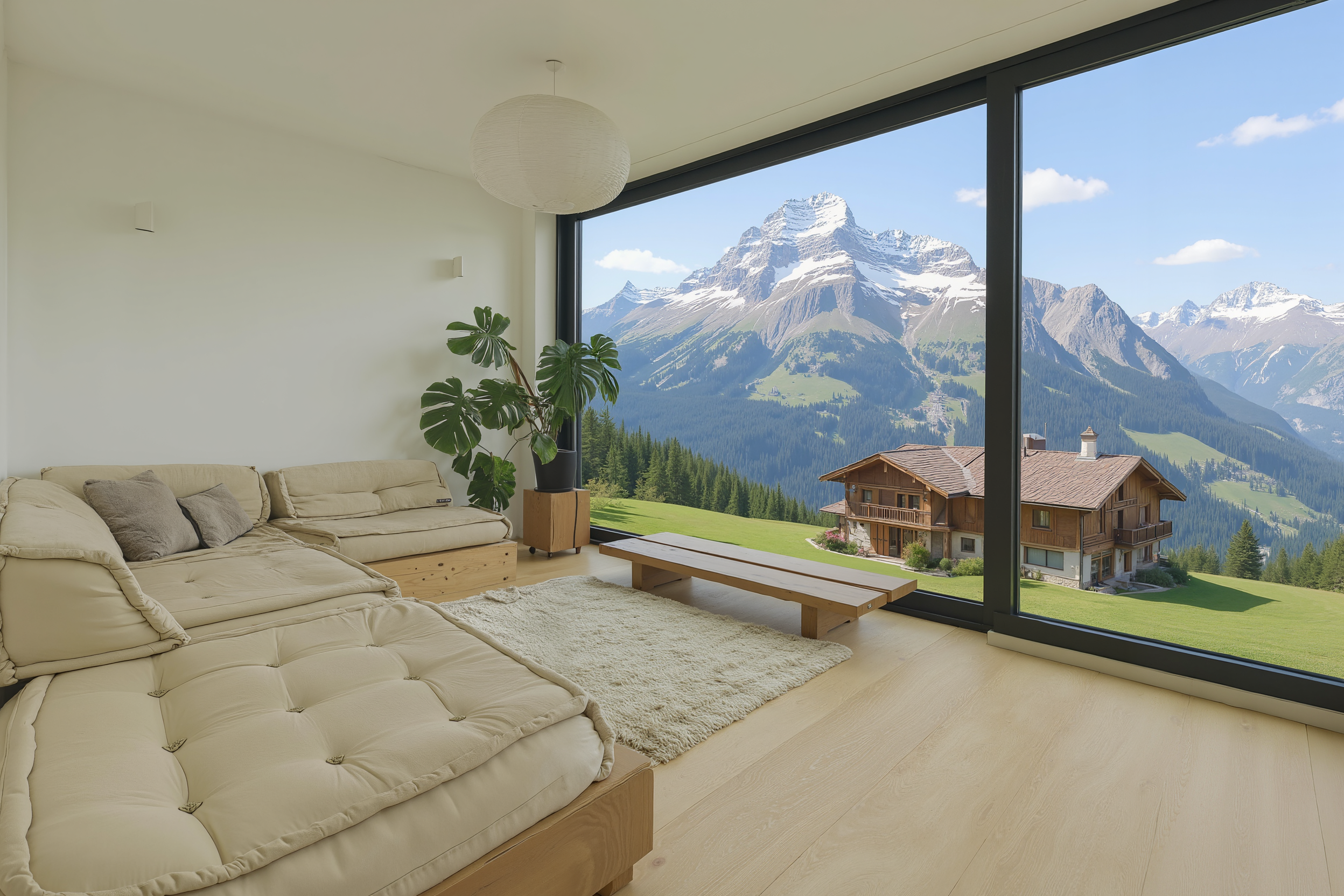
🔒 Keep your location private. Let AI work for you, not against you.
Try it now on Photo AI.
With AI-generated video technology rapidly evolving, it’s now possible to turn a single image into a cinematic video clip in seconds, with no editing skills. Whether you’re a content creator, marketer, or just experimenting, Photo AI makes the process fast, easy, and insanely fun.
In this guide, we’ll walk you through how to go from a static photo to a vivid, moving scene using Photo AI’s Image to Video feature.
Turning your photo into a short video takes less than a minute. Here’s how:
Inside Photo AI, first take some photos of the scene you like. Either write your own prompt or use one of our 100s of photo packs.
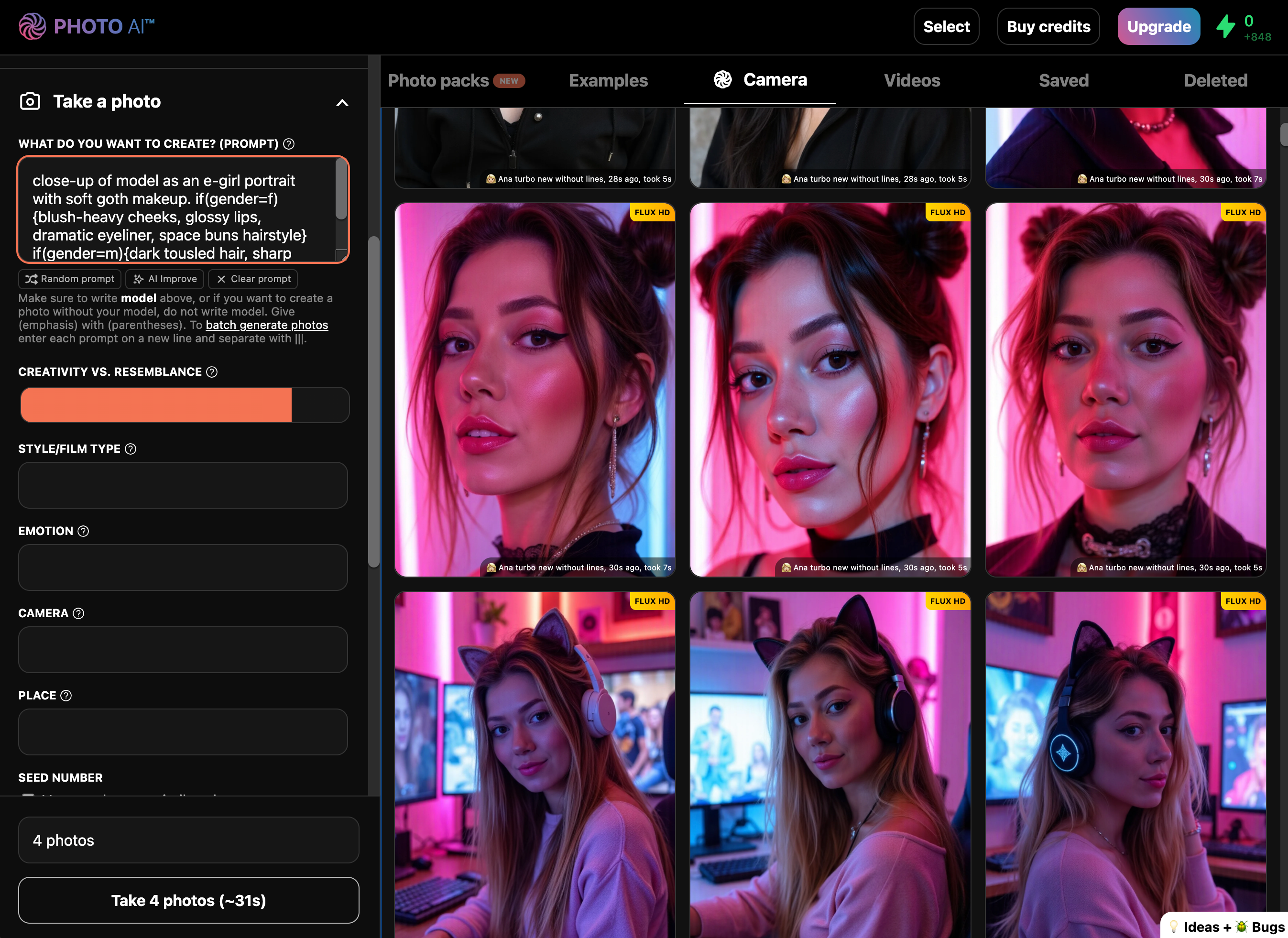
Once you see a photo you’d like to turn into a video, hover over it and tap [ Make video ].
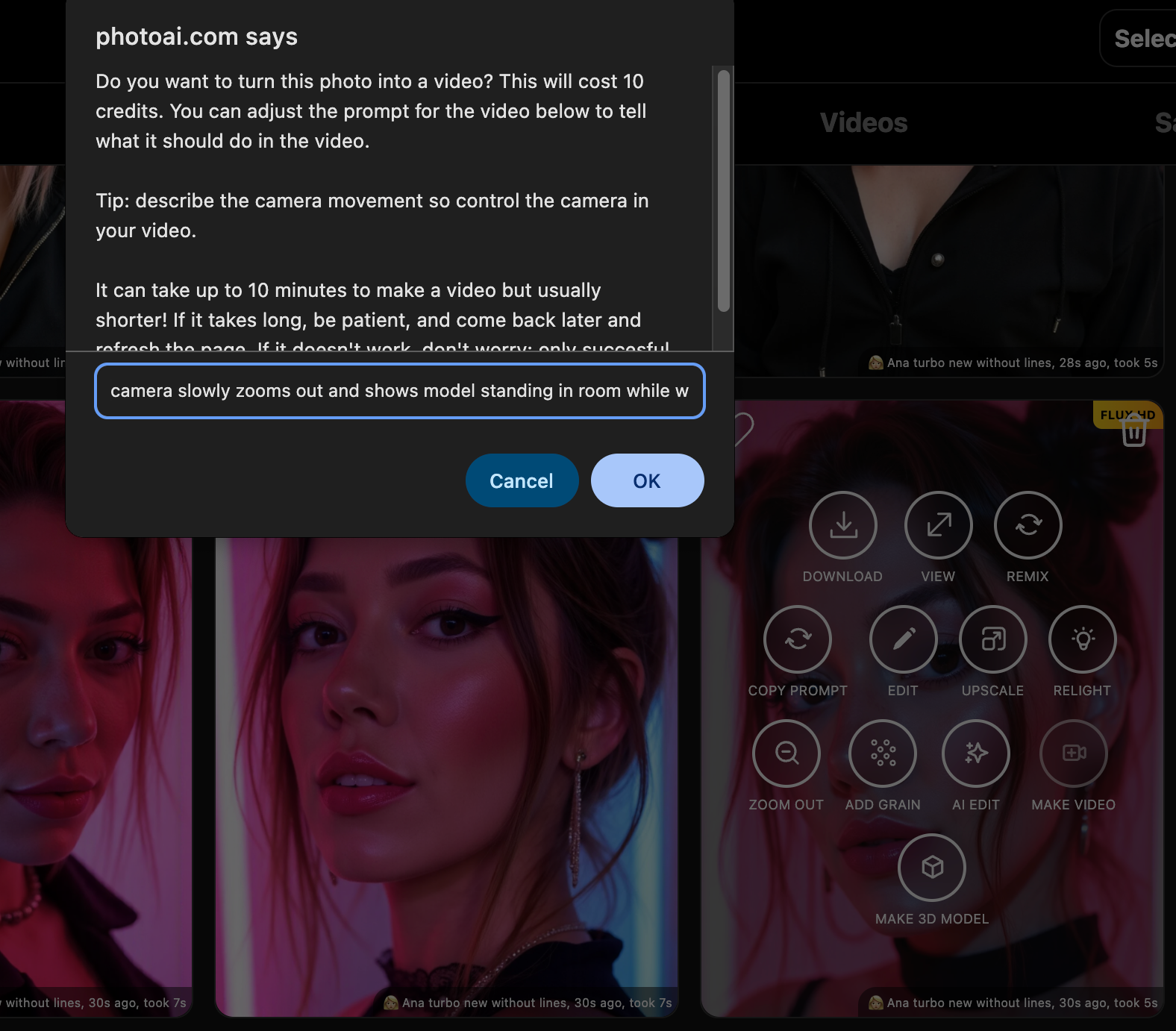
You’ll see a popup that lets you write a prompt which controls what happens in the scene, the motion of the camera and style:
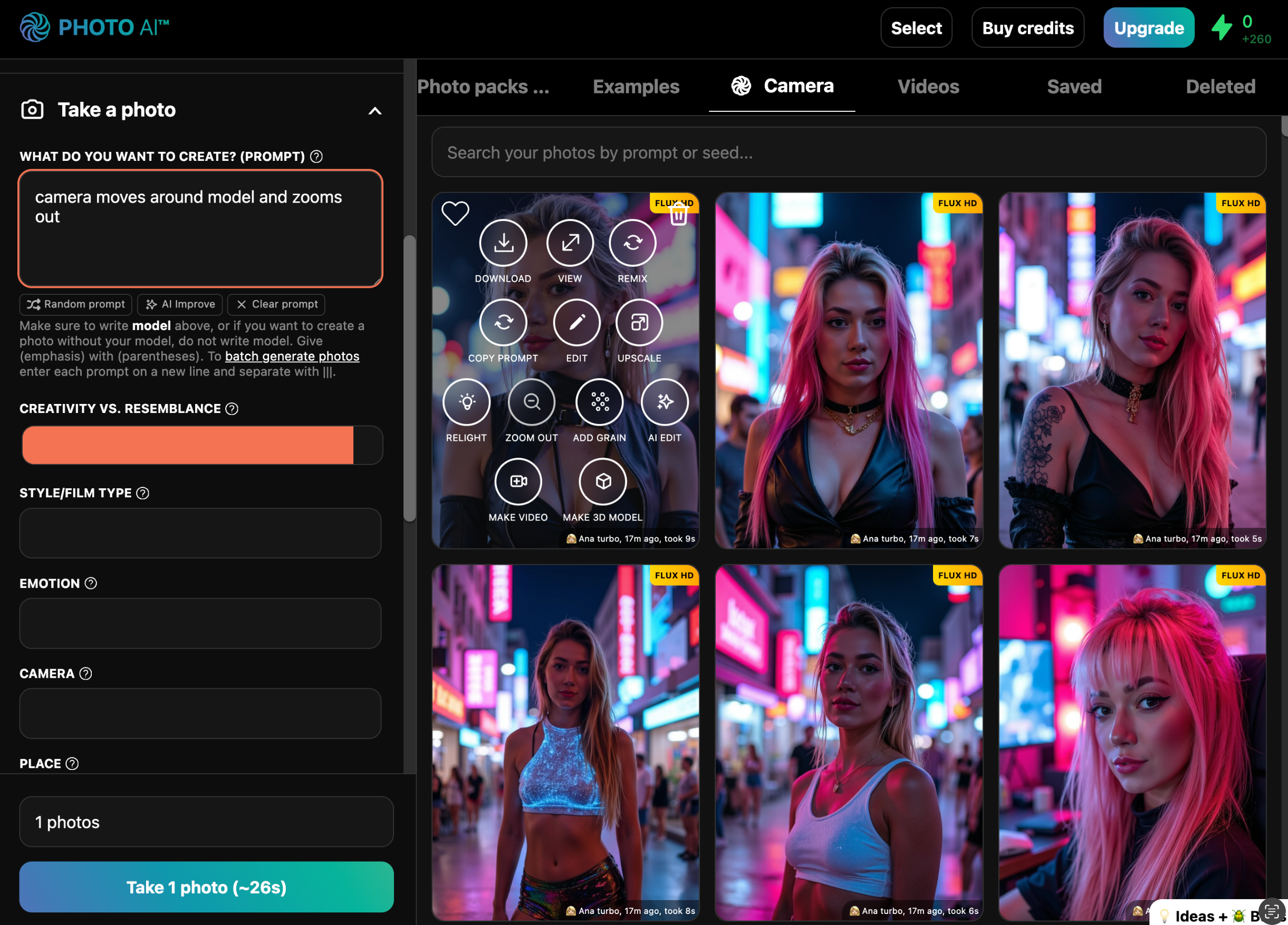
“camera slowly zooms out and shows model standing in room while wind blows from outside”
Where “model” references your AI model you created.
It will then take a minute or so and your video is done!
With Photo AI you can also upload your own images (like real photos you made) and turn them into a video in a similar way.
First go to [ Import into gallery ] and select your image.
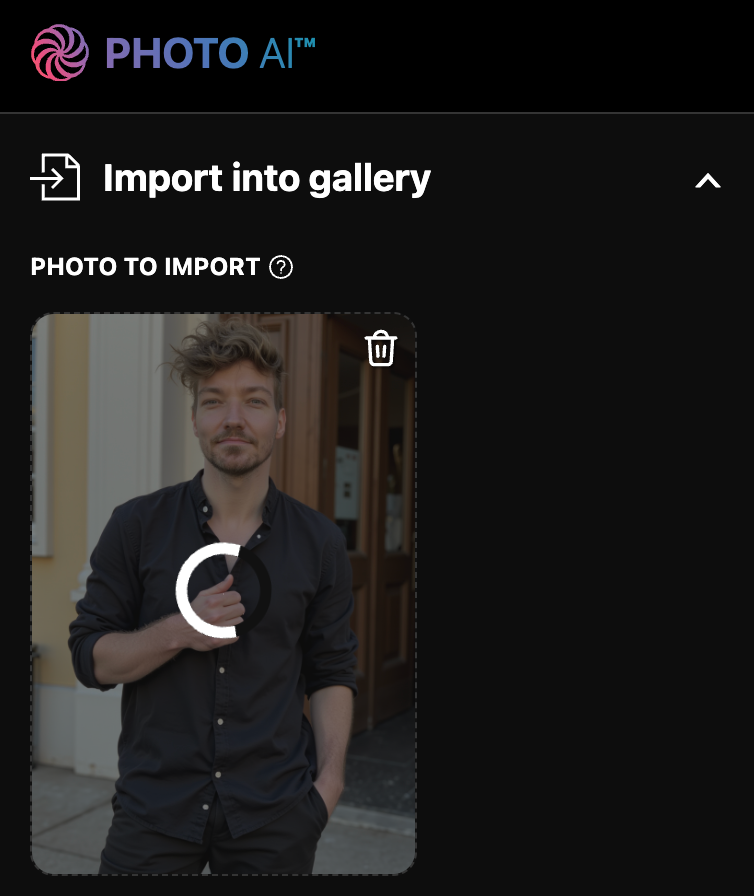
Then once it shows up in the gallery, hover over the image and tap [ Make video ].
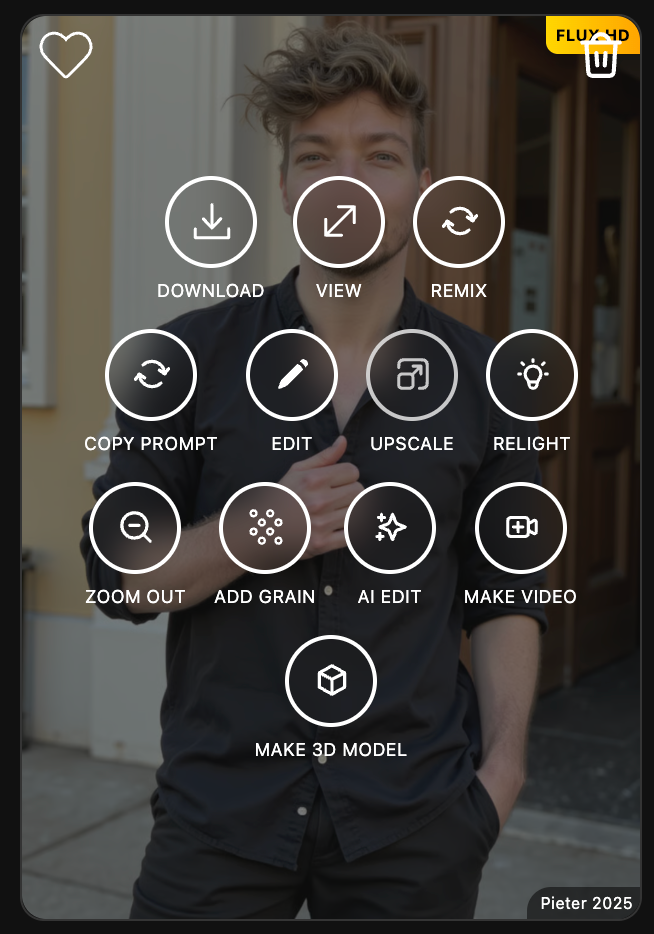
Just like before, you’ll see a popup that lets you write a prompt which controls what happens in the scene, the motion of the camera and style:
“The camera slowly zooms out to reveal the model in a futuristic city glowing at night”
It will then take a minute or so and your video is done!
Photo AI gives you access to the latest in cutting-edge video models and the moment a new video model is launched we usually have it available in our app within hours:
Kling
Hailuo AI’s Minimax
Pixverse
Google’s Veo
Photo AI auto-selects the best model available at any time and because AI models are quite safety sensitive, will fallback to every single model until it finds one that can do what you prompt it to do. Giving it one of the highest success % rates of any AI app for image-to-video.
With Photo AI’s video engine, you get:
5–10 second clips with fluid, cinematic motion
Zero video editing experience required
Instant preview and downloads
Whether you’re turning a selfie into a dramatic scene or animating your artwork, Photo AI delivers unmatched quality in just a few clicks.
AI video used to require complex tools and hours of editing. Now, with Photo AI’s Image to Video feature, you can go from static to cinematic in under a minute.
Take an AI photo or upload your own image, write a prompt, and let the AI handle the rest.
Want your photo in a cozy café, a mountain landscape, or glowing in sunset light — without retaking it? With Photo AI’s Relight feature, you can instantly change the background, lighting, and overall mood of any photo. No Photoshop, no technical skills needed.
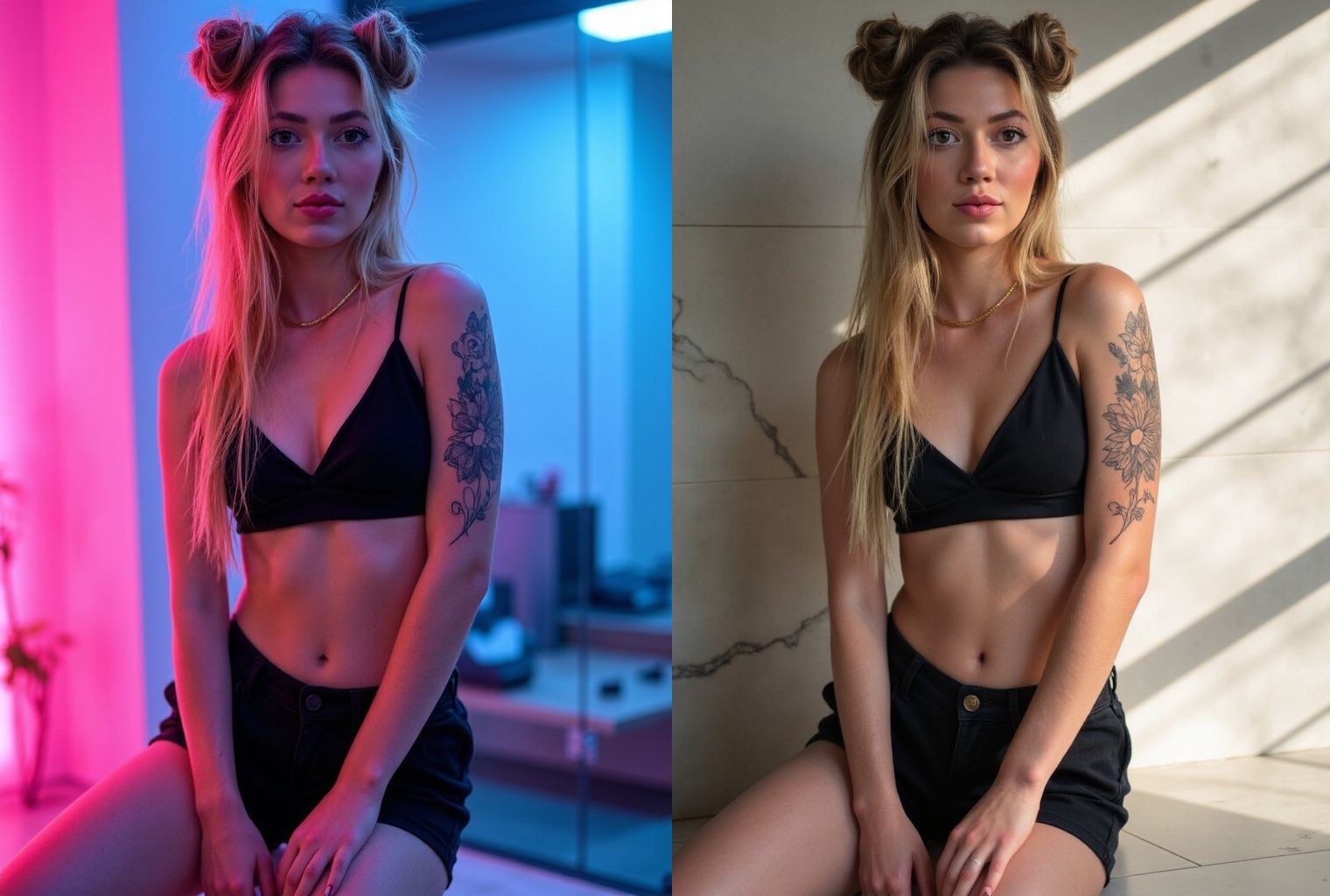
Relight lets you modify your photo’s setting and light source using AI. It can:
Change a dull studio shot into a beach scene
Add warm golden-hour light
Replace plain backgrounds with stunning scenery
Match your image’s vibe to your brand or product
Your model stays exactly the same — only the environment and lighting changes.
Turning your photo into a short video takes less than a minute. Here’s how:
Inside Photo AI, first take some photos of the scene you like. Either write your own prompt or use one of our 100s of photo packs.
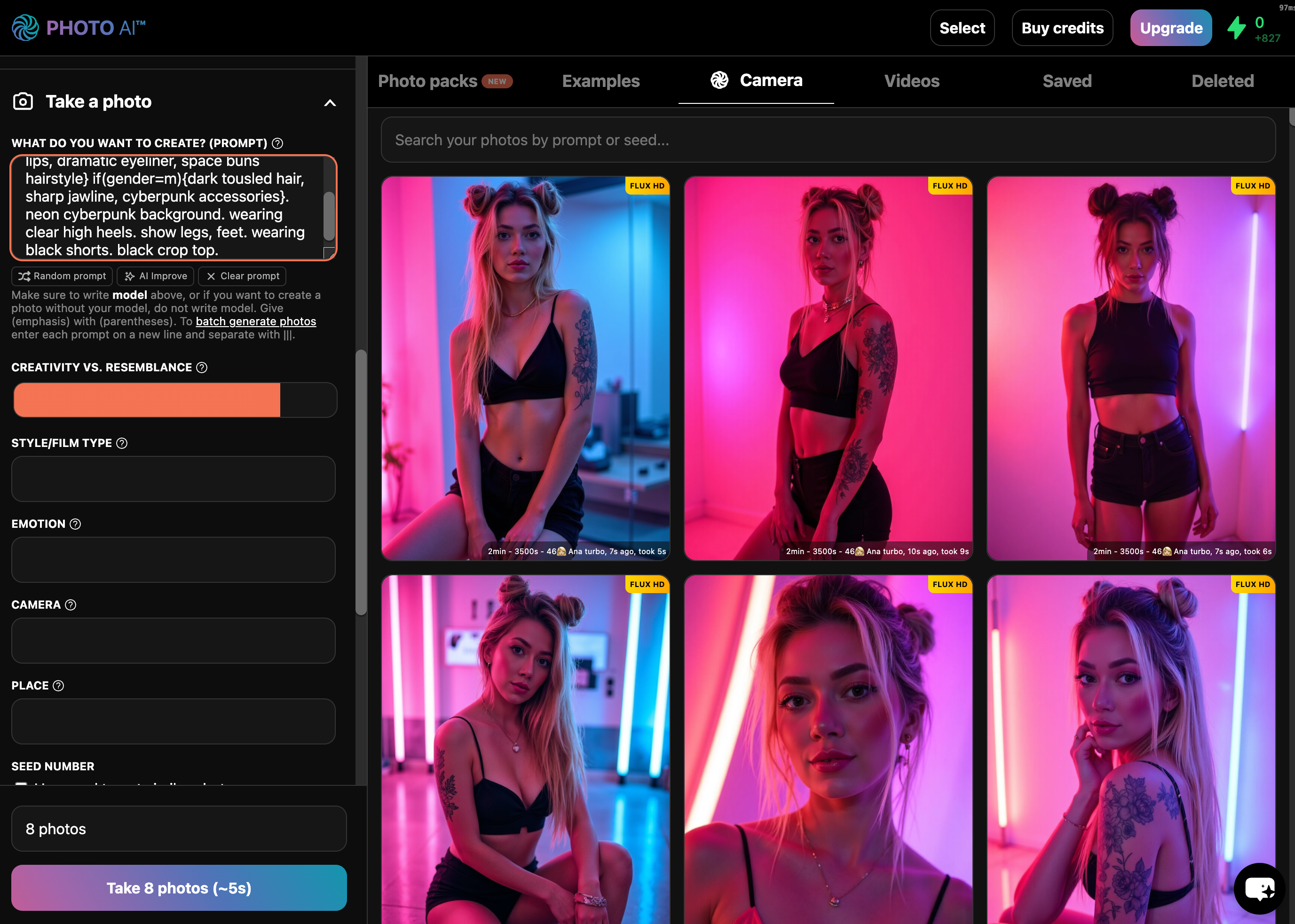
Once you see a photo you like but want to change the background or lighting, hover over it and tap [ Relight ].
You’ll see a popup that lets you write a prompt which controls the scene’s location, environment and light:
In this case I write: “change to a minimalist fully marble room that is lit by the sun”
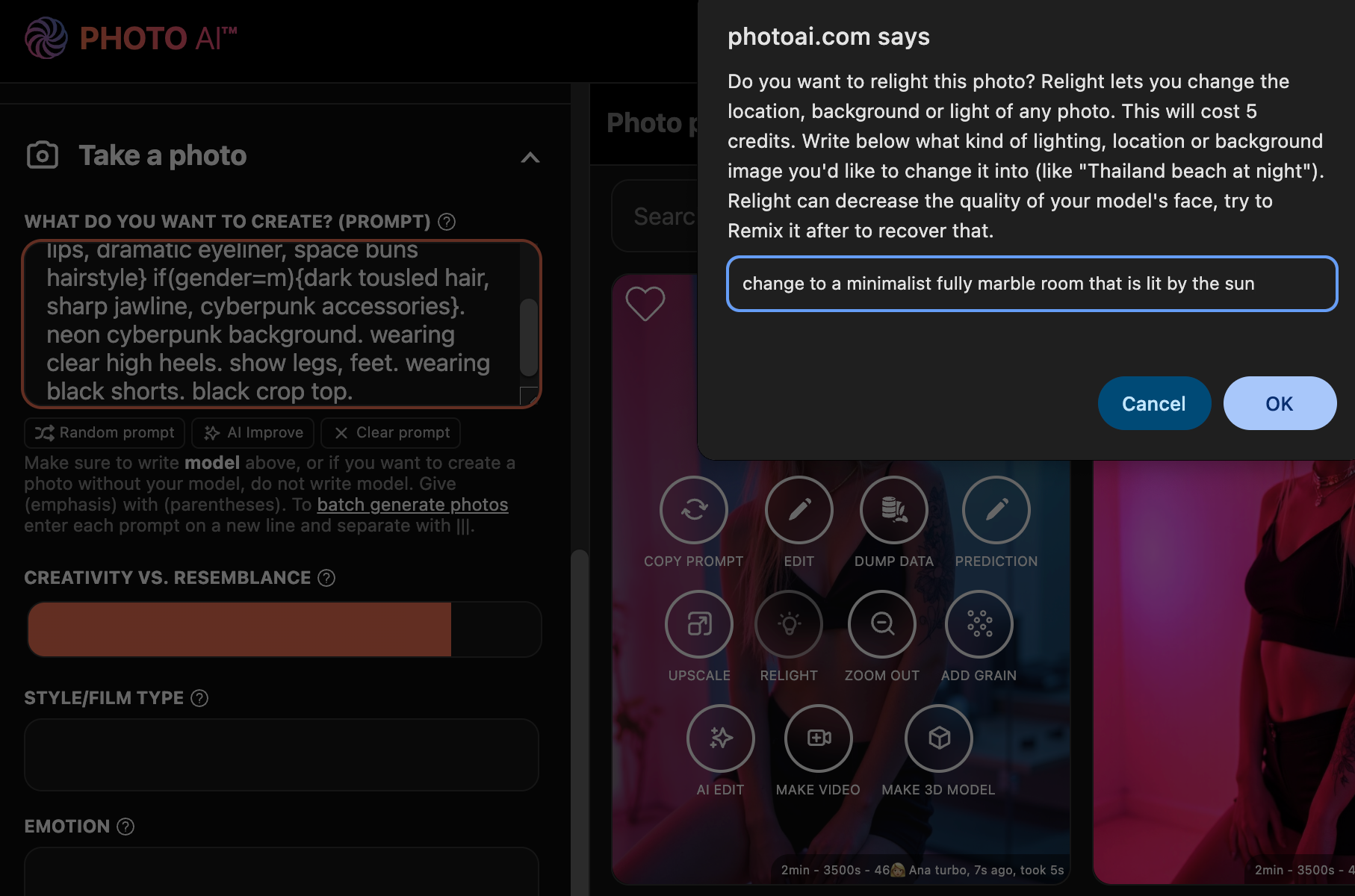
Done! You’ll now see your photo with a new location, setting, background and light:
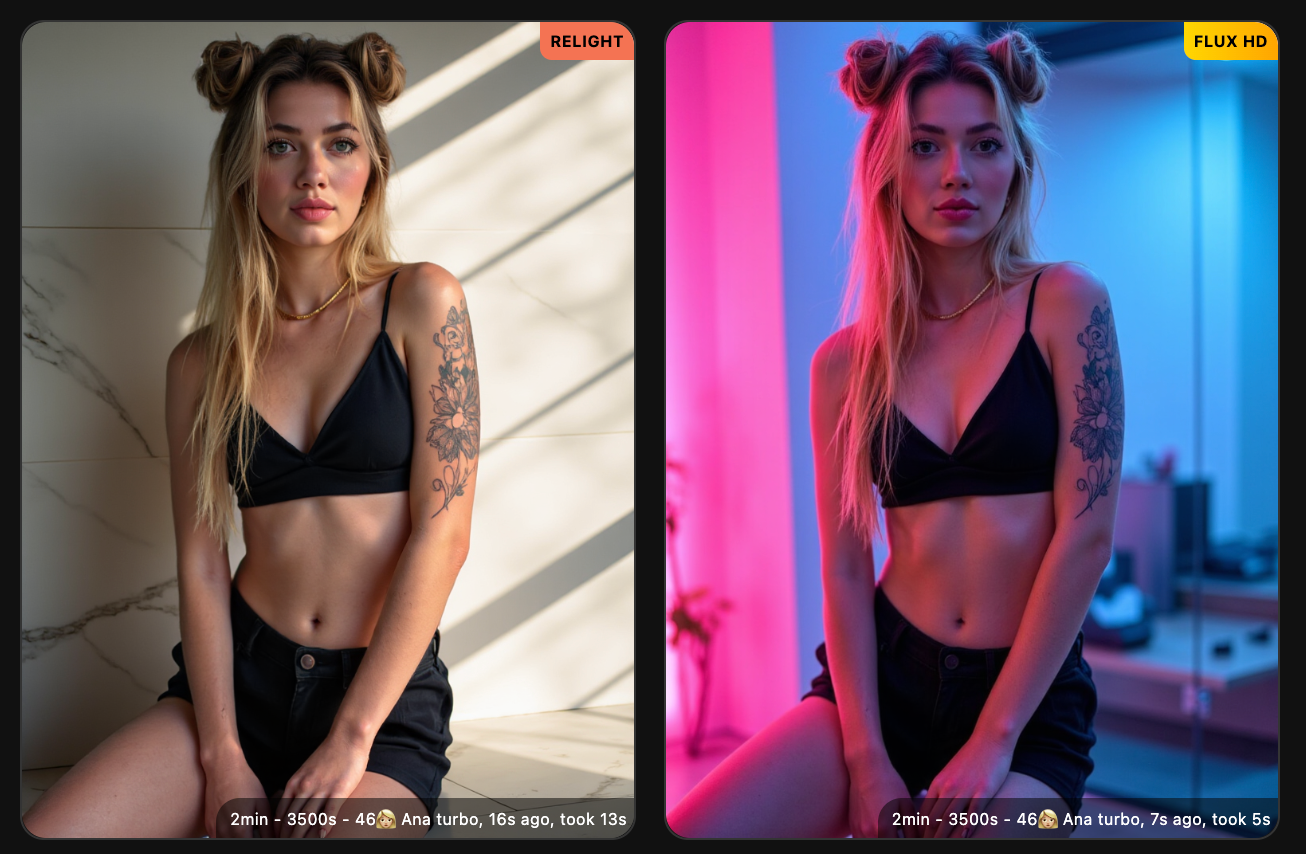
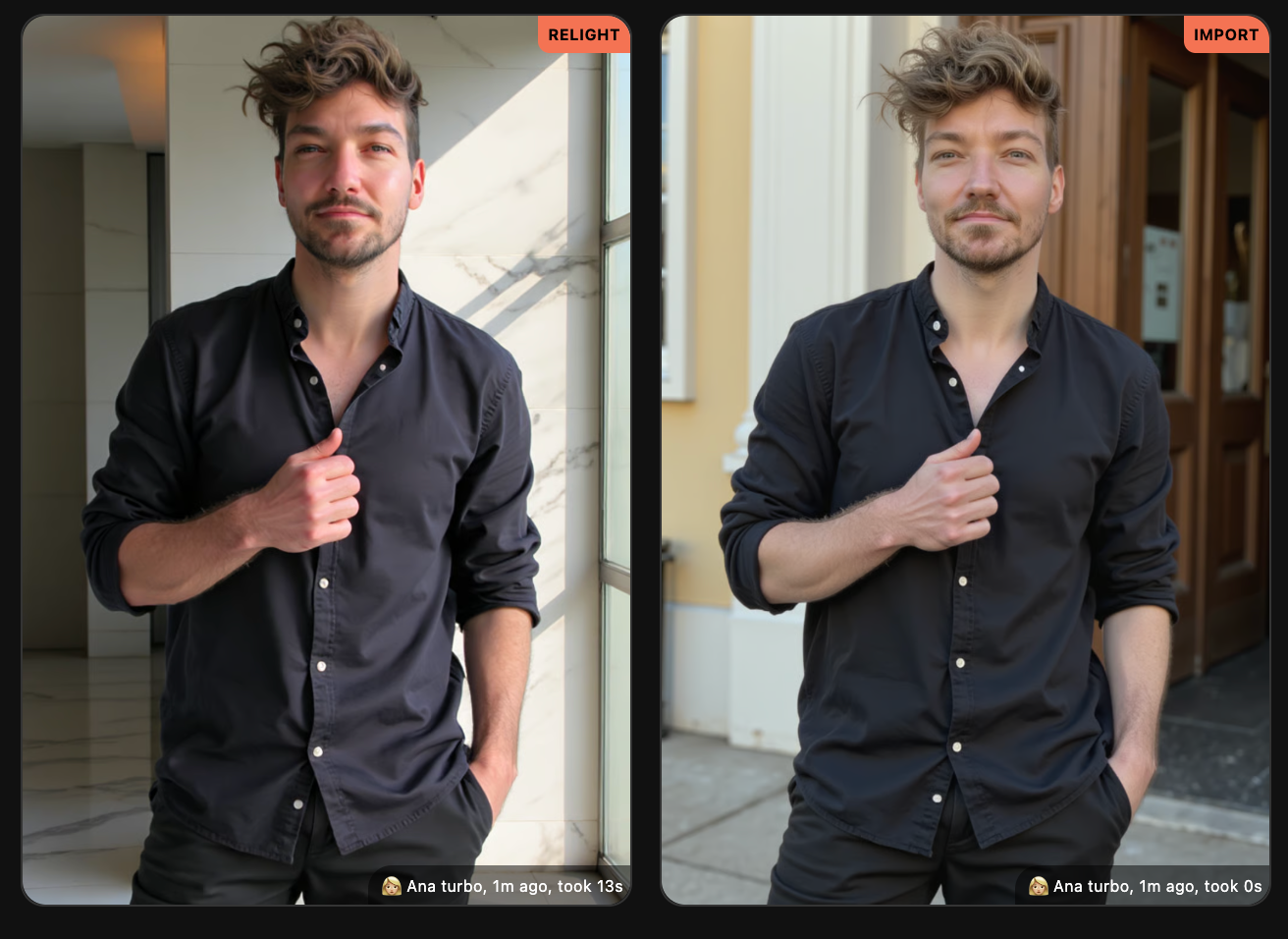
Relight has the limitation that it might reduce the resemblance/likeness of your photo. In that case, try using [ Remix ] to get resemblance back:
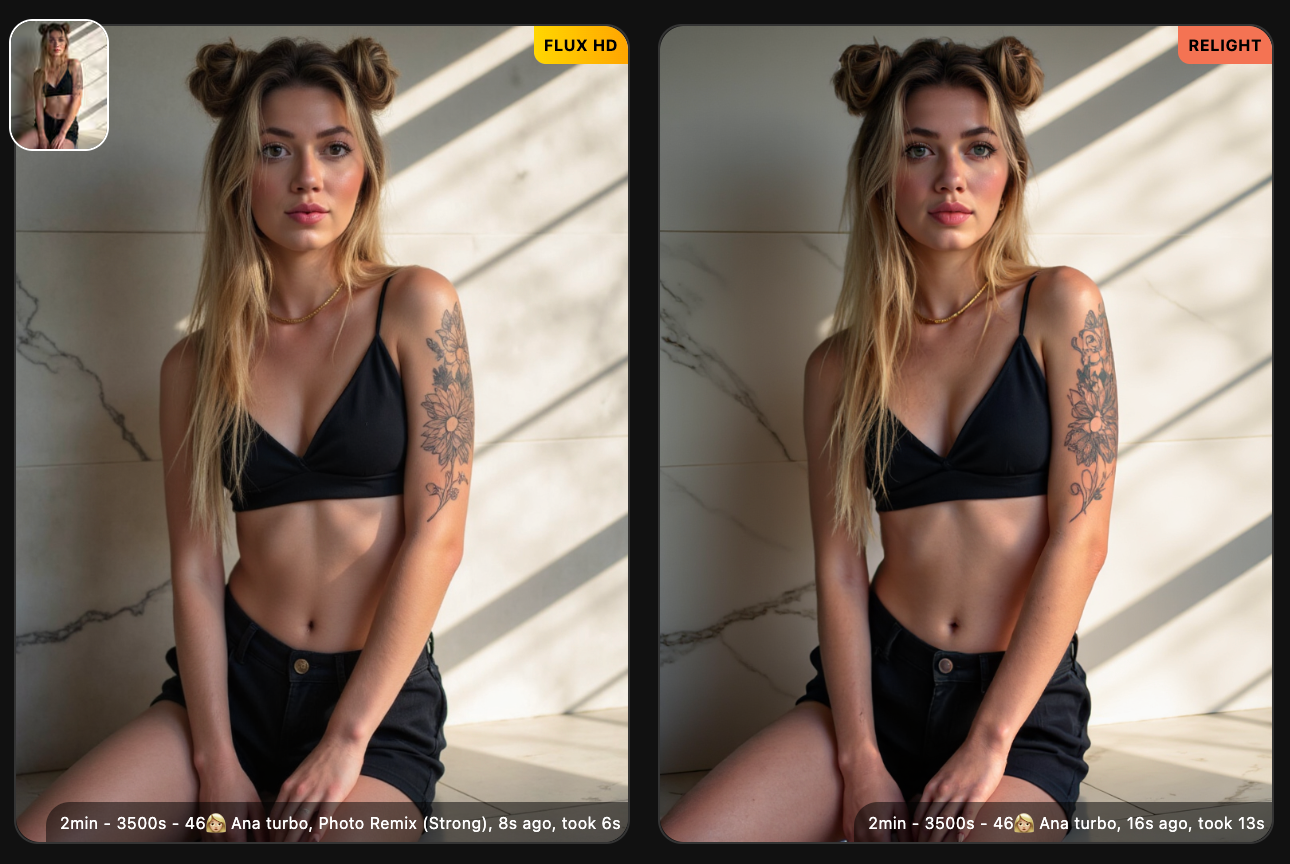
As you see the left remixed pic has resemblance back again.
With Photo AI you can also upload your own images (like real photos you made) and use [ Relight ] on them
First go to [ Import into gallery ] and select your image.
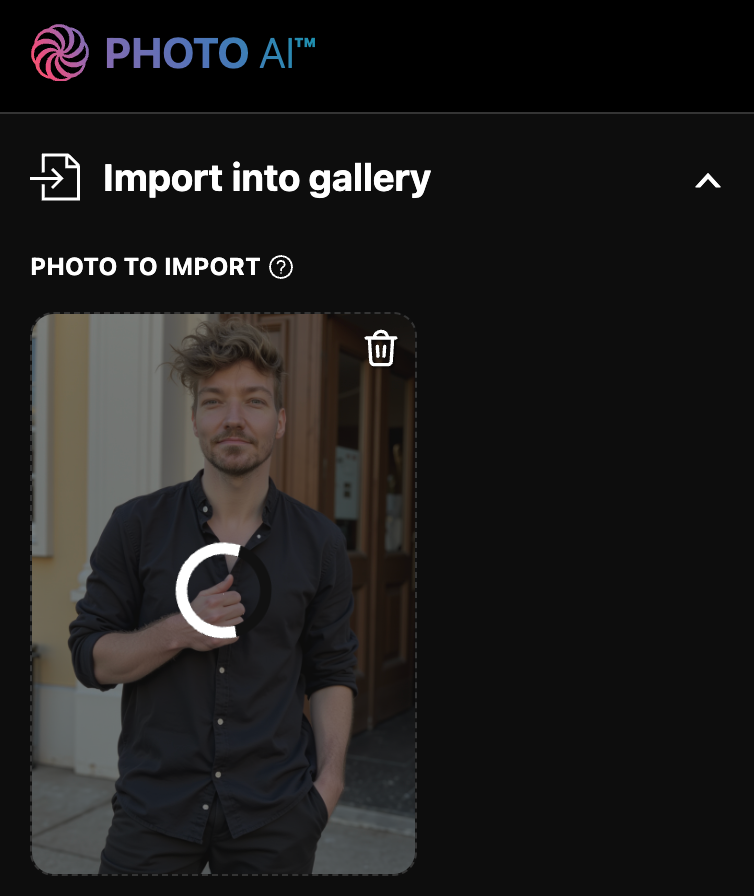
Then once it shows up in the gallery, hover over the image and tap [ Relight ].
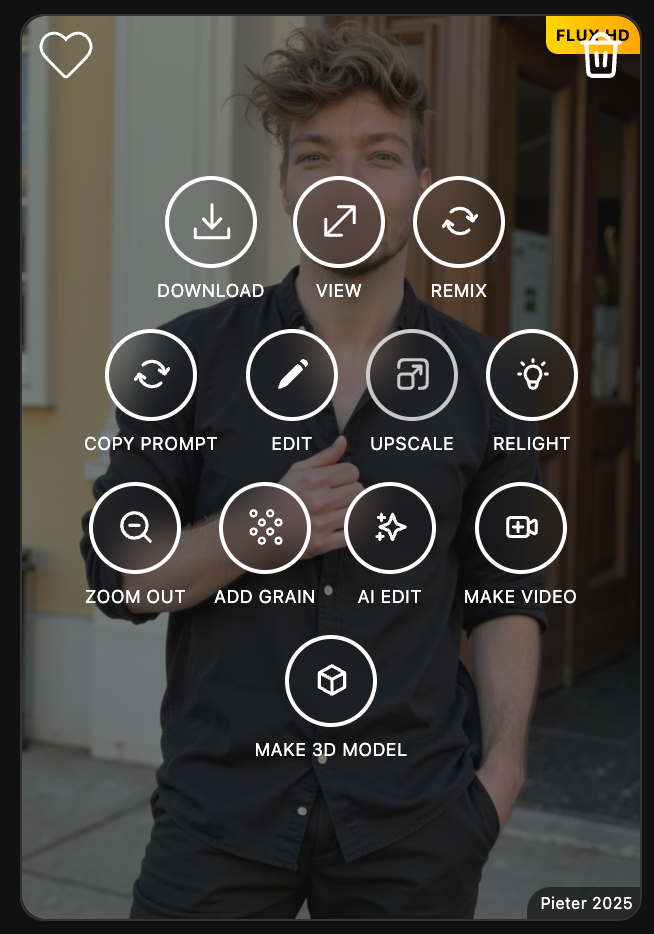
Just like before, write your prompt “change to a minimalist fully marble room that is lit by the sun”:
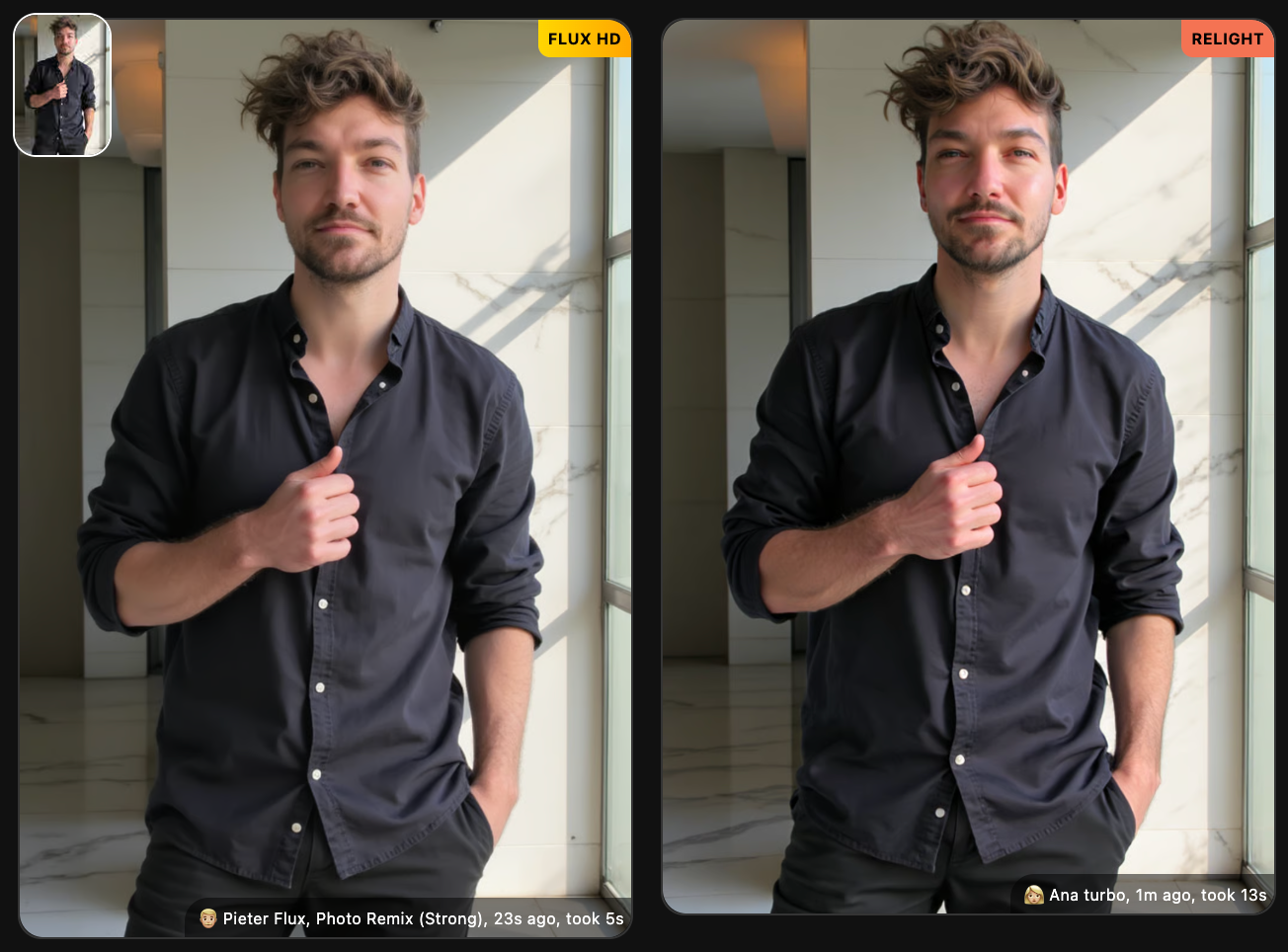
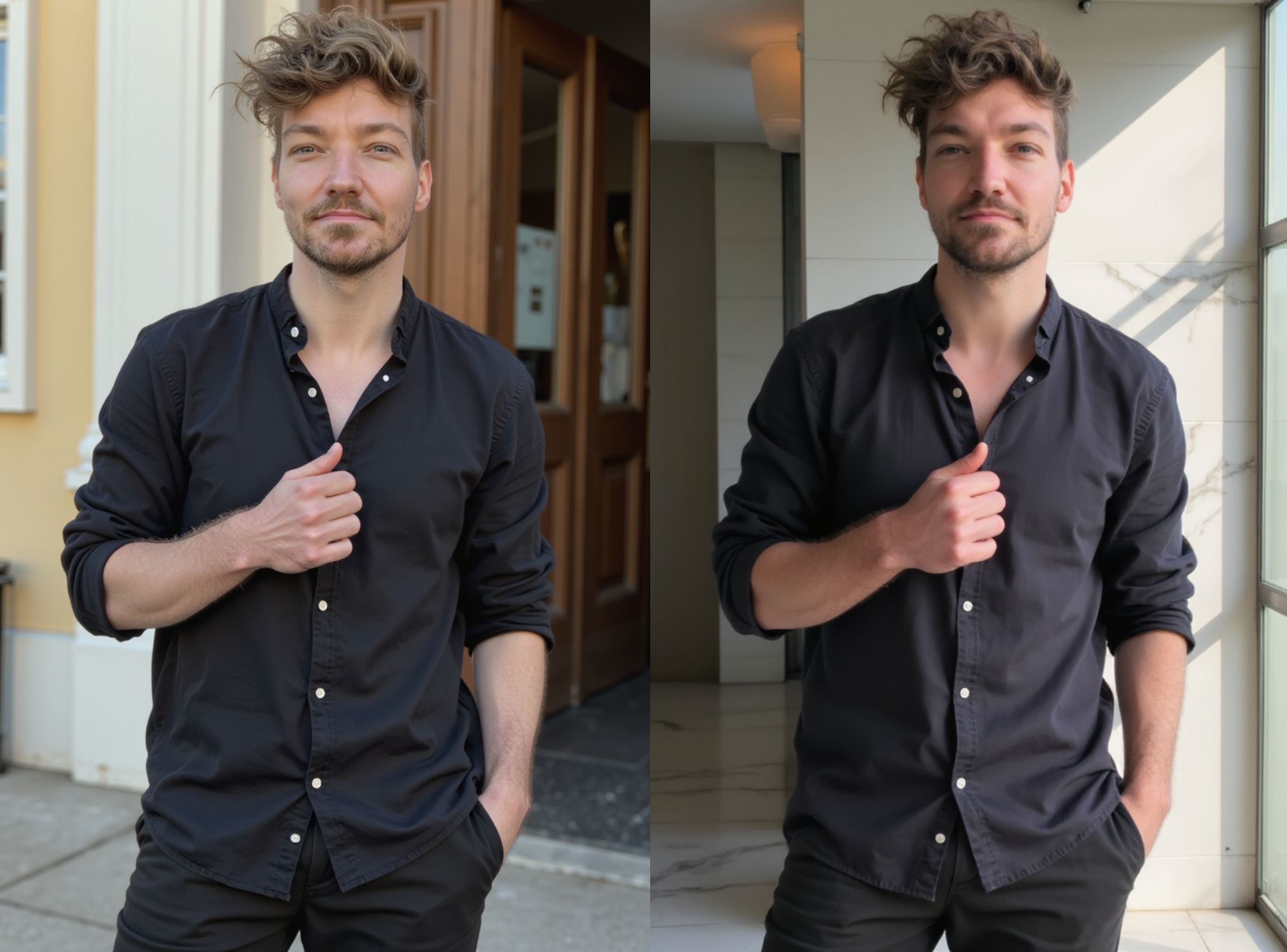
It will then take a minute or so and your photo is done. As you see the face was affected pretty badly in this [ Relight ] (which can happen), let’s fix that with one [ Remix ] pass.
And here you go, it has its likeness back:
And the final comparison before and after:
Try [ Relight ] now on Photo AI!
Want to bring your old, faded, or black-and-white photos back to life? With Photo AI, restoring them is as easy as a few clicks — no editing skills needed. Using the latest state-of-the-art AI models to restore them as accurate as possible.
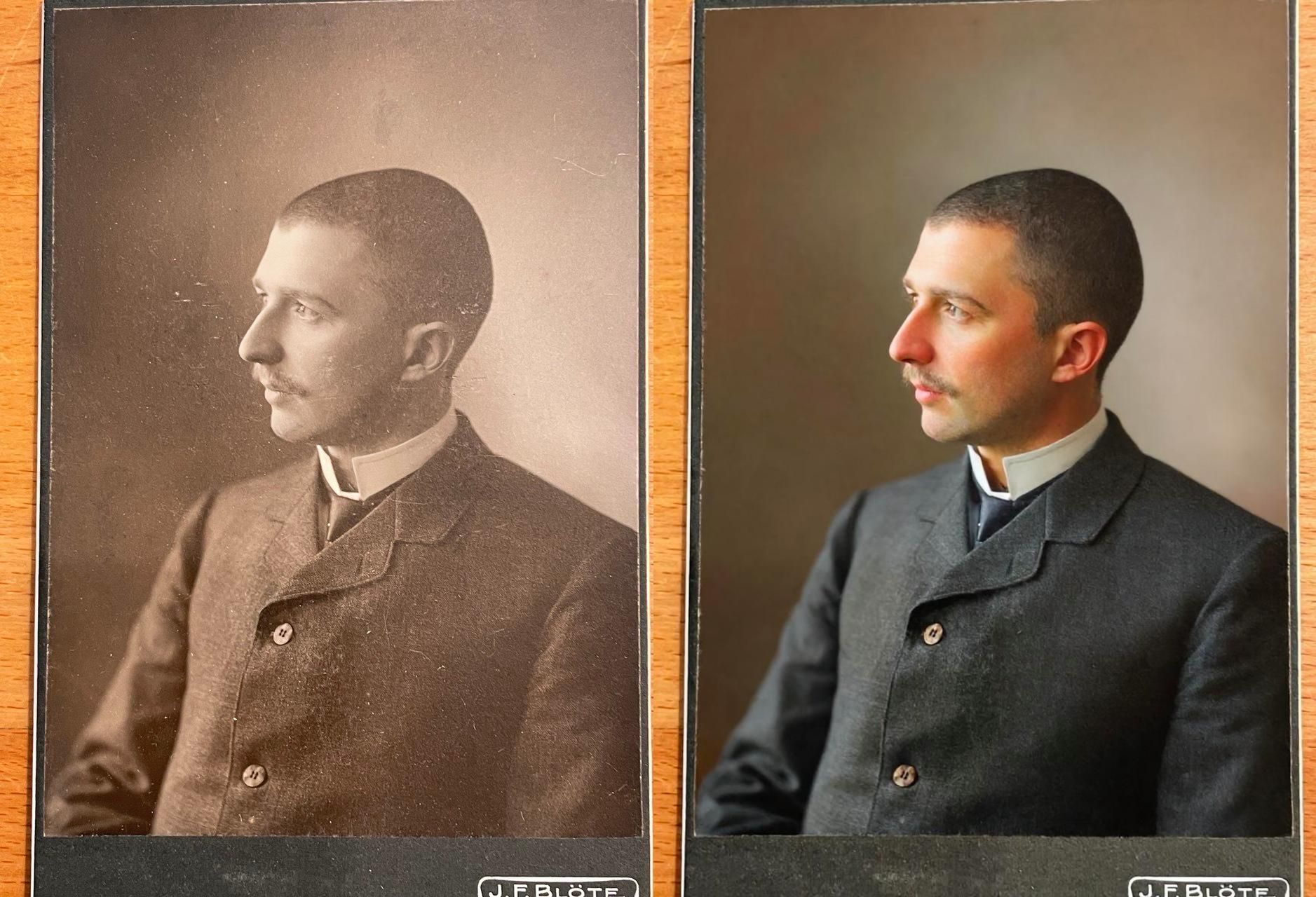
Go to the Gallery tab in Photo AI and click [ Import to Gallery ]. Upload your original old or damaged photo. This can be a scan of a printed photo or any image file.
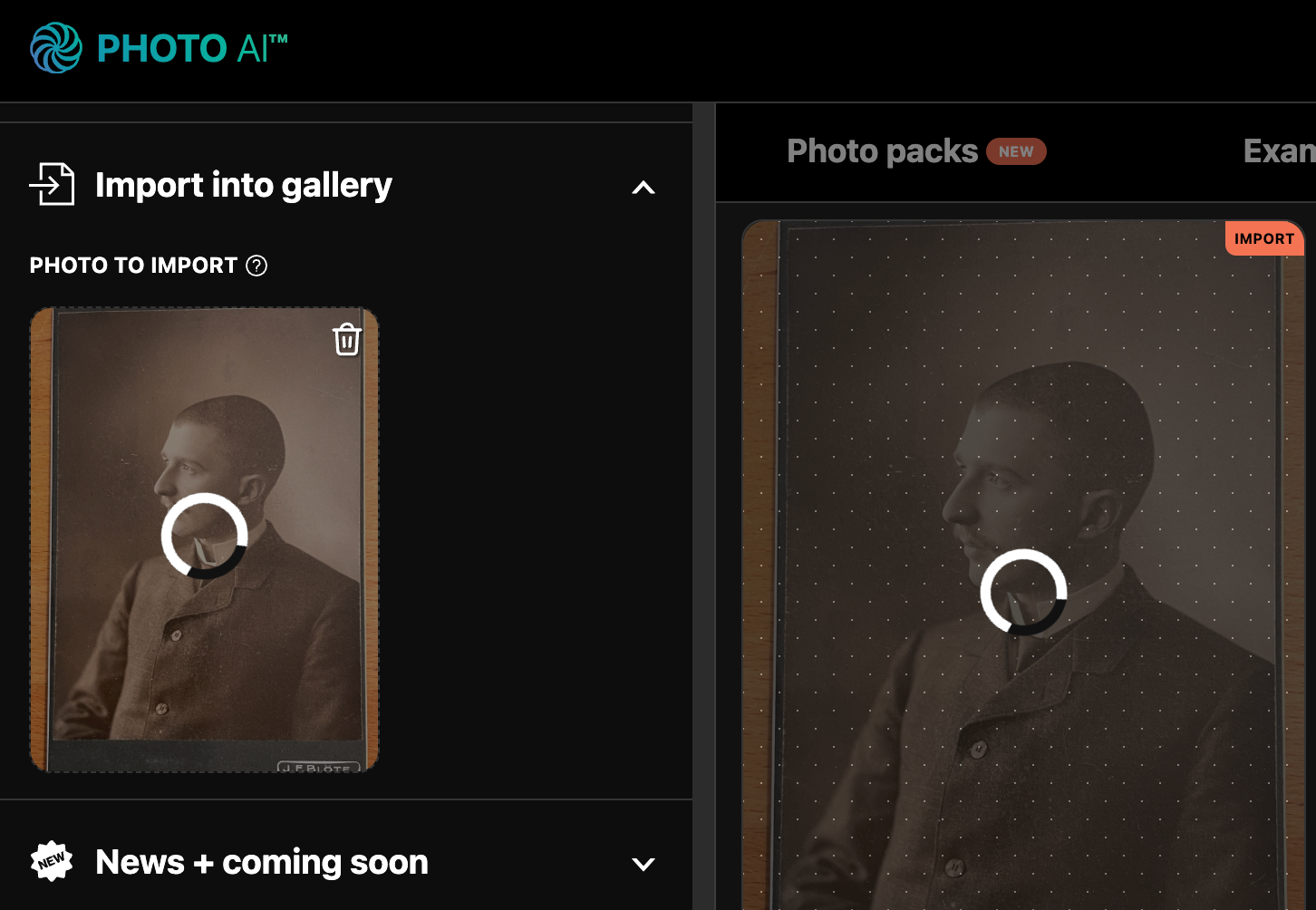
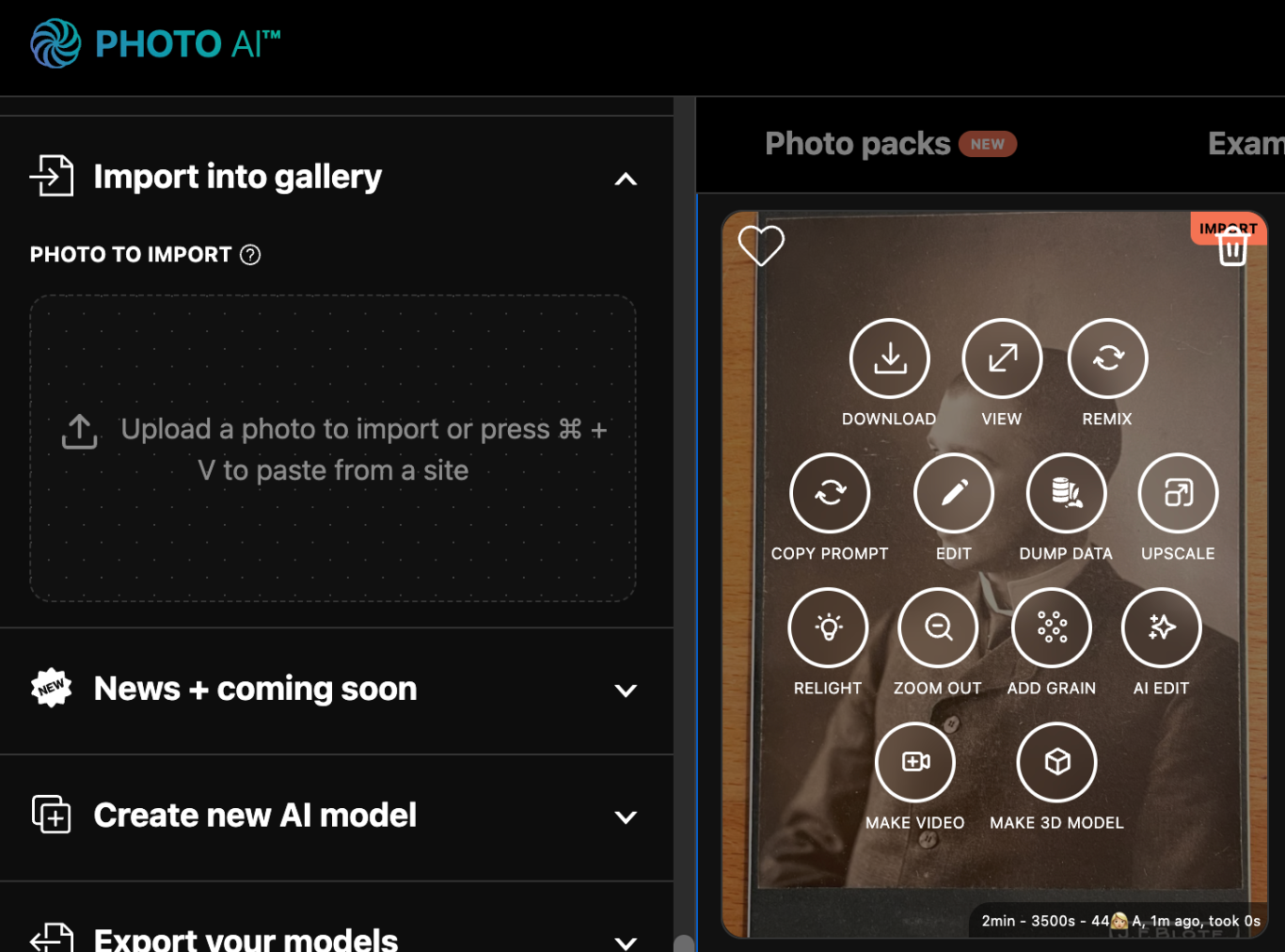
Once uploaded, hover over the photo and click the [ Magic Edit ] button. A popup will appear where you can enter an instruction.
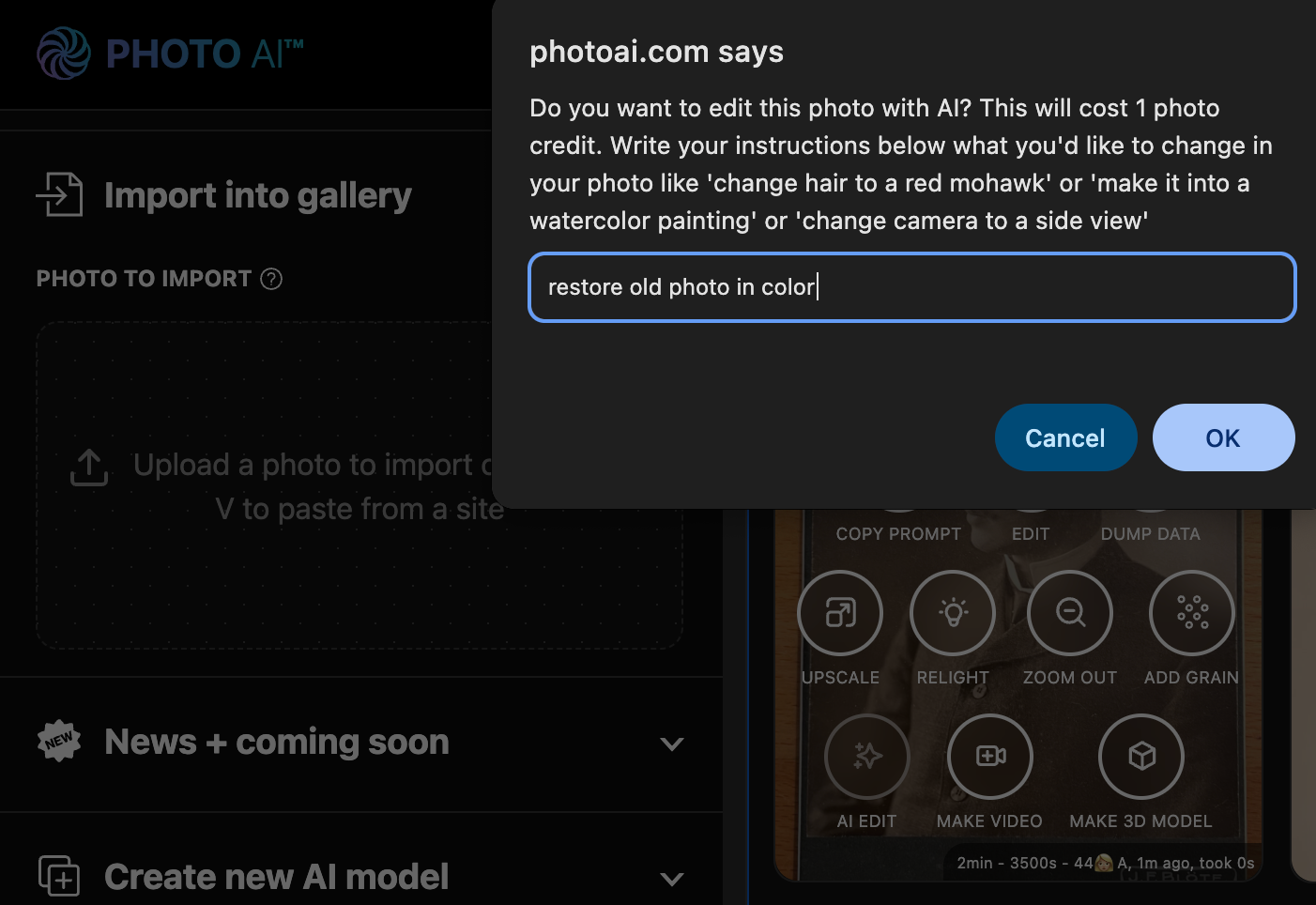
In the input field, type “restore old photo in color” and press Continue.
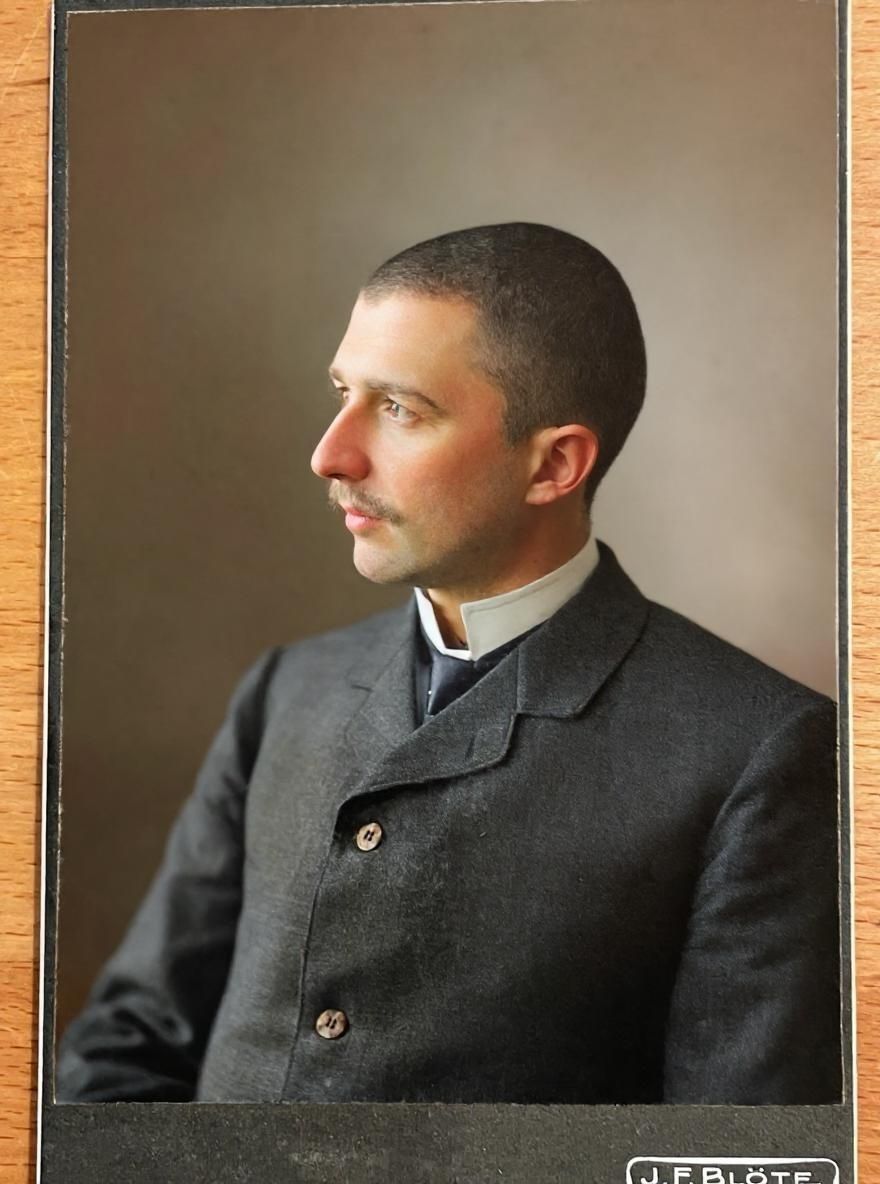
Within about 10 seconds, your restored and colorized photo will appear. You can download it, share it, or keep editing with more prompts.
In some cases the AI will make mistakes. Like the cobblestone street turns into grass. In those cases try doing it again with “restore old photo in color but keep the streets cobblestone” and it usually works.
Once you have a clear photo, you can turn it into a real-life video too. Just hover over the photo and tap [ Make video ] and write a prompt. Here I wrote “man turns and looks into camera”.
A few minutes later you’ll see your video. It’s as if you take a little peak into history and turning it alive!
Photo AI makes high-quality photo restoration instant, automated, and accessible — no Photoshop needed.
Start restoring photos now on Photo AI!
You can get your refund if you haven’t extensively used Photo AI yet, and then sign up again to the right monthly plan.
First get your refund:
Get your refund
Please login, then tap the top left Photo AI logo, and in the dropdown select [ Request a refund ]. If you’re eligible for a refund, you’ll be able to self-refund on that page.
You're only eligible for a refund if you've not created a model yet and have generated fewer than 20 photos over the lifetime of your account. If you've already used Photo AI to create a model or take photos or videos, we cannot offer a refund as costs incurred for generative AI are extremely high.
Your yearly subscription is now cancelled immediately
Change your plan
Now login to Photo AI again and you’ll be sent to the pricing table to choose your plan. Make sure you choose the monthly plan this time.
You’ll now have received a refund, cancelled your yearly subscription and signed up to the monthly plan.
Want sharper, crisper, high-resolution photos from your AI shoots? Photo AI’s Upscale feature lets you instantly increase the size and quality of any image or video — no Photoshop, no tech knowledge.
Whether you’re printing, posting on social, or using images in your online store, Upscale makes your photos and videos pop.
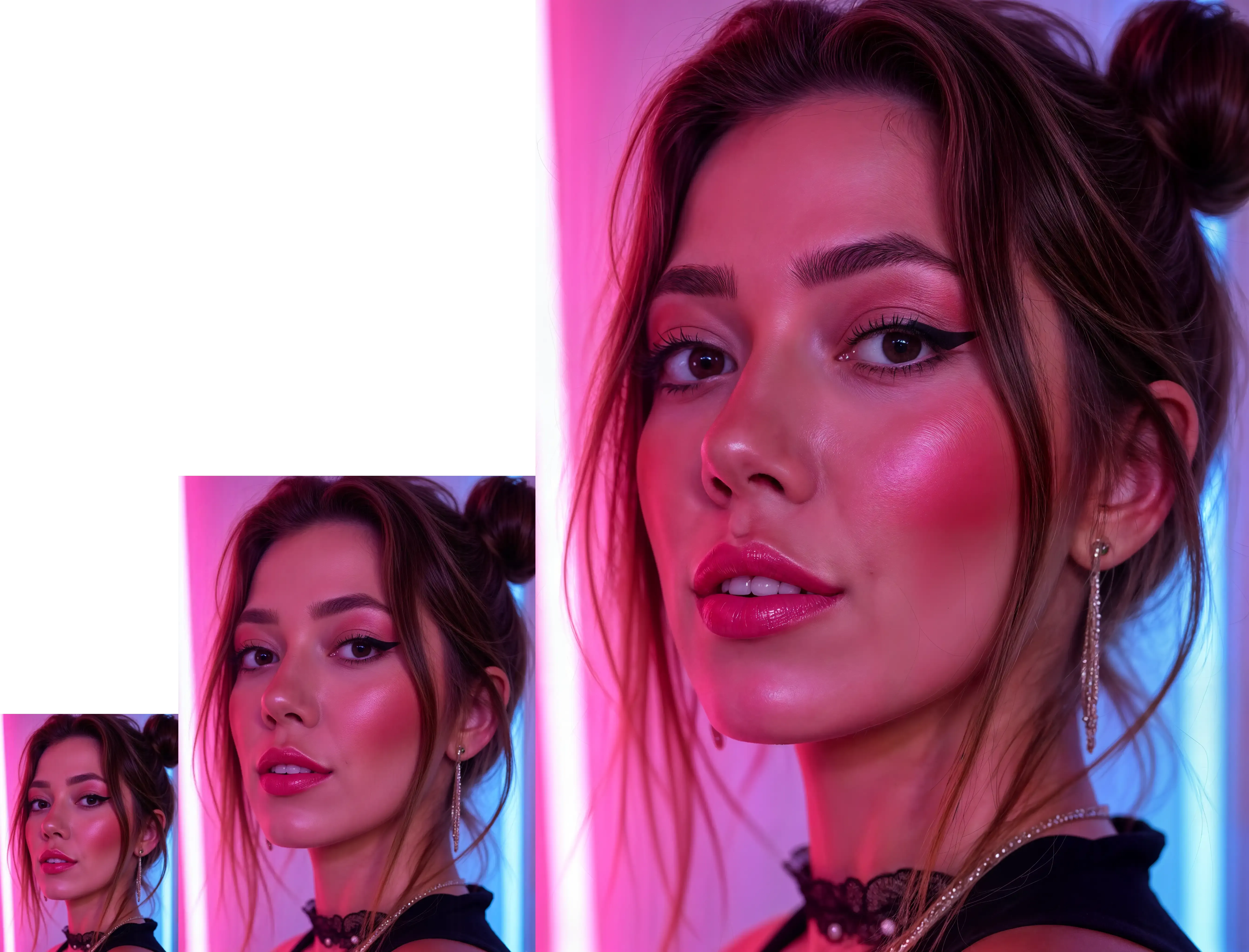
Upscale uses advanced AI to:
Increase the resolution of your image or video (e.g. 512x512 → 2048x2048)
Sharpen details like eyes, skin, hair, and clothing
Remove blur and fix artifacts
Preserve the original style and subject
Go to [ Create new AI model ] in the sidebar. Upload around 20 photos of your model, this could be yourself or someone you’ve hired.
In about a minute, Photo AI will train a photorealistic, personalized AI model that looks just like them.
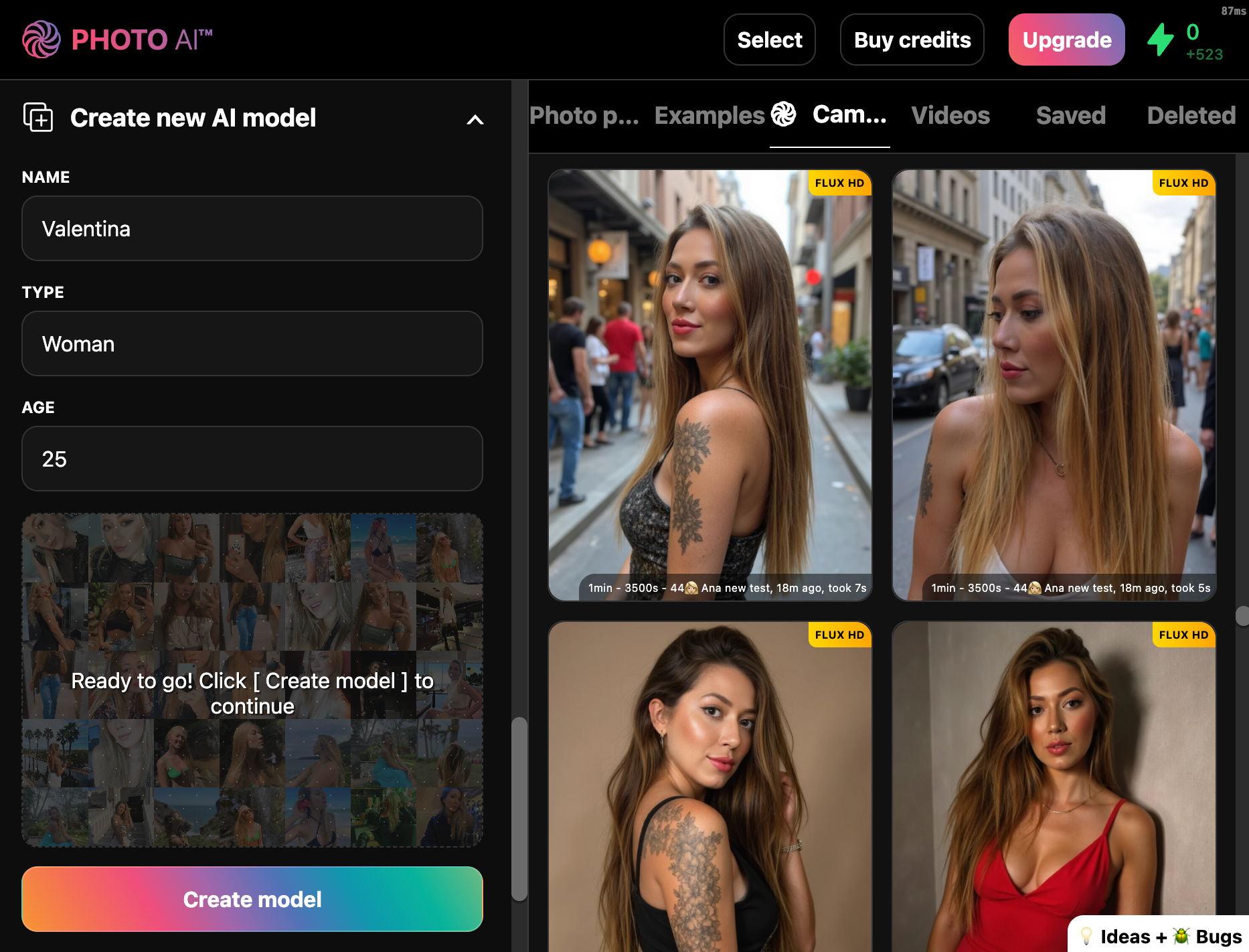
You can reuse this model.
Take photos using the camera or explore preset photo packs — headshots, dating app pics, fashion, lifestyle, and more.
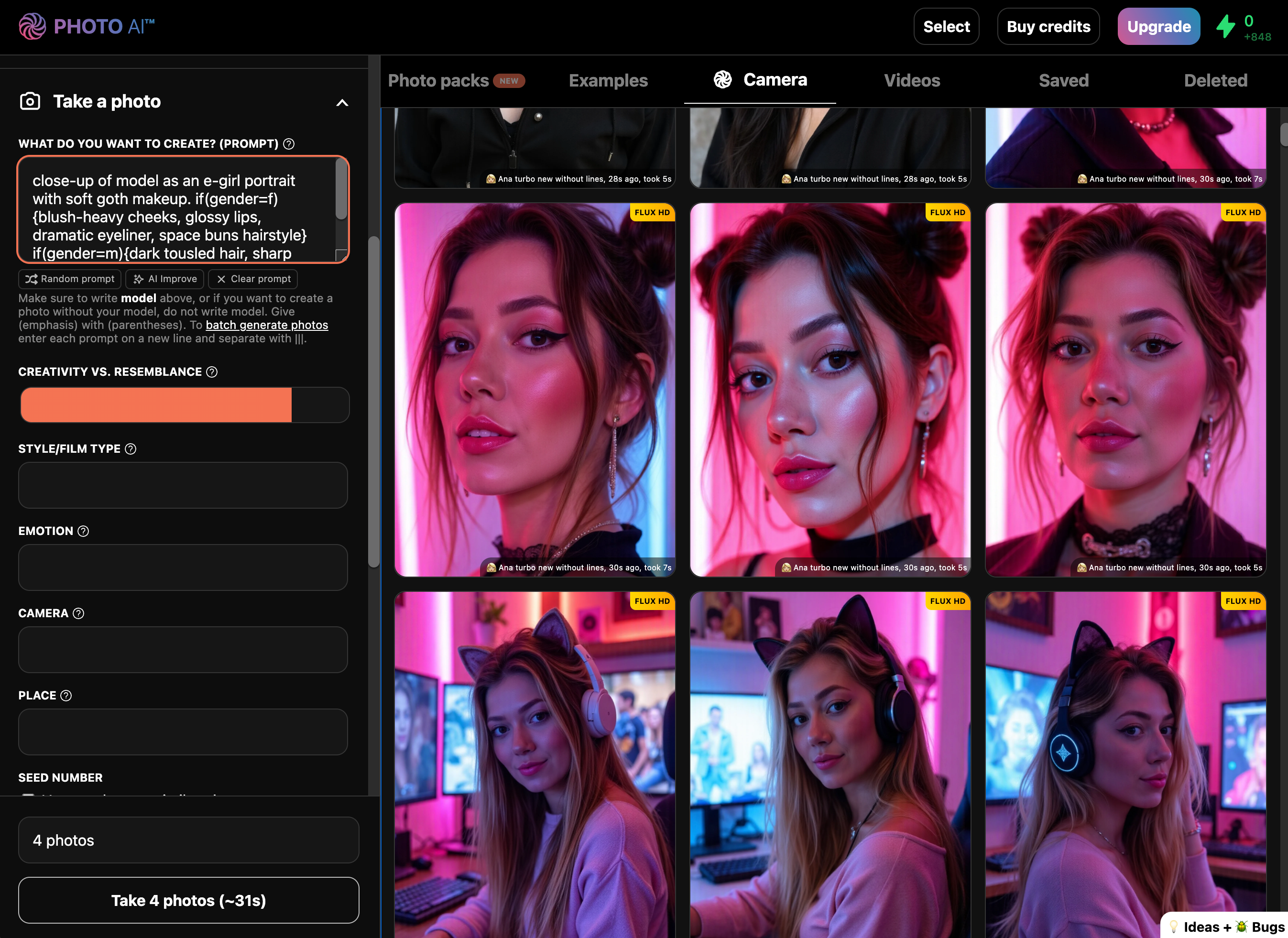
If you’d like to then turn your photo into a video press [ Make video ] and you will see a video, which you can also upscale.
Go to your Photo AI gallery and hover over the photo or video you want to upscale.
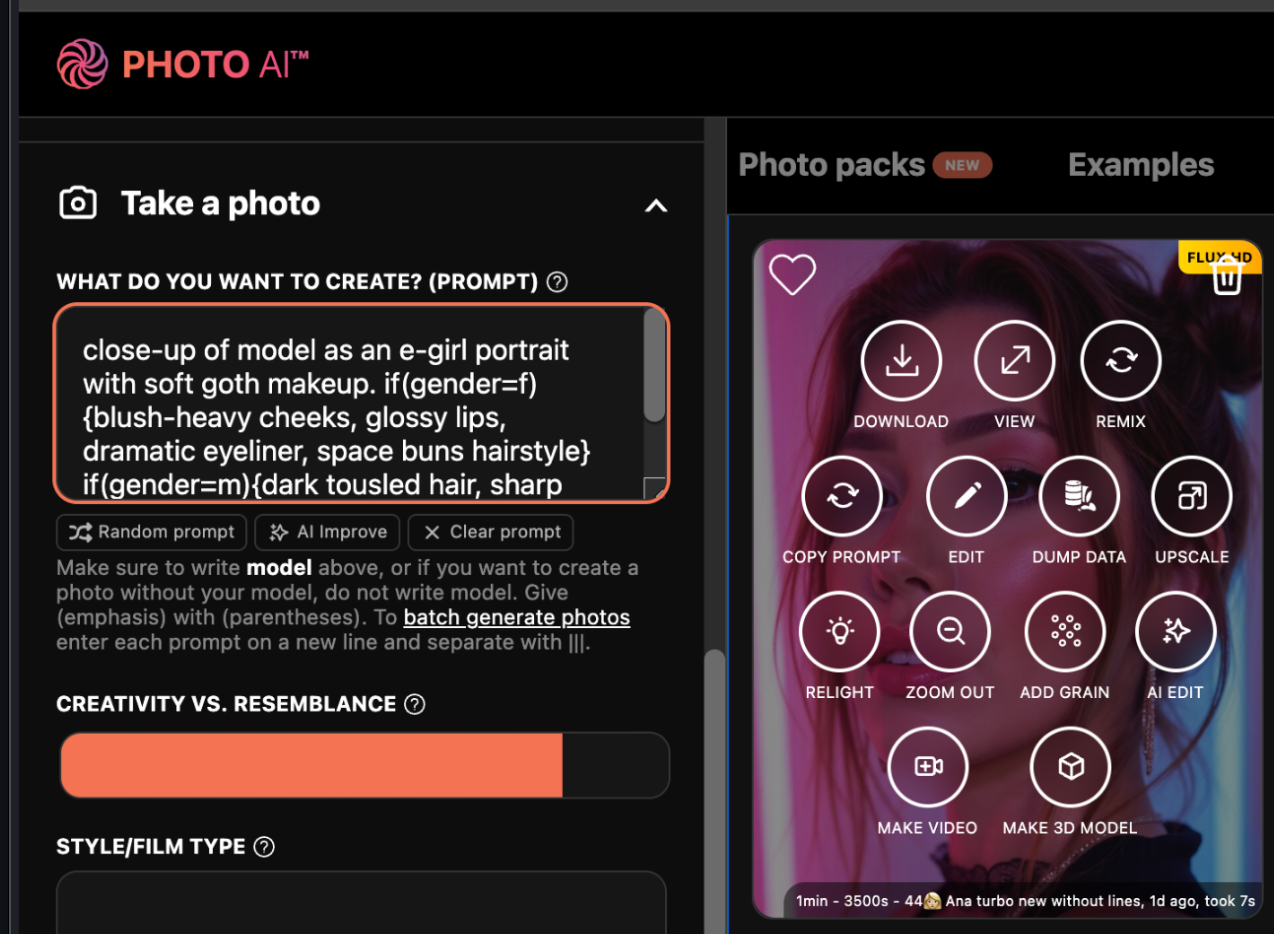
Photo AI will automatically generate a higher-resolution version of your photo or video:
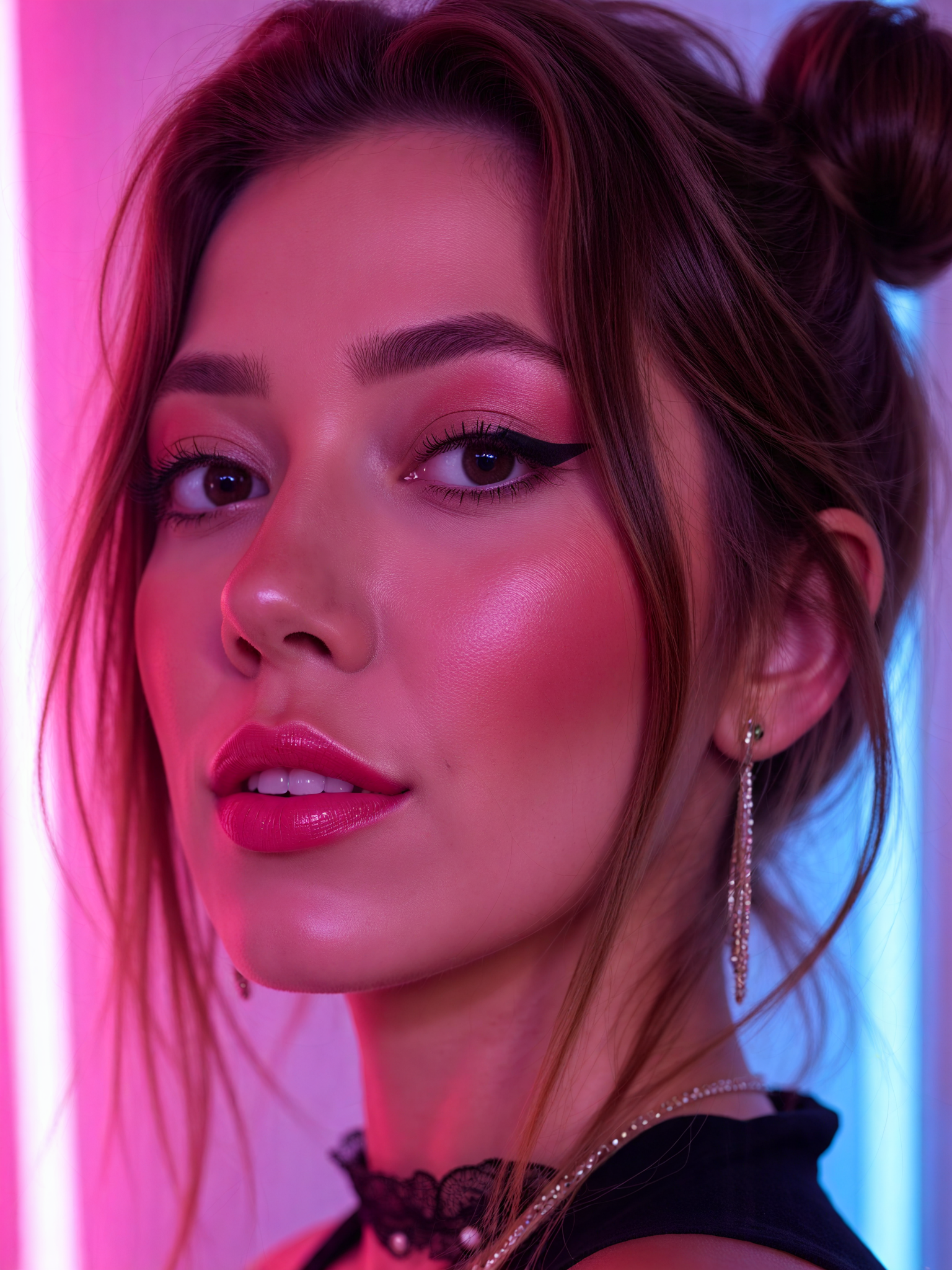
You can upscale an upscaled photo again to get it to 4x super size. We use a different upscale model for the second pass.
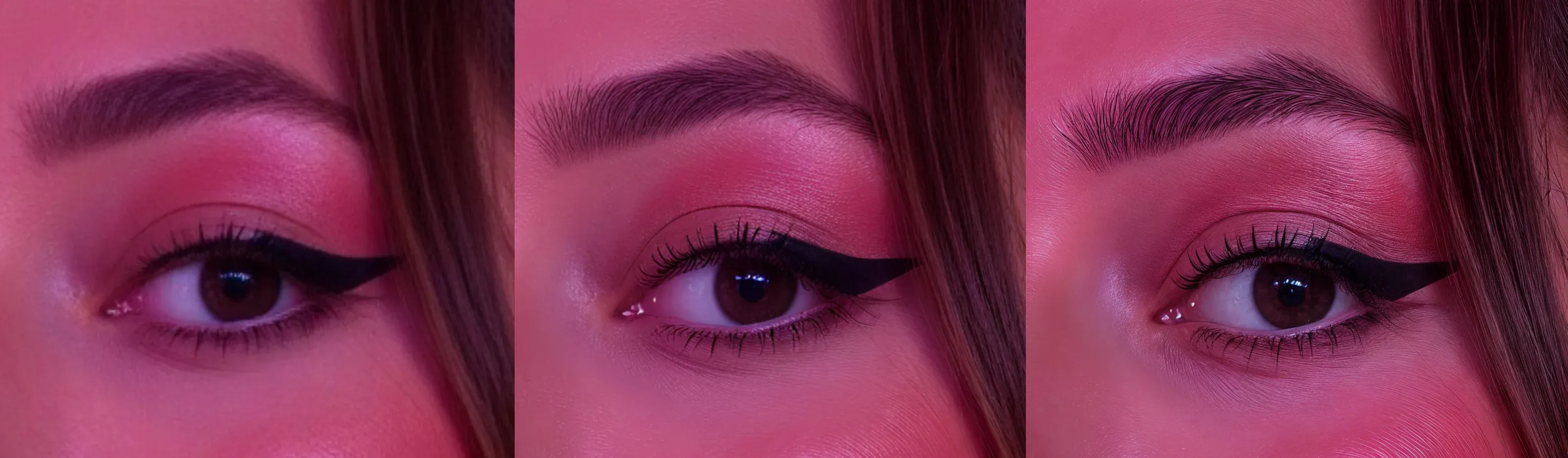
If we zoom in at the eyes we can more clearly see the increase in detail for each 2x or 4x upscale pass!
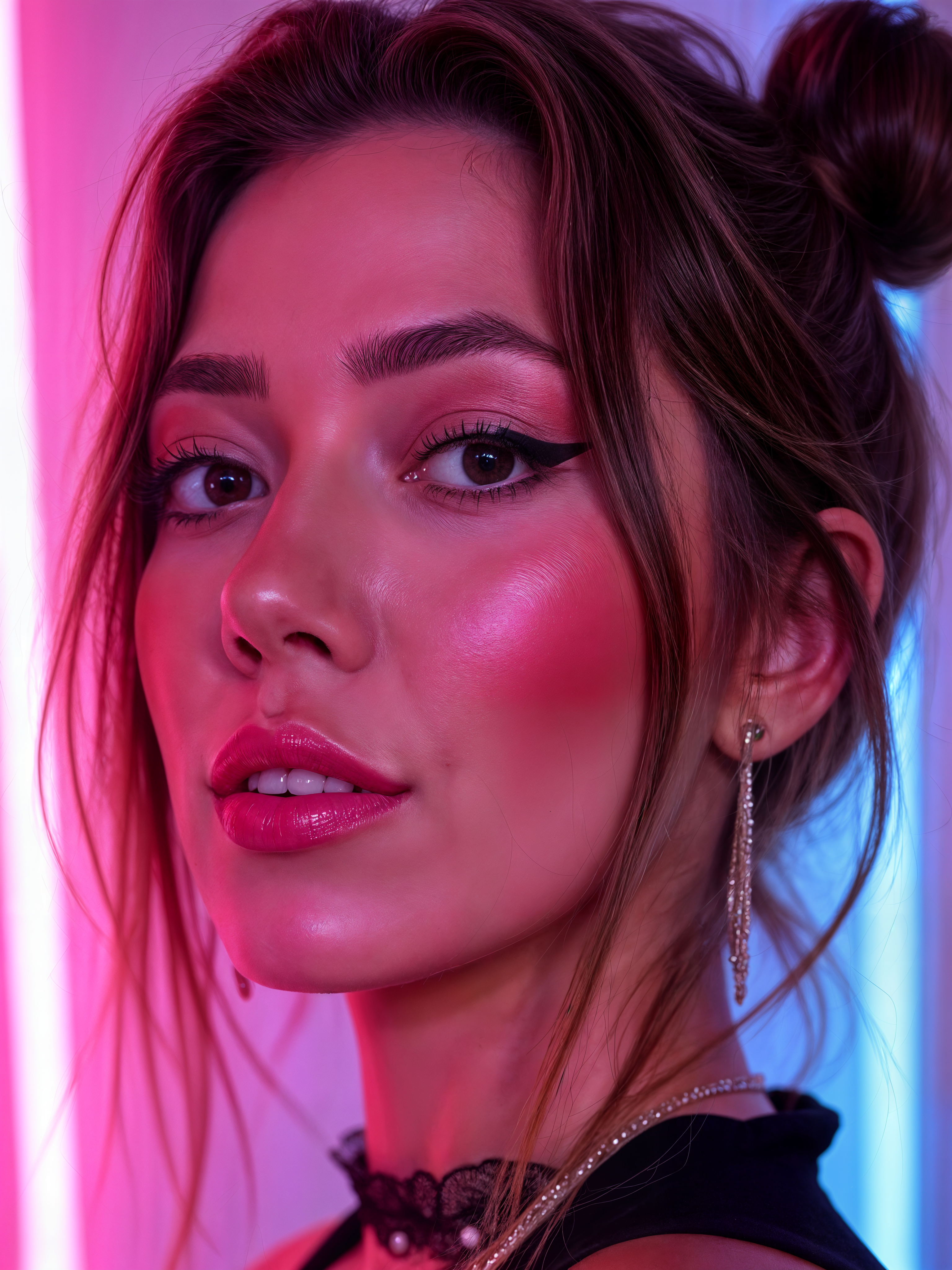
Most importantly each upscale is a way higher resolution, making it more suited for broadcast or large-sized print materials. The final pic here is 3072x4096, up from 768×1024!
Yes and it works the same. Although you can only do a single 2x pass with [ Upscale ].
Print your AI photos at large sizes without blur
Make your visuals stand out with extra clarity
Fix low-res images for better performance in ads
Use images across more formats and platforms
Your best AI photo and video just got sharper. Use [ Upscale ] in Photo AI to unlock maximum quality — in one click.
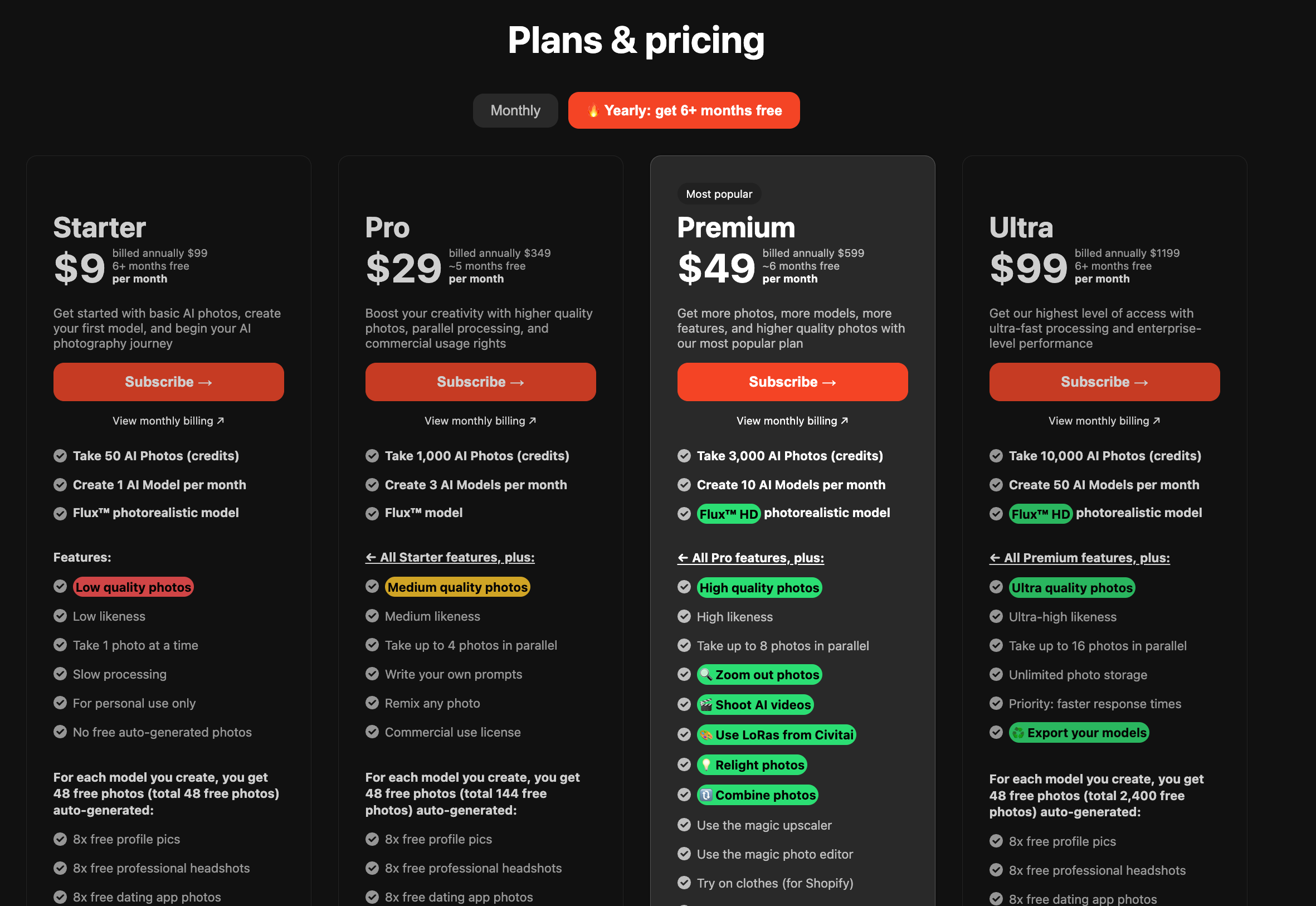
If you sign up for the yearly plan, the pricing is over 50% cheaper, which means 6+ months free compared to regular monthly pricing.
This is our way of thanking you for your trust in our Photo AI and lets us reinvest your money to improve the product.
You can upgrade or downgrade your plan at any time.
Go to the top left and click the Photo AI logo, when you are logged in and click Billing, you will be redirected to Stripe's billing portal where you can switch plans.
Downgrades will activate at the next billing cycle. Upgrades are instant.
Due to lots of fraud attempts, we've had to increase our payment security. Firstly, disable your VPN or proxy server. Then make sure your name, CVC and postal code match the one on your payment card and of your bank account. Also your card country should be the same as your billing country. And finally make sure you enable 3D Secure or similar authentication on your card with your bank.
We also do not accept customers from the Philippines due to massive and repeated card abuse from there. We’re not planning to change this any time soon.
Premium and Ultra subscribers now have extremely fast training at just 90 seconds.
For lower plans it can take 30 minutes to 2 hours.
The longer we train your model the higher quality you get. Which is why the higher plans are more expensive!
Sometimes yes!
Depending on the quality of the uploaded photos, and the type of photos you take, you might see some AI artefacts.
With the new Flux model we use, generally stuff like strange anatomy, limbs and especially hands (!) is mostly fixed now.
Any app that uses generative AI imaging will have artefacts sometimes. They can be illogical things like extra arms, deformed faces etc. From our experience, about 90% of photos you take will be good enough, and 10% will be very good.
We also have an editor (tap [ Edit photo ]) so you can brush away artefacts yourself and regenerate those parts.
We're improving Photo AI every day to reduce artefacts for example by auto-detecting them and then re-trying. But remember AI is not perfect yet and we're not promising it is. Nor can any other AI app right now.
The AI avatar boom has exploded, with dozens of tools promising to turn your selfies into stunning, studio-quality images. But not all AI avatar generators are created equal. Some are great for headshots, others for creative content, and a few let you go much deeper into personalized AI photography.
Here’s a breakdown of the best tools available and which one is right for you.
Photo AI stands out as the most versatile and powerful tool for creating AI avatars and realistic photos of yourself. You upload around 20 varied selfies, and it trains a private AI model of you using advanced DreamBooth-style fine-tuning on a model called Flux (a next-gen evolution of Stable Diffusion).
Once your model is trained, you can generate unlimited photos in nearly any context:
Headshots for LinkedIn or resumes
Dating app pics for Tinder or Hinge
Custom prompts and full creative control
Hundreds of one-click themed photo packs
If you want freedom, realism, and variety, Photo AI gives you the most advanced AI photography experience whether you’re a founder, model, creator, or just curious.
✅ Pros:
Private fine-tuned model that looks exactly like you
Huge variety of styles and photo types
Full prompt control and themed photo packs
Generates new content on demand
❌ Cons:
Slight learning curve with all the features (but powerful once learned)
If you’re only looking for corporate-style headshots, Headshot Pro is excellent. You upload your photos, and it generates clean, well-lit portraits that match studio standards — perfect for resumes, company websites, or LinkedIn.
It doesn’t offer the creative freedom or customization of Photo AI, but it delivers polished results with minimal effort.
✅ Pros:
Polished, professional look
Very easy to use
No over-the-top styles or distractions
❌ Cons:
Only supports business headshots
Limited styling and personalization
No ongoing image generation after initial batch
Avatar AI™ was the original viral AI avatar generator that launched the global trend back in 2022. It offered dozens of stylized looks from fantasy to sci-fi to anime, and generated avatars that went viral on Instagram and Twitter.
While more limited in realism, Avatar AI™ was fun, experimental, and iconic. The success of Avatar AI™ led directly to the creation of Photo AI, which took the core idea and evolved it into a full-scale AI photo platform.
You can still run the original Avatar AI™ as a photo pack on Photo AI.
✅ Pros:
Fun, artistic avatar styles
Easy to use
The original that started the trend
❌ Cons:
No realism or fine-tuned likeness
No model training
Mostly one-shot outputs
Aragon is a simple tool designed to quickly create professional avatars and team headshots. It works well for HR teams or startups looking to give every employee a consistent photo style.
However, it doesn’t train a personal model or offer style control. It is more of a batch-generation tool.
✅ Pros:
Good for teams and startups
Simple and fast
❌ Cons:
No personal AI model
No creative flexibility
Image quality varies by photo input
Remini went viral on TikTok for turning blurry selfies into ultra-sharp, often over-smoothed portraits. It’s not a personal AI model, but it applies strong enhancement filters and stylized avatars fast. Great for casual users, but limited control.
✅ Pros:
Fast
Trendy results
❌ Cons
No personalization
Can look artificial
Tool | Best for | Highest quality | Styles available | Creative freedom |
Photo AI™ | Everything: headshots, dating, influencer, cosplay, custom prompts | ✅ Yes | ✅ Hundreds of photopacks | ⭐️⭐️⭐️⭐️⭐️ |
Headshot Pro | Professional business headshots only | ✅ Yes | ❌ No | ⭐️⭐️ |
Avatar AI™ | Stylized, fun avatar art | ✅ Yes | ✅ Hundreds (but all avatars) | ⭐️⭐️⭐️ |
Aragon | Quick team avatars and simple use | ❌ No | ❌ No | ⭐️ |
Remini | Face enhancement, social media | ❌ No | ❌ No | ⭐️ |
If you’re looking for full creative freedom, high realism, and the ability to generate unlimited new photos in any style: Photo AI is the best choice. It gives you a private AI model of yourself, access to hundreds of photo packs, and full control through custom prompts.
If you only need clean, polished professional headshots for LinkedIn, resumes, or your company website: Headshot Pro is excellent. It’s simple, fast, and delivers high-quality corporate portraits without distractions.
Both tools are great. It just depends on what you’re after:
Creative control and versatility? Go with Photo AI.
Clean, business headshots only? Use Headshot Pro.
We did have one but not anymore. It's easier to focus all my energy on just the Photo AI website and make that the best AI photo and video generator out there.
If you see one called Photo AI, it’s a rip-off and not related to us!
Existing Photo AI iOS subscriptions have all automatically ended.
We accept payments via credit or debit cards, including MasterCard, VISA, American Express, as well as iDeal, SOFORT, Bancontact, Przelewy24, Giropay, EPS, GrabPay, AliPay, and many more.
However, we do not accept PayPal or cryptocurrency and are not planning to right now.
You can use up to 4 different models at the same time on Photo AI:
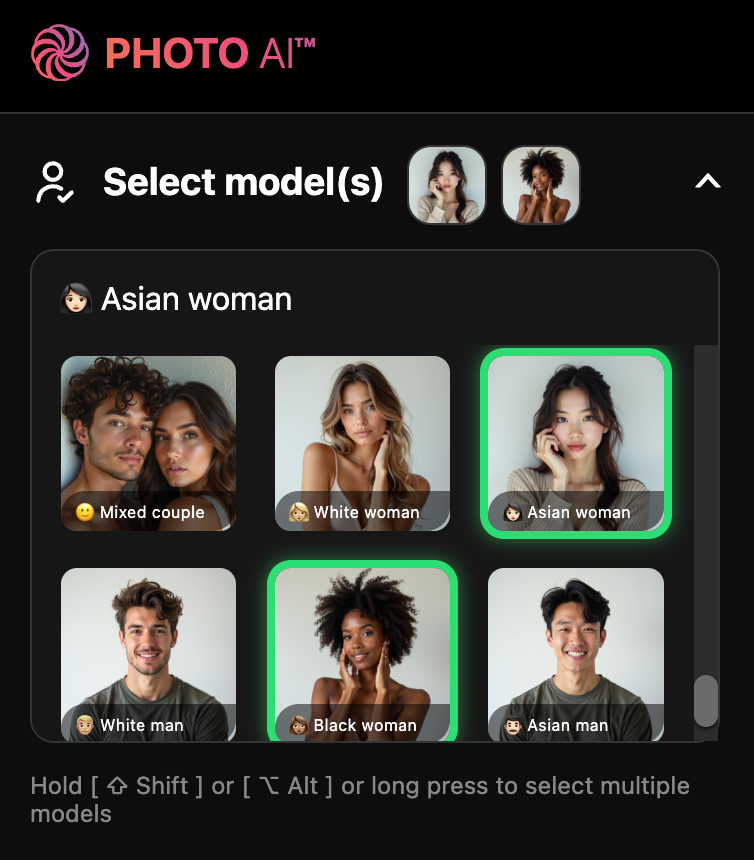
Just hold [ ⇧ Shift ] or [ ⌥ Alt ] or long press on a model to add it to your selection. To reset it and select a single model again just click or short press it.
Make sure you toggle 🍌 Nano Banana Pro for best results. Hyper Realism m
Want to turn your AI photos into interactive 3D models? With Photo AI, you can now generate 3D representations of your photos in just one click: perfect for creators, game devs, or digital product visualization.
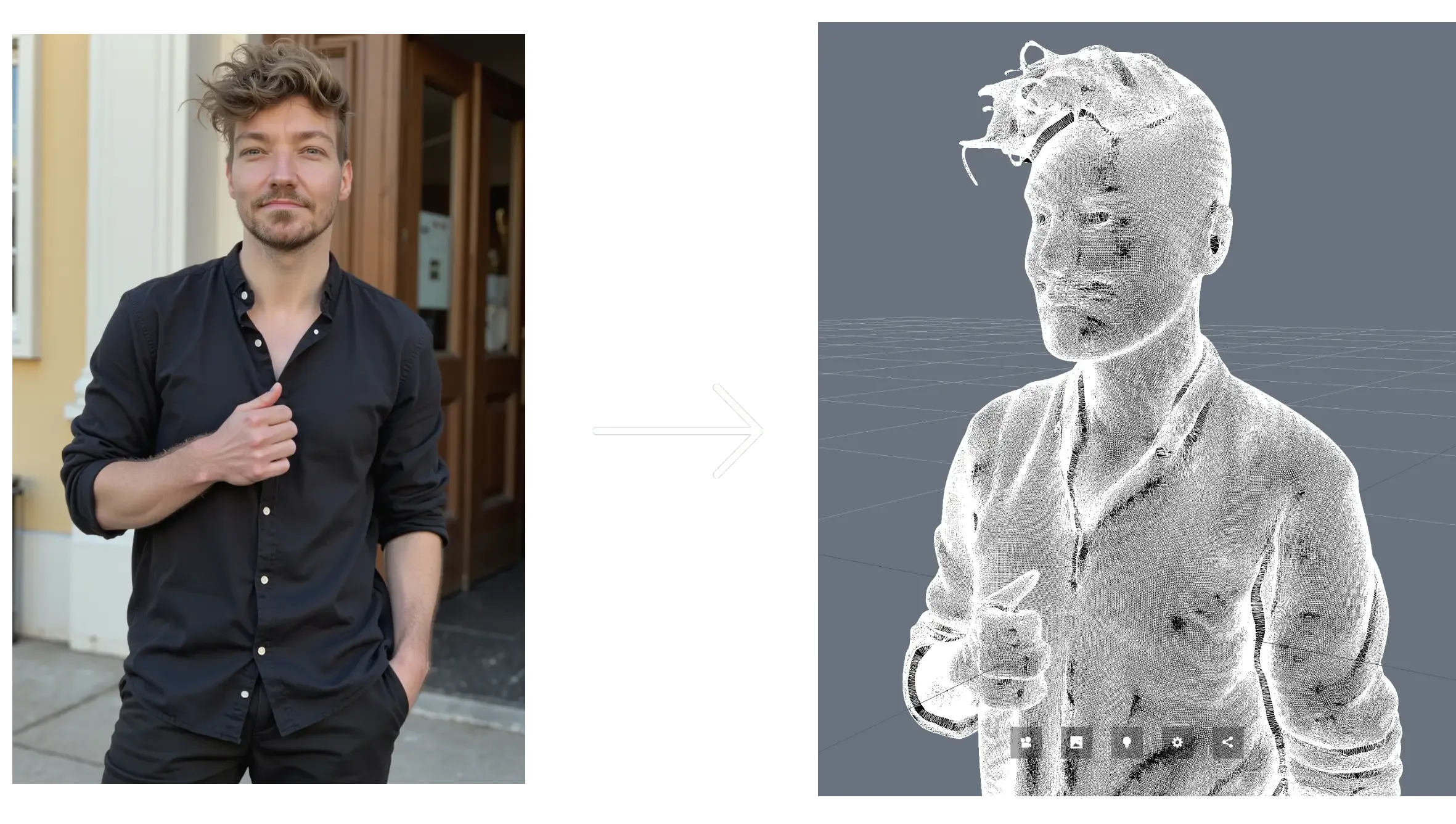
One note: 3d model generation isn’t great yet. We use the latest and best models on the market but the quality of especially people isn’t great yet. But we want to offer the feature anwyay.
Here’s how to do it:
Go to [ Create new AI model ] in the sidebar. Upload around 20 photos of your model: this could be yourself or someone you’ve hired.
In about a minute, Photo AI will train a photorealistic, personalized AI model that looks just like them.
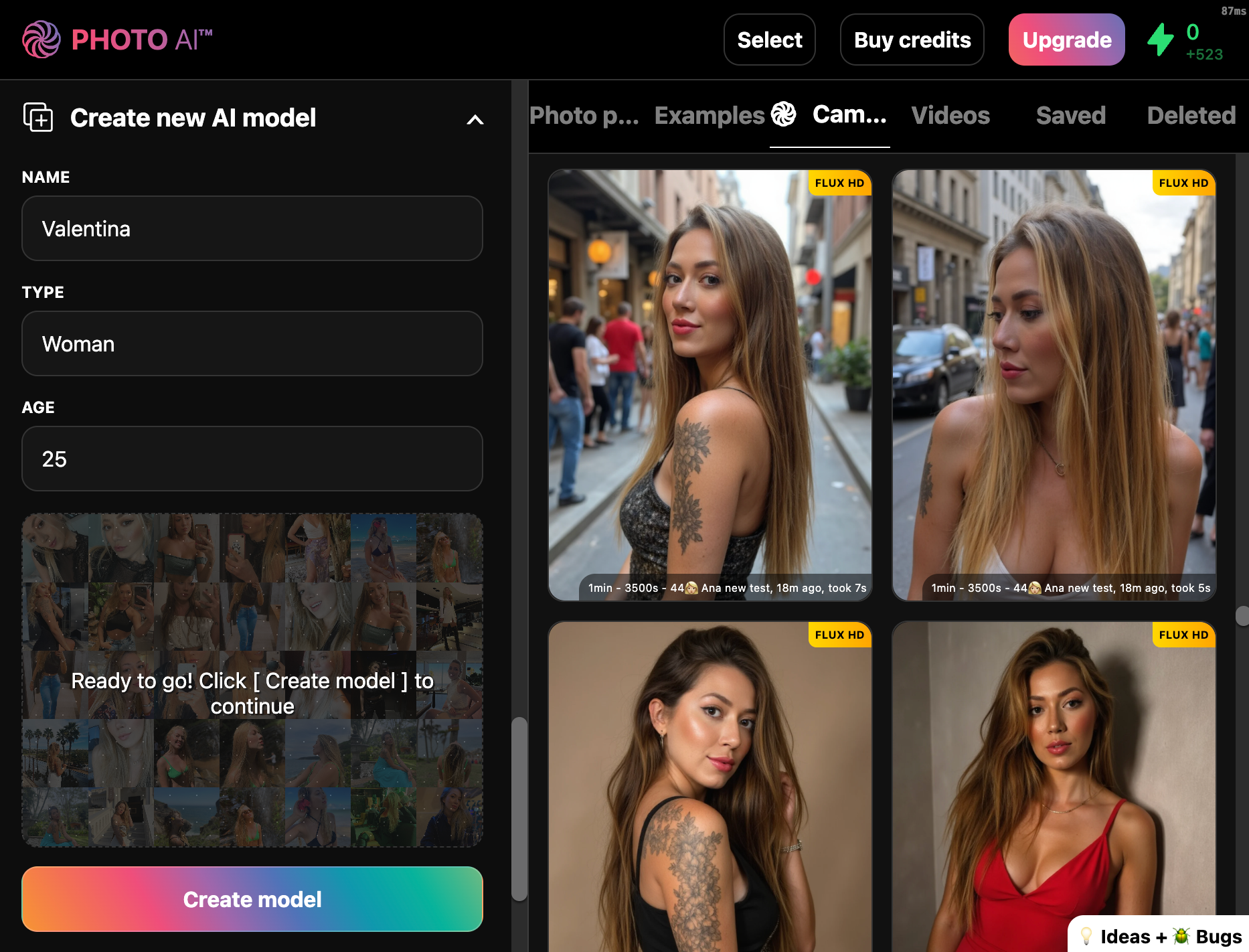
You can reuse this model to take AI photos and videos.
Write a prompt to create a high-quality image of your model. Write an angle and outfit that suits your use case.
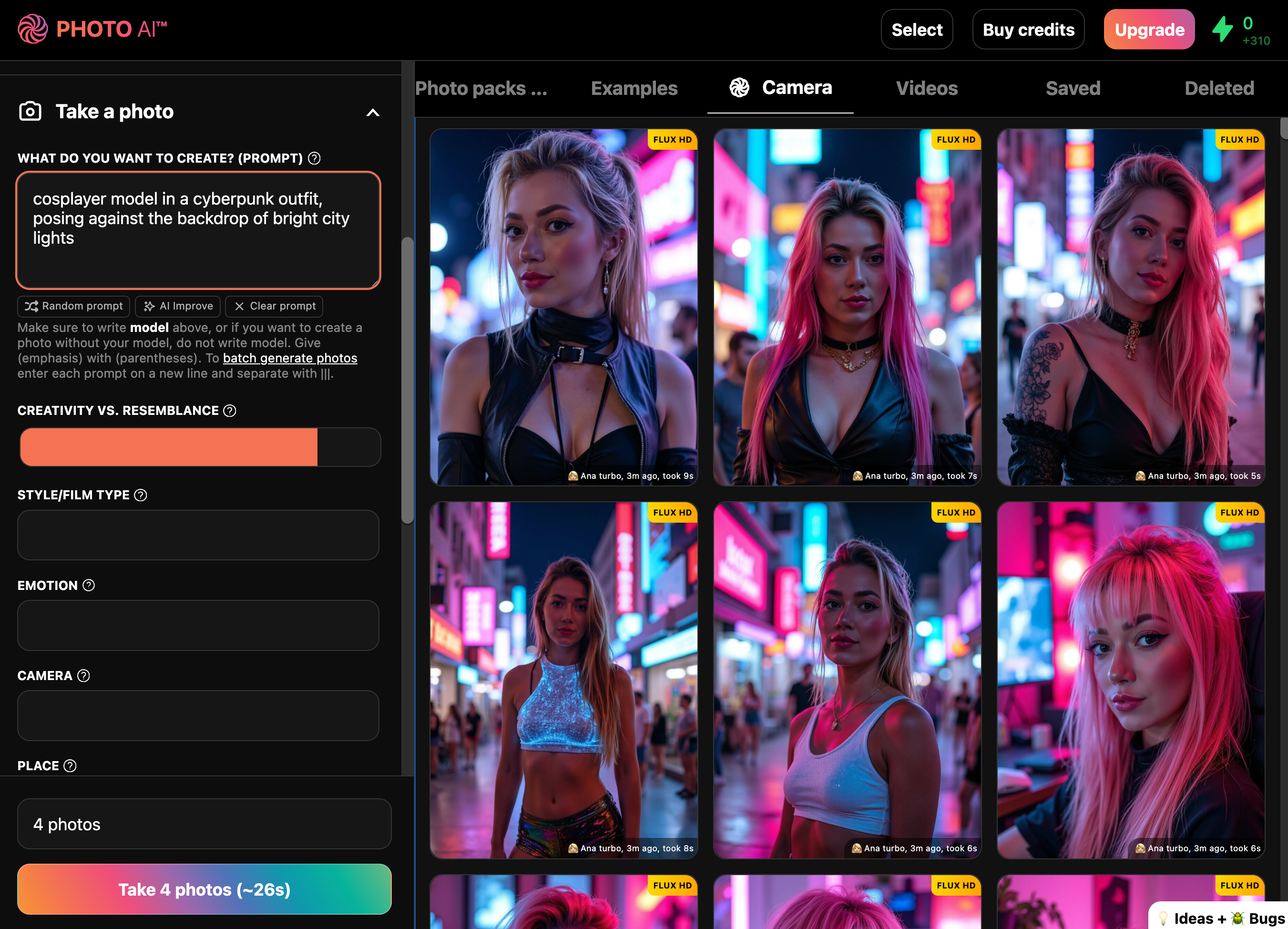
Or use any of the 100s of photo packs below (under Photo packs):
Tinder – Eye-catching dating profile pics with great poses and vibrant colors to help you get more matches
Hinge – More natural, candid moments to reflect personality and spark real conversations
Luxury Lifestyle – You in Dubai penthouses, yachts, and private jets. Opulence everywhere
Old Money – Ivy League tennis clubs, polo outfits, and timeless rich-kid energy
Instagram – Influencer-ready content with lighting and vibe tailored to maximize likes
LinkedIn Headshots – Studio-quality portraits with neutral backgrounds and sharp lighting
Startup Founder Headshots – Bold, modern photos for pitch decks, websites, or investor decks
CEO Headshots – Strong, formal looks for media, board meetings, and executive branding
1950s Film Noir – Black and white drama shots with classic Hollywood lighting
Santorini Summer – You in Mediterranean paradise, bathed in Greek island light
Cosplay – Transform into your favorite characters with cinematic flair
Bali Influencer – Pool villas, tropical vibes, and that Canggu aesthetic
You can browse and run photo packs any time after your model is ready. Each shoot takes just seconds and generates a full set of high-resolution, lifelike images that look like you hired a pro photographer.
Hover over the photo you want to convert, then click [ Make 3D model ]. The AI will process the image and generate a rotatable 3D mesh that approximates the subject in the photo.
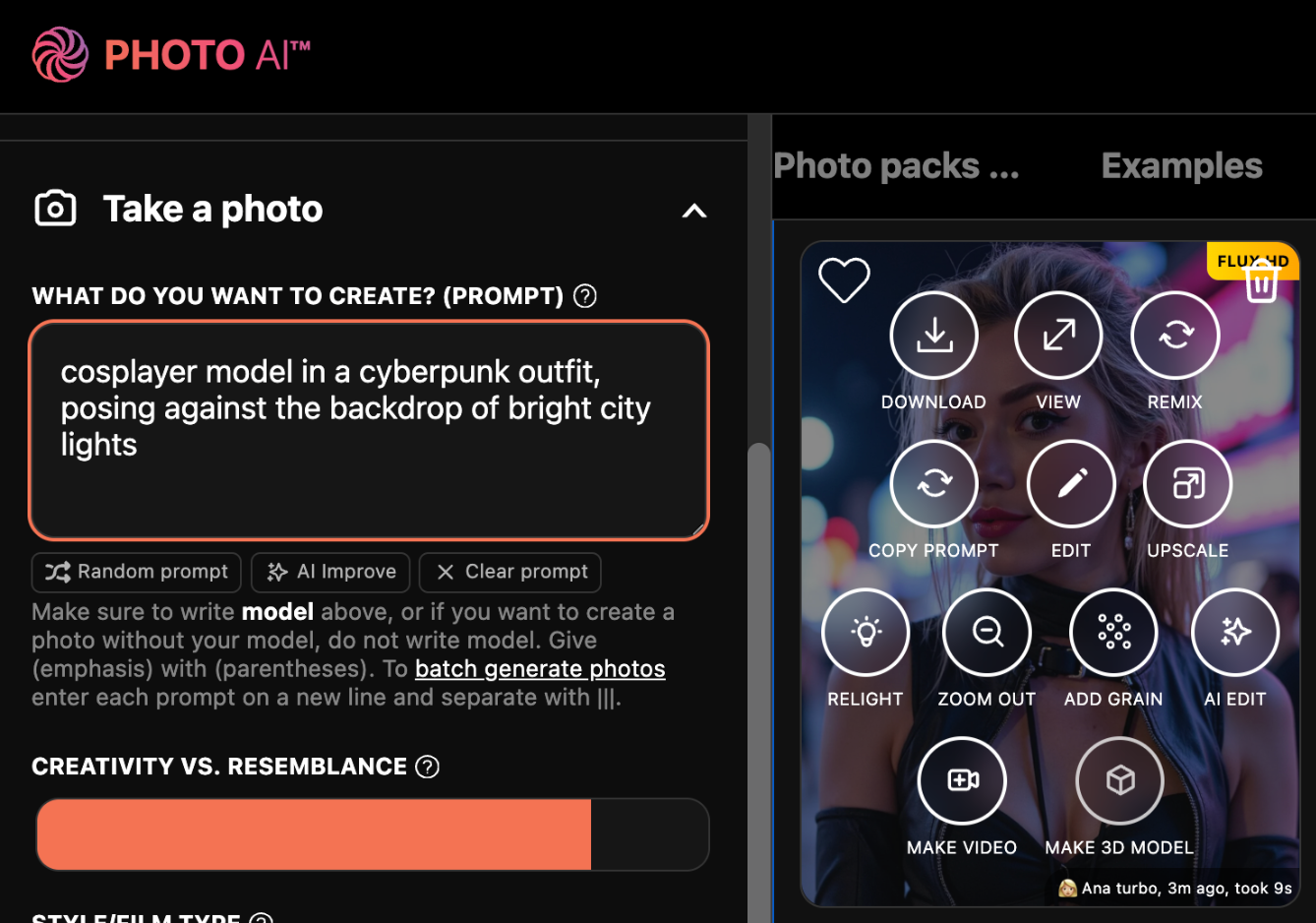
It will now take a few minutes to generate a 3d model, and then voila!
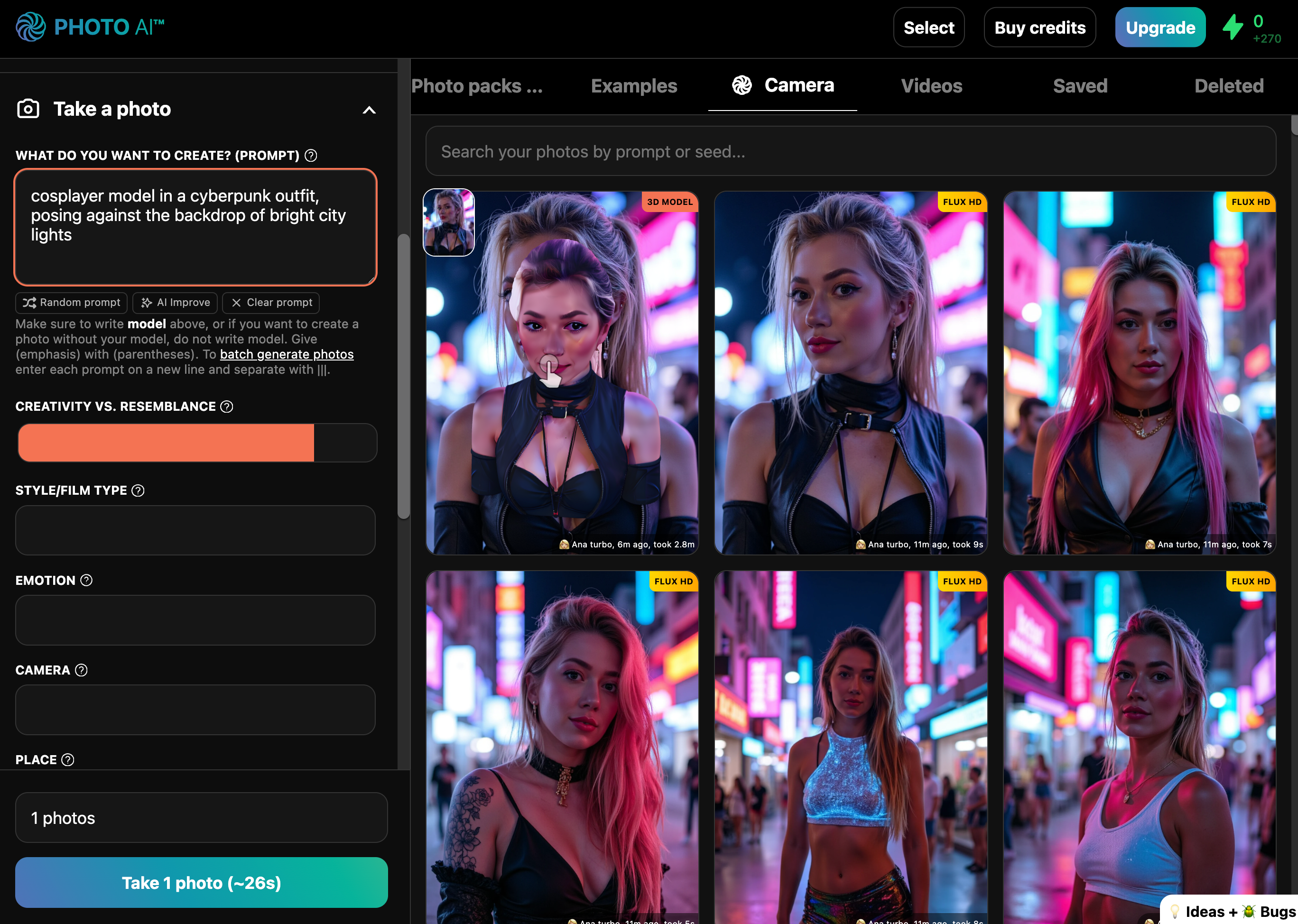
Hover over the pic and click [ View ] to open it in the image viewer, where you can drag around your 3d model:
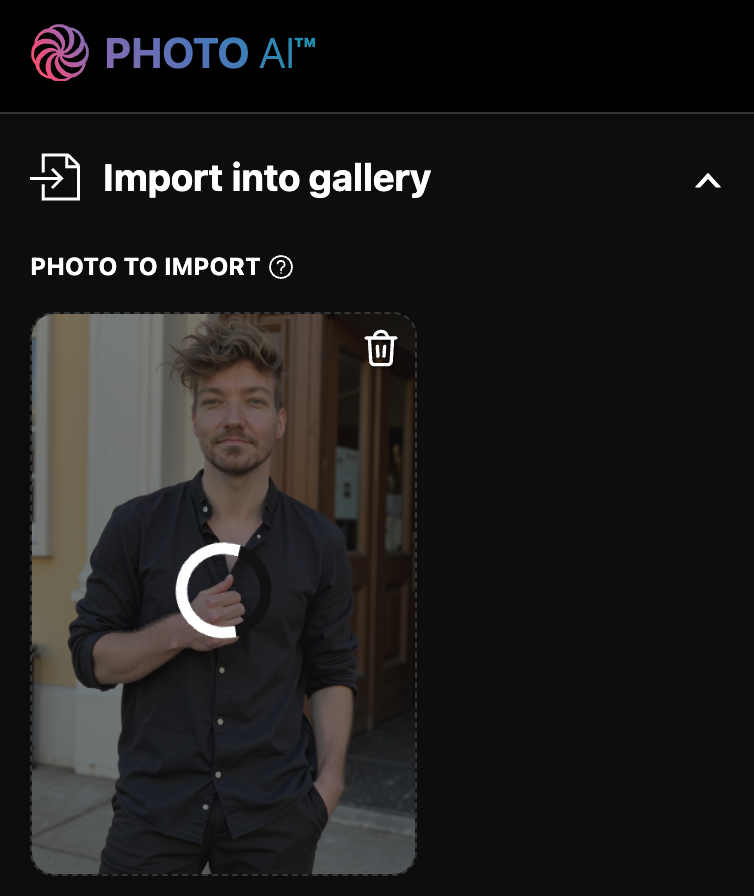
With Photo AI you can also upload your own images (like real photos you made) and turn them into a 3d model in a similar way.
First go to [ Import into gallery ] and select your image.
Then once it shows up in the gallery, hover over the image and tap [ Make 3d model ].
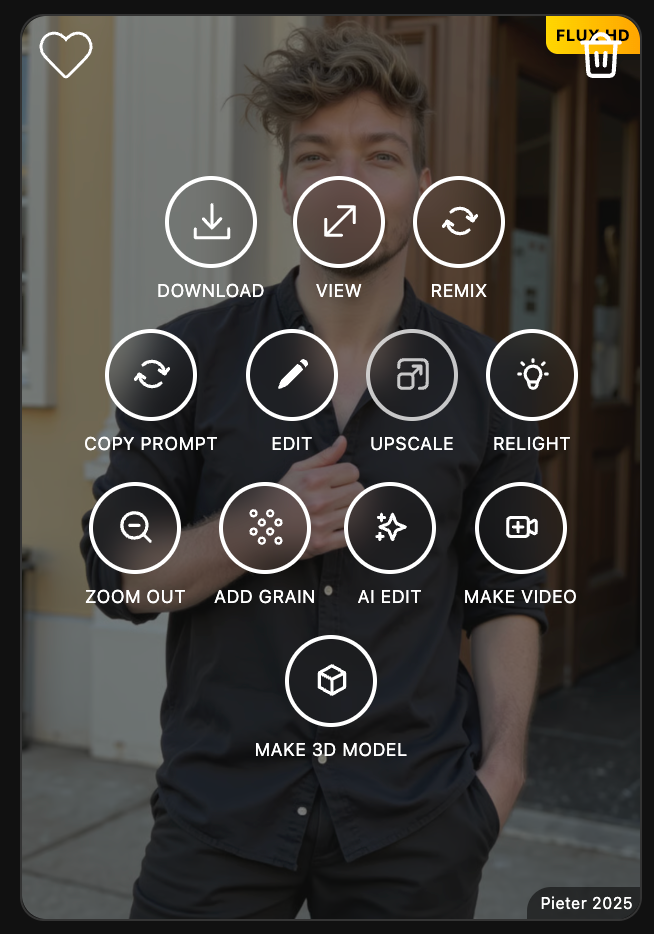
Generating a 3d model takes a few minutes, after it’s done you’ll see this:
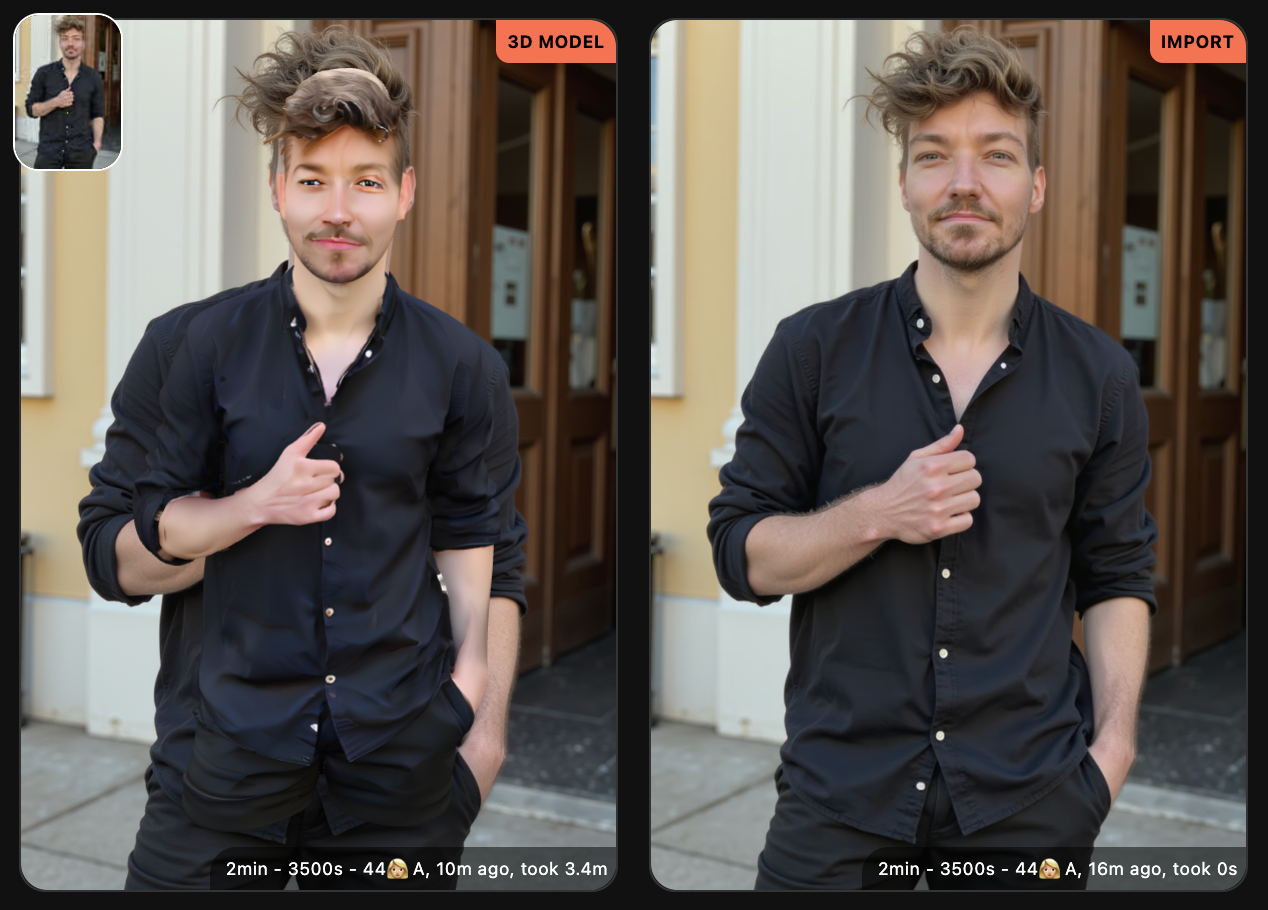
When opening your model you can move around it in the image viewer:
If you tap [ Download ] you can download a .GLB file of your model. Which most 3d software accepts.
Bonus: If you’re on an iPhone (and some Android phones), and you open the 3d model in the image viewer, there’s also an AR option (the 3d cube button in the bottom right) which lets you put your 3d model in the room with you!
✅ Virtual 3d fashion try-ons
✅ Gaming avatars or NPCs
✅ Product and character previews
✅ Social content with depth and movement
You don’t need 3D software, rigging knowledge, or photogrammetry. Just generate, click, and get your 3D model.
Try it now with [ Make 3d model ] inside Photo AI.
Yes!
You can upload any clothes and the model will wear them for you.
We use the latest state of the art try on models.
We have many customers like fashion designers and dropshippers that already use it everyday for Shopify stores. They can design clothes virtually and already put them on models without ever producing the clothes!
Even cooler, with the [ Make video ] feature you can turn your models wearing your clothes into videos!
Only for Premium and Ultra subscribers.
After every payment you get a receipt and invoice emailed to you by Stripe.
To report a bug, go to our bug board and press [ Create new post ].
Make sure you use the SAME email as on your Photo AI account when reporting a bug.
Usually bugs reported are fixed within hours. While feature requests if accepted might take a few days or weeks.

Yes, the Pro, Max and Ultra plans give you a commercial use license.
The Starter plan is only for personal use.
You can update your invoice details directly from your account:
– Log in to Photo AI
– Click the Photo AI logo (top left navigation)
– Go to Billing
– You’ll be redirected to the Stripe Customer Portal
– Under Billing Information, click Update information and update your name, address, and Tax ID
– Save your changes — future invoices will use the updated details
Notes:
– Changes apply to future invoices only (past invoices can’t be edited due to regulation)
– Make sure your Tax ID format matches your country’s requirements
– If you don’t see the option, ensure you’re logged into the correct account
P.S. Hab noch einen schönen Tag noch! Ich weiß, du bist Deutscher oder Österreicher. :D
You can now create talking AI videos with Photo AI.

You first take an AI photo and then if you like the look of one, hover over the photo and tap [ Make video ]. It will then process for a few minutes and turn your AI photo into a lifelike moving AI video, like below.
Tip: if you want to make your video look sharper, first [ Upscale ] it before making a video.
You can try a few times, and then when you have a video that you like the look of, again hover over it and tap [ Make talking video ].
A popup will show up to enter the script you want your AI model to speak.

It will then start processing and after a few minutes, your talking AI video will show up in your gallery like this:
Very fast. Right now it’s about 15 seconds! And you can take many photos in parallel especially on the higher plans.
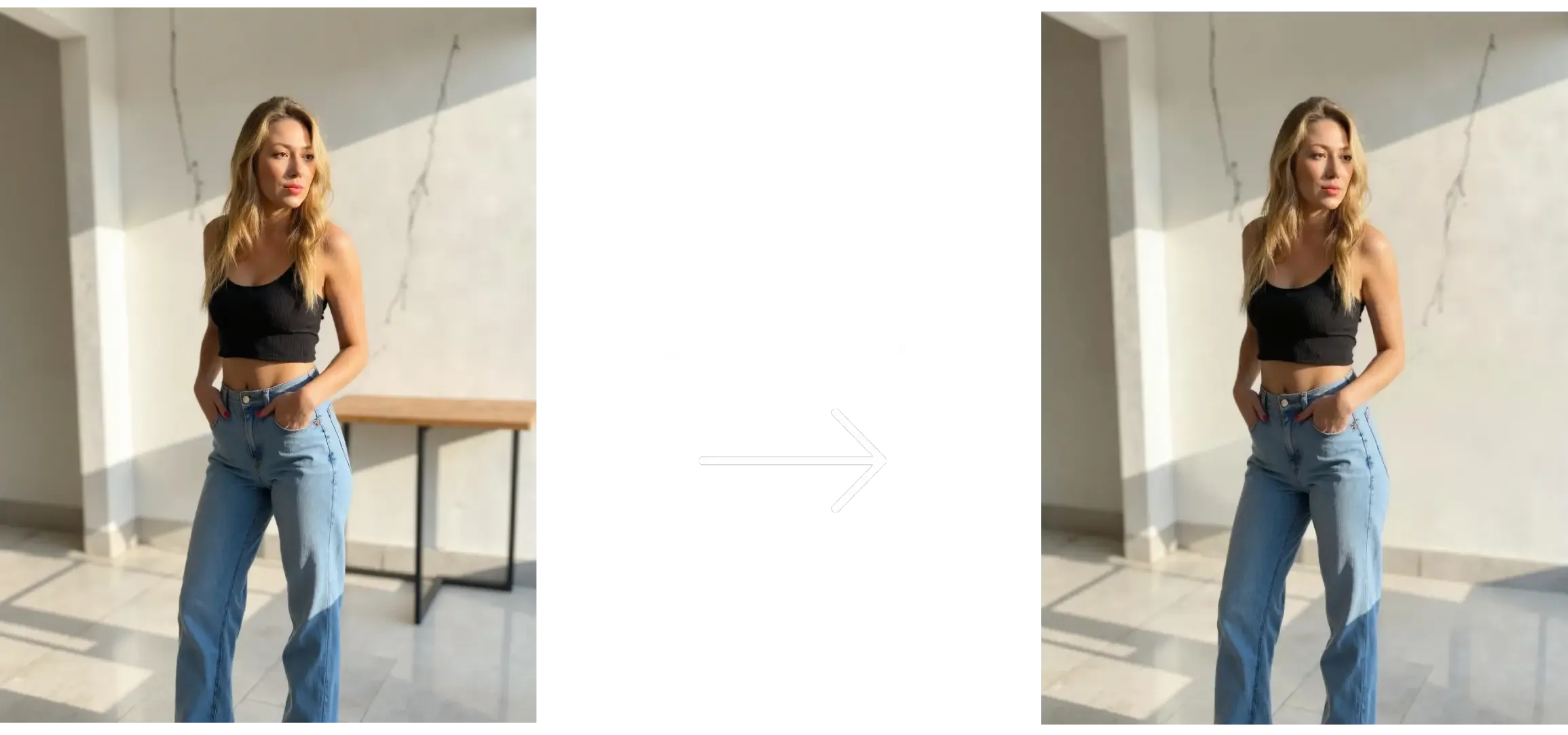
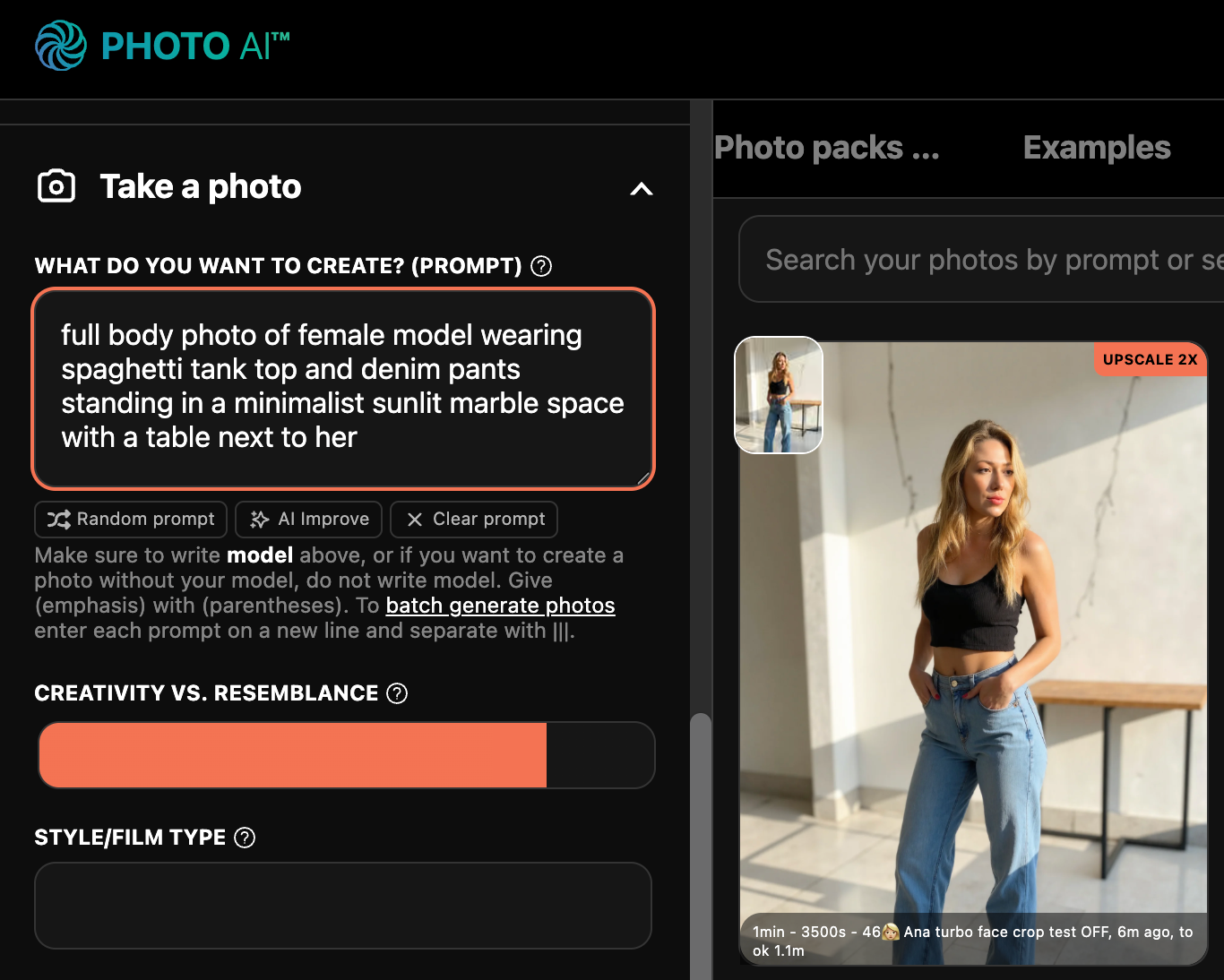
Sometimes your AI-generated photos look great… except for one annoying object in the background — maybe a table, a person, or something random that ruins the vibe. With Photo AI, removing those is easy.
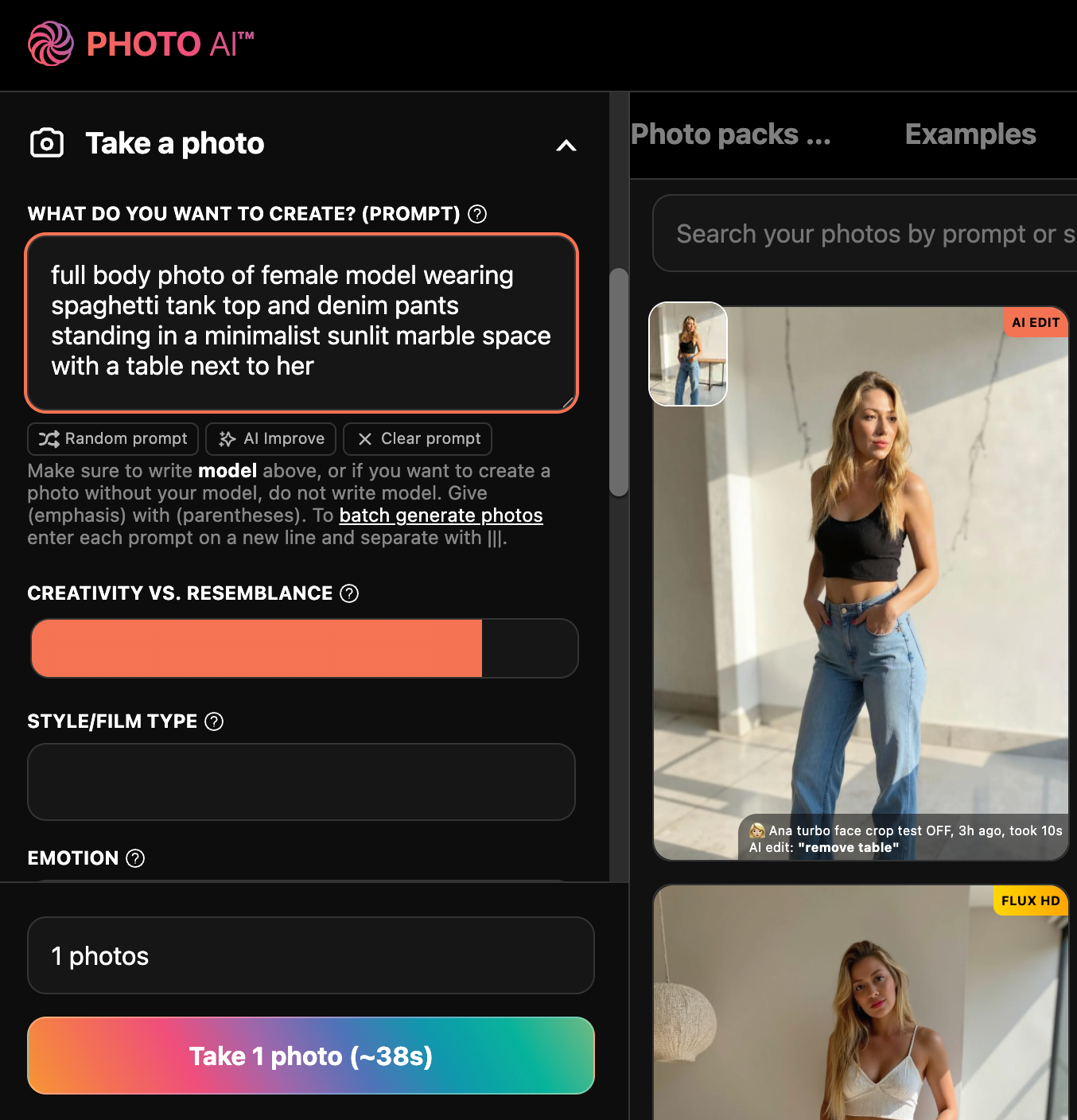
You can either take a new photo with Photo AI:
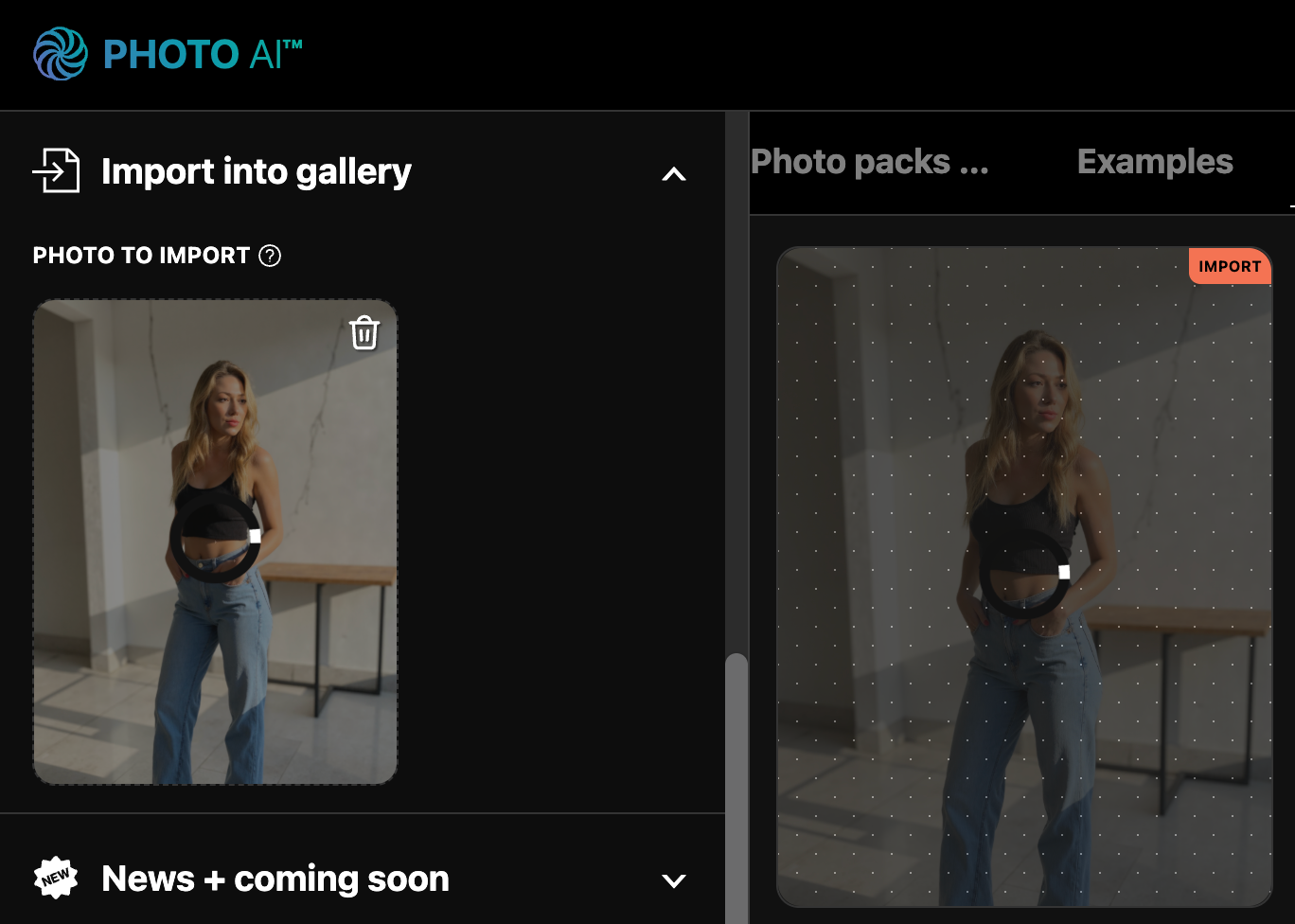
Or import your own photo:
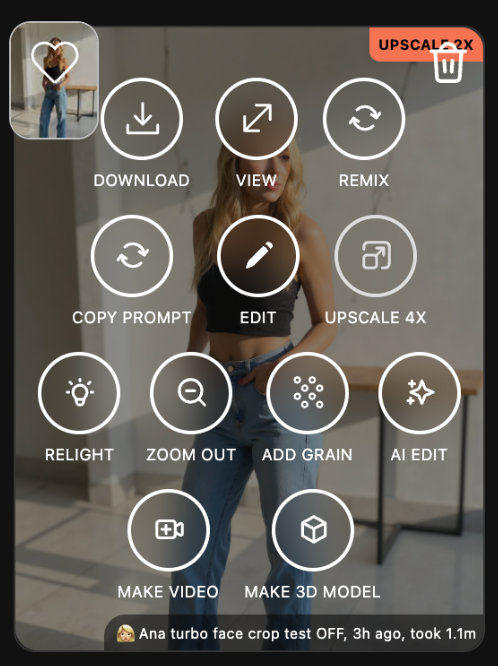
Tap and hover on the photo you want to edit:
Now tap [ Magic Edit ]:
In the popup, describe what you want to remove. For example: “remove table” in the background remove the text on the wall
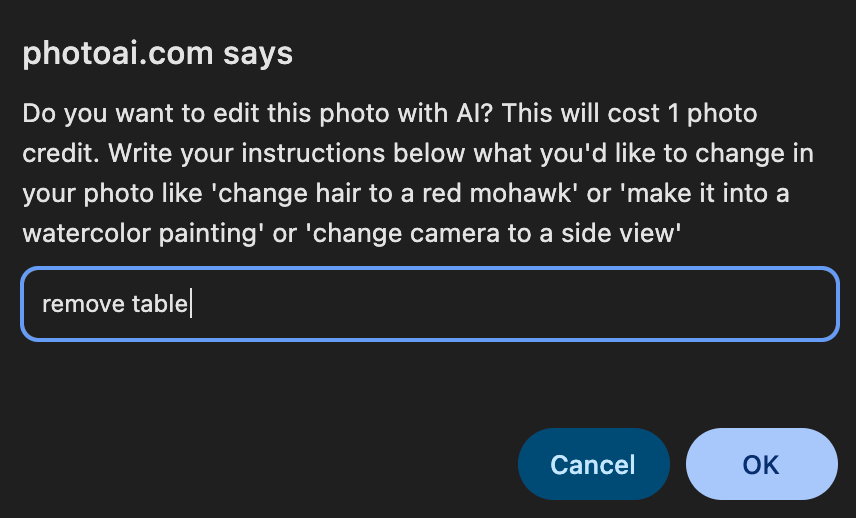
Hit enter and wait 10–20 seconds. Photo AI will automatically edit the photo and show you the result.
There is your final photo, without the table!
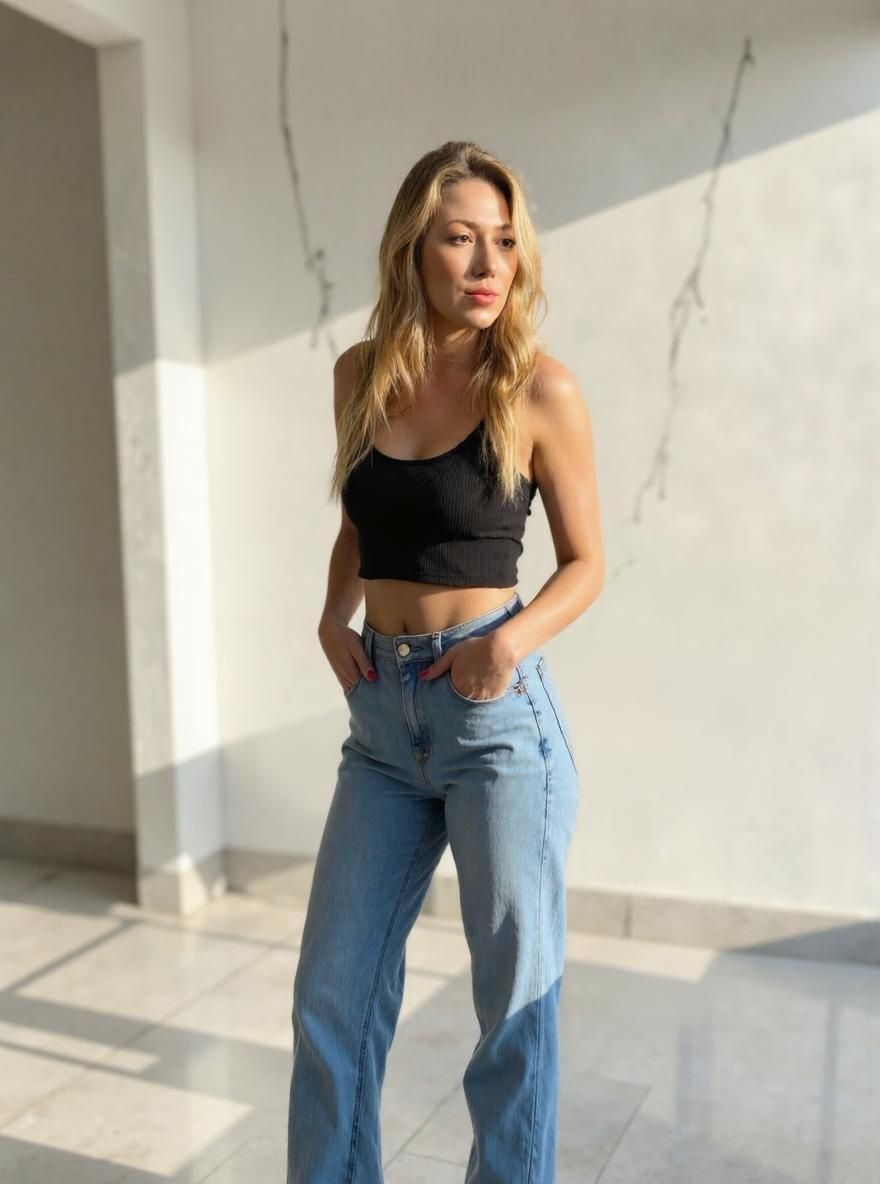
This is perfect for cleaning up your AI shots before posting, especially when you’re working with fashion shoots, product displays, or portraits.
Try [ magic Edit ] now on Photo AI and make your images clean and distraction-free!
The best is to self-refund your account, then cancel it, then sign up again with a new email and your correct card.
We cannot refund you or switch your card ourselves.
Want MrBeast-style thumbnails without hiring a designer? With Photo AI, you can generate custom YouTube thumbnails in minutes featuring yourself anywhere using AI.
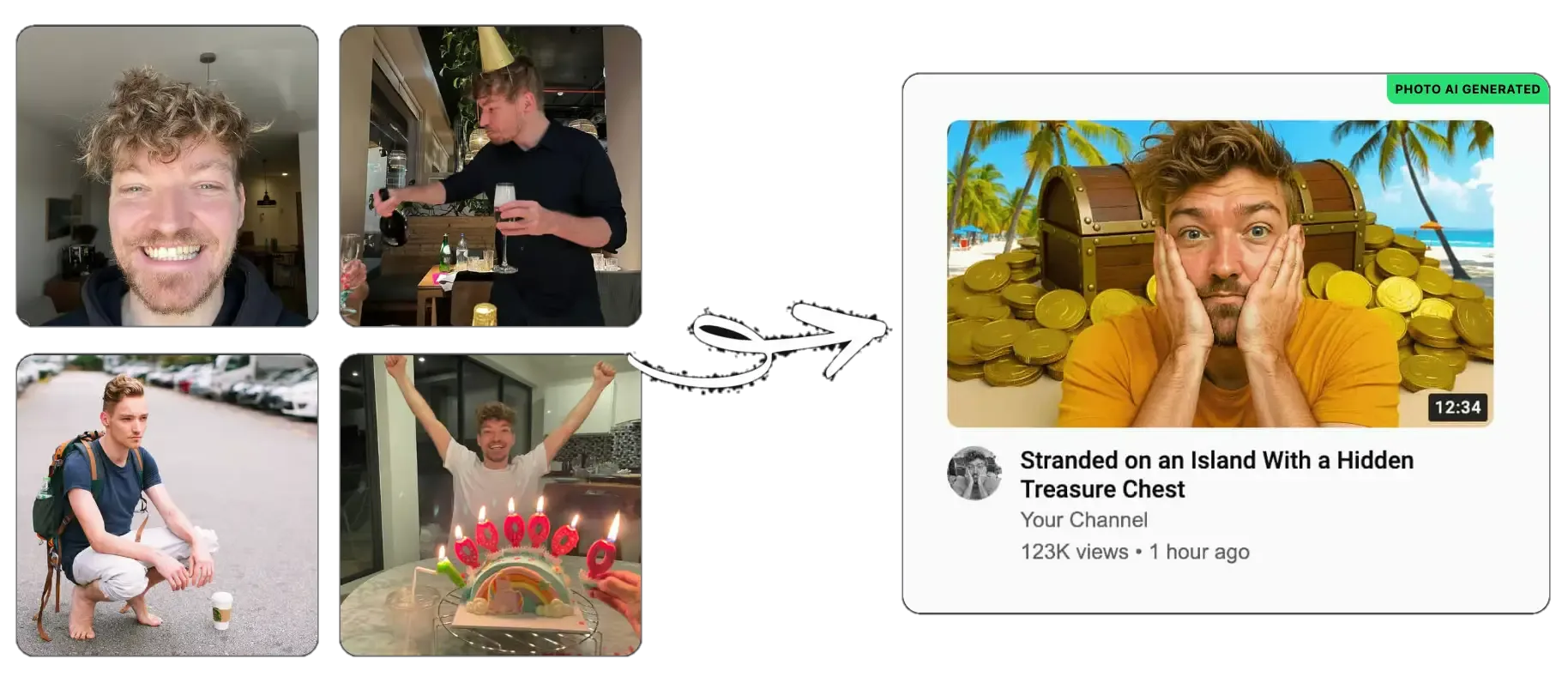
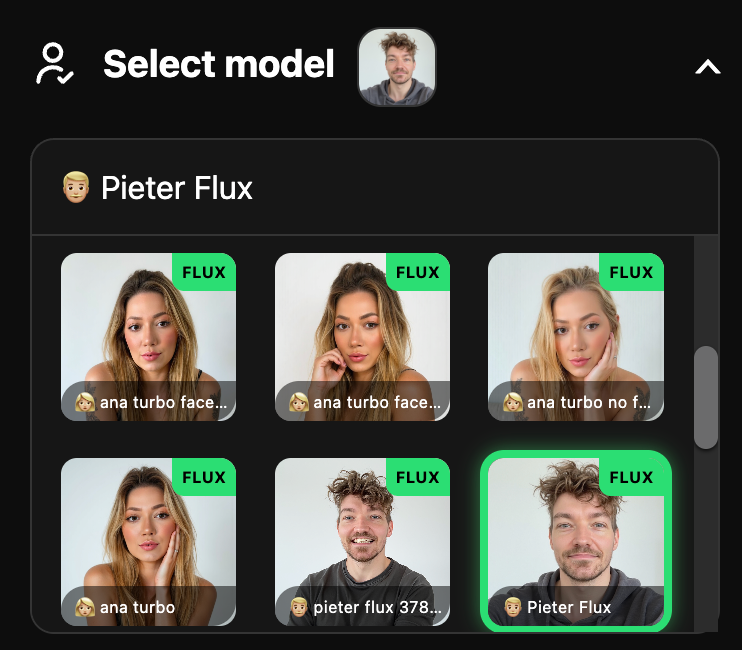
Start by select an existing one you’ve already made:
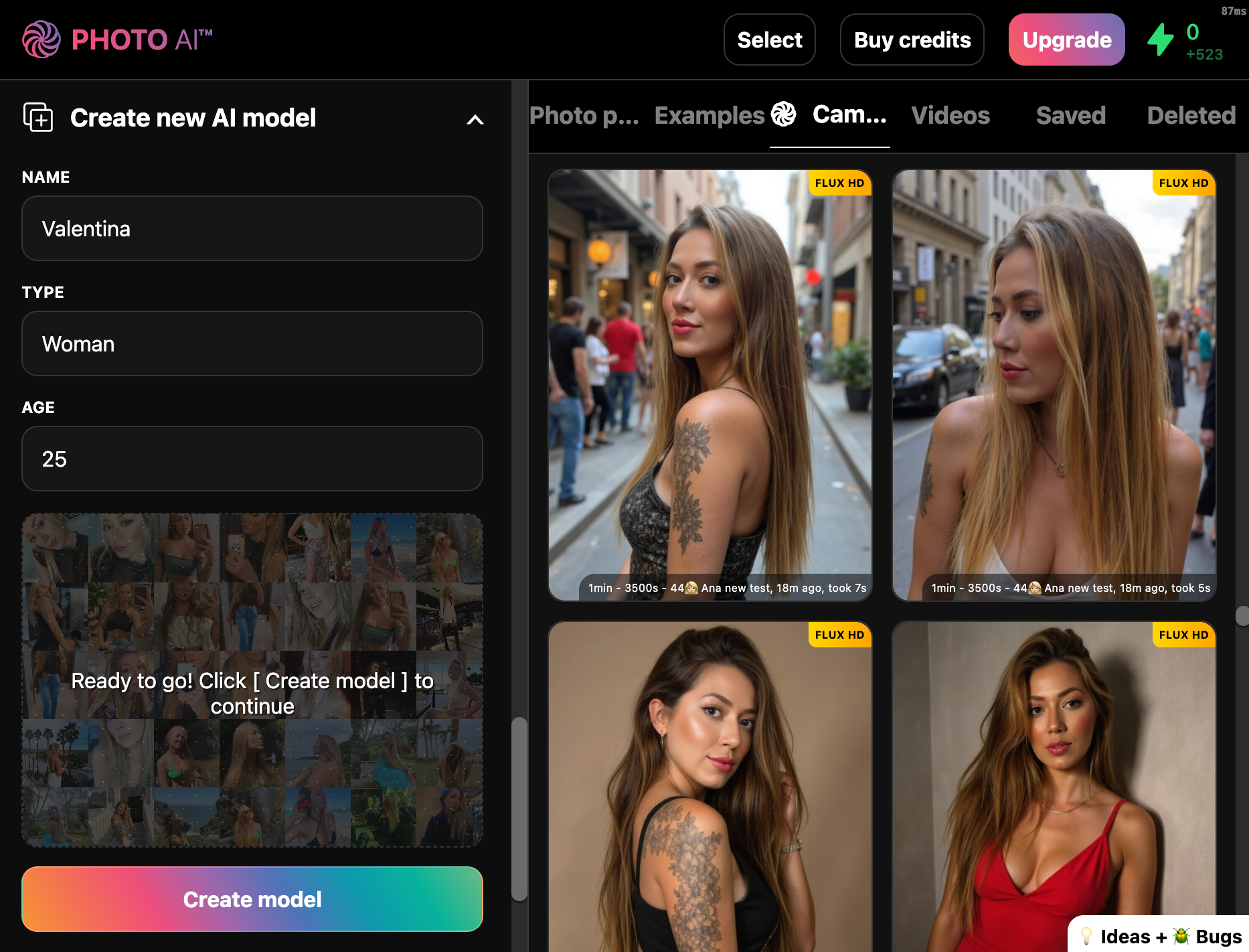
Or create a new model first:
Go to [ Create new AI model ] in the sidebar. Upload around 20 photos of your model, this could be yourself or someone you’ve hired.
In about a minute, Photo AI will train a photorealistic, personalized AI model that looks just like them.
You can reuse this model for photos in the future.
Scroll down and click on the AI Thumbnail Tool photo pack. This is pre-optimized for bold facial expressions and high-conversion poses perfect for YouTube.
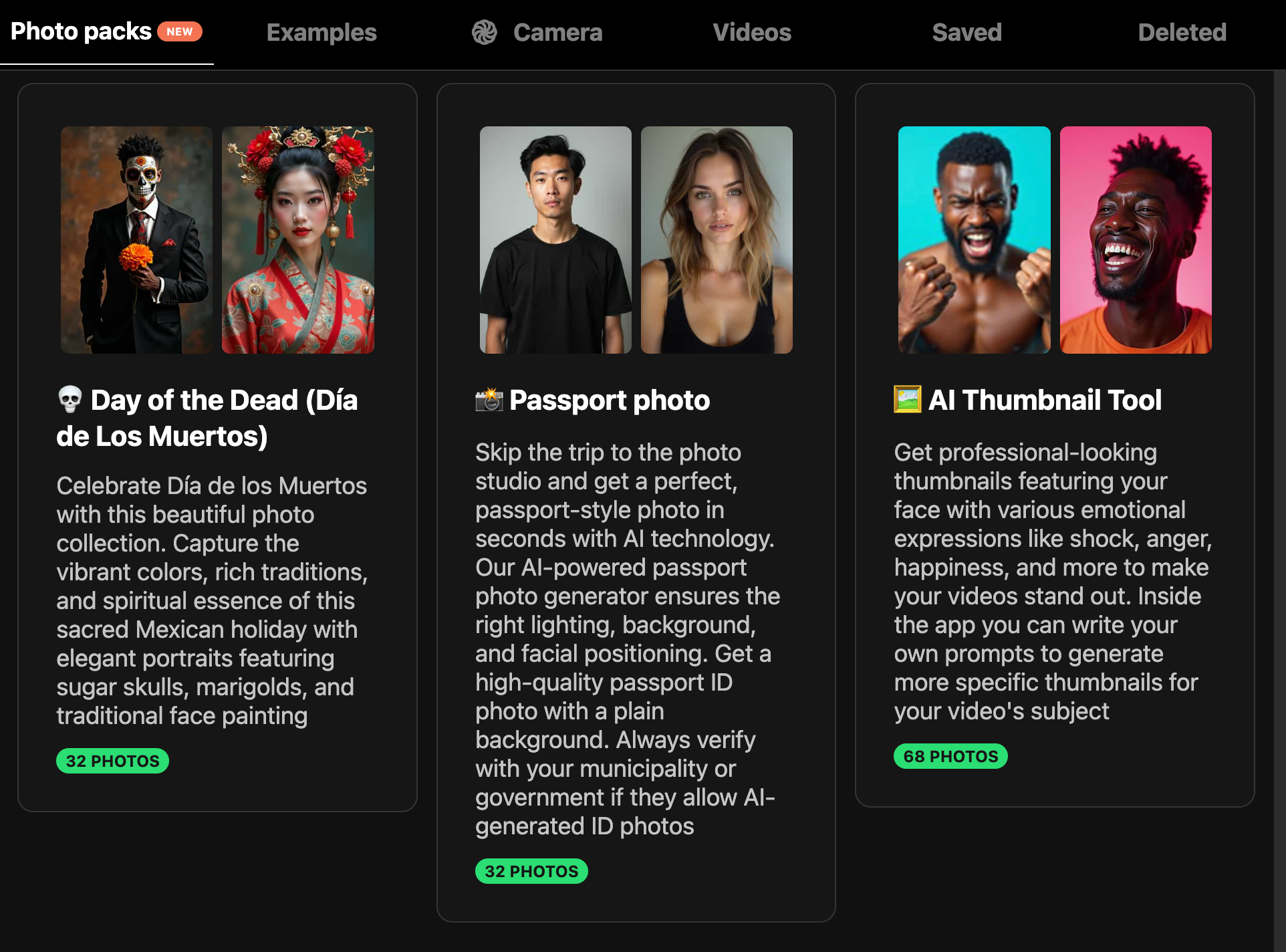
Tap the photo pack and confirm:
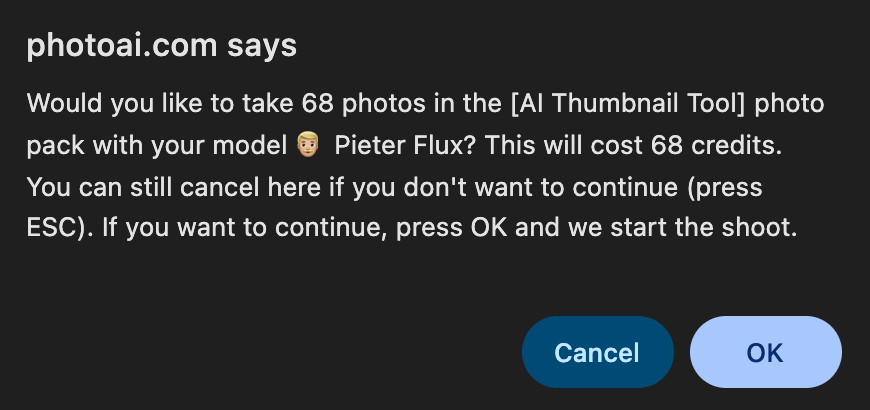
It will now start running the photo pack and generating AI thumbnails. Once it’s done it’ll look like this:
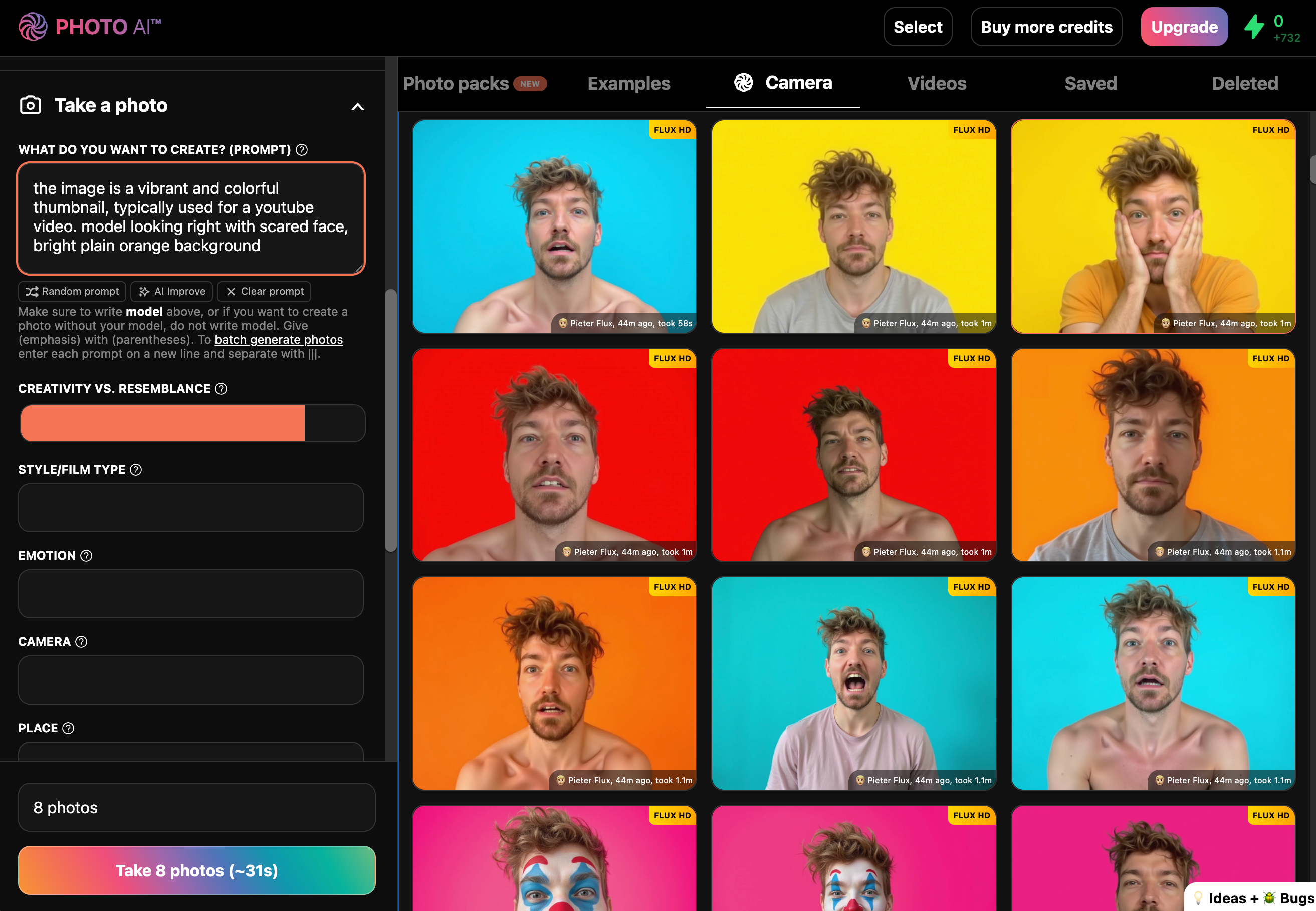
On purpose most images have bright colorful backgrounds that are easy to remove. Just this color as a background doesn’t make the thumbnail very interesting though.
Pick a photo you like, maybe upscale it:
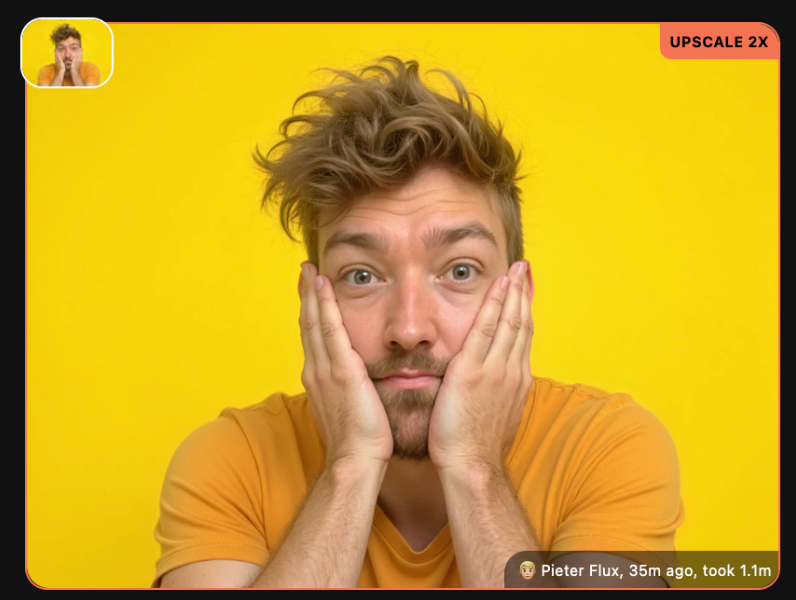
Then hover over it, and tap [ Magic Edit ]:

Now type what you want to see for your thumbnail:
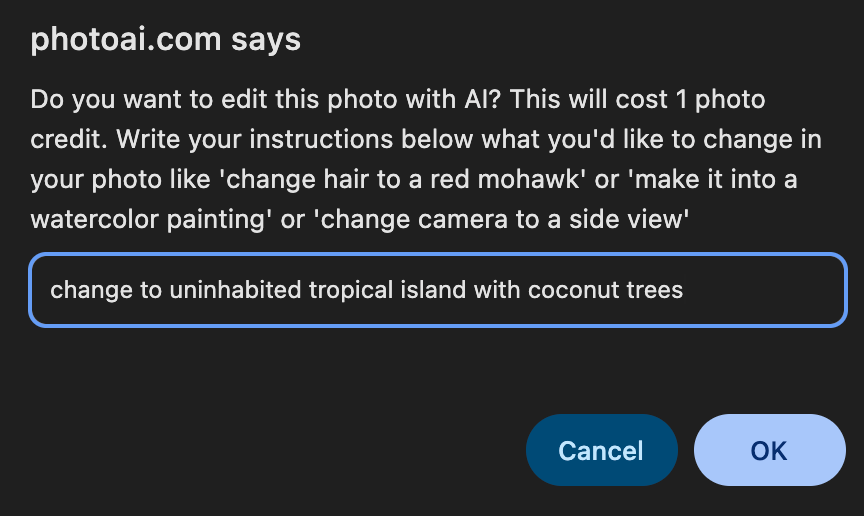
Examples:
“change background to a green swamp in a horror movie”
or
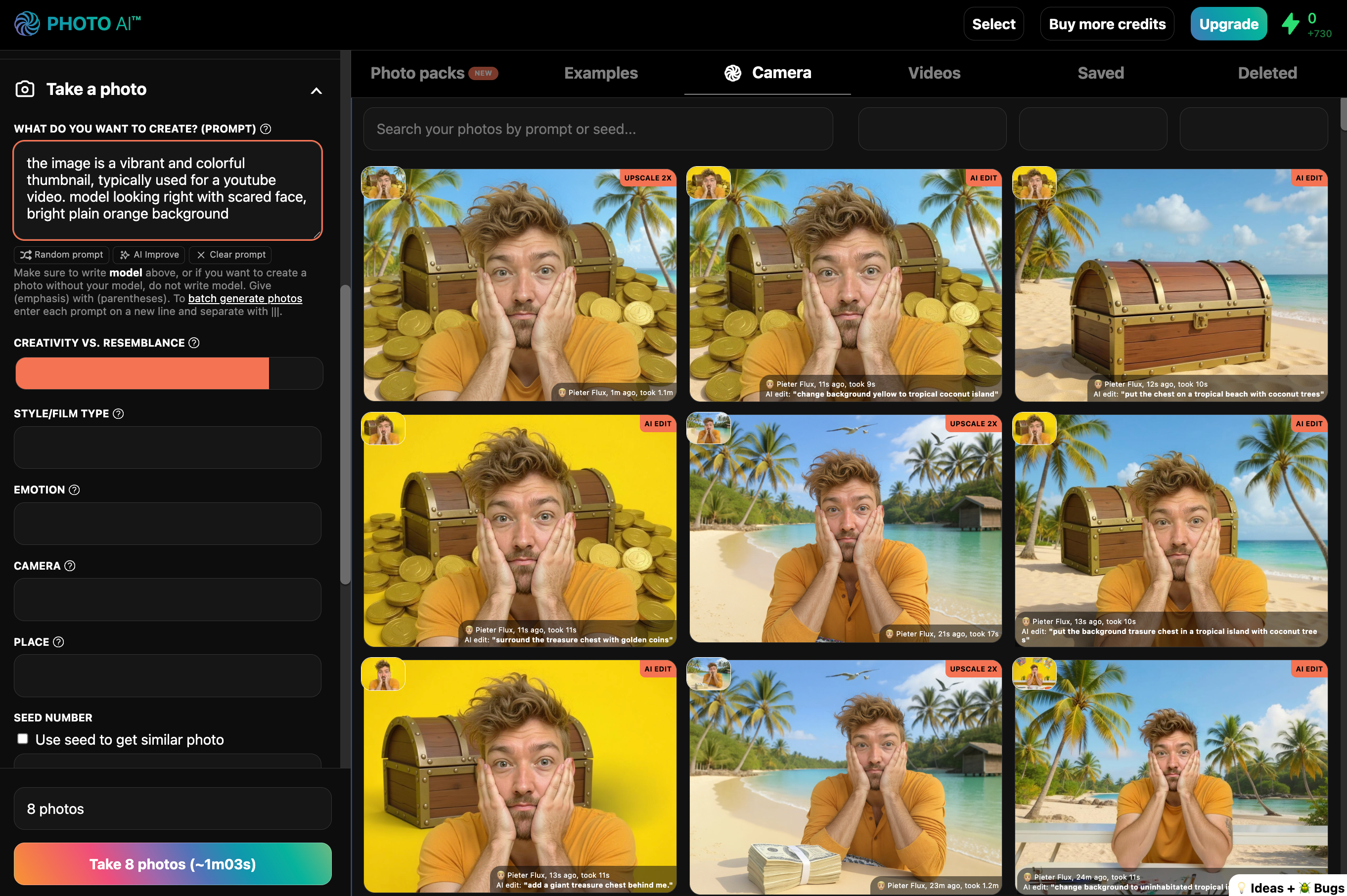
“add a giant treasure chest with golden coins behind me”
or
“change to uninhabited tropical island with coconut trees”
Your thumbnail is ready to go:
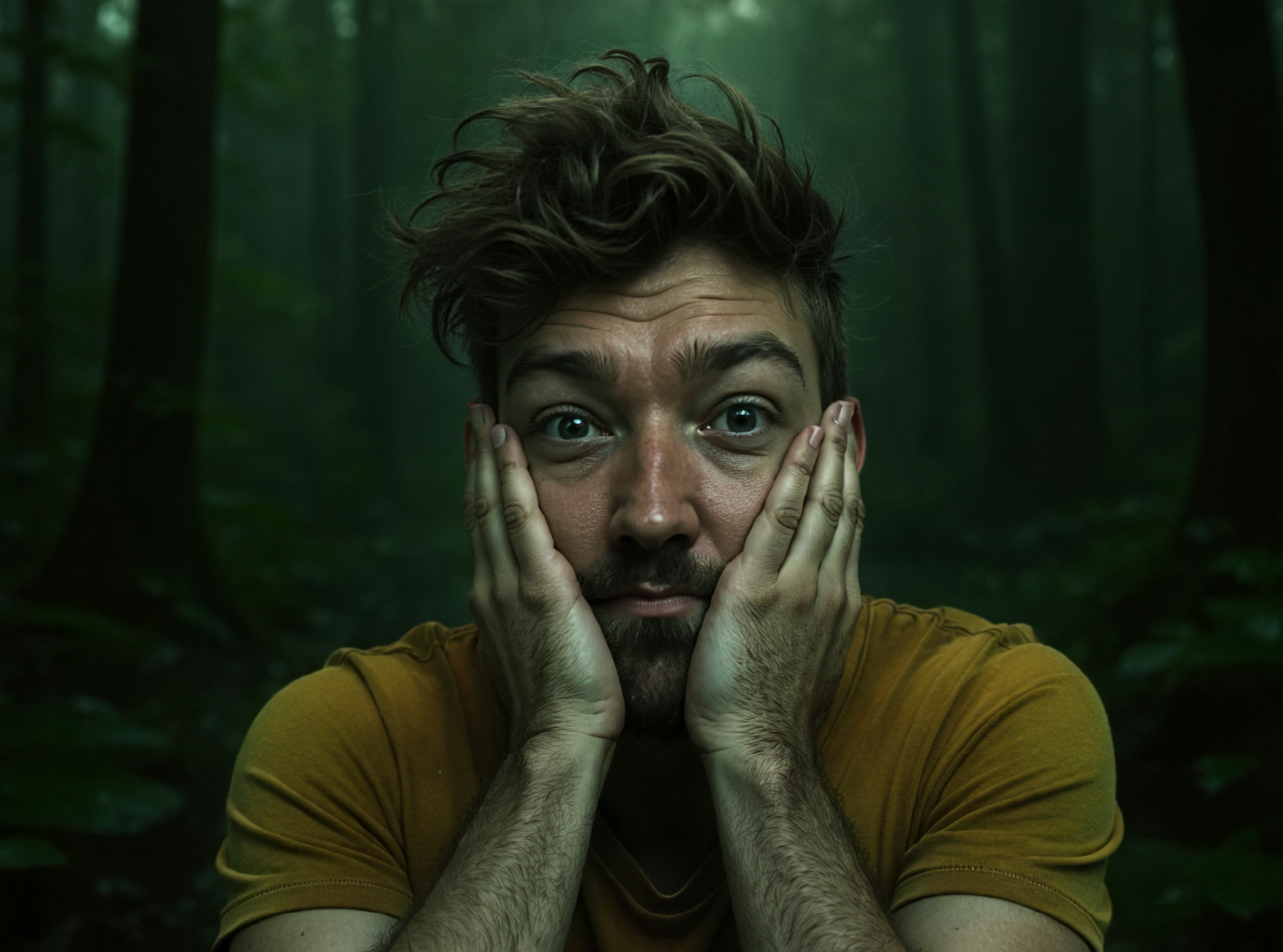
“change background to a green swamp in a horror movie”
“add a giant treasure chest with golden coins behind me”

“change to uninhabited tropical island with coconut trees” (this one had one Zoom Out before)
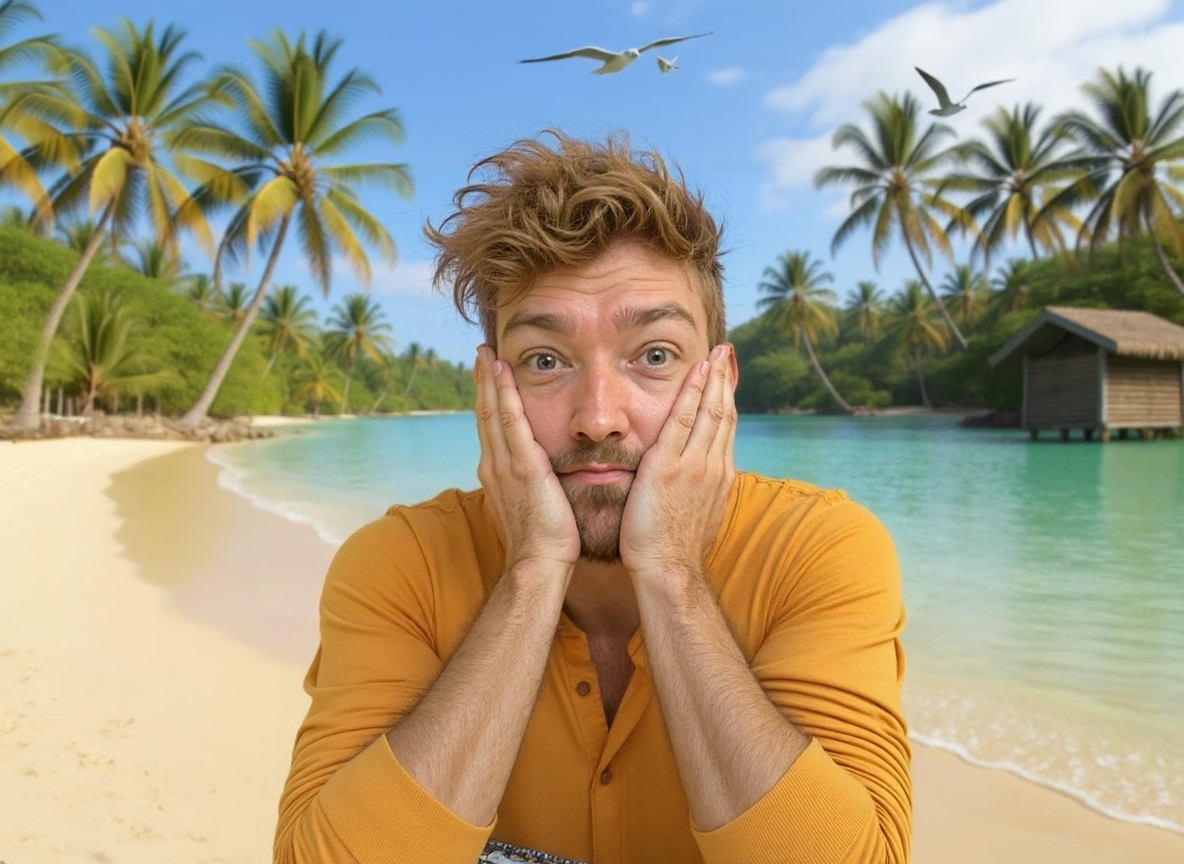
Optional: hit [ Upscale ] to boost resolution and get ultra-sharp detail, and [ Zoom out ] to show more of the full body of the model.
It usually takes a few edits and tweaks to get exactly what you want:
And here’s how it looks on YouTube:

No Photoshop, no designers — just viral thumbnails, instantly.
Try it now on Photo AI.
We accept JPG, PNG, WebP and AVIF files only. HEIC is not supported now, so you'll have to convert those to JPG first
Please allow up to 3 business days for the card issuer to process the credit and for the funds to appear in your account.
Right now you cannot. You have to cancel your current subscription and create a new account.
$19per month
Get started with basic AI photos, create your first model, and begin your AI photography journey
Save with yearly (6+ months free) ↗
$49per month
Boost your creativity with higher quality photos, parallel processing, and commercial usage rights
Save with yearly (~5 months free) ↗
$199per month
Get our highest level of access with ultra-fast processing and enterprise-level performance
Save with yearly (6+ months free) ↗
$9billed annually $99
6+ months free
per month
Get started with basic AI photos, create your first model, and begin your AI photography journey
View monthly billing ↗
$29billed annually $349
~5 months free
per month
Boost your creativity with higher quality photos, parallel processing, and commercial usage rights
View monthly billing ↗
$99billed annually $1199
6+ months free
per month
Get our highest level of access with ultra-fast processing and enterprise-level performance
View monthly billing ↗

By uploading, you certify you own all the rights to this audio and voice.
One talking video costs 5 credits per 150 characters. Uploading your own audio costs 5 credits. And +100 credits if from an image as we first make a video of your image.
Powered by 
Each enhancement costs 1 credit
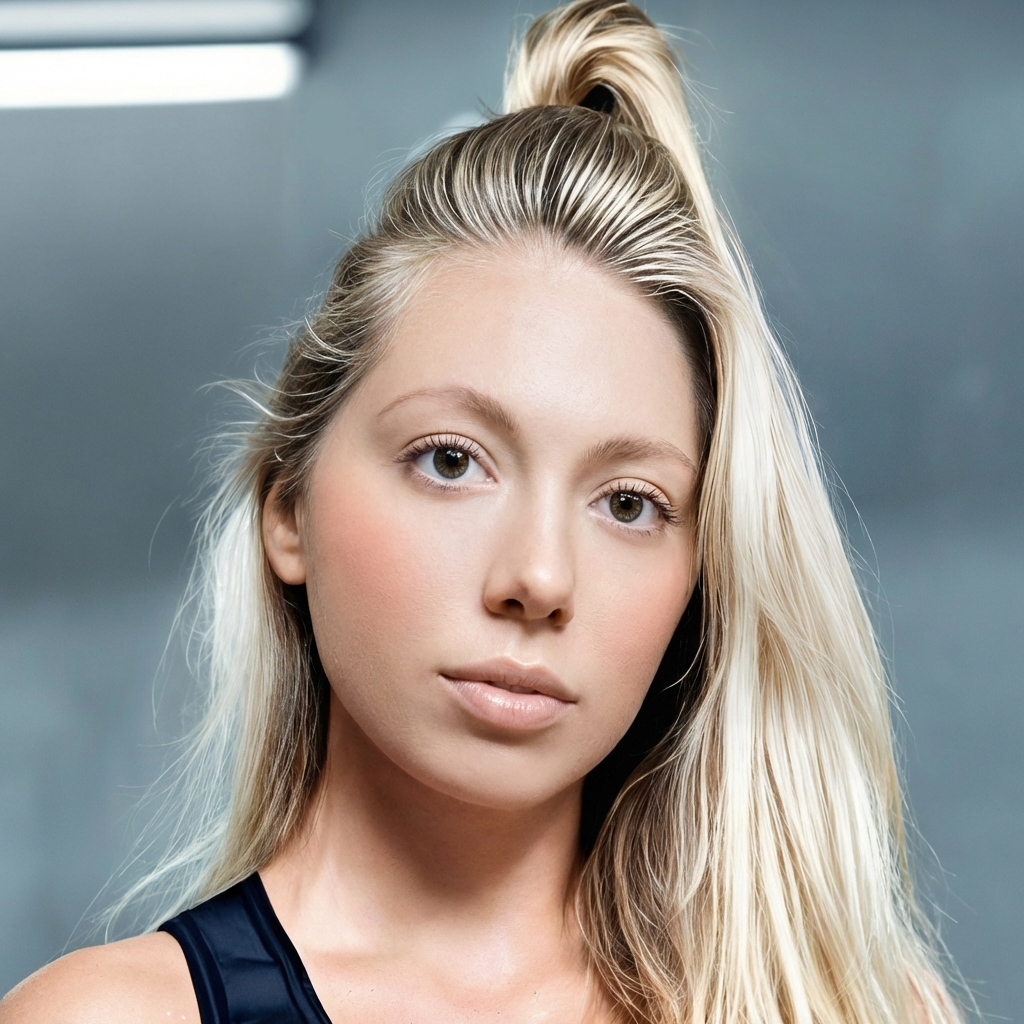
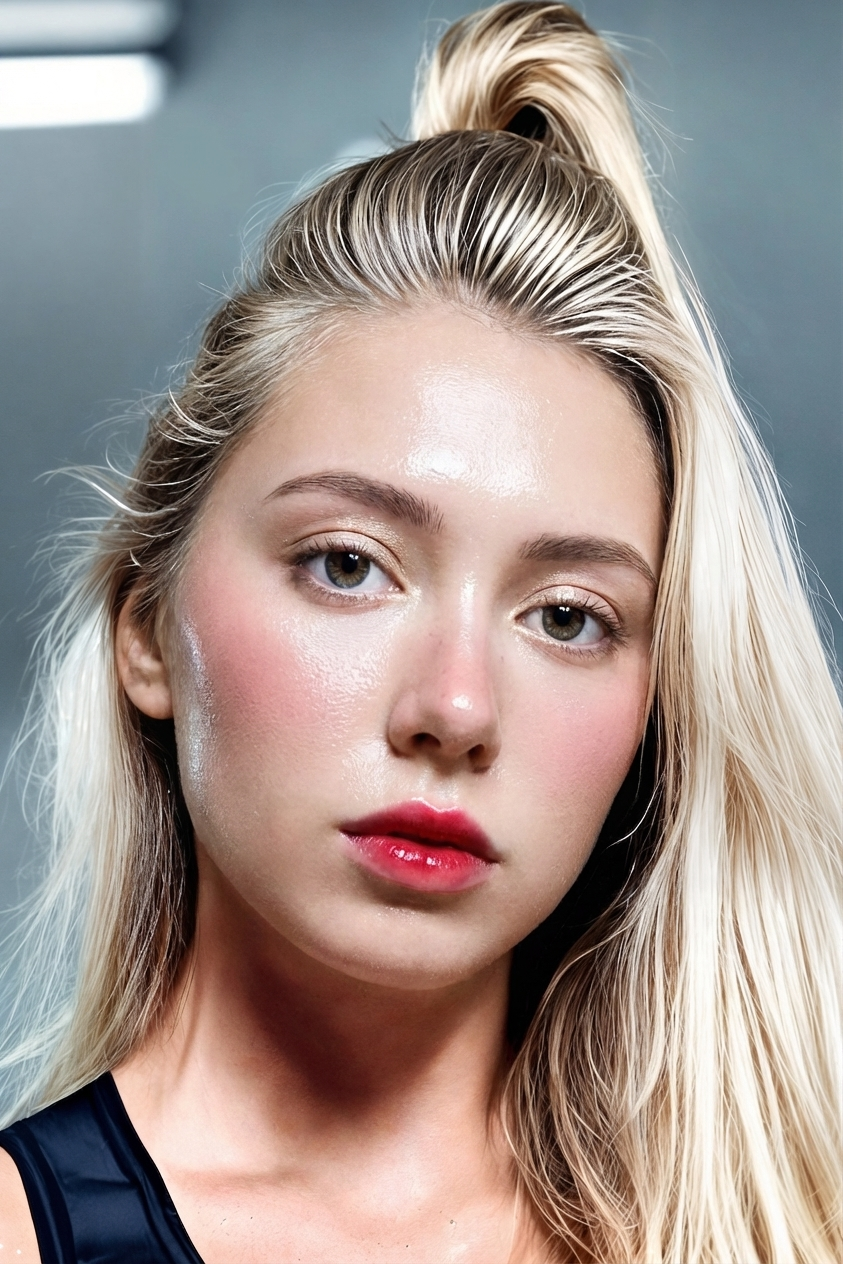
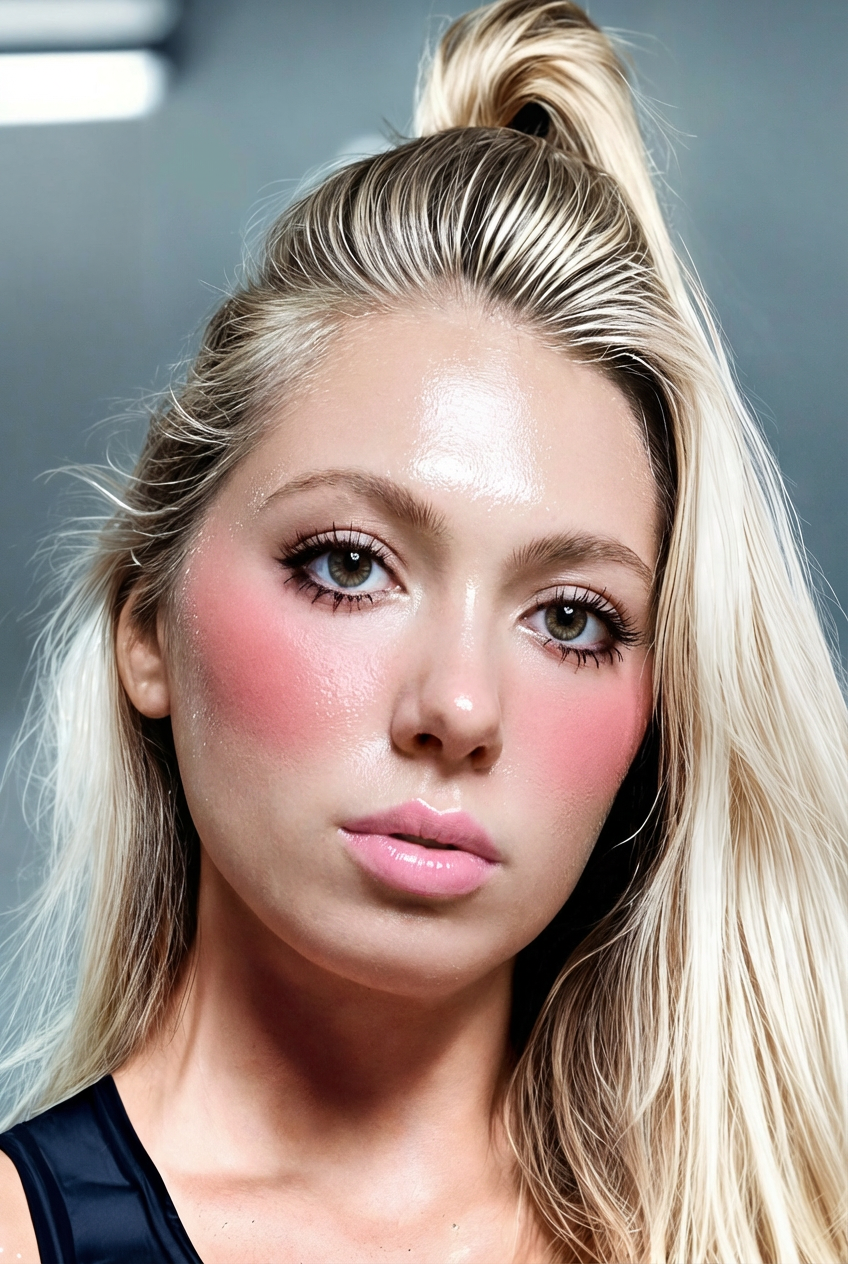
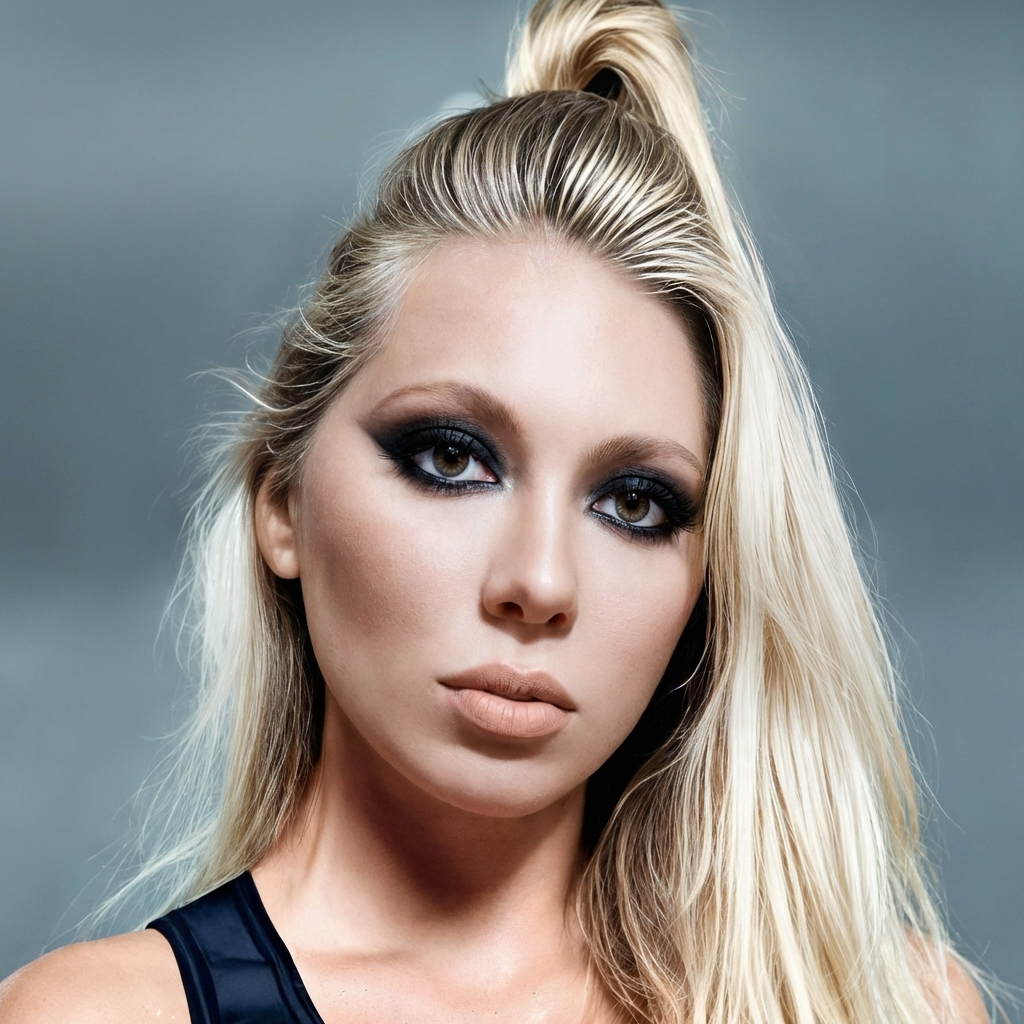
Each enhancement costs 1 credit
One magic edit costs 5 credits.
Your currently selected character is used for edits.
To replace people, select their model, brush them out and use "model" as prompt.
One crop costs 1 credit
 Video
Video Upscale
 Edit
Edit Remix
Remix Faceswap
 Remove BG
 Download
 Publish Copy prompt
 Relight
 Zoom out
 Add grain Remove BG
 Crop
Crop Talking video
 Make 3D
 Enhance body Relight Add grain Remove BG Make 3D Zoom out Talking video Enhance body Crop
 Hold product
 Google Lens Download
 View Remix Faceswap
 Copy prompt Magic edit Upscale Make video
 Use as mocap Publish Download
Remix
Faceswap
Make videos
Magic edit
Use as mocap Publish Download
Remix
Faceswap
Make videos
Magic edit
 Combine
Upscale
Zoom out
Combine
Upscale
Zoom out
 Delete
 Fashion
 Dating
 Professional
 Aesthetic
 AI Tools
 Fun
Fun Retro
Retro Creative
 Social Media
 Holidays
 Travel
 Events
 Fitness
 Watermark Remover
 AI Headshot Generator
 Photo Restoration
 Collage Maker